Introduce Important Brand or Product Features
Use feature 3 on your homepage to explain the strongest qualities of a featured product, service, or brand concept around one clear visual image.

Show one central image with interactive feature callouts, animated connector lines, expandable details, and a mobile slider to make product storytelling easier.
 Interactive Feature Callouts
Animated Connector Lines
Responsive Mobile Slider
Interactive Feature Callouts
Animated Connector Lines
Responsive Mobile Slider 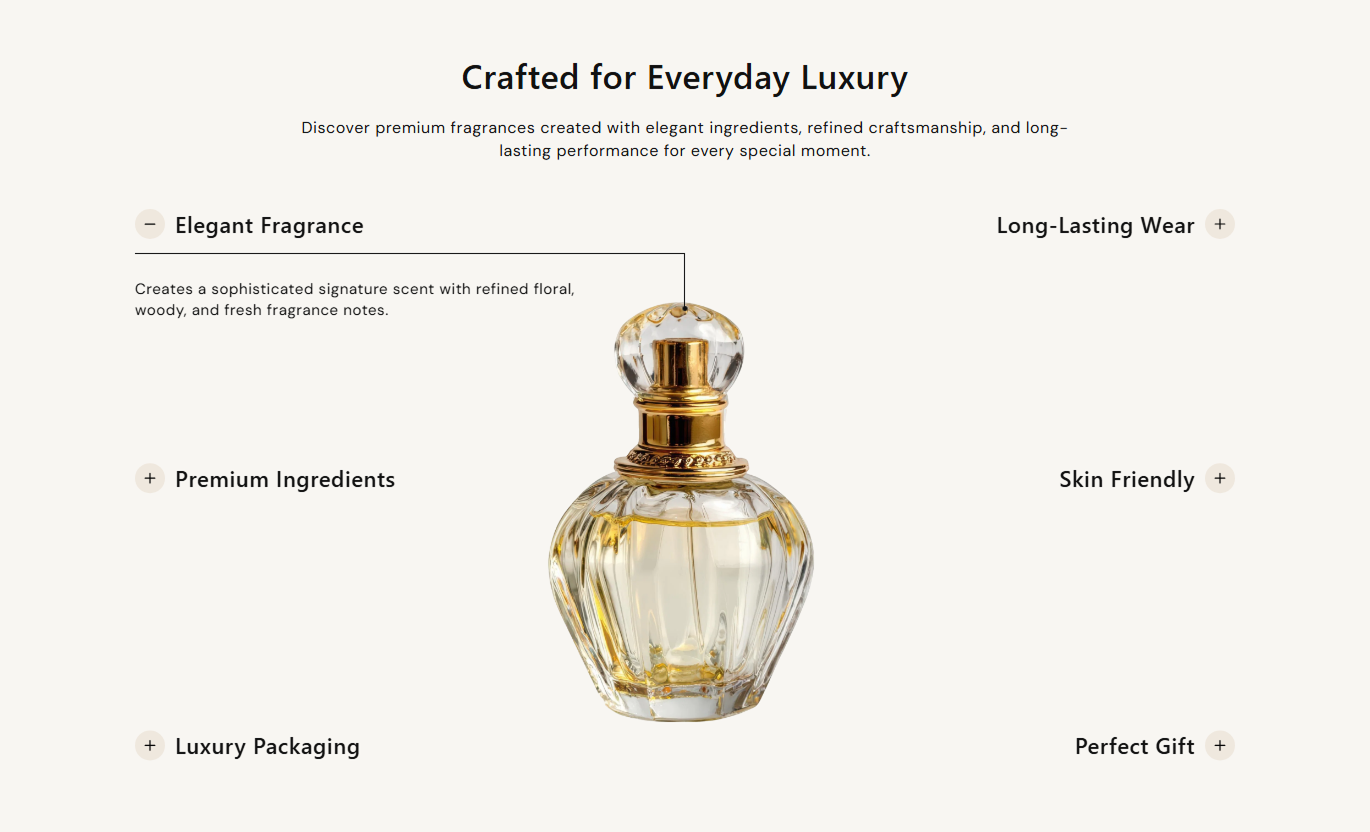
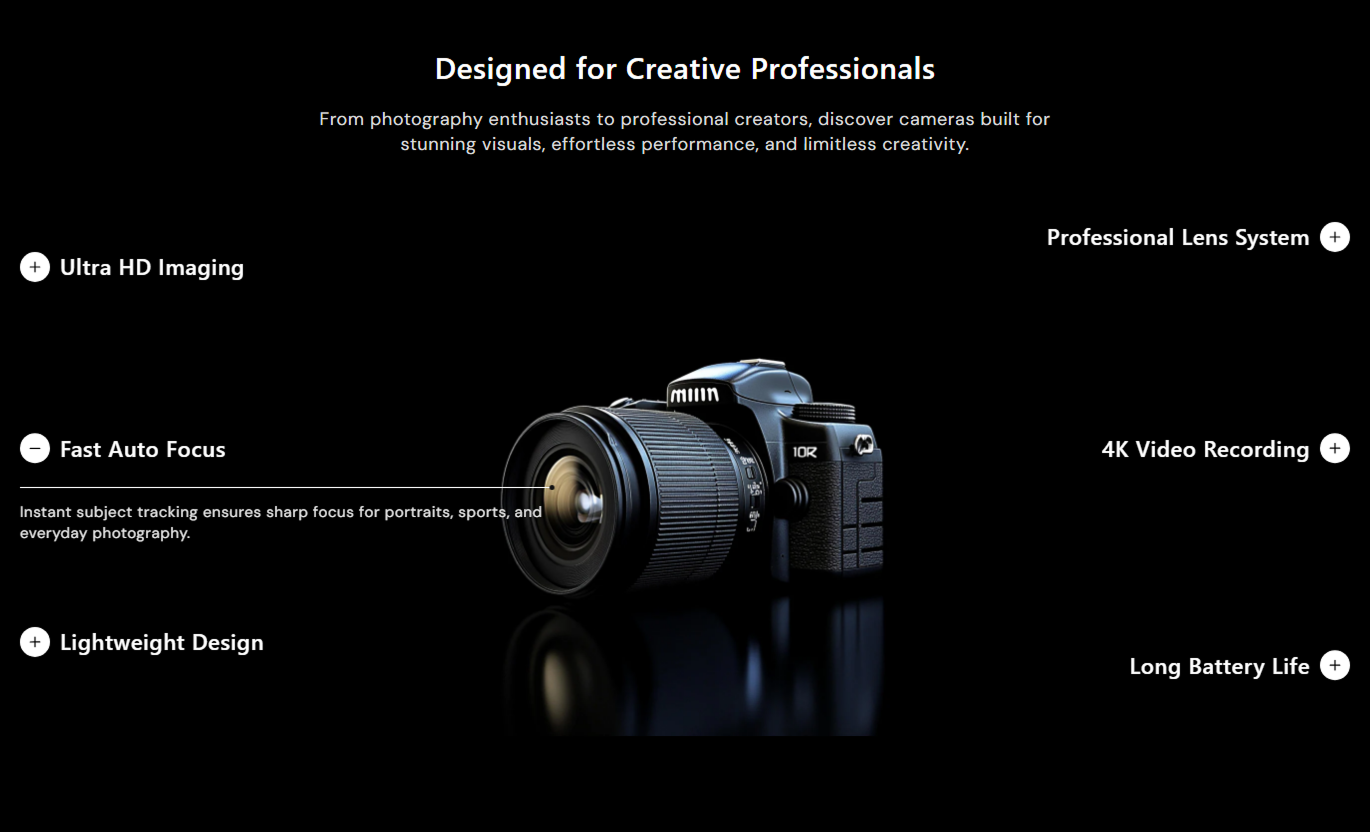


Highlight important product details with clickable feature points, animated visual connections, flexible content placement, and responsive mobile browsing.

Use one main image as the visual focus of the section and connect individual feature explanations around it.

Add as many as six feature blocks, each with its own heading, rich text description, and independent positioning controls.

Let shoppers click feature headings to reveal the related description while updating the matching connector line and point.

Use animated lines and dots to visually connect feature content with different areas of the main image.

Adjust each feature's vertical position, connector width, height, point position, and line direction for desktop layouts.

On smaller screens, feature blocks become a looping fade slider with previous and next arrows for easier navigation.

Control how many text lines appear in each feature description so callouts remain compact and easy to scan.

Customize the mobile arrow's size, colors, backgrounds, borders, hover states, and overall visual styling in the theme editor.
Control the main image, feature callouts, connector lines, typography, mobile navigation, spacing, colors, and section width.

Applies to the whole section
Add the main heading displayed above the feature area.
Section HeadingAdd supporting rich text below the main heading.
Section ContentChoose how the heading and description are aligned.
Content AlignmentUpload the central image used for feature callouts.
Main ImageChoose Small, Medium, or Large desktop image height.
Image HeightAdjust heading, content, and feature text font sizes.
Typography ControlsCustomize section, text, icon, line, dot, and arrow colors.
Color ControlsAdjust the previous and next arrow size for mobile navigation.
Mobile Arrow SizeSet separate top and bottom padding for desktop and mobile.
Section PaddingUse a full-width layout or define a contained maximum width.
Section Width
Applies to each feature
Add the title shown for the individual feature callout.
Feature HeadingAdd rich text explaining the selected product feature.
Feature ContentSet the vertical position of the desktop feature content.
Content PositionChoose how many lines of description text remain visible.
Content Line LimitControl desktop connector line width, height, and point position.
Desktop Line PositionChoose whether the connector line extends upward or downward.
Line DirectionSet separate connector width and height values for mobile.
Mobile Line PositionUse interactive image callouts on key Shopify pages to visually explain product details, materials, design elements, benefits, or campaign highlights.
Use feature 3 on your homepage to explain the strongest qualities of a featured product, service, or brand concept around one clear visual image.
Explain several key features without adding a long text sectionCreate a visual focal point around one important product imageHelp visitors understand product value before browsing deeperUse interactive callouts to keep homepage content engagingKeep feature navigation simple on smaller mobile screensPlace the section on the collection pages to explain shared materials, design details, technologies, or benefits that apply across the product range.
Communicate shared collection qualities in one visual sectionExplain materials or design details without repeating product copyAdd visual context before shoppers compare individual productsHighlight important collection benefits around one imageKeep detailed explanations separate from the product gridUse feature callouts around a product image to explain materials, functions, construction details, or benefits shoppers may not notice from standard imagery.
Point shoppers toward specific details within the product imageExplain functionality directly beside the relevant visual areaReduce the need for long technical product descriptionsBreak complex product information into smaller feature pointsOffer a simpler mobile slider for detailed product explanationsUse Features With Accordion on landing pages to explain campaign highlights, product innovations, service benefits, or launch details in a more interactive visual format.
Turn campaign details into an easier visual experienceHighlight several launch features around one main imageGuide attention toward specific product or campaign detailsKeep supporting information organized into separate calloutsCreate a responsive story that works on desktop and mobileConnect feature explanations directly to a central image so shoppers can explore important details without reading a long block of product information.
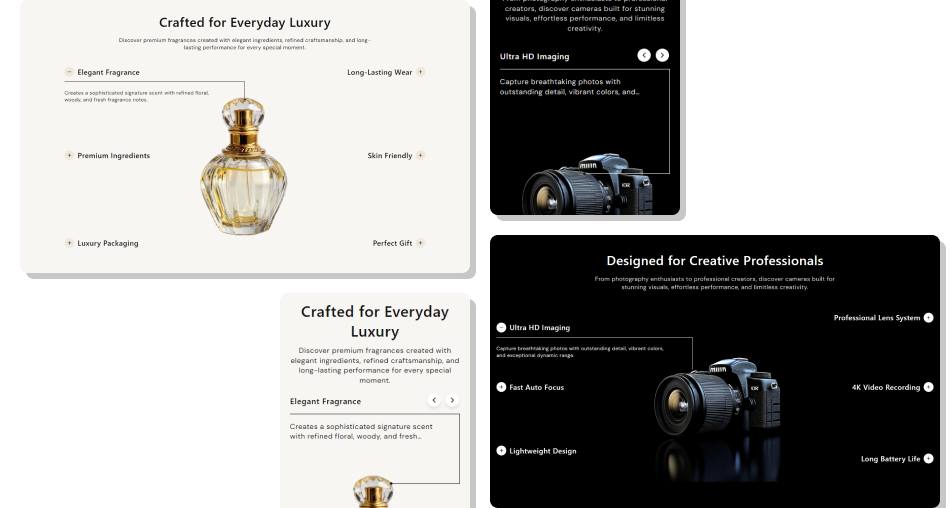
Use visual callouts, animated connectors, and focused descriptions to make detailed product information easier to understand and browse.
Connect feature descriptions directly to a central imageAdd up to six individual feature explanation blocksReveal content interactively instead of showing everything at oncePosition each connector line around the image independentlyControl the amount of visible text in every feature blockUse mobile arrows to navigate through features one at a timeMatch colors, typography, spacing, and icons to your theme Use a clear image with enough space around important details
Keep each feature heading short and easy to understand
Position connector dots close to the detail they describe
Limit descriptions to the information shoppers actually need
Test every callout and mobile slide before publishing
Use a clear image with enough space around important details
Keep each feature heading short and easy to understand
Position connector dots close to the detail they describe
Limit descriptions to the information shoppers actually need
Test every callout and mobile slide before publishing  Do not place feature points over unrelated parts of the image
Do not use long descriptions that overwhelm the visual layout
Do not add six features when fewer points explain the product better
Do not use connector colors that disappear into the image
Do not rely on line placement without checking responsive behavior
Do not place feature points over unrelated parts of the image
Do not use long descriptions that overwhelm the visual layout
Do not add six features when fewer points explain the product better
Do not use connector colors that disappear into the image
Do not rely on line placement without checking responsive behavior You can add up to six Feature blocks. Each block includes its own heading, rich-text content, positioning, line direction, and connector-sizing controls.
Desktop feature headings are placed around the main image. Clicking one activates its content and highlights the corresponding animated connector line and dot.
On mobile, feature content becomes a looping fade slider with previous and next navigation arrows, while connector indicators update to reflect the active slide.
Yes. Each feature block includes controls for the vertical position of content, connector width, connector height, point position, and line direction.
Yes. Each feature block has a Lines setting that lets you limit its rich text description from one to five visible lines.
Yes. The section includes color controls for connector lines and dots, while every feature block has separate placement and sizing controls.
Yes. The Image Height setting offers Small, Medium, and Large desktop image options, while the mobile layout uses its own responsive presentation.
For Support or any Questions Email Us: [email protected]
Install SectionHub and add the Features With Accordion section to your theme in minutes - no coding required.
