Show Your Main Store Benefits at a Glance
Place the feature row on your homepage to highlight important store advantages such as shipping, service, quality, guarantees, or shopping benefits.

Show key store, product, or service benefits in a clean horizontal feature row with optional icons, hover effects, responsive spacing, and autoplay controls.
 Sliding Feature Row
Optional Check Icons
Responsive Layout
Sliding Feature Row
Optional Check Icons
Responsive Layout 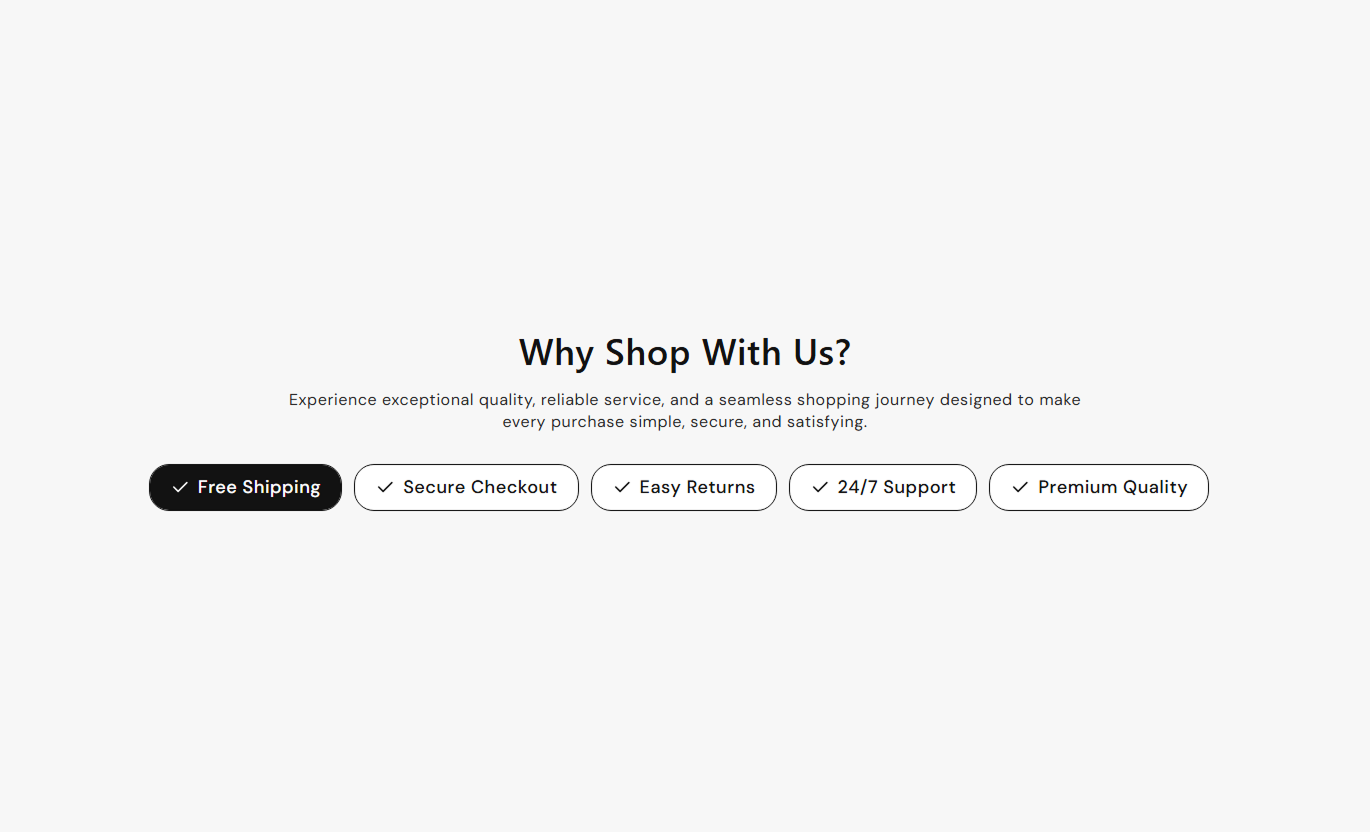
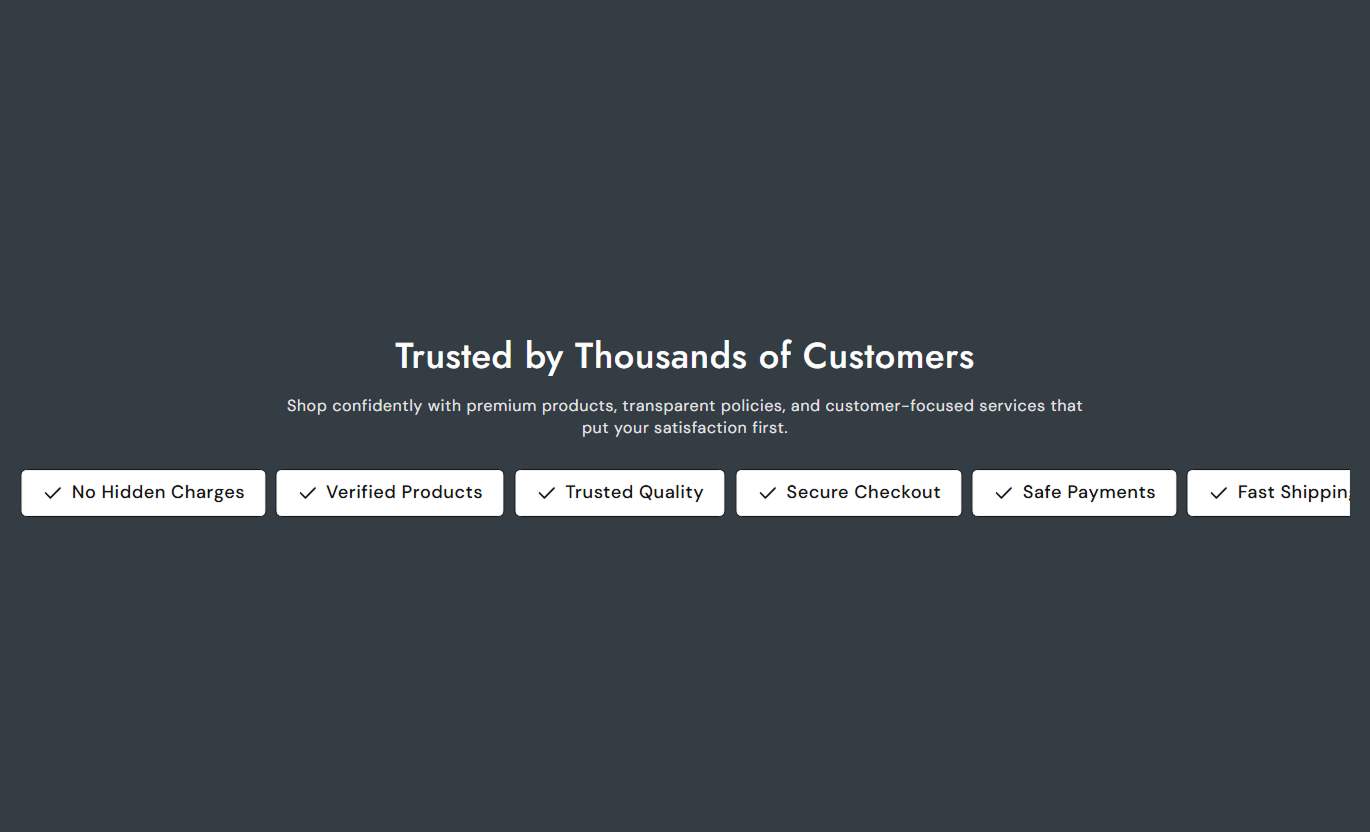


Present important benefits in a clean horizontal slider with optional icons, free scrolling, autoplay, loop controls, hover styling, and responsive spacing.

Display multiple feature labels in one horizontal row that shoppers can scroll through naturally across different screen sizes.

Show or hide a check icon next to each feature label to give each benefit a clear, consistent visual marker.

Let visitors move through feature items smoothly without forcing each label into a fixed slide position.

Enable automatic slider movement and choose a delay from one to ten seconds between autoplay transitions.

Turn looping on to keep the feature row cycling through its items without stopping at the end.

Set separate spacing values for desktop and mobile so the feature row stays balanced across different screen sizes.

Change feature background, border, and text colors on hover with a smooth fill animation across each feature item.

Adjust typography, icon size, feature radius, colors, alignment, padding, background, and overall section width.
Control headings, feature labels, icons, slider behavior, spacing, colors, hover effects, padding, alignment, and section width.

Applies to the whole section
Add the main heading displayed above the feature row.
Section HeadingAdd supporting rich text below the section heading.
Section ContentChoose how the heading and description are aligned.
Content AlignmentShow or hide the check icon next to each feature.
Show Feature IconSet the corner radius used around feature items.
Feature Border RadiusAlign the feature row to the left, center, or right.
Feature Row AlignmentSet separate spacing between feature items on desktop.
Desktop Feature GapSet separate spacing between feature items on mobile.
Mobile Feature GapEnable autoplay and choose its delay and loop behavior.
Slider ControlsUse full width or define a maximum contained section width.
Section Width
Applies to each feature
Enter the text displayed inside the individual feature item.
Feature TextUse a compact feature strip across key Shopify pages to quickly communicate product benefits, store promises, service highlights, or promotional messages.
Place the feature row on your homepage to highlight important store advantages such as shipping, service, quality, guarantees, or shopping benefits.
Communicate key store benefits without using much page spaceGive visitors quick reasons to continue browsing your storeHighlight service promises in an easy-to-scan horizontal rowUse optional icons to make each benefit easier to recognizeKeep the row responsive across desktop and mobile screensUse feature 4 around collection content to reinforce shipping, returns, product qualities, service benefits, or category-specific selling points.
Support collection browsing with short benefit-focused messagesHighlight category advantages without interrupting product gridsKeep useful shopping information visible in a compact formatUse a sliding row when several benefits need to be includedMatch feature styling to the surrounding collection designPlace a compact feature row near product information to highlight important qualities, purchase benefits, guarantees, delivery details, or service advantages.
Surface important buying benefits close to product detailsMake key product advantages easier to scan before purchasePresent several short points without creating a long text blockUse icons to give benefit statements stronger visual structureKeep feature labels accessible on smaller mobile screensUse the sliding feature row on promotional landing pages to reinforce campaign promises, product strengths, service advantages, or offer-related messages.
Reinforce the main campaign message with supporting benefitsAdd multiple concise selling points without cluttering the pageUse autoplay to keep longer feature sets moving automaticallyAlign the feature row with the rest of the campaign contentCustomize hover styling to fit the campaign's visual directionTurn key store or product benefits into a compact horizontal feature row that keeps important information visible without adding a heavy content section.
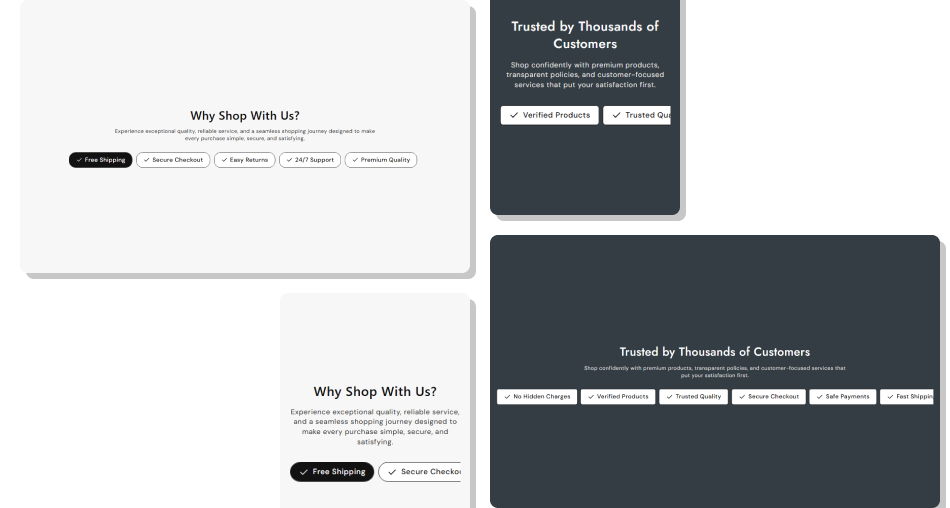
Use short feature labels, optional icons, and responsive sliding behavior to communicate important benefits in a compact storefront section.
Display multiple benefit statements in one horizontal rowAdd optional check icons to strengthen visual consistencyLet visitors scroll freely through feature itemsUse autoplay when you want benefits to move automaticallyEnable looping for a continuous feature-strip experienceCustomize hover states for a more interactive presentationControl spacing, typography, colors, alignment, and width Use short feature statements that communicate one clear benefit
Keep wording consistent across all feature items in the row
Use icons when they improve scanning without adding clutter
Set enough spacing so individual feature labels stay readable
Test autoplay and mobile scrolling before publishing the section
Use short feature statements that communicate one clear benefit
Keep wording consistent across all feature items in the row
Use icons when they improve scanning without adding clutter
Set enough spacing so individual feature labels stay readable
Test autoplay and mobile scrolling before publishing the section  Do not turn feature labels into long sentences or paragraphs
Do not repeat the same benefit using slightly different wording
Do not add too many items when only a few benefits matter
Do not use hover colors with poor contrast against feature text
Do not set autoplay so fast that shoppers cannot read the labels
Do not turn feature labels into long sentences or paragraphs
Do not repeat the same benefit using slightly different wording
Do not add too many items when only a few benefits matter
Do not use hover colors with poor contrast against feature text
Do not set autoplay so fast that shoppers cannot read the labels The section uses repeatable Feature blocks, allowing you to add multiple feature labels to the horizontal row based on your storefront content needs.
Yes. The Show Icon setting adds the same check icon next to each feature item, and you can adjust its size in the section settings.
Yes. The section uses a horizontal free-mode slider with automatically sized feature items, allowing shoppers to move through the row naturally.
Yes. Enable Autoplay and choose a delay from one to ten seconds to control how frequently the feature slider advances.
Yes. The Loop setting can be enabled so the slider continues cycling through feature items instead of stopping after the last one.
Yes. You can set separate hover background, text, and border colors, with a smooth animated background fill when visitors hover.
Yes. The section has separate Desktop and Mobile spacing settings, so feature gaps can be adjusted for different screen sizes.
Yes. You can use a full-width layout or set a custom maximum width, while feature items can be aligned left, center, or right.
For Support or any Questions Email Us: [email protected]
Install SectionHub and add the Features Pills section to your theme in minutes - no coding required.
