Highlight Key Features Without Taking Over the Page
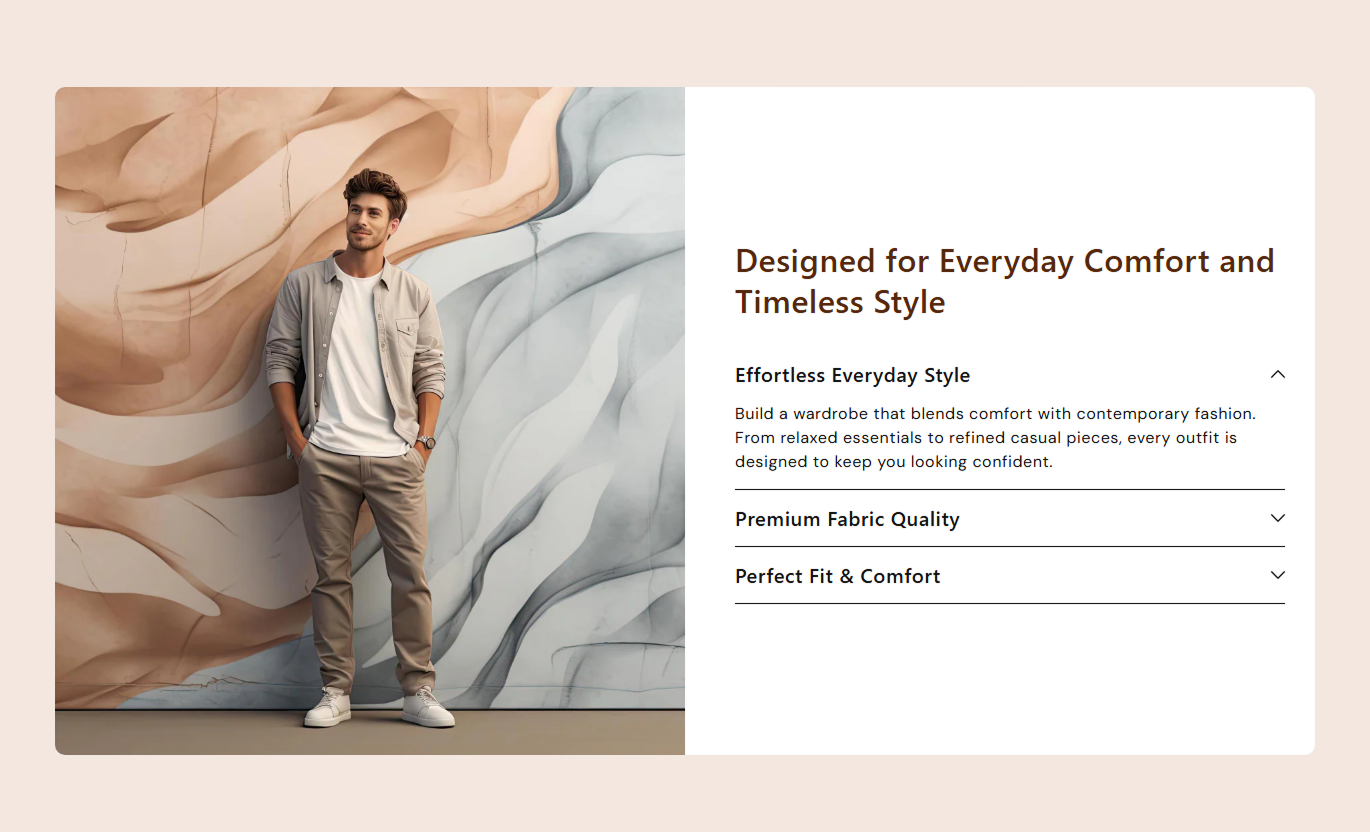
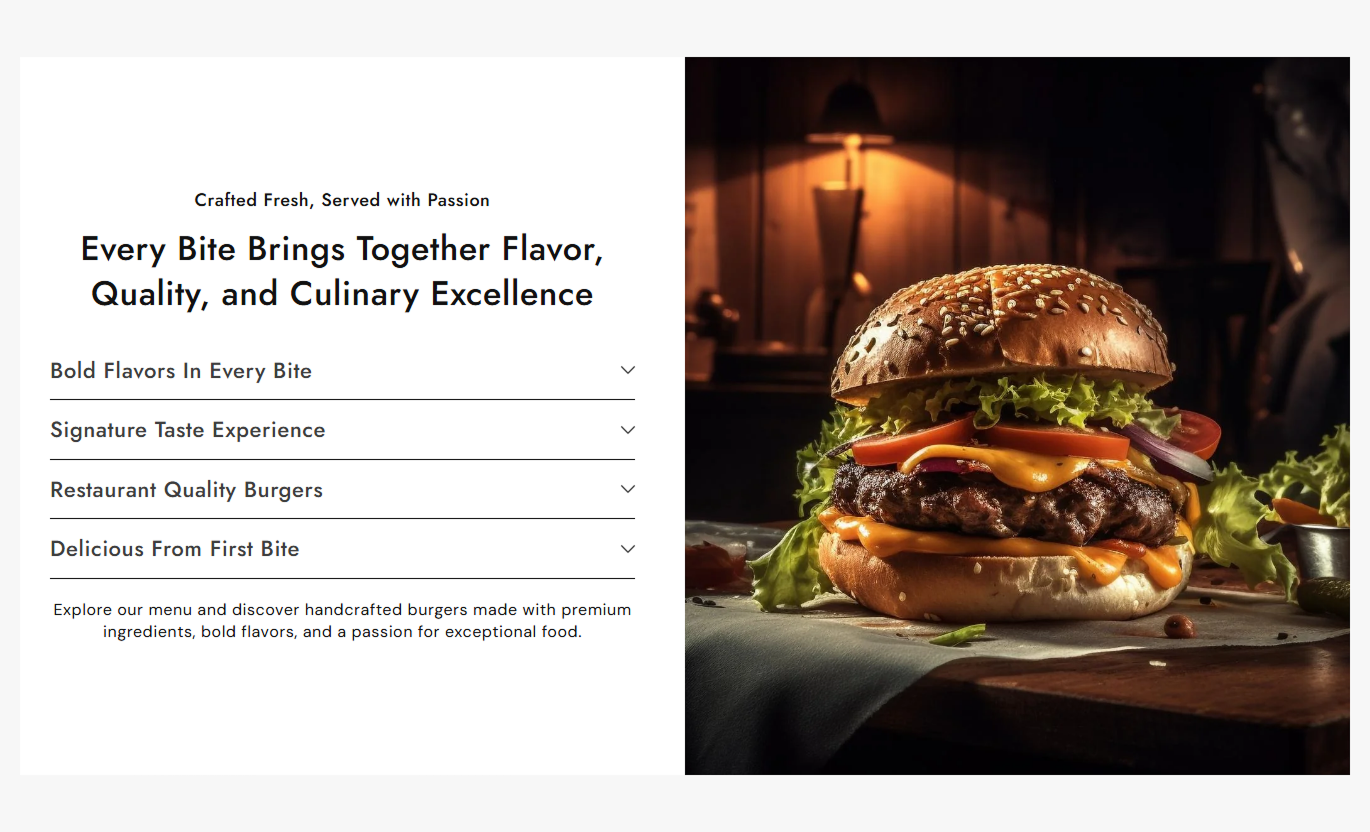
Use the accordion to introduce key store features, services, guarantees, or brand details, while the supporting image provides strong visual context for the section.

Showcase features, details, and supporting content in a clean accordion layout with flexible imagery, responsive styling, and smooth expandable interactions.
 Interactive Accordion Layout
Flexible Image Positioning
Responsive Store Design
Interactive Accordion Layout
Flexible Image Positioning
Responsive Store Design 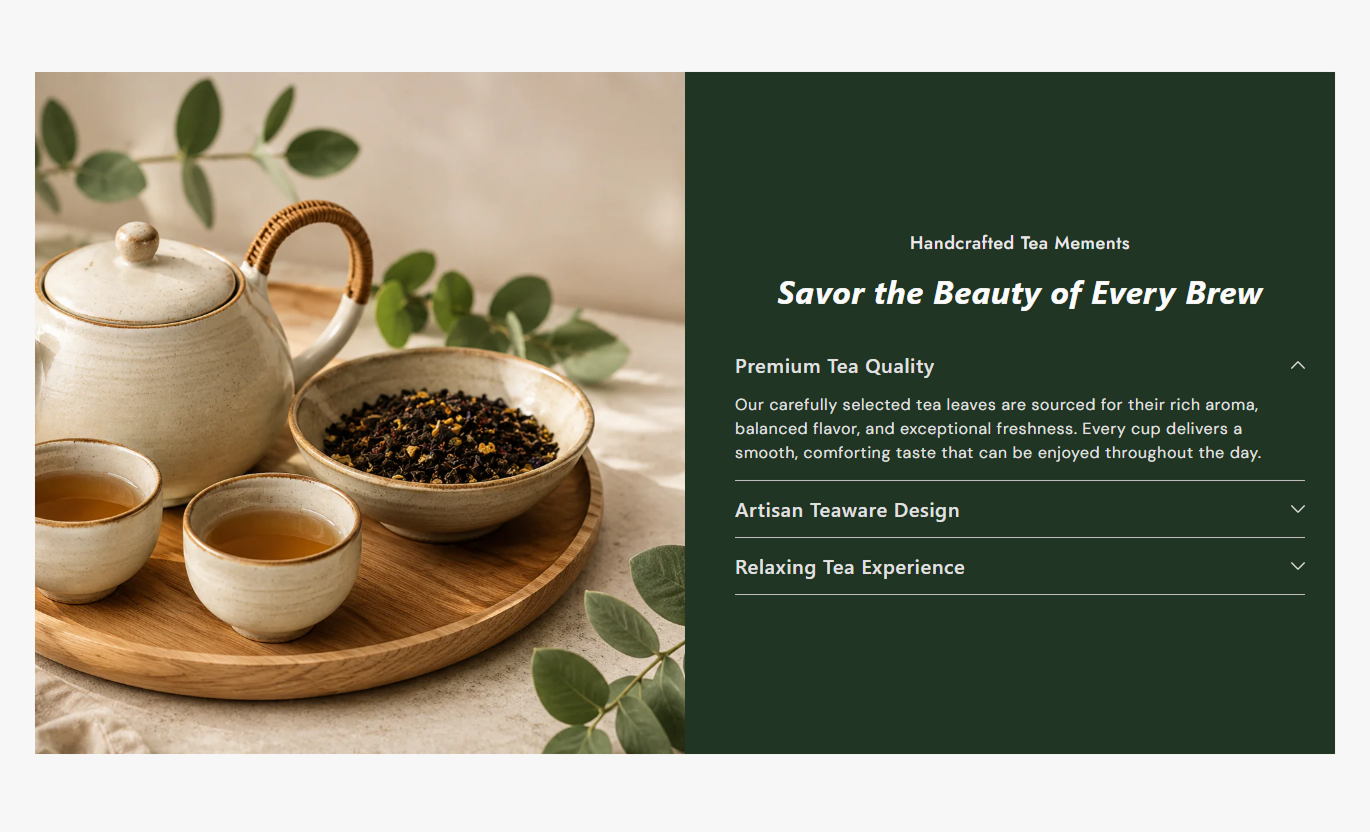


Create an engaging content section with expandable items, flexible image layouts, custom styling, responsive spacing, and easy controls for organized information.

Let customers expand and collapse content to browse detailed information without overwhelming the page layout.

Place the main image on the left or right to create a balanced visual layout that fits your store design.

Choose small, medium, large, or automatic image height options for better control over the visual presentation.

Keep detailed information hidden until selected to help customers focus on the content that interests them.

Align the section content to the left, center, or right to match your branding and design style.

Adjust accordion heading, content, and border colors to create a consistent visual experience across the section.

Automatically adapt the image and content into a mobile-friendly stacked layout with dedicated spacing and sizing.

Use a full-width display or define a custom maximum width to control how the section fits your storefront.
Control your accordion layout, imagery, typography, colors, spacing, width, and individual content blocks from one place.

Applies to the whole section
Small supporting text displayed above the main heading.
SubheadingMain heading displayed above the accordion.
HeadingSupporting text displayed below the accordion items.
ContentChoose the alignment of the section content.
Text AlignmentSelect the main image displayed beside the accordion.
ImageChoose whether the image appears left or right.
PositionSet the height style of the main image.
HeightAdjust the roundness of the image corners.
Image Border RadiusAdjust the roundness of the main container.
Border RadiusSet the inner spacing around the container on the desktop.
Padding (Desktop)Set the subheading font size for the section.
Subheading Font SizeSet the main heading font size for the section.
Heading Font SizeSet the section content font size.
Content Font SizeSet the accordion heading font size.
Accordion Heading Font SizeSet the accordion content font size.
Accordion Content Font SizeSet the overall section background color.
Background ColorSet the accordion container background color.
Container Background ColorSet the subheading text color.
Subheading ColorSet the main heading text color.
Heading ColorSet the section content text color.
Content ColorSet the accordion heading text color.
Accordion Heading ColorSet the accordion content text color.
Accordion Content ColorSet the divider color between accordion items.
Accordion Border Color
Applies to each accordion item
Heading displayed for the accordion item.
HeadingDetailed information is revealed when the item opens.
ContentOrganize important information into expandable content areas that help shoppers explore details while keeping your storefront clean, structured, and easy to navigate.
Use the accordion to introduce key store features, services, guarantees, or brand details, while the supporting image provides strong visual context for the section.
Keep important information organized and easy to scanPresent multiple features without creating a long pageUse imagery to strengthen the visual presentationLet shoppers open only the details they needMaintain a clean and structured homepage layoutAdd useful collection information next to a visual image to help shoppers understand product benefits, materials, services, or purchasing details before exploring products.
Explain collection-specific information clearlyKeep supporting details compact and organizedAdd visual context beside important contentMake lengthy information easier to exploreCreate a more informative collection experienceUse accordion items to organize product information such as features, materials, care details, shipping notes, or other useful content alongside a strong product image.
Organize detailed product information efficientlyAnswer common questions without cluttering pagesSeparate different product details into clear itemsSupport product imagery with useful informationHelp shoppers find relevant answers quicklyCreate focused landing page sections for services, promotions, product benefits, or campaign messaging while using expandable content to keep the overall design concise.
Present campaign information in an organized formatHighlight important benefits with supporting imageryKeep landing pages visually clean and focusedReveal detailed information only when neededAdapt the layout to different campaign requirementsGive shoppers an organized way to explore important information while combining expandable content with a strong image and flexible responsive styling.
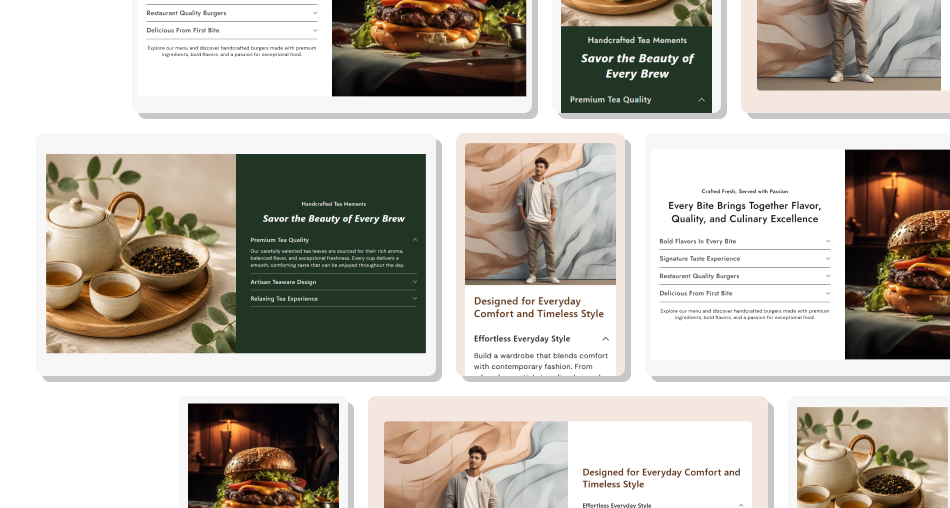
Create cleaner content sections with expandable information, flexible imagery, custom styling, and responsive layouts designed for modern storefronts.
Organize detailed information in a compact layoutMake important content easier to scanCombine imagery with expandable informationCreate cleaner and less crowded page sectionsGive shoppers control over what they exploreMatch the section with your store brandingDeliver a consistent mobile experience Use short and clear accordion headings.
Keep each content section focused and useful.
Choose an image that supports the information.
Match colors with your existing store branding.
Check the accordion carefully on mobile devices.
Use short and clear accordion headings.
Keep each content section focused and useful.
Choose an image that supports the information.
Match colors with your existing store branding.
Check the accordion carefully on mobile devices.  Avoid using long and confusing accordion headings.
Don't overload each item with unnecessary content.
Avoid unrelated or low-quality supporting images.
Don't use colors that reduce text readability.
Don't ignore mobile spacing and responsive behavior.
Avoid using long and confusing accordion headings.
Don't overload each item with unnecessary content.
Avoid unrelated or low-quality supporting images.
Don't use colors that reduce text readability.
Don't ignore mobile spacing and responsive behavior. It lets you organize multiple pieces of information into expandable accordion items while displaying a supporting image beside the content.
Yes. You can position the main image on either the left or right side of the accordion content using the Position setting.
Yes. The section provides Small, Medium, Large, and Auto height options so you can choose a suitable image presentation.
The section supports up to 8 accordion blocks, allowing you to organize multiple features or information points within a single section.
Yes. You can customize the accordion heading color, content color, and border color separately to match your storefront design.
Yes. On mobile, the image and content stack vertically, with dedicated mobile spacing and responsive image height adjustments.
Yes. You can enable Full Width to use the available page width, or set a custom width when full width is disabled.
Yes. Customers can click an accordion heading to expand its content, while opening another item automatically closes the previously active item.
For Support or any Questions Email Us: [email protected]
Install SectionHub and add the Features Accordion With Flexible Layout section to your theme in minutes - no coding required.
