Present Important Store Information Clearly
Use accordion items to introduce your brand, explain key offerings, highlight store benefits, or share useful information without taking up too much space on the page.

Showcase product details, benefits, services, ingredients, or other store information in expandable accordion items with a supporting image for easy browsing.
 2.0 Compatible
Responsive Design
Expandable Content
2.0 Compatible
Responsive Design
Expandable Content 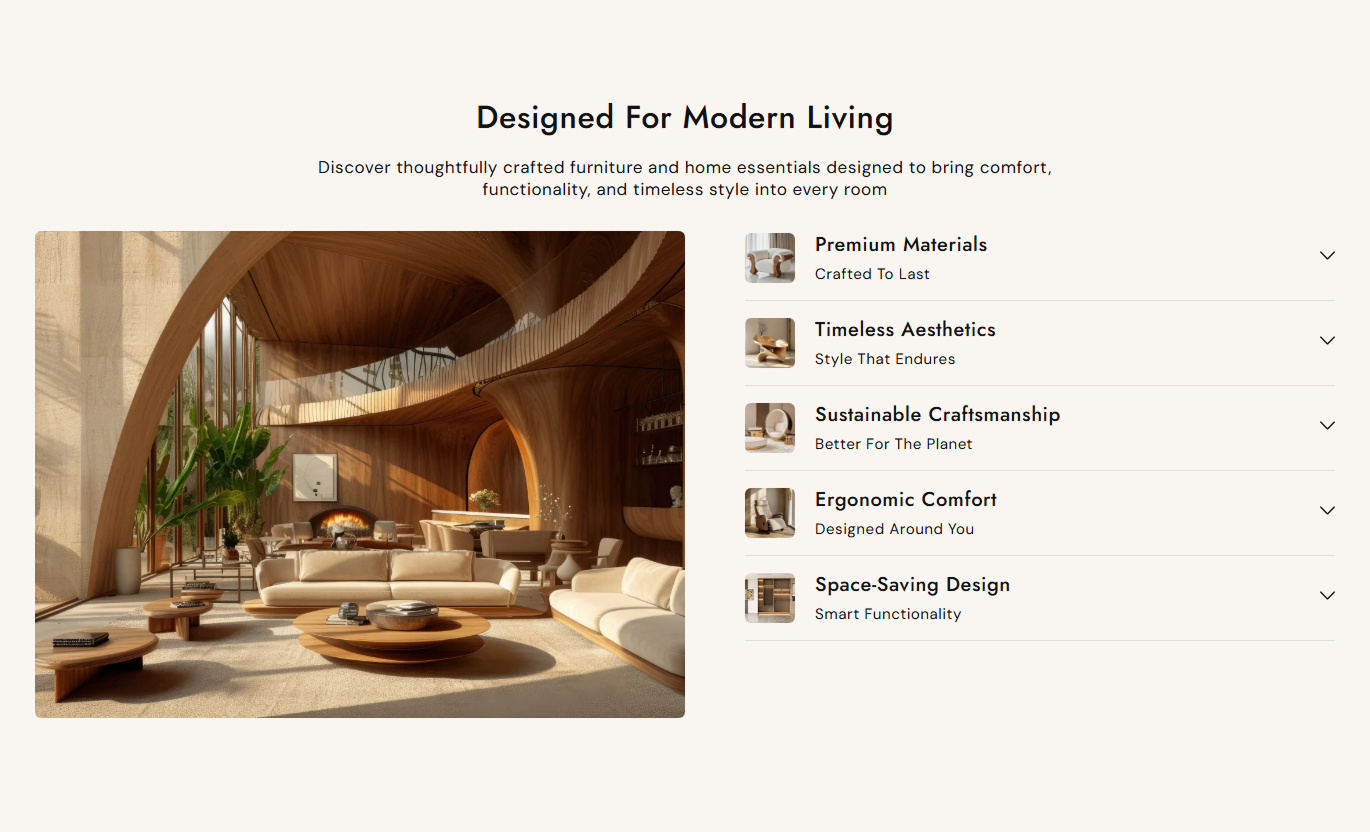
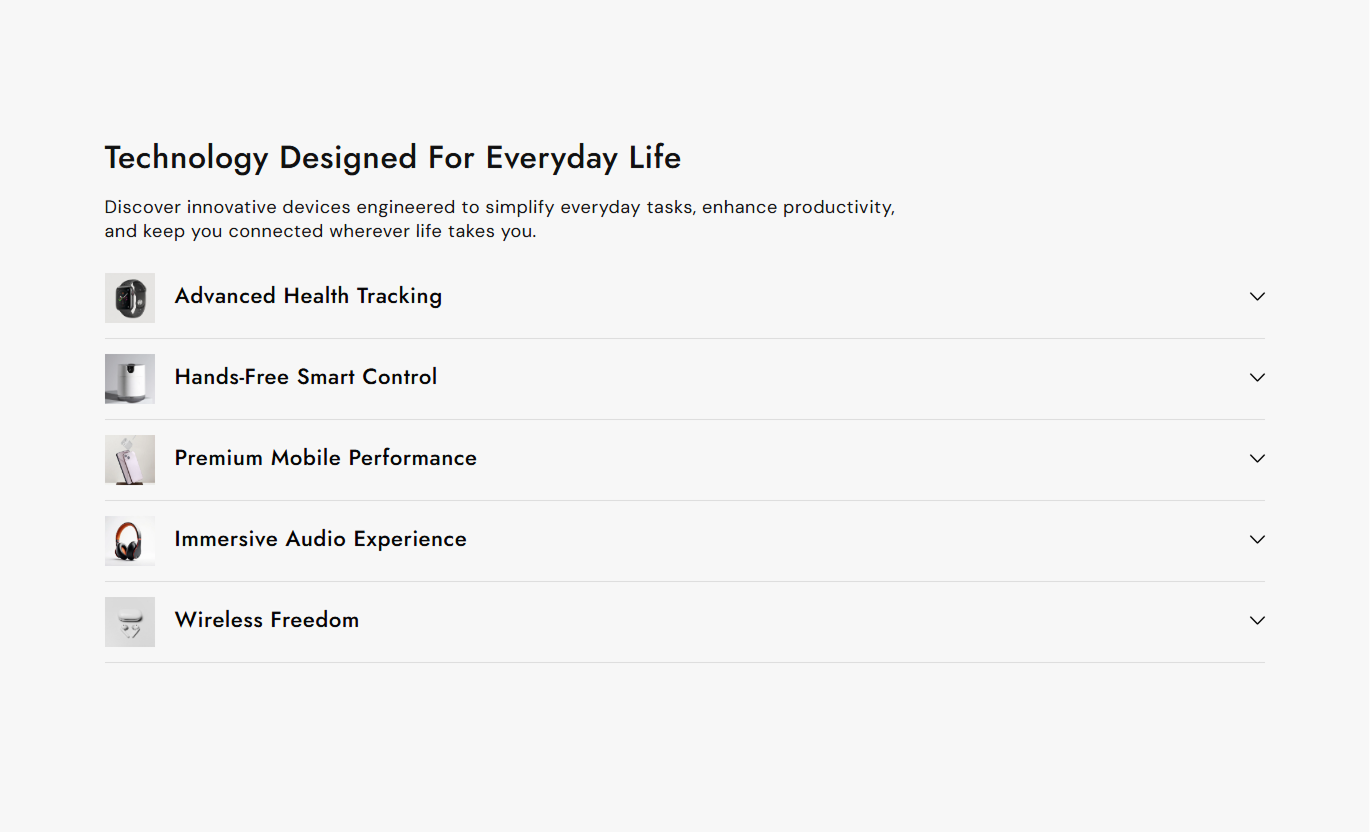
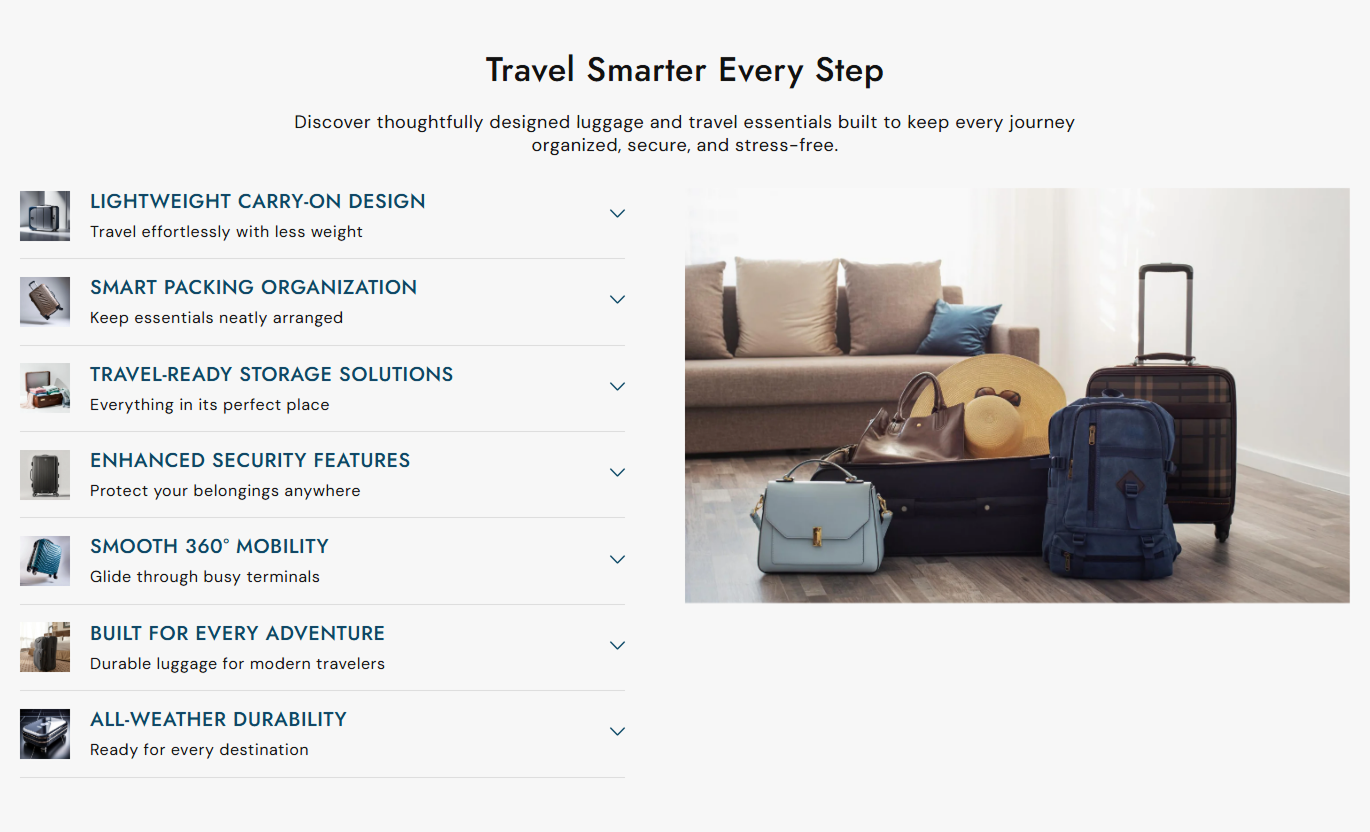


Organize detailed information with expandable items, supporting images, flexible layouts, custom colors, typography, spacing, and responsive display options.

Let shoppers open individual items to view detailed information without filling the page with long text.

Add a large image beside the accordion to provide visual context for your store content.

Create multiple items, each with an image, heading, subheading, and rich text content.

Place the main image on the left or right to match your storefront layout and content flow.

Hide the main image and let the accordion use the available section width for a broader content layout.

Adjust heading, content, subheading, and link colors to match your store's visual style.

Control heading, content, subheading, and accordion text sizes for a balanced storefront design.

The image, accordion items, typography, and spacing adapt to smaller screens for mobile shoppers.
Control images, accordion content, colors, typography, spacing, alignment, and section width from the Shopify theme editor.

Applies to the whole section
Main heading displayed above the accordion.
HeadingSupporting text displayed below the heading.
ContentChoose the alignment of the section text.
Text AlignmentAdd the main image beside the accordion.
Section ImageChoose the position of the main image.
Image PositionHide the image and expand the accordion.
Full Width AccordionSet rounded corners for section images.
Border RadiusSet the section background color.
Background ColorSet the main heading color.
Heading ColorSet the maximum width of the section.
Section Width
Applies to each accordion item
Add an image for the accordion item.
ImageAdd the accordion item heading.
HeadingAdd supporting text below the heading.
SubheadingAdd expandable rich text content.
ContentUse expandable content to organize important store information while keeping pages clean, readable, and easy for shoppers to browse across different storefront pages.
Use accordion items to introduce your brand, explain key offerings, highlight store benefits, or share useful information without taking up too much space on the page.
Introduce your brand and key offeringsOrganize important store informationHighlight unique business benefitsAdd supporting visuals beside contentKeep the homepage clean and focusedAdd expandable information about collections, categories, materials, shopping guidance, or other details that help shoppers understand what they are browsing.
Explain collection details clearlyOrganize category information neatlyAdd useful shopping guidanceSupport collection discoveryReduce long text sectionsUse accordion items to present product features, materials, usage details, care information, or other helpful content shoppers may want before making a purchase.
Present detailed product informationExplain materials and product featuresShare care or usage informationKeep product details organizedHelp shoppers find specific answersUse expandable sections to organize campaign details, product benefits, service information, or supporting content while keeping the landing page focused.
Organize campaign informationPresent benefits in separate sectionsKeep landing pages visually focusedAdd supporting images where usefulMake detailed content easier to scanUse expandable accordion items to organize detailed information while keeping your storefront clean, flexible, and easy for shoppers to navigate.
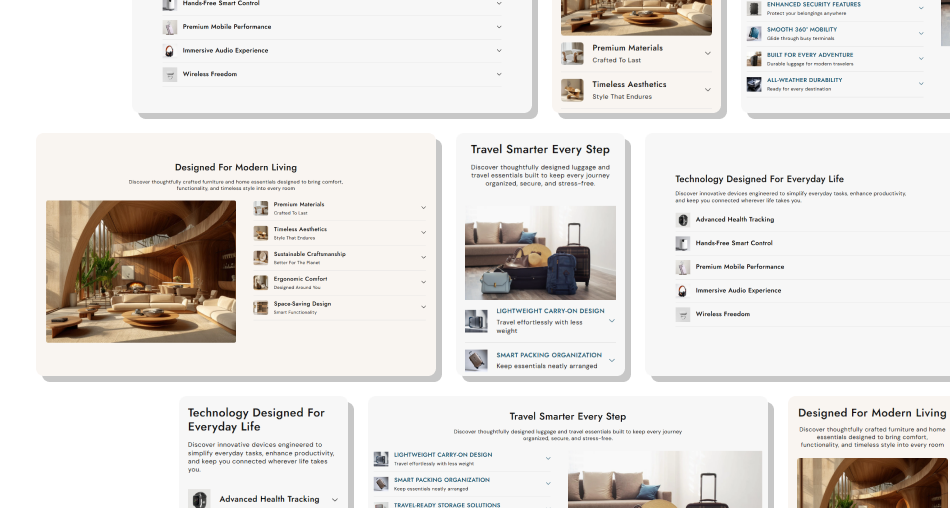
Present features, details, benefits, and supporting content in expandable sections that help shoppers find useful information without cluttering the page.
Organize detailed product informationKeep storefront pages cleanMake content easier to scanCreate multiple expandable sectionsAdd images for visual contextChoose flexible content placementCustomize colors and typographyControl section width and spacing Use short and clear accordion headings
Group related information together
Add relevant images to support content
Keep each accordion item focused
Use useful subheadings for quick scanning
Use short and clear accordion headings
Group related information together
Add relevant images to support content
Keep each accordion item focused
Use useful subheadings for quick scanning  Use vague or confusing accordion headings
Mix unrelated information in one item
Add irrelevant images
Fill items with unnecessary text
Create accordion items without useful content
Use vague or confusing accordion headings
Mix unrelated information in one item
Add irrelevant images
Fill items with unnecessary text
Create accordion items without useful content Yes. Add multiple blocks, each with its own image, heading, subheading, and expandable rich text content.
Yes. Upload a main section image and choose whether it appears on the left or right of the accordion content.
Yes. Enable Full Width Accordion to hide the main image and expand the accordion list across the available section width.
Yes. Every accordion block includes an image setting so that you can add a relevant visual to individual content items.
Yes. You can customize the background, headings, content, subheadings, and link colors from the theme editor.
Yes. Separate settings let you adjust the sizes of the main heading, content, accordion heading, subheading, and accordion content.
Yes. Adjust desktop and mobile padding, then choose full width or set a custom maximum section width.
Yes. The layout, image, typography, spacing, and accordion content adjust automatically for smaller screens.
For Support or any Questions Email Us: [email protected]
Install SectionHub and add the Features Accordion section to your theme in minutes - no coding required.
