Explain Your Store Benefits at a Glance
Use the Features section on your homepage to introduce key benefits, explain your value, and help visitors understand what makes your store different.

Showcase up to four key features with icons, supporting content, two images, and a flexible layout designed for Shopify stores.
 Feature Highlights
Image-Based Layout
Responsive Design
Feature Highlights
Image-Based Layout
Responsive Design 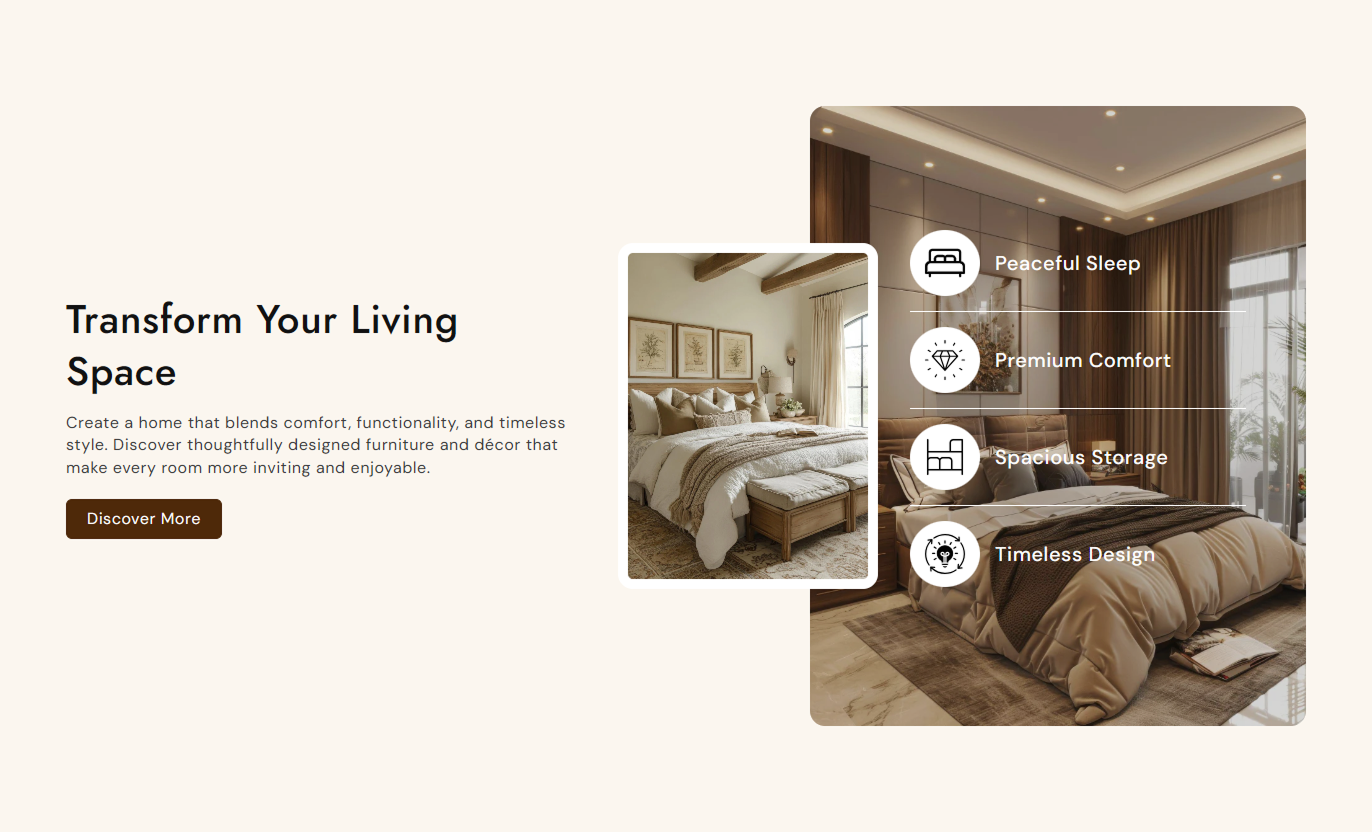
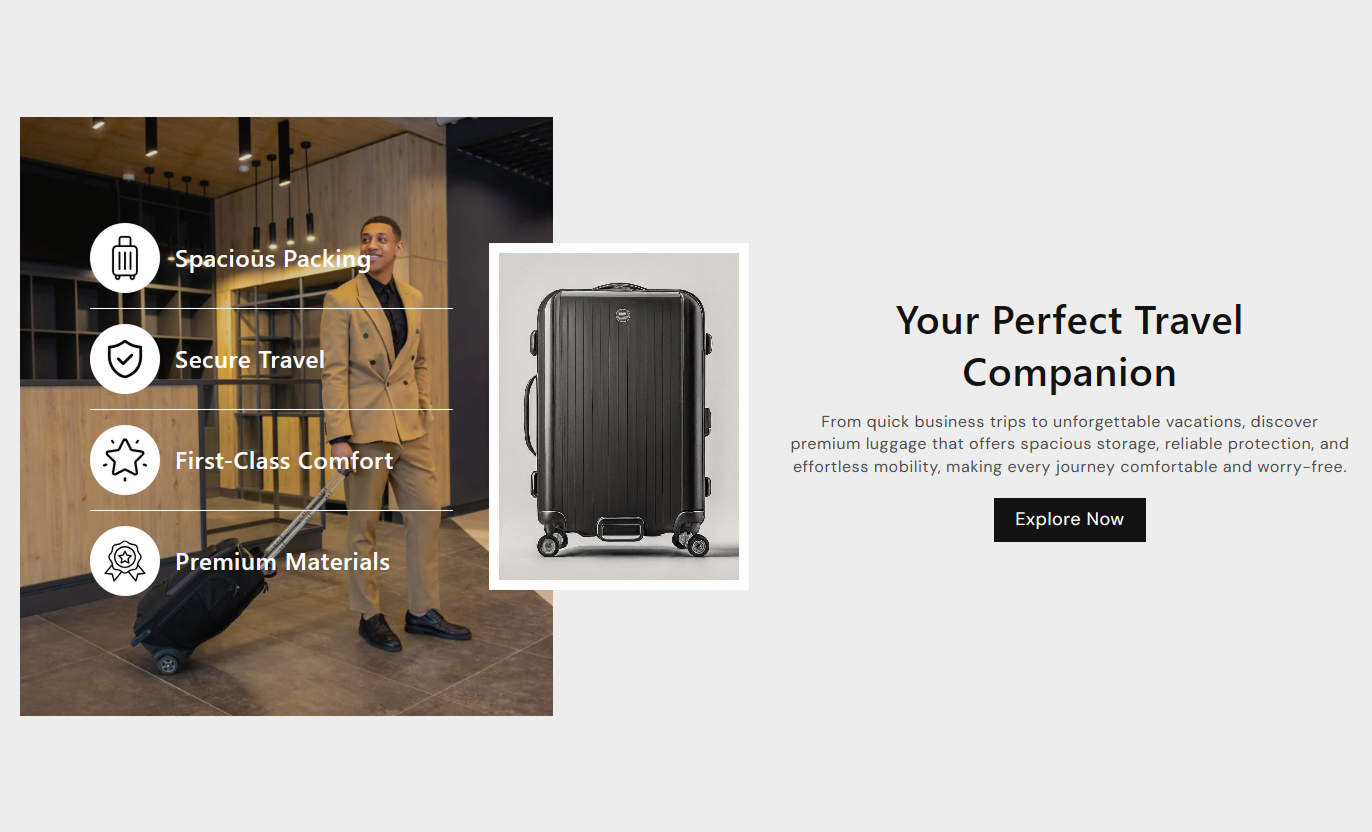


Present important store benefits with feature icons, supporting images, flexible alignment, custom styling, and responsive layouts for every screen.

Add up to four feature items to clearly explain important product or store benefits.

Add a separate image icon to each feature for a more visual and recognizable presentation.

Use a card image with a larger background image to create a layered visual feature section.

Place the visual feature layout on the left or right side of the section.

Add rich text to each feature item to clearly explain its benefits.

Show feature icons or hide them when a simpler text-based layout works better.

Position the main heading and description at the top, middle, or bottom on the desktop.

The section stacks its content and images to achieve a clean layout on smaller screens.
Control feature content, images, alignment, styling, buttons, spacing, and section width from the Shopify theme editor.

Applies to the whole section
Main heading displayed above the feature content.
HeadingSupporting rich text displayed below the heading.
ContentChoose how the heading and content are aligned.
Text AlignmentSet the vertical position of the content on the desktop.
Content PositionAdd a main button below the section content.
Button LabelSet the destination URL for the main button.
Button LinkChoose the left or right position for the image layout.
Image PositionAdd the main card image used in the layered layout.
Card ImageAdd the larger image shown behind the feature list.
Background ImageShow or hide feature icons beside each item.
Hide Feature IconsSet the section background color.
Background ColorSet the maximum width when full width is disabled.
Section Width
Applies to each feature item
Add an image icon beside the feature content.
Feature IconAdd rich text describing the individual features.
Feature ContentUse the Features section to explain product benefits, store advantages, service highlights, or important selling points across key Shopify pages.
Use the Features section on your homepage to introduce key benefits, explain your value, and help visitors understand what makes your store different.
Highlight your most important store benefitsIntroduce key product or service advantagesUse icons to make benefits easier to scanSupport your homepage visual storytellingGuide visitors toward important store contentAdd the Features section to a collection page to explain product qualities, shopping benefits, or reasons to explore the products within that collection.
Explain key collection advantagesHighlight useful product qualitiesSupport collection-level messagingMake important information easier to scanStrengthen product discovery contentUse the section around the product content to explain key benefits, product qualities, or supporting information, using visual feature icons and images.
Explain key product benefitsHighlight important product qualitiesSupport purchase-related informationMake feature details easier to scanAdd visual context around product contentUse the Features section on landing pages to present campaign benefits, service highlights, product advantages, or key reasons visitors should continue exploring.
Present campaign benefits clearlyCreate a focused feature presentationSupport promotional page contentCombine feature text with strong visualsGuide visitors toward the next actionTurn key selling points into a clear visual section that combines concise feature content, icons, images, and flexible layouts for Shopify stores.
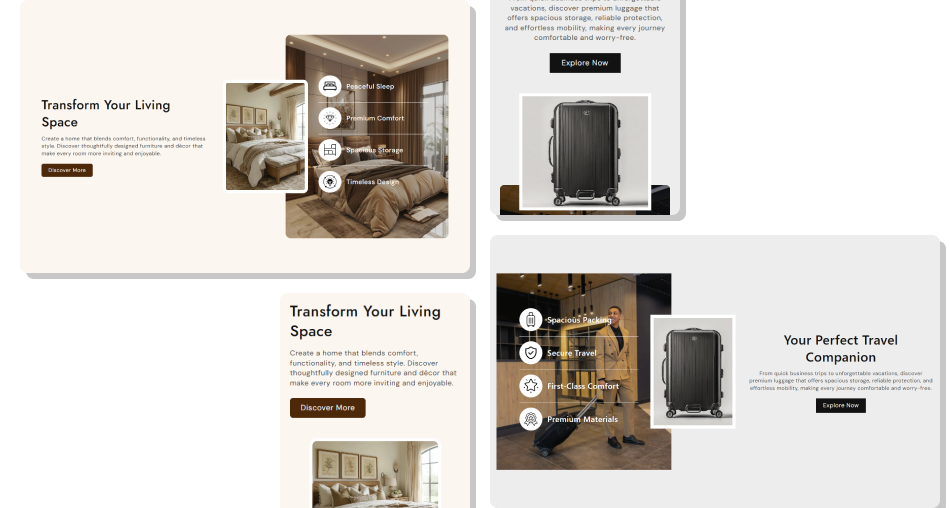
Help shoppers quickly understand key benefits with short feature content, supported by icons and engaging section imagery.
Make important information easier to scanPresent multiple benefits in one organized section.Use icons to reinforce individual feature messagesCombine supporting content with visual imagery.Adapt the layout to match your store designKeep feature content responsive across devices. Use short and clear feature descriptions
Choose icons that match each feature message
Keep all feature content easy to scan
Use relevant images that support the section
Highlight your most useful store benefits
Use short and clear feature descriptions
Choose icons that match each feature message
Keep all feature content easy to scan
Use relevant images that support the section
Highlight your most useful store benefits  Use long paragraphs for individual features
Choose unrelated icons for feature content
Add too many ideas to one feature item
Use images that distract from the features
Repeat the same benefit across multiple items
Use long paragraphs for individual features
Choose unrelated icons for feature content
Add too many ideas to one feature item
Use images that distract from the features
Repeat the same benefit across multiple items Yes. The section supports up to four feature blocks, each of which can contain its own icon and rich text content.
Yes. Each feature block has its own image picker, allowing you to add a separate icon for every feature item.
Yes. You can enable the Hide Feature Icons setting to display feature content without circular icon containers.
Yes. You can add a card image and a background image to create the section's layered visual layout.
Yes. The Image Position setting lets you place the visual layout on either the left or right side of the feature content.
Yes. You can position the main content at the top, middle, or bottom of the layout on desktop screens.
Yes. The layout changes for smaller screens, with the content, images, and feature list arranged for easier mobile viewing.
Yes. Enable Full Width to use the available section width, or disable it and set a custom Section Width.
For Support or any Questions Email Us: [email protected]
Install SectionHub and add the Features section to your theme in minutes - no coding required.
