Turn the Homepage Into a Collection Showcase
Features several important collections in a single visual area, pairing campaign images and collection content with product sliders that shoppers can browse immediately.

Showcase featured collections with large campaign imagery, tabbed navigation, collection content, product sliders, pricing, badges, and direct shopping links within a single responsive section.
 Tabbed Collections
Built-In Product Slider
Responsive Showcase
Tabbed Collections
Built-In Product Slider
Responsive Showcase 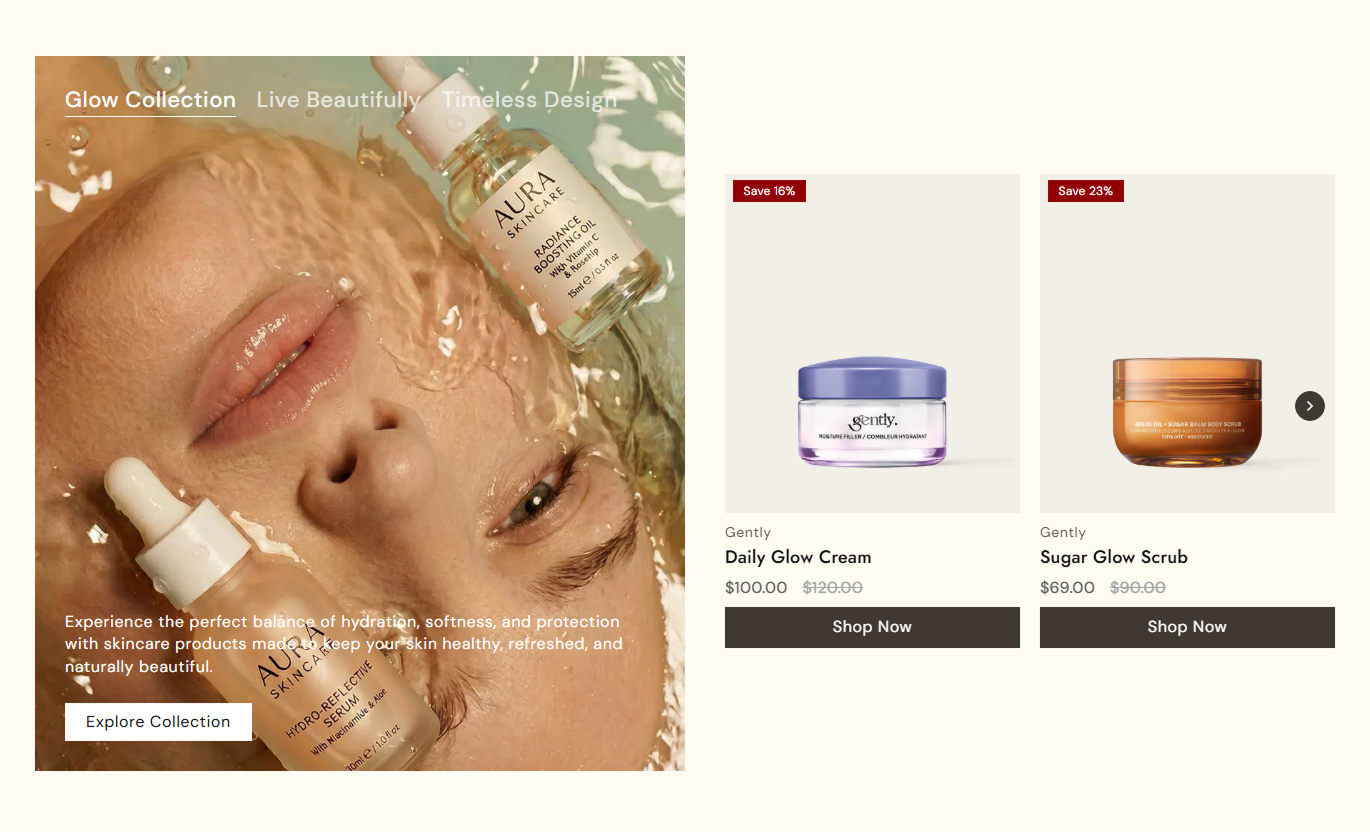
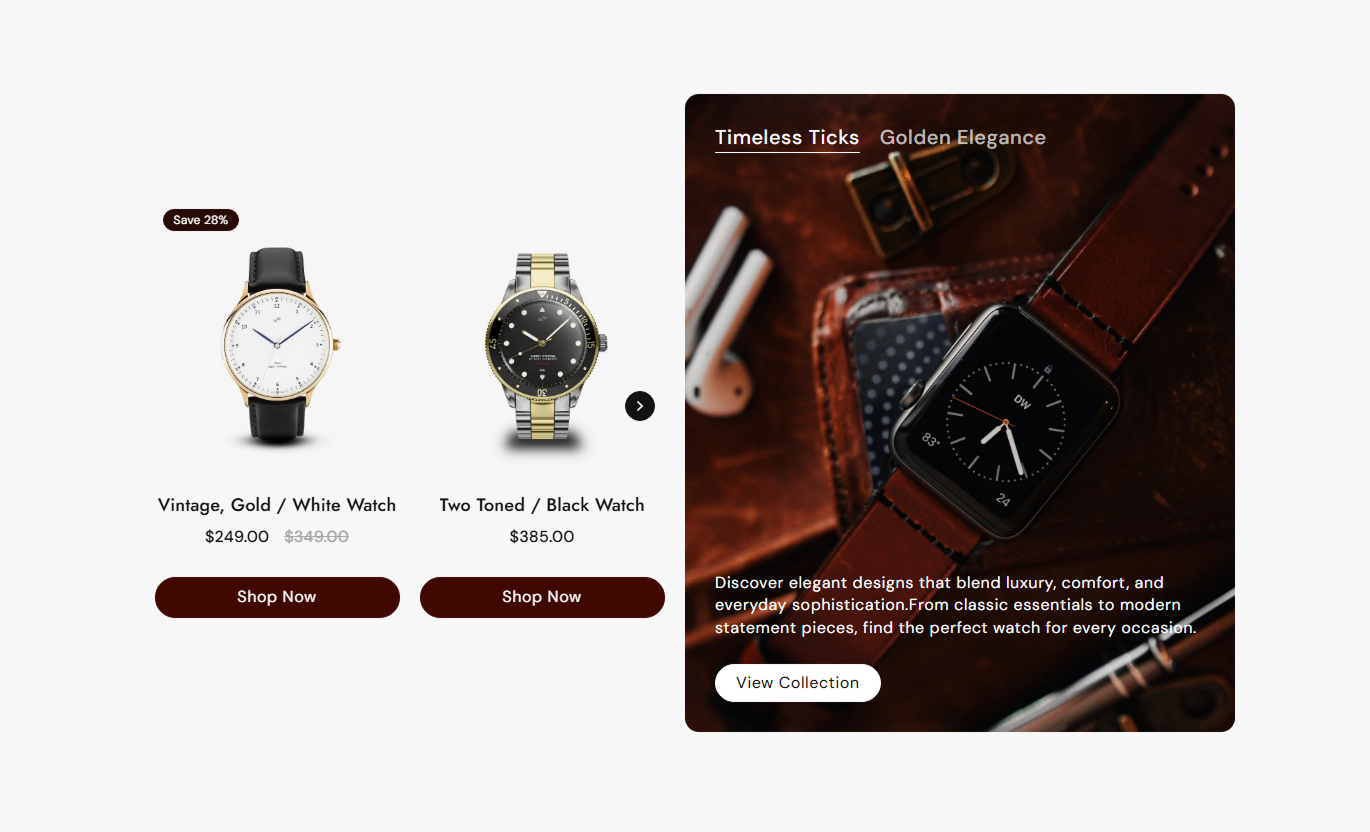
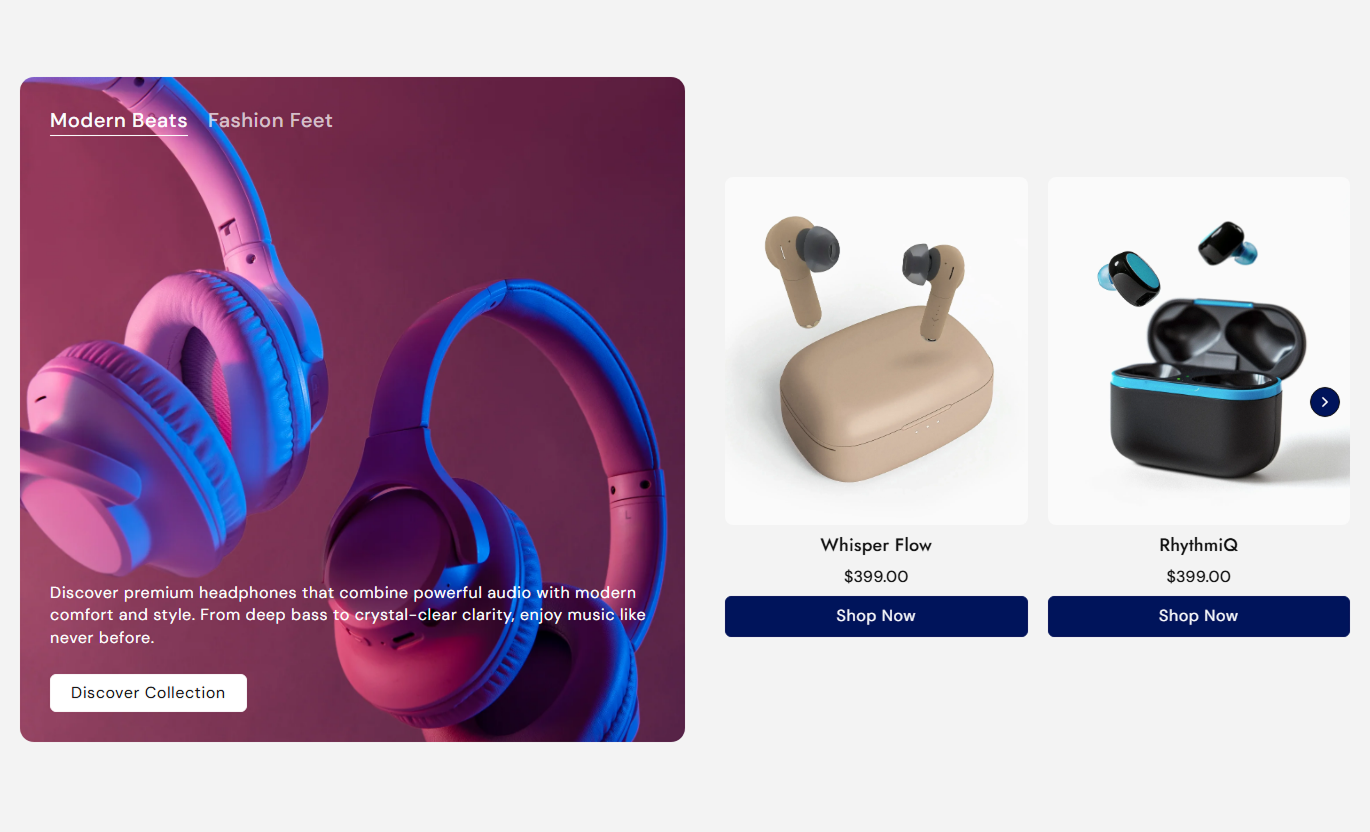


Combine collection storytelling with product sliders, tab switching, pricing, badges, hover imagery, and responsive controls for a smoother Shopify shopping experience.

Let shoppers switch between featured collections while the matching campaign image, content, CTA, and product slider update together.

Show products from the active collection in a responsive two-card slider with arrow navigation and direct links to each product.

Give each collection its own large image, supporting content, and optional CTA to create a stronger visual merchandising area.

Display the selected variant price and compare-at price automatically when a product is discounted in Shopify.

Show sold-out labels or sale badges, with automatic discount percentages when no custom sale badge text is provided.

Optionally reveal a product's second image on hover, giving desktop shoppers an additional product view without leaving the section.

Show or hide the Shopify product vendor above product titles to provide additional brand context when needed.

Customize card alignment, image height, corner radius, badge styling, CTA appearance, arrows, colors, and typography.
Control collection tabs, product cards, badges, arrows, colors, spacing, and responsive layout directly from the Shopify theme editor.

Applies to the whole section
Place the large collection media on the left or right.
Collection Media SideChoose how many products to load from each collection.
Products Per CollectionShow a second product image when shoppers hover over product cards.
Second Image HoverShow or hide the Shopify vendor above product titles.
Product Vendor DisplayShow or hide sale and sold-out badges on product cards.
Product Badge DisplayChoose small, medium, or large product image proportions.
Product Image HeightAlign product card content to the left, center, or right.
Product Card AlignmentSet the shared product button label and visual style.
Product Button StyleCustomize product, badge, button, and arrow colors.
Section Color StylingSet full-width or contained layouts, maximum width, and responsive spacing.
Section Width & Spacing
Applies to each collection tab
Set the name displayed in the collection tab list.
Collection Tab TitleUpload the main image used for this collection story.
Collection ImageAdd supporting rich text displayed with the collection image.
Collection ContentChoose the Shopify collection linked to this tab.
Selected CollectionSet the collection-level button text and style.
Collection CTACustomize tab text, content, and CTA colors.
Tab & CTA ColorsUse collection tabs, campaign imagery, and product sliders to feature key ranges, seasonal edits, or curated product groups across important Shopify store pages.
Features several important collections in a single visual area, pairing campaign images and collection content with product sliders that shoppers can browse immediately.
Showcase several featured collections without stacking separate sections.Pair campaign imagery with products that shoppers can browse immediately.Use tabs to keep collection discovery compact and organized.Highlight sale products with automatic or custom badge text.Guide visitors from collection stories to individual product pages.Use this section to introduce related ranges, seasonal edits, or subcollections, and give shoppers a quick preview of products from each selected collection.
Introduce related collections without replacing the main product grid.Give seasonal or curated ranges stronger visual merchandising.Preview products from each collection inside a two-card slider.Use collection-specific content and CTA links for clearer context.Help shoppers move between related product groups more easily.Show complementary collections or broader product families alongside a product page, helping shoppers move from one item to a wider curated assortment.
Connect the current product to broader matching collections.Show complementary items without using a basic recommendation row.Let shoppers explore products and pricing before changing pages.Use collection imagery to add context around related products.Create direct paths from one product into a wider assortment.Create campaign landing pages that switch between collection stories, promotional imagery, curated content, and shoppable product sliders in one focused section.
Build multiple collection stories inside one campaign section.Pair each campaign visual with its own curated product slider.Use tabs to separate themes, launches, edits, or audiences.Show pricing, sale states, and product links within the campaign.Keep collection-led promotions responsive across screen sizes.Combine collection storytelling and product discovery into a single section so shoppers can explore curated ranges, prices, sale status, and products more efficiently.
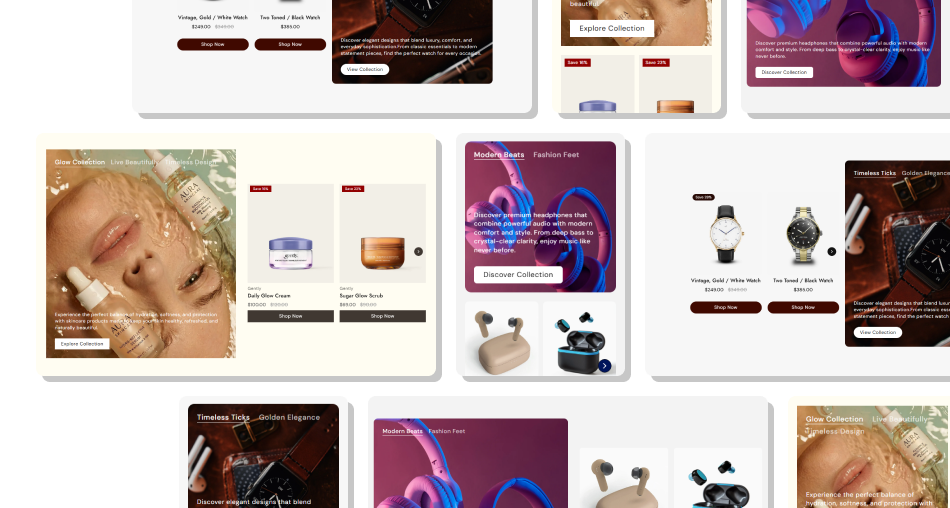
Give every featured collection its own visual story while keeping related products, pricing, badges, and links easy to browse.
Combine collection storytelling and product browsing in one section.Let visitors switch between collections without navigating to another page first.Show live product pricing and compare-at pricing automatically.Surface sale savings and sold-out states directly on product cards.Add alternate product imagery through optional second-image hover.Control how many collection products appear in each product slider.Send shoppers directly to either collection pages or individual products. Use clear tab names that shoppers can recognize immediately.
Choose campaign images that accurately represent the selected collection.
Keep collection descriptions short and focused on the featured range.
Use second-image hover only when products have useful alternate images.
Check sale badges, product links, and slider navigation before publishing.
Use clear tab names that shoppers can recognize immediately.
Choose campaign images that accurately represent the selected collection.
Keep collection descriptions short and focused on the featured range.
Use second-image hover only when products have useful alternate images.
Check sale badges, product links, and slider navigation before publishing.  Do not mix unrelated products inside a featured collection tab.
Do not use collection images that conflict with the products being shown.
Do not display too many products when a smaller curated selection works better.
Do not use custom sale text that could misrepresent current pricing.
Do not depend on hover imagery for essential product information.
Do not mix unrelated products inside a featured collection tab.
Do not use collection images that conflict with the products being shown.
Do not display too many products when a smaller curated selection works better.
Do not use custom sale text that could misrepresent current pricing.
Do not depend on hover imagery for essential product information. Yes. Every collection tab block has its own collection selector, image, content, tab title, and collection-level CTA settings.
You can set the maximum number of products from 2 to 10. Products from the active collection are then displayed inside its slider.
Yes. Enable the Second Image on Hover option. Products with more than one image can then switch to their second image when shoppers hover over the product card.
Sold-out products can display a Sold Out badge. Discounted products can show custom sale text or an automatically calculated discount percentage.
Yes. Vendor display is optional, while compare-at pricing appears automatically when it is higher than the current variant price.
Yes. Each collection tab block supports its own image, supporting content, button label, button styling, and link to the selected collection.
The slider displays two product cards per view, with previous and next arrows to browse additional products.
For Support or any Questions Email Us: [email protected]
Install SectionHub and add the Featured Collection Tabs section to your theme in minutes - no coding required.
