Highlight Your Featured Products on the Homepage
Showcase a selected collection near the top of your homepage to introduce popular products, seasonal items, new arrivals, or customer favorites with easy slider browsing.

Showcase products from any collection with a responsive slider, hover images, pricing, product links, flexible columns, autoplay, navigation, and a customizable View All button.
 Responsive Product Slider
Collection-Based Shopping
Flexible Store Layouts
Responsive Product Slider
Collection-Based Shopping
Flexible Store Layouts 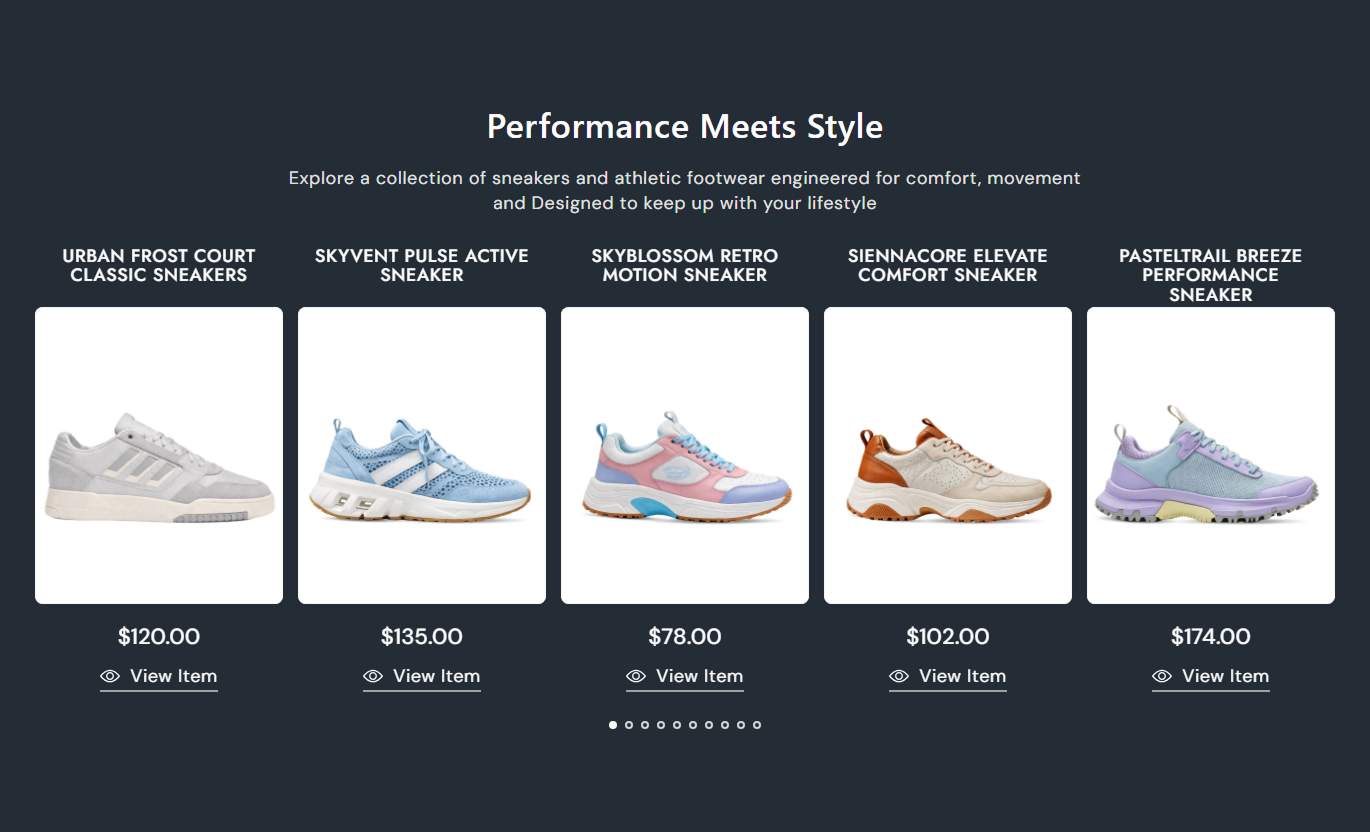
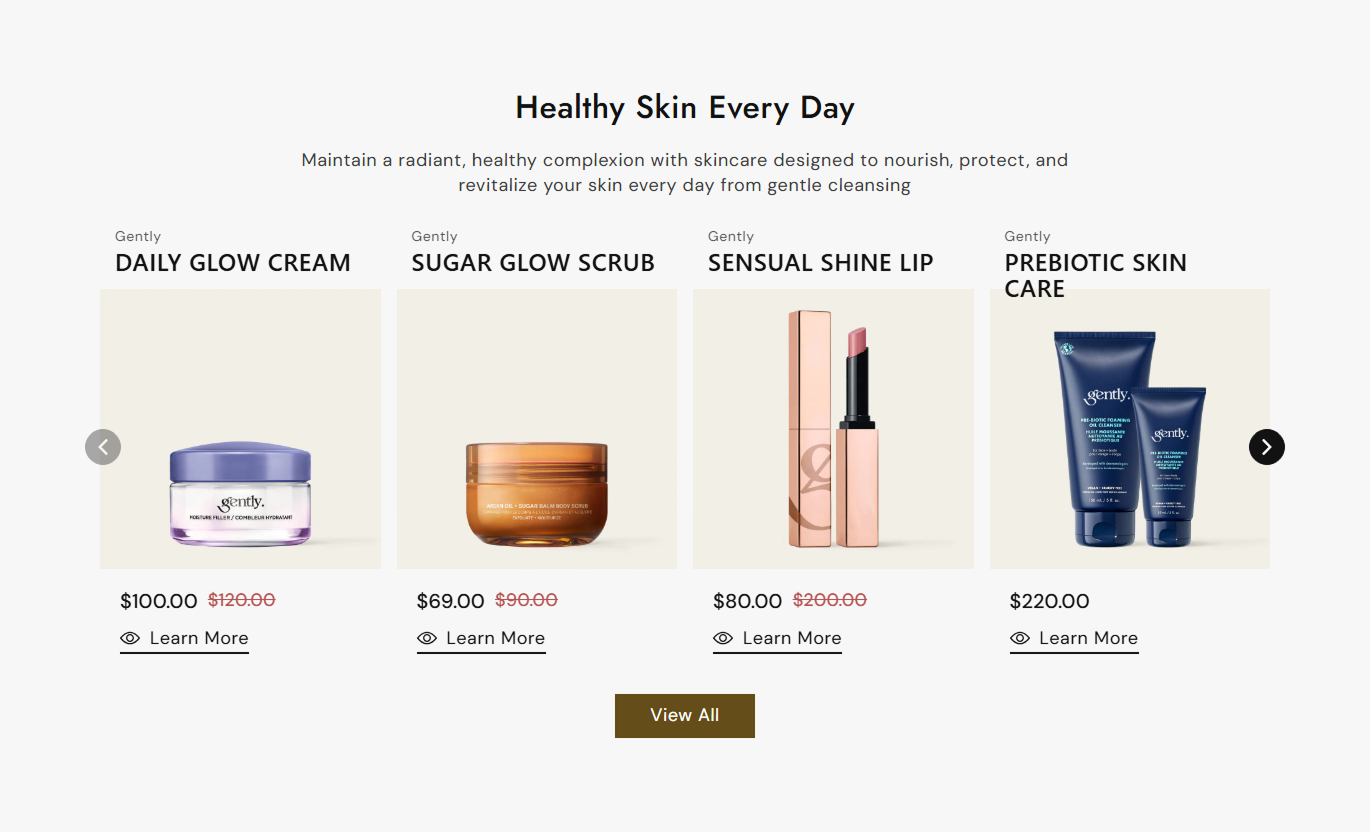


Create a polished product collection slider with flexible layouts, hover imagery, pricing, navigation, autoplay, product links, and responsive controls.

Select a Shopify collection and automatically display its products inside a clean, responsive slider.

Choose how many products to show from the selected collection, from a few items to a larger catalog.

Set the number of visible products on the desktop and choose one or two columns for mobile shoppers.

Show a second product image on hover to give customers an additional visual of the featured product.

Display current product prices with optional compare-at pricing to clearly highlight available offers.

Enable automatic slide movement and looping to keep product browsing smooth and continuous.

Choose between navigation arrows and clickable dots to help customers easily navigate products.

Add a View All button for larger collections and customize its label, style, colors, border, and radius.
Control collection selection, product layout, card appearance, navigation, buttons, colors, spacing, and responsive section dimensions.

Applies to the whole section
Choose the Shopify collection to display.
Collection SelectionSet the maximum number of products shown.
Maximum ProductsSelect 3 to 6 visible product columns.
Desktop ColumnsChoose one or two products per mobile row.
Mobile ColumnsAdjust spacing between desktop product slides.
Slider GapAlign product card text left, center, or right.
Content AlignmentChoose small, medium, or large product images.
Image HeightShow a second image when hovering.
Hover Product ImageDisplay the product vendor above the title.
Show VendorEnable and customize the product view button.
Product Button
Applies to each slide
Keep products cycling continuously through the slider.
Loop SliderAutomatically move between product slides.
AutoplaySet the delay between automatic slide changes.
Autoplay SpeedUse arrows or dots for slider navigation.
Pagination TypeAdd a button when more products exist.
View All ButtonSwitch the View All button to an outline style.
Outline ButtonCustomize the View All button text.
Button LabelUse the featured collection slider across key storefront pages to highlight products, guide discovery, promote collections, and create a smoother shopping experience.
Showcase a selected collection near the top of your homepage to introduce popular products, seasonal items, new arrivals, or customer favorites with easy slider browsing.
Give visitors a quick view of featured products.Highlight new arrivals and seasonal collections.Encourage customers to explore more products.Keep product discovery visually engaging.Link shoppers directly to product pages.Add a product slider to collection-focused layouts to showcase additional items, complementary products, or selected products without disrupting the shopping journey.
Showcase additional products within the collection.Encourage deeper product exploration.Make larger catalogs easier to browse.Highlight selected products in a compact layout.Provide direct access to individual products.Use the slider below or near the product content to display related products, complementary items, or products from a selected collection to continue shopping.
Introduce related products naturally.Encourage customers to continue browsing.Showcase complementary shopping options.Increase visibility for selected products.Create a smoother product discovery flow.Build focused landing pages around collections, promotions, campaigns, or seasonal launches by presenting products in a responsive slider with clear pricing and links.
Support seasonal product campaigns.Present products in an organized layout.Highlight promotional collections clearly.Guide shoppers toward product pages.Create a focused shopping experience.Give customers an easy way to browse selected products with responsive layouts, hover imagery, pricing, navigation, autoplay, and direct product links.
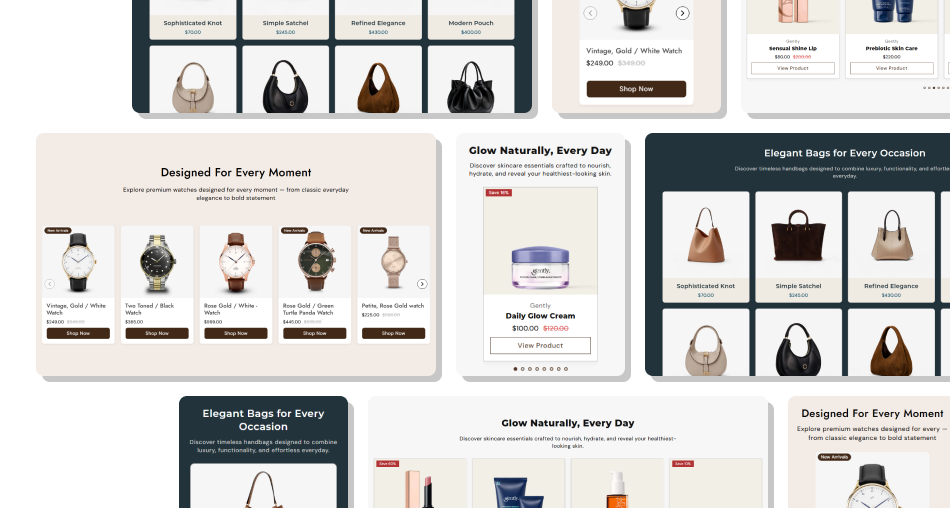
Create a flexible product showcase that combines collection-based browsing, responsive sliders, product imagery, pricing, and customizable navigation.
Showcase selected products in a clean sliderMake product discovery faster and more visualHighlight current and compare-at pricingGive shoppers multiple products to exploreAdd hover imagery for richer product previewsCreate smooth browsing across devicesMatch the slider to your store design Use a focused collection with relevant products.
Choose clear product images with consistent presentation.
Keep the number of visible products easy to scan.
Use autoplay speed that feels comfortable for shoppers.
Check slider spacing and layout carefully on mobile.
Use a focused collection with relevant products.
Choose clear product images with consistent presentation.
Keep the number of visible products easy to scan.
Use autoplay speed that feels comfortable for shoppers.
Check slider spacing and layout carefully on mobile.  Avoid showing unrelated products in the collection.
Don't use low-quality or inconsistent product images.
Avoid overcrowding the slider with too many columns.
Don't make autoplay changes too fast for shoppers.
Don't ignore mobile spacing and product readability.
Avoid showing unrelated products in the collection.
Don't use low-quality or inconsistent product images.
Avoid overcrowding the slider with too many columns.
Don't make autoplay changes too fast for shoppers.
Don't ignore mobile spacing and product readability. Yes. Select any available Shopify collection from the section settings, and its products will be displayed in the slider.
You can set the maximum number of products from 2 to 25, depending on how many products you want the slider to show.
Yes. The section lets you choose between 3 and 6 visible product columns on desktop layouts.
Yes. Mobile settings let you choose either one or two visible product columns for smaller screens.
Yes. When enabled, products with more than one image can display their second image when customers hover over the product image.
Yes. You can enable autoplay and set the delay between slide changes from 1 to 10 seconds.
Yes. You can choose between arrow navigation and clickable pagination dots for moving through the product slider.
The View All button can be enabled to appear when the selected collection contains more products than the configured maximum display count.
For Support or any Questions Email Us: [email protected]
Install SectionHub and add the Featured Collection Product Carousel section to your theme in minutes - no coding required.
