Answer Common Store Questions Up Front
Use the FAQ section on your homepage to address shipping, returns, sizing, support, or brand questions before visitors need to search elsewhere.

Create a flexible Shopify FAQ section with multi-column desktop cards, mobile accordion behavior, optional CTA links, custom styling, responsive spacing, and clear answers.
 Responsive FAQ Cards
Mobile Accordion Layout
Optional FAQ CTA Links
Responsive FAQ Cards
Mobile Accordion Layout
Optional FAQ CTA Links 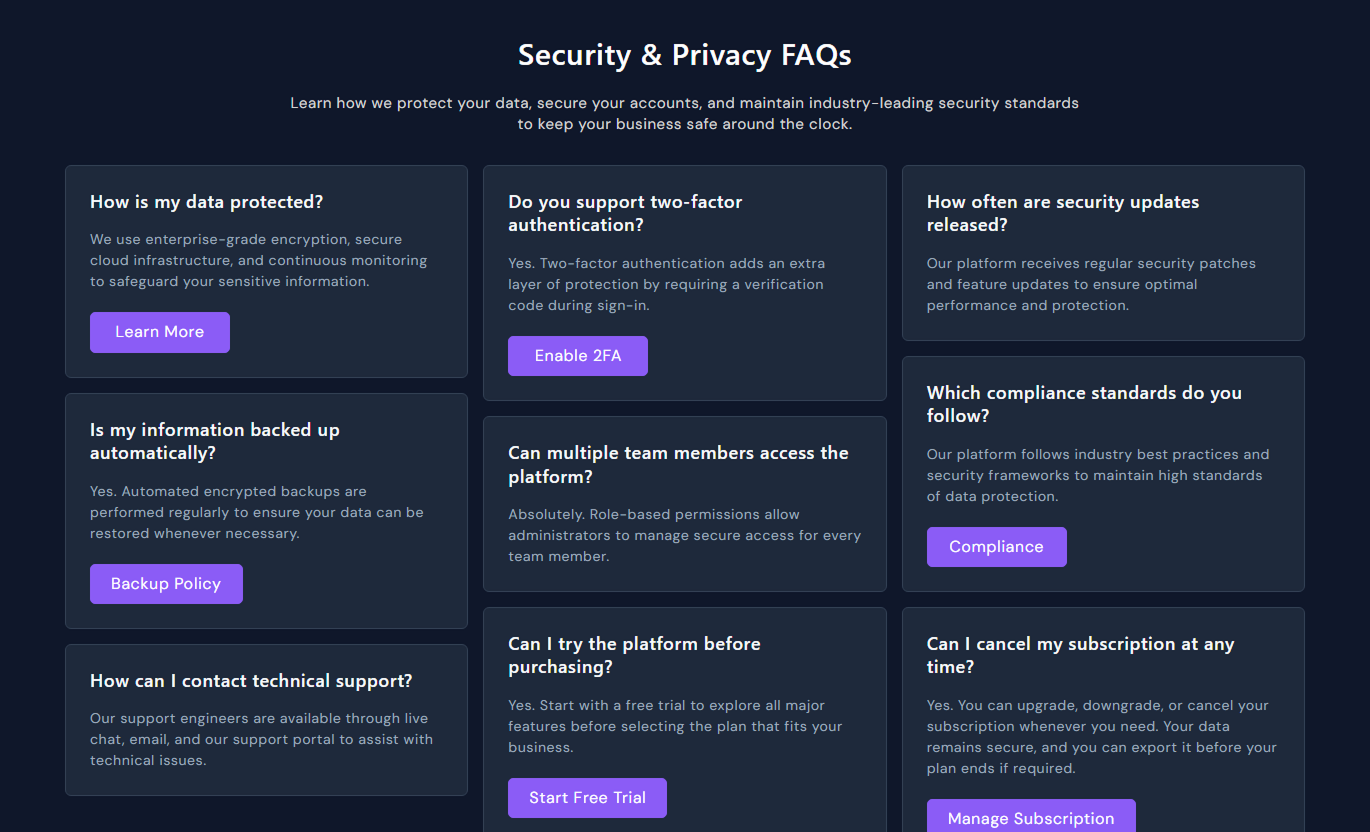
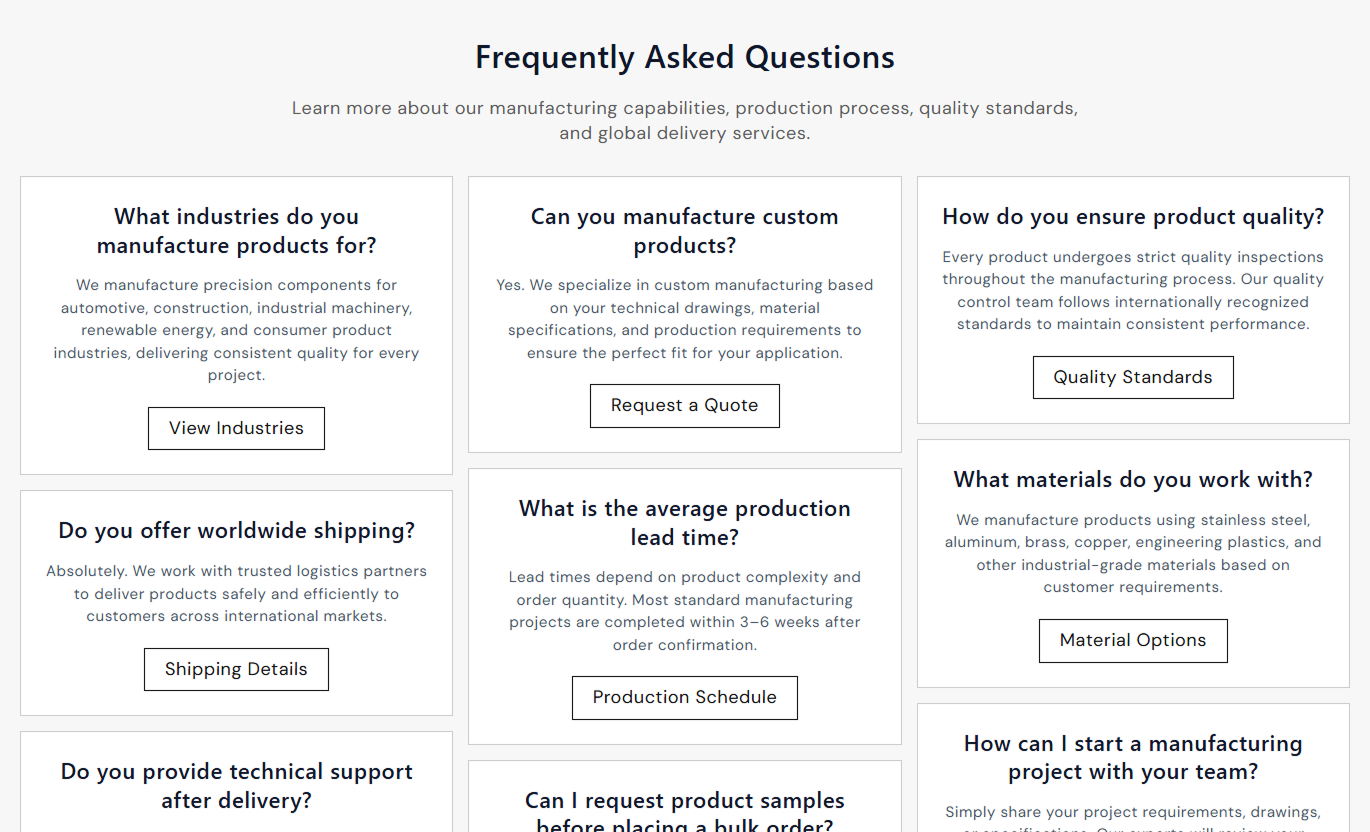
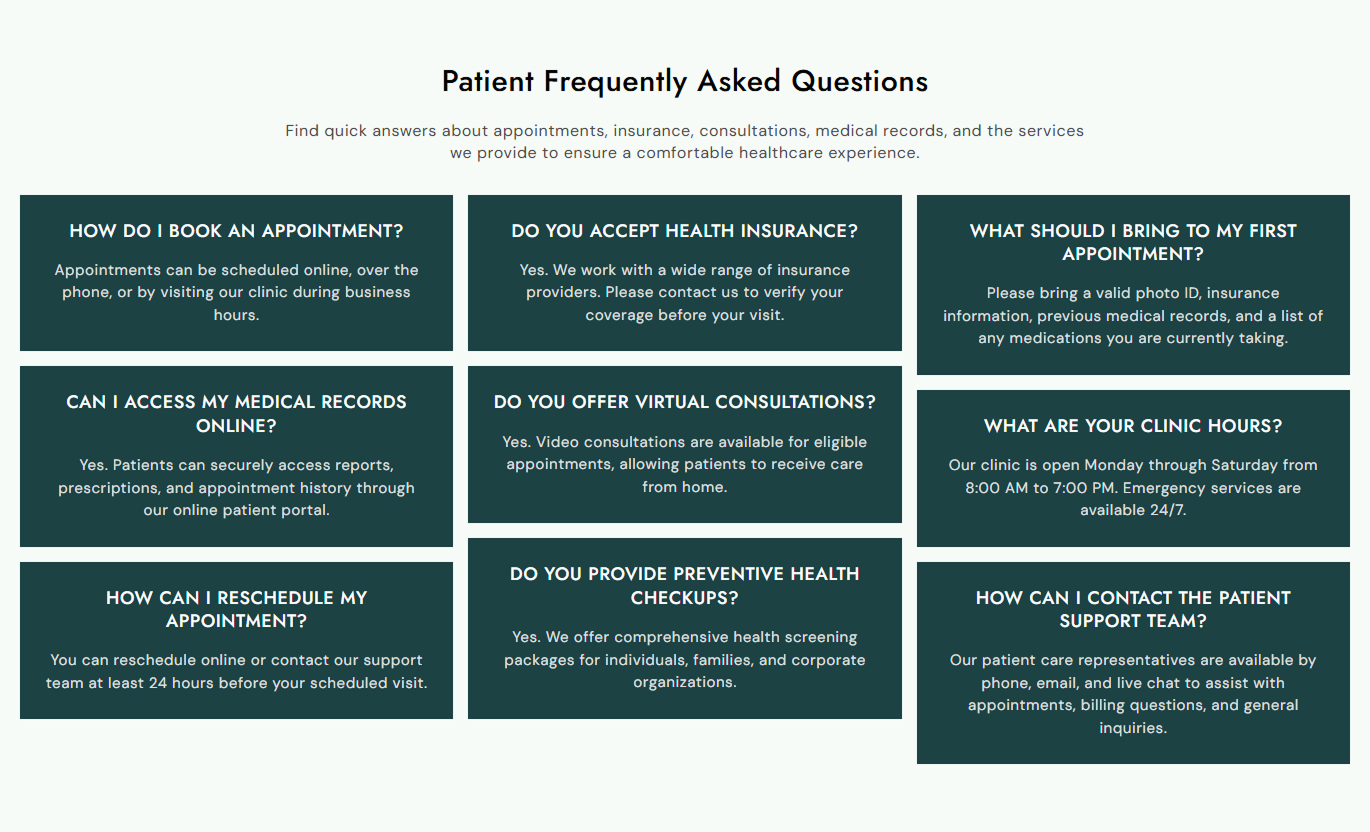


Build an FAQ area with desktop card columns, mobile accordion behavior, optional per-question CTAs, responsive typography, hover effects, and full styling control.

Distribute valid FAQ cards across up to three desktop columns for a balanced layout that cleanly handles different answer lengths.

On mobile, FAQ cards collapse into an accordion, with only one item open at a time for compact, easy browsing.

Add an optional button label and link to any FAQ block so shoppers can continue to a relevant page, guide, or support resource.

Choose left, center, or right alignment for FAQ cards on desktop while mobile automatically switches cards to left alignment.

On desktop, FAQ cards can show a change in border color, a soft shadow, and a subtle moving highlight effect when shoppers hover.

Control desktop heading, description, question, answer, and button sizes; on mobile, use optimized fixed sizes for readability.

Customize section, card, text, border, button, hover, shadow, and outline colors to match your storefront design.

Use a contained maximum width or expand the section to full width, with separate desktop and mobile vertical spacing controls.
Control FAQ content, alignment, card styling, buttons, typography, colors, spacing, and section width.

Applies to the whole section
Edit the section heading, rich text, and overall alignment.
Heading & ContentAdjust FAQ card radius and desktop content alignment.
FAQ Card LayoutChoose filled or outline styling for FAQ CTA buttons.
FAQ Button StyleSet heading, description, question, answer, and button sizes.
Typography ControlsCustomize section, card, text, border, and hover colors.
Section Color StyleStyle CTA colors, hover states, outline, and shadow.
Button Color StatesSet separate desktop and mobile top and bottom spacing.
Responsive PaddingUse full width or define a custom maximum section width.
Section Width Setup
Applies to each FAQ item
Add the question displayed as the FAQ card heading.
FAQ QuestionAdd the rich text answer shown inside this FAQ card.
FAQ AnswerAdd optional text for this FAQ card's CTA button.
CTA Button LabelSet the optional destination for this FAQ card button.
CTA Button LinkUse this FAQ section across key Shopify pages to answer common questions, reduce uncertainty, guide shoppers to helpful resources, and support decisions.
Use the FAQ section on your homepage to address shipping, returns, sizing, support, or brand questions before visitors need to search elsewhere.
Reduce repeated shopper questions with clear answersHelp first-time visitors understand important store policiesUse CTA links to direct shoppers to detailed support pagesKeep desktop FAQs easy to scan across multiple columnsCollapse answers into a compact accordion on mobile screensPlace FAQs near the collection content to explain sizing, materials, care, compatibility, or buying guidance for products in that category.
Answer category questions without changing the product gridExplain shared materials, sizing, or care information clearlyLink shoppers to buying guides or support resourcesKeep detailed information organized below collection contentImprove mobile readability with one-open-at-a-time accordionsUse FAQs on product pages to address common concerns about fit, use, delivery, warranty, care, or compatibility before shoppers make a decision.
Address purchase objections close to product informationExplain usage, sizing, care, or warranty details clearlyUse CTA links for manuals, guides, or support pagesKeep longer answers separated into focused FAQ cardsOffer a compact mobile accordion for product researchAdd FAQs to landing pages to explain campaign terms, offer details, eligibility, shipping, setup, and other questions specific to a promotion.
Answer campaign questions without adding long text sectionsClarify promotional terms and offer details in one placeLink visitors to relevant campaign or support resourcesUse custom card styling to match landing page designKeep the FAQ experience responsive across screen sizesTurn common shopper questions into a structured, responsive FAQ section that keeps answers easy to scan on desktop and compact on mobile.
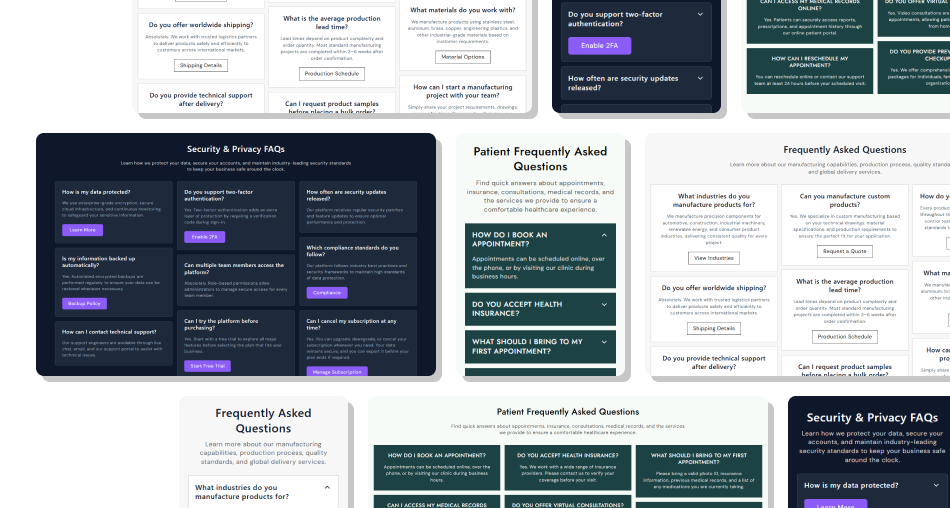
Organize store questions in reusable cards with optional links, responsive layouts, and a mobile accordion for quick browsing.
Organize common shopper questions into reusable FAQ cardsKeep desktop information visible without accordion interactionConvert the same content into a compact accordion on mobileAdd optional links for policies, guides, help, or deeper detailsCustomize card borders, colors, typography, and hover behaviorExclude incomplete FAQs automatically from the visible layoutUse full-width or contained layouts to suit different templates Use concise questions that match how shoppers naturally ask
Keep each answer focused on one topic or decision point
Add CTA links only when a deeper resource is genuinely useful
Group related FAQs so the section feels easy to scan
Test accordion behavior and link targets on mobile devices
Use concise questions that match how shoppers naturally ask
Keep each answer focused on one topic or decision point
Add CTA links only when a deeper resource is genuinely useful
Group related FAQs so the section feels easy to scan
Test accordion behavior and link targets on mobile devices  Do not combine several unrelated questions into one FAQ card
Do not hide essential policy details behind vague answers
Do not use CTA buttons that lead to unrelated destinations
Do not make every answer excessively long or repetitive
Do not publish empty FAQ blocks with missing questions or answers
Do not combine several unrelated questions into one FAQ card
Do not hide essential policy details behind vague answers
Do not use CTA buttons that lead to unrelated destinations
Do not make every answer excessively long or repetitive
Do not publish empty FAQ blocks with missing questions or answers Valid FAQ cards are distributed across up to three columns on desktop, helping keep answer lengths balanced and easy to scan.
On screens below 768px, the cards become an accordion. The first valid FAQ starts open, and opening another closes the previous one.
Yes. Each FAQ block includes an optional button label and link. The button appears only when both fields are filled in.
Yes. FAQ card content can be aligned left, center, or right on desktop, while the mobile layout forces left alignment for readability.
Blocks without both a question and an answer are skipped in the rendered FAQ lists, so incomplete entries do not appear to shoppers.
Yes. You can set hover borders and shadow colors, while the code also adds a subtle moving highlight effect across cards on the desktop.
Yes. Enable Full Width to remove the maximum-width constraint, or use the custom width setting to keep the section within its container.
For Support or any Questions Email Us: [email protected]
Install SectionHub and add the FAQs section to your theme in minutes - no coding required.
