Create an Immersive Brand Introduction
Use multiple video slides to introduce your brand, highlight different visual stories, and give visitors a focused way to explore important homepage content.

Create an immersive video slider that combines full-size videos, supporting content, slide counters, and smooth navigation to present brand stories in a focused visual layout.
 Full-Screen Video Slides
Autoplay Slider
Responsive Story Layout
Full-Screen Video Slides
Autoplay Slider
Responsive Story Layout 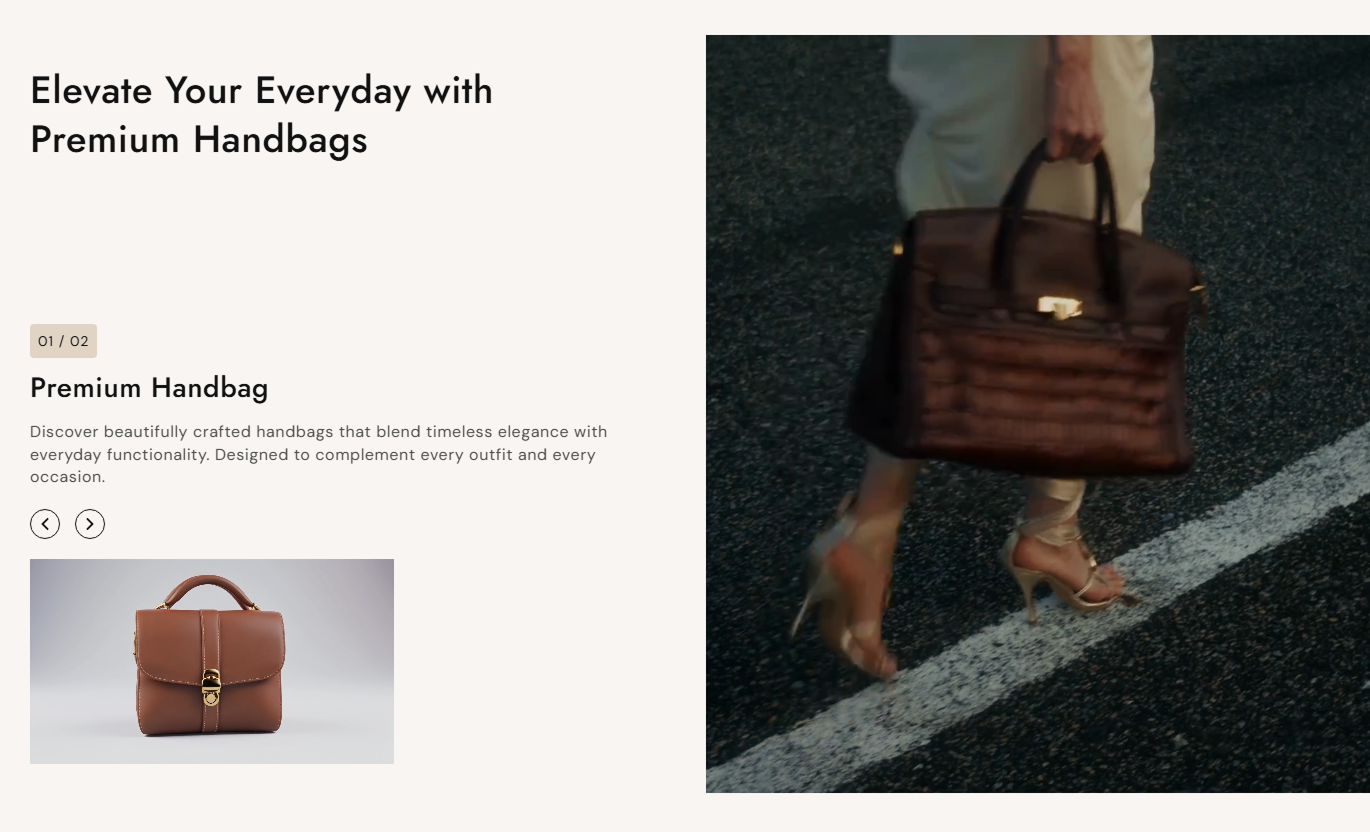
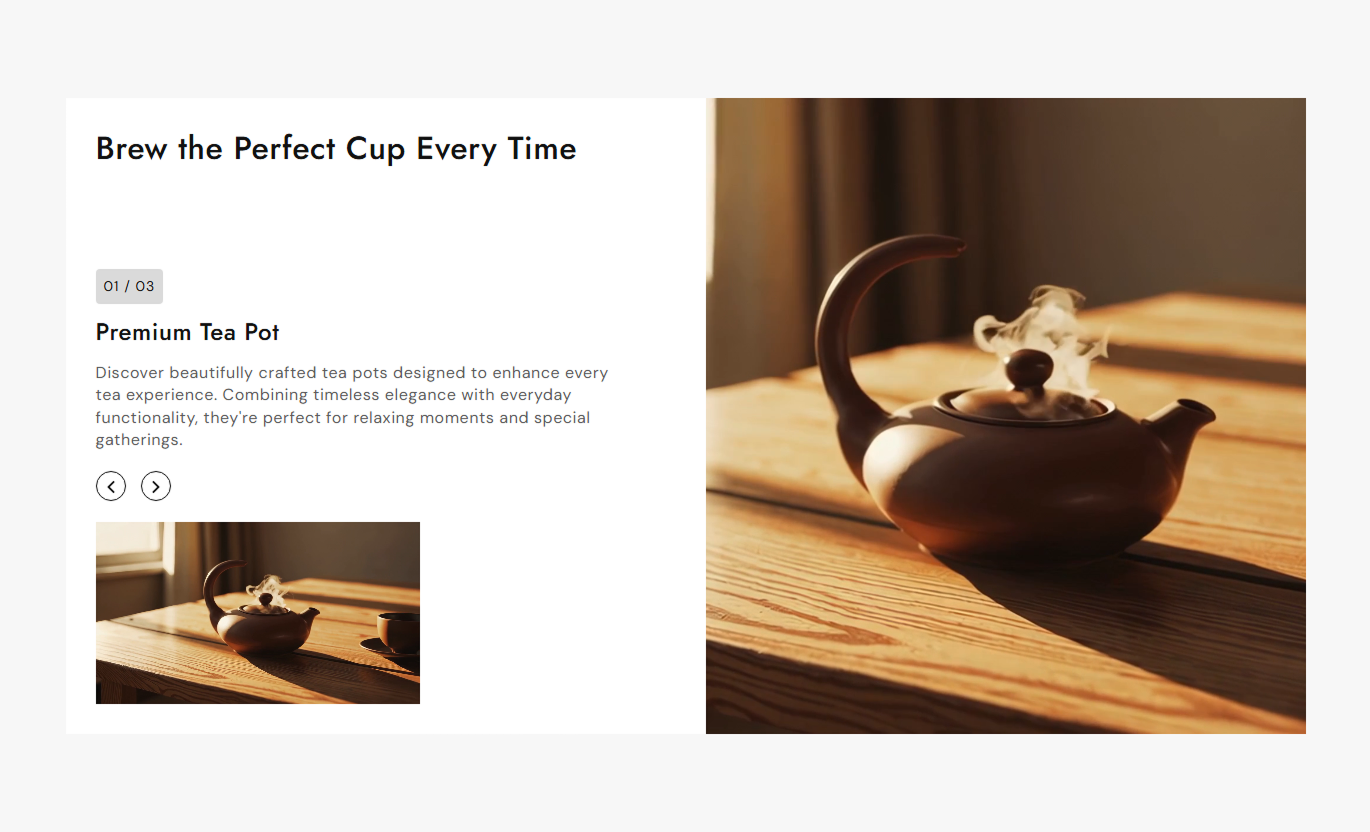


Build a focused video experience with individual slide videos, supporting content, autoplay timing, counters, navigation arrows, and responsive layouts.

Add a dedicated video to each slide and use it as the main visual for that story, campaign, product, or content block.

Add a separate supporting video below the slide content, or reuse the main video automatically when no thumbnail video is provided.

Enable automatic slide changes so visitors can move through your video stories without needing to navigate manually.

Control how frequently slides change automatically by setting a delay from 1 to 10 seconds.

Use a smooth fade effect between slides to create a focused transition from one video story to the next.

Show the current slide number together with the total number of slides so visitors can understand their position in the sequence.

Give visitors simple arrow controls to move backward or forward through the video slides whenever they want to browse manually.

Adapt video content, typography, spacing, and navigation for smaller screens so the experience remains easy to use on mobile devices.
Control slide playback, video visibility, typography, colors, spacing, navigation, and section width directly from the Shopify theme editor.

Applies to the whole section
Enable or disable automatic movement between video slides.
AutoplaySet how many seconds pass before the next slide appears.
Slide Change DelayShow or hide the smaller supporting video below the slide content.
Hide Thumbnail VideoAdjust the main section heading text size.
Main Heading SizeControl the font size used for the slide counter.
Counter Font SizeSet the font size used for slide subheadings.
Subheading SizeChoose the main background color for the complete section.
Background ColorSet the background color behind individual slide items.
Item Background ColorChoose the background color used behind the slide counter.
Counter Background ColorSet the maximum section width when full-width layout is disabled.
Section Maximum Width
Applies to each individual slide
Add the main full-size video displayed for the slide.
Full VideoAdd a separate supporting video below the slide content.
Thumbnail VideoAdd the main heading displayed with the selected video.
HeadingAdd supporting text below the slide heading.
SubheadingAdd rich-text content that explains the current video story.
ContentUse video storytelling across key Shopify pages to introduce your brand, explain visual concepts, highlight collections, or create focused campaign experiences.
Use multiple video slides to introduce your brand, highlight different visual stories, and give visitors a focused way to explore important homepage content.
Introduce your brand through engaging video stories.Highlight different campaigns in separate slides.Present visual content without adding multiple sections.Create a focused storytelling experience for visitors.Guide attention through a structured slide sequence.Use individual video slides to present collection themes, seasonal edits, category stories, or visual merchandising ideas, accompanied by supporting headings and content.
Give collections a stronger visual introduction.Present seasonal collection stories through video.Highlight different category themes in sequence.Add supporting descriptions to collection visuals.Create a more immersive collection browsing experience.Use video slides to explain product stories, show different visual details, or provide supporting content that helps shoppers understand the product presentation.
Present product stories through dedicated video slides.Add supporting text beside the visual product content.Show multiple product-related stories in sequence.Use smaller videos for additional visual context.Keep product storytelling focused and structured.Create a campaign journey with individual video slides that introduce the message, explain supporting details, and move visitors through a controlled visual experience.
Create a strong opening for campaign content.Present campaign messages through multiple slides.Control the pace of automatic slide changes.Combine videos with supporting campaign copy.Give visitors simple controls to browse the story.Create a focused visual storytelling experience that combines videos, supporting text, slide navigation, and flexible controls in one responsive Shopify section.
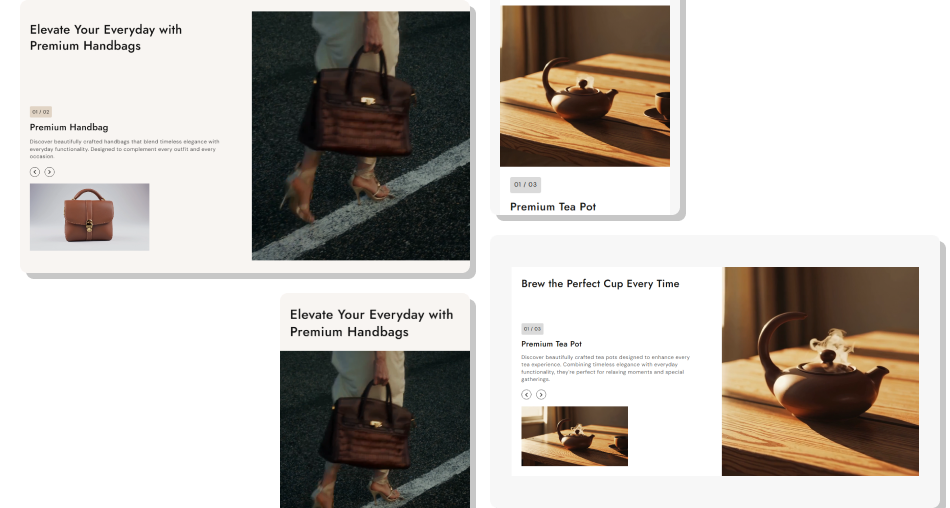
Present each story on its own video slide, supported by headings, descriptions, counters, and simple navigation controls.
Present multiple video stories within one section.Keep supporting content connected to each video.Control how quickly automatic slides change.Give visitors both autoplay and manual navigation.Show slide progress with a clear counter.Add optional supporting videos for additional context.Create a responsive experience across different screen sizes. Use focused videos that clearly support each slide's message.
Keep headings short so visitors can understand slides quickly.
Use consistent video styles across the complete slide sequence.
Set an autoplay delay that gives visitors enough viewing time.
Use supporting videos only when they add useful visual context.
Use focused videos that clearly support each slide's message.
Keep headings short so visitors can understand slides quickly.
Use consistent video styles across the complete slide sequence.
Set an autoplay delay that gives visitors enough viewing time.
Use supporting videos only when they add useful visual context.  Don't use unrelated videos that make the slide story confusing.
Don't overload slides with long headings or excessive content.
Don't mix videos with completely different visual purposes.
Don't set rapid autoplay timing that limits comfortable viewing.
Don't add supporting videos when they simply repeat the main visual.
Don't use unrelated videos that make the slide story confusing.
Don't overload slides with long headings or excessive content.
Don't mix videos with completely different visual purposes.
Don't set rapid autoplay timing that limits comfortable viewing.
Don't add supporting videos when they simply repeat the main visual. Yes. Each Slide block includes a Full Video setting, allowing every slide to have its own main video and visual story.
Yes. Each slide can include a Thumbnail Video. If no separate video is added, the section can reuse the slide's Full Video.
Yes. Enable Autoplay and use the Slide Change Delay setting to choose how often the section changes slides, from 1 to 10 seconds.
Yes. The slider uses a fade effect when moving between slides, creating a smooth transition between video stories.
Yes. The previous and next arrow controls allow visitors to navigate the video slides manually.
Yes. A slide counter displays the current slide position together with the total number of active slides.
Yes. Use the Hide Thumbnail Video setting to remove the supporting video area from the slide content.
For Support or any Questions Email Us: [email protected]
Install SectionHub and add the Dual Video With Slider section to your theme in minutes - no coding required.
