Promote Major Store Offers From the Homepage
Place the countdown bar on your homepage to highlight a limited-time sale, launch, seasonal event, or campaign while giving shoppers a direct path to the offer.

Create a promotional countdown bar with sale messaging, live timer values, CTA buttons, custom backgrounds, and responsive controls for limited-time campaigns.
 Live Countdown Timer
Promotional CTA Bar
Flexible Background Styles
Live Countdown Timer
Promotional CTA Bar
Flexible Background Styles 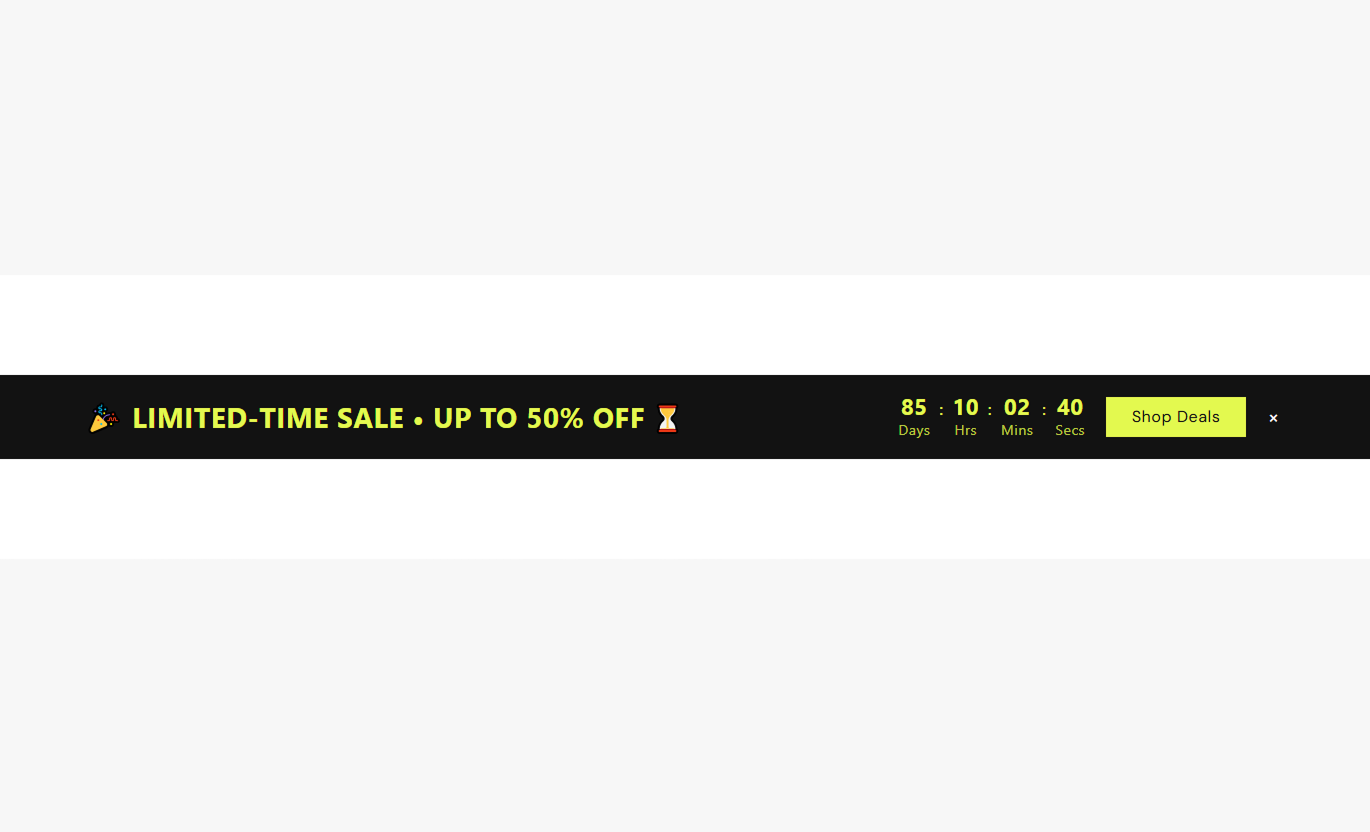
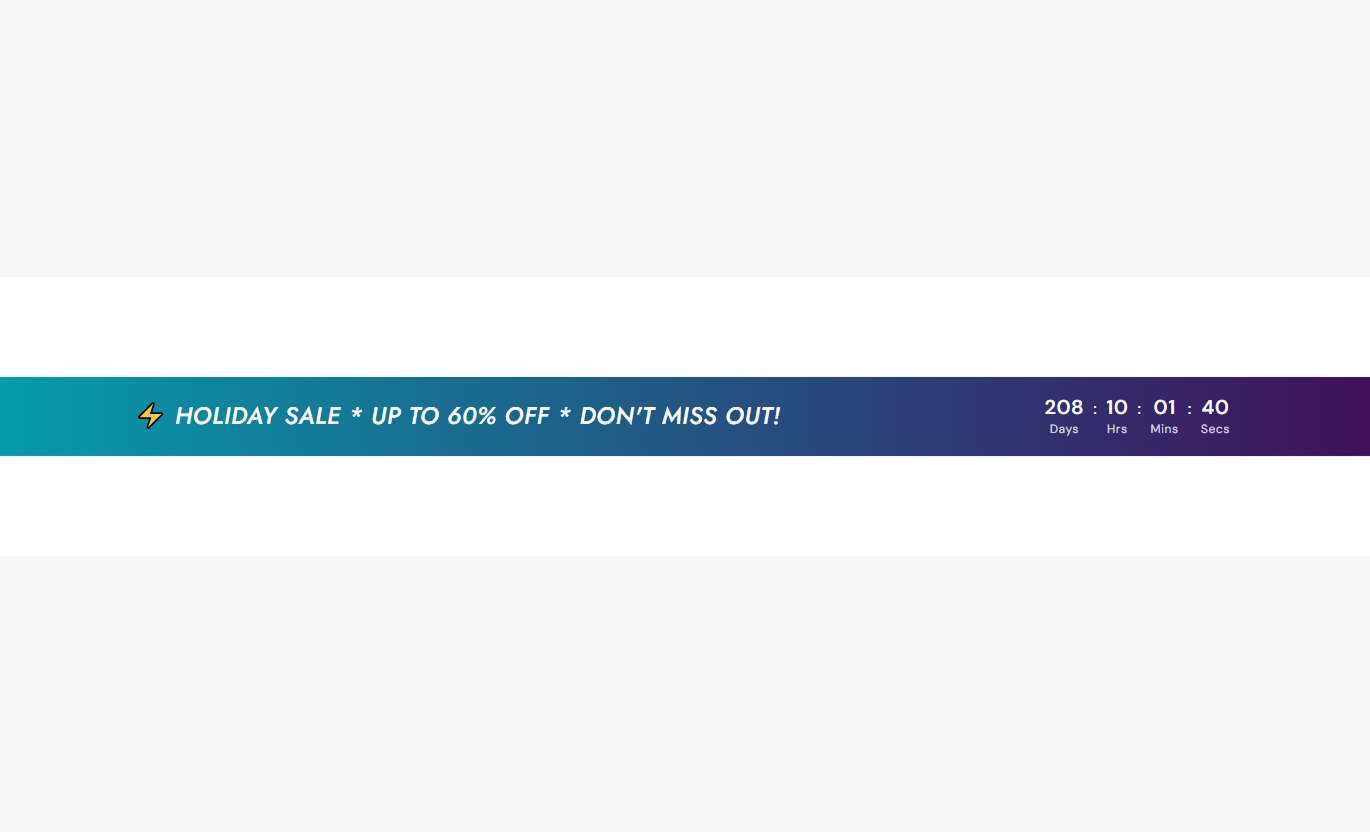
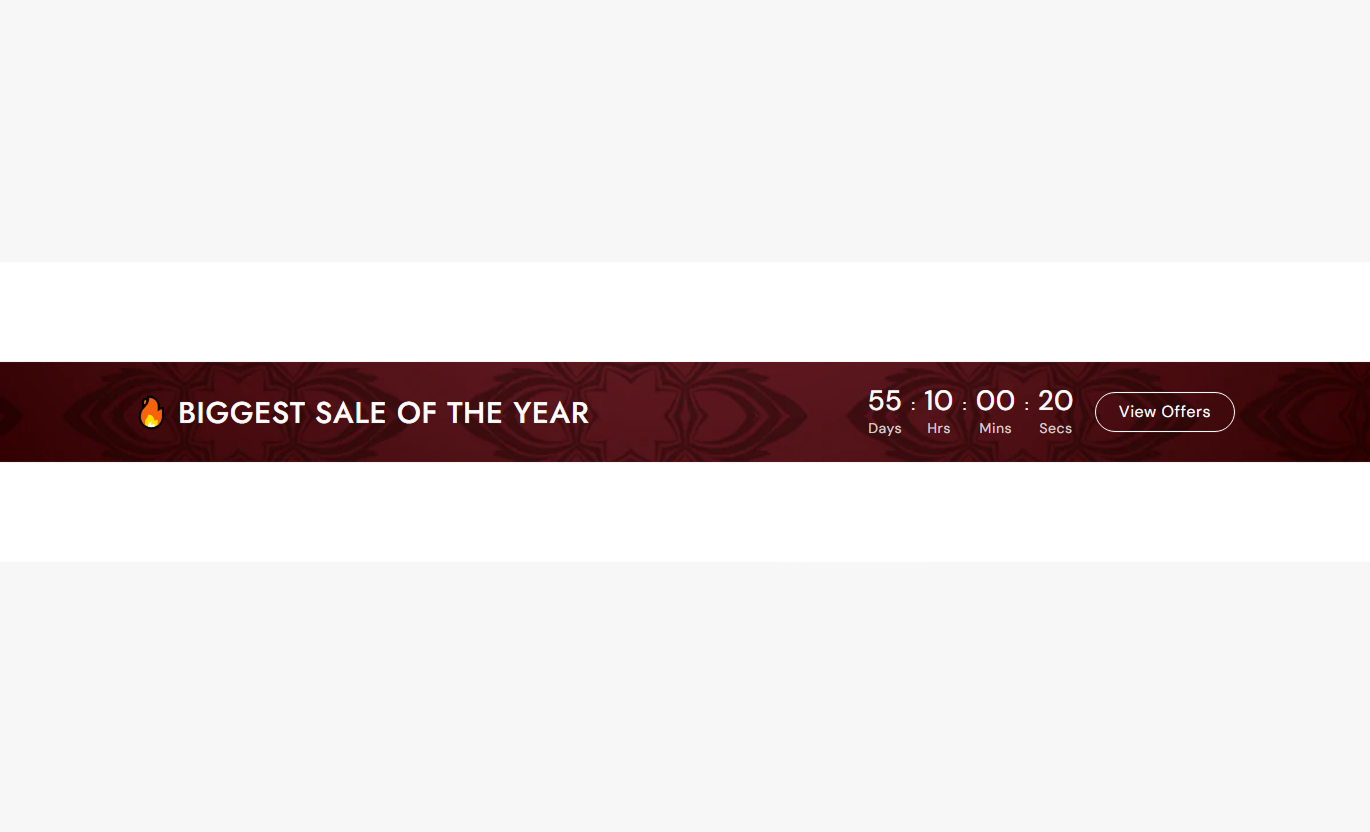


Promote limited-time campaigns with a live countdown, flexible messaging, CTA buttons, background options, responsive styling, and shopper controls.

Display remaining days, hours, minutes, and seconds using a timer that updates every second until the configured campaign end time.

Add a rich text heading for sale announcements, seasonal campaigns, limited-time offers, launches, or other urgent promotional messaging.

Customize the text shown below countdown values, including labels for days, hours, minutes, and seconds.

Add a linked call-to-action button beside the countdown so shoppers can move directly to the promoted collection, page, or campaign.

Show an optional close icon that lets visitors hide the countdown bar from the current page when they no longer want to view it.

Use a background image, gradient background, or solid background color to match the countdown bar with your campaign design.

Control button fill, outline mode, text color, border, hover states, shadow, radius, and desktop font size from the theme editor.

On smaller screens, the bar stacks its content vertically and automatically adjusts text, countdown, button, spacing, and close icon placement.
Control promotional content, timer details, backgrounds, button styling, typography, spacing, close behavior, and overall section width.
Applies to the whole countdown bar
Upload an optional image used as the section background.
Background ImageAdd rich text for the promotional announcement message.
Promotion HeadingShow or hide the close icon for visitors.
Close IconMake countdown number values bold when required.
Bold Countdown TextAdd the text displayed inside the call-to-action button.
Button LabelChoose the destination opened by the promotional button.
Button LinkSwitch the CTA between standard filled and outline styling.
Button StyleSet the countdown's target date, hour, and minute.
Timer End DateCustomize labels for days, hours, minutes, and seconds.
Timer LabelsUse full width or define a maximum contained section width.
Section Width
Applies to the timer and visual presentation
Adjust the main promotional heading font size.
Heading Font SizeAdjust the size used for countdown number values.
Countdown Number SizeAdjust the size used for labels below timer values.
Timer Label SizeChoose a solid background color when no image is used.
Background ColorEnable and customize an optional gradient background.
Gradient BackgroundCustomize heading, countdown, and close icon colors.
Text and Icon ColorsControl button background, text, border, hover, and shadow colors.
Button ColorsUse the countdown bar across key Shopify pages to promote limited-time offers, launches, collection events, seasonal campaigns, or important store deadlines.
Place the countdown bar on your homepage to highlight a limited-time sale, launch, seasonal event, or campaign while giving shoppers a direct path to the offer.
Make active promotions immediately visible to homepage visitorsShow exactly how much time remains before an offer endsUse a CTA to guide shoppers toward the promoted destinationMatch the bar background to seasonal campaign artworkAllow visitors to close the promotion when they chooseUse the countdown bar on collection pages to support temporary discounts, seasonal ranges, launch windows, or category-specific promotions with a clear deadline.
Reinforce time-sensitive offers while shoppers browse productsKeep campaign timing visible above or around collection contentLink directly to the most relevant promotional destinationUse countdown labels that match your campaign wordingAdapt the bar cleanly for mobile collection browsingPlace the countdown bar on product pages when a product, launch, campaign, or sale has a defined deadline that shoppers should understand before leaving.
Keep offer timing visible near product purchasing decisionsCommunicate limited availability windows more clearlyUse promotional copy to explain the current campaignGuide visitors toward another relevant promotional pageKeep the message compact without adding a large sectionUse the countdown bar on campaign landing pages to reinforce a deadline, launch time, event ending, or promotional window alongside a clear call to action.
Keep the campaign deadline visible throughout the experienceCombine promotional messaging and countdown values togetherUse custom backgrounds to match campaign creative directionDirect visitors toward the campaign's main conversion pageCreate a mobile-friendly urgency element without heavy contentCombine promotional messaging, real-time countdown values, and a direct CTA inside one compact bar that helps shoppers understand when an offer will end.
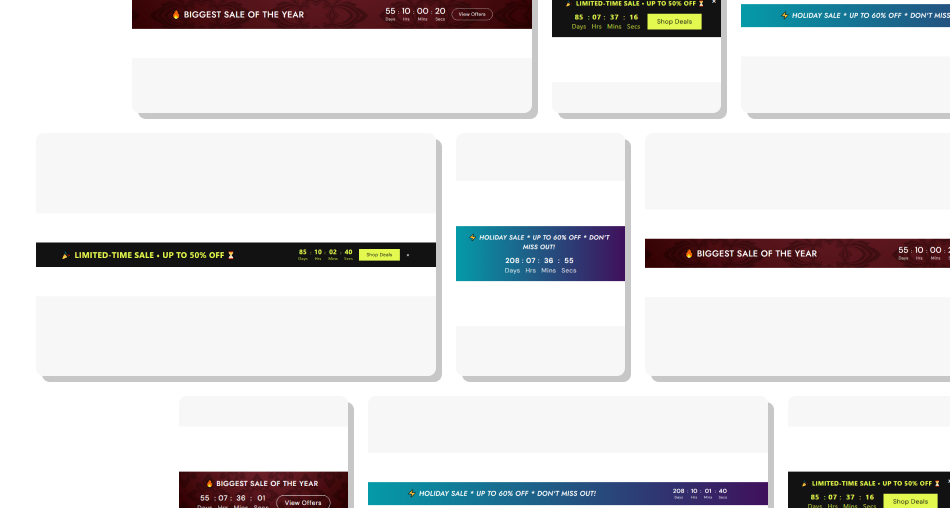
Show campaign deadlines without adding a large promotional section by combining a message, a timer, a CTA, and a dismiss control into a single bar.
Display days, hours, minutes, and seconds in real timeSet a precise campaign end date and timeAdd a direct promotional CTA beside the timerUse image, gradient, or solid color backgroundsCustomize countdown labels for different campaign stylesLet shoppers close the bar when the close option is enabledControl desktop and mobile spacing independently Set the timer to the actual end date of the promotion
Keep promotional messaging short and immediately understandable
Use a CTA that leads directly to the promoted destination
Choose high-contrast colors so countdown values stay readable
Check mobile spacing and button placement before publishing
Do not use a countdown for offers without a real deadline
Do not add overly long promotional copy inside the compact bar
Do not use low-contrast timer text over busy background images
Do not link the CTA to a page unrelated to the promotion
Do not leave an expired countdown displayed as an active offer
Set the timer to the actual end date of the promotion
Keep promotional messaging short and immediately understandable
Use a CTA that leads directly to the promoted destination
Choose high-contrast colors so countdown values stay readable
Check mobile spacing and button placement before publishing
Do not use a countdown for offers without a real deadline
Do not add overly long promotional copy inside the compact bar
Do not use low-contrast timer text over busy background images
Do not link the CTA to a page unrelated to the promotion
Do not leave an expired countdown displayed as an active offer The timer displays days, hours, minutes, and seconds. Each value updates every second until the configured target date and time is reached.
Enter the target year, month, day, hour, and minute in the section settings. The hour uses a 24-hour format for the configured end time.
When the target time passes, the timer stops, and each countdown value is set to 00 instead of continuing into negative numbers.
Yes. You can customize the individual labels for days, hours, minutes, and seconds, including abbreviations such as Hrs, Mins, or Secs.
Yes. Add both a button label and a link to display a CTA beside the timer. You can also switch the button to an outlined appearance.
Yes. When the show Close Icon is enabled, visitors can click the close control, and the section is hidden from the current page view.
Yes. The section supports a background image, an optional gradient background, or a standard solid background color when neither is used.
On smaller screens, the main wrapper switches to a vertical layout, while heading size, timer numbers, button sizing, spacing, and close icon placement adjust accordingly.
For Support or any Questions Email Us: [email protected]
Install SectionHub and add the Countdown Timer Bar section to your theme in minutes - no coding required.
