Create a Dedicated Contact Experience
Use the section as the main contact form on your contact page to collect customer details and inquiries.

Create a customizable contact section with an image, flexible form fields, selectable options, custom messaging, and responsive layouts for your Shopify store.
 Flexible Contact Form
Custom Form Fields
Responsive Layout
Flexible Contact Form
Custom Form Fields
Responsive Layout 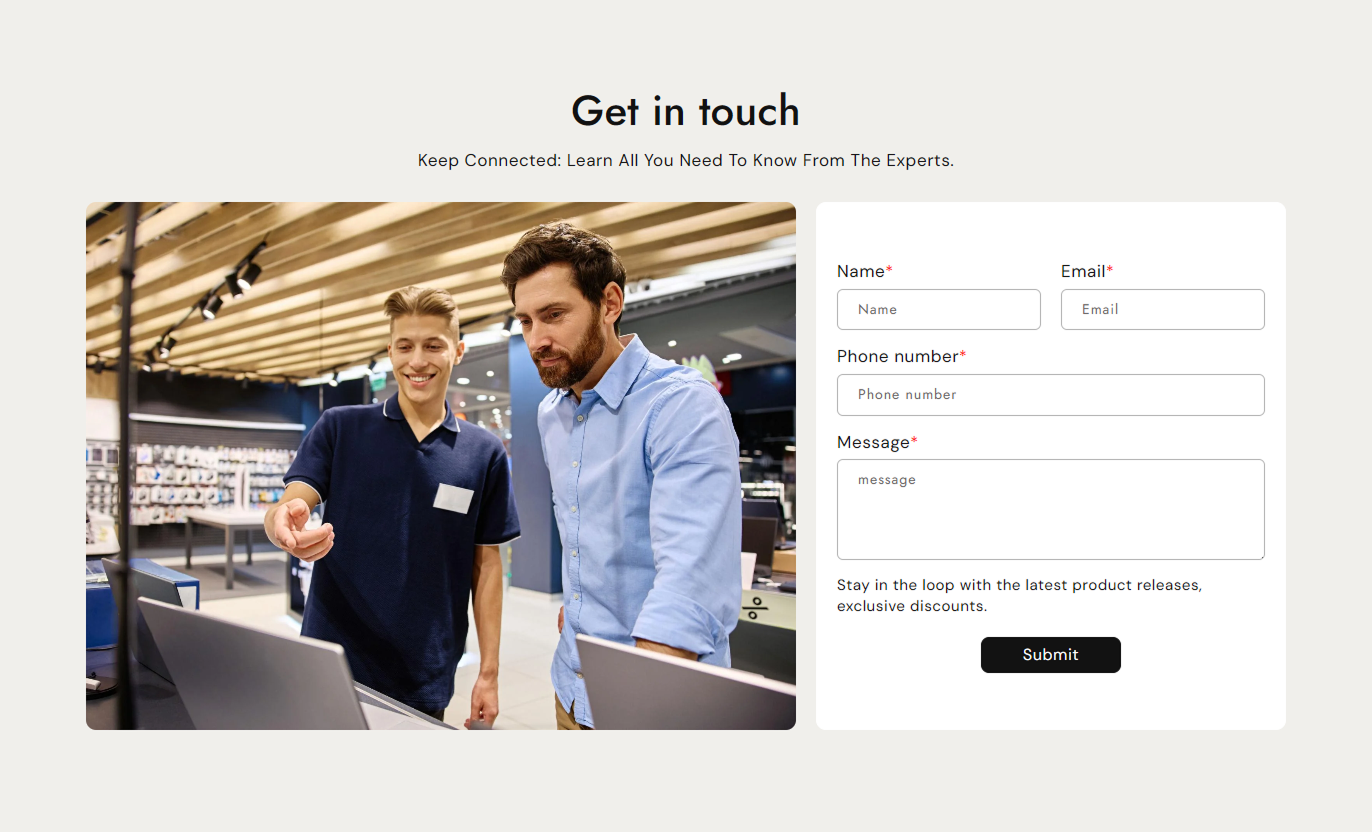
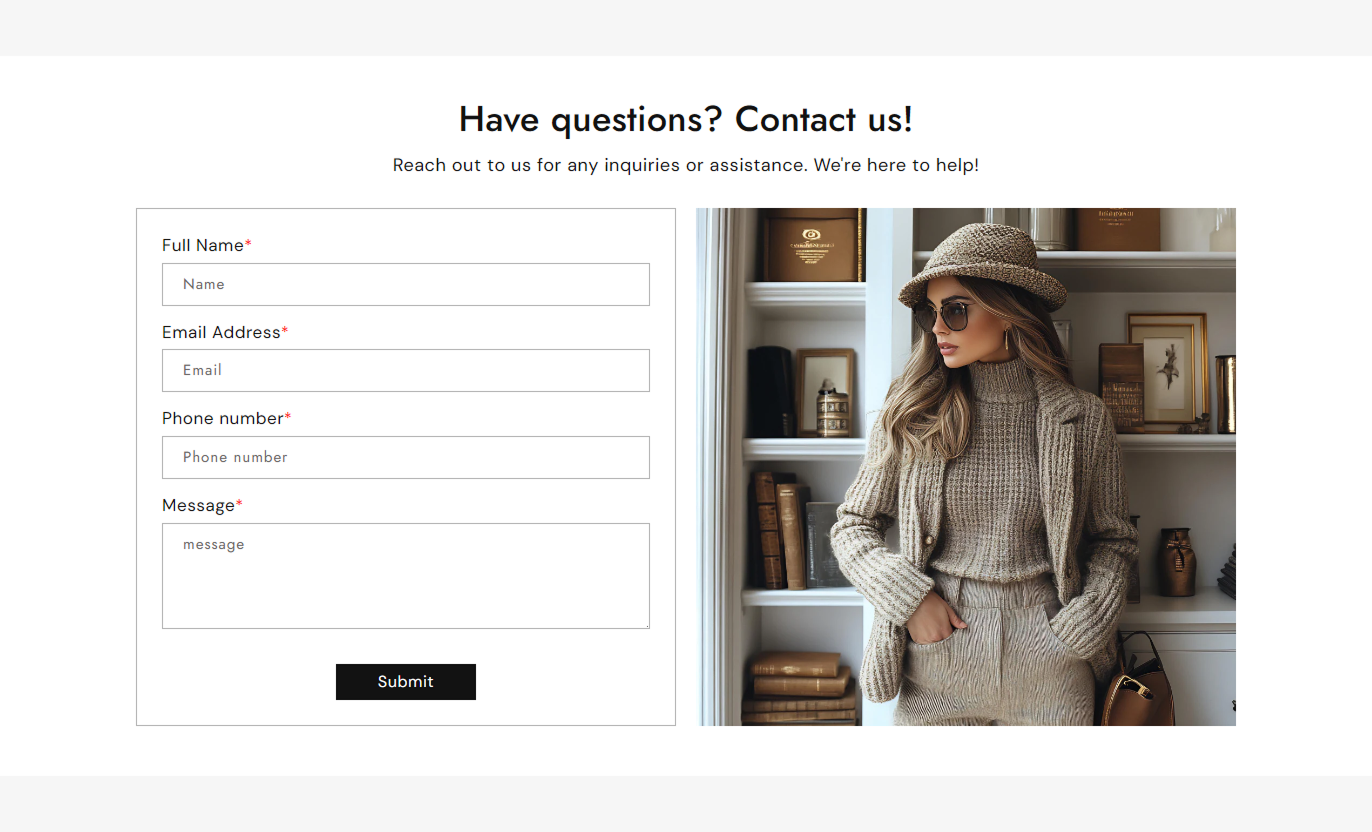
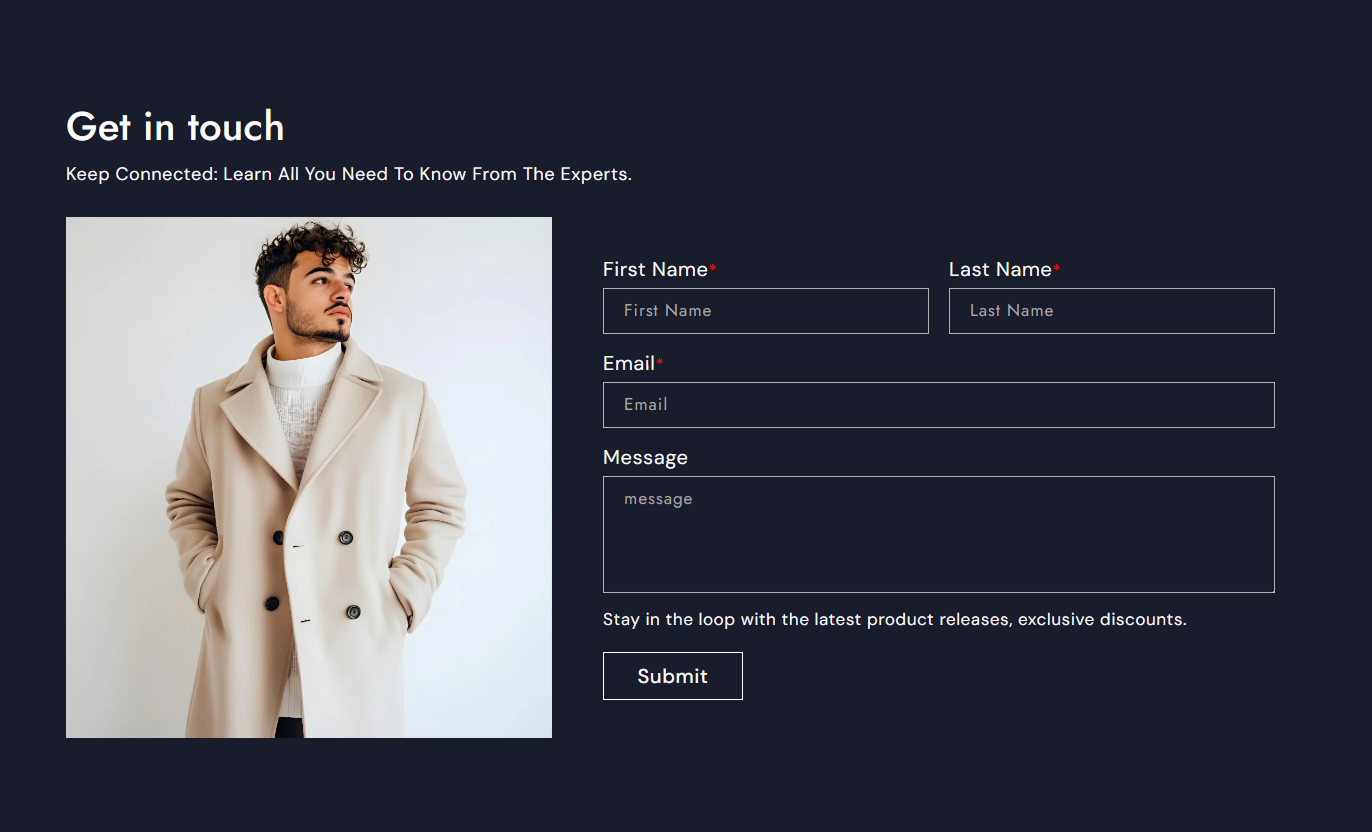


Build a complete contact form with customizable fields, image placement, form sizing, button styling, colors, spacing, and responsive settings.

Display an image alongside the contact form with flexible sizing and positioning options.

Add name, email, phone, text, message, single-select, and multiple-select fields.

Mark supported form fields as required to collect important customer information.

Set custom field labels and placeholder text to match your contact form requirements.

Add a dropdown field with custom options separated by commas.

Add multiple checkbox choices so visitors can select more than one option.

Set the button label, alignment, size, border radius, colors, and outline style.

Display custom messages when a form is submitted successfully or encounters an error.
Control the form layout, image, fields, button, typography, colors, spacing, and responsive settings from the Shopify theme editor.
Applies to the whole section
Add a heading for the contact section.
HeadingAdd supporting content below the heading.
ContentChoose the alignment of the section content.
Content AlignmentAdd an image beside the contact form.
ImageSet the image corner radius.
Border RadiusChoose whether the image appears on the left or right.
PositionChoose the overall form size.
SizeSet the form corner radius.
Form Border RadiusSet desktop and mobile form padding.
Form PaddingAdd supporting text below the form.
Sub ContentSet custom success and error messages.
MessagesSet the submit button label and alignment.
Button SettingsChoose an outline button style.
Use Outline ButtonCustomize button size and corner radius.
Button StylingSet heading, content, and form text sizes.
Font SizeCustomize section, form, field, and button colors.
ColorsSet desktop and mobile section spacing.
Section PaddingSet the maximum section width.
Section Width
Applies to each form field
Add a custom field label.
LabelSet placeholder text for the field.
PlaceholderMake supported fields required.
RequiredHide the field label when needed.
Hide LabelMake the field span the full form width.
Full WidthAdd options for dropdown fields.
Single Select OptionsAdd options for checkbox fields.
Multiple Select OptionsUse the contact form wherever shoppers need a simple way to send inquiries, requests, questions, or other information to your store.
Use the section as the main contact form on your contact page to collect customer details and inquiries.
Collect customer contact detailsReceive questions and inquiriesAdd custom form fieldsProvide supporting informationCreate a structured contact experienceAdd a contact form to your About page so visitors can easily connect with your brand while learning more about your business.
Provide an easy contact optionCollect customer questionsSupport brand communicationKeep contact options accessibleCombine content with a contact formUse the form around product content to collect customer questions, requests, or other information related to your products.
Collect product inquiriesSupport customer questionsAdd relevant custom fieldsGather additional customer detailsKeep communication convenientAdd the contact form to landing pages to collect inquiries, requests, or information from visitors interested in a specific campaign or offer.
Collect campaign inquiriesAdd relevant form fieldsSupport customer communicationCapture useful contact detailsKeep the form focused and accessibleA flexible contact form helps merchants collect customer information while matching the form layout and styling to their storefront.
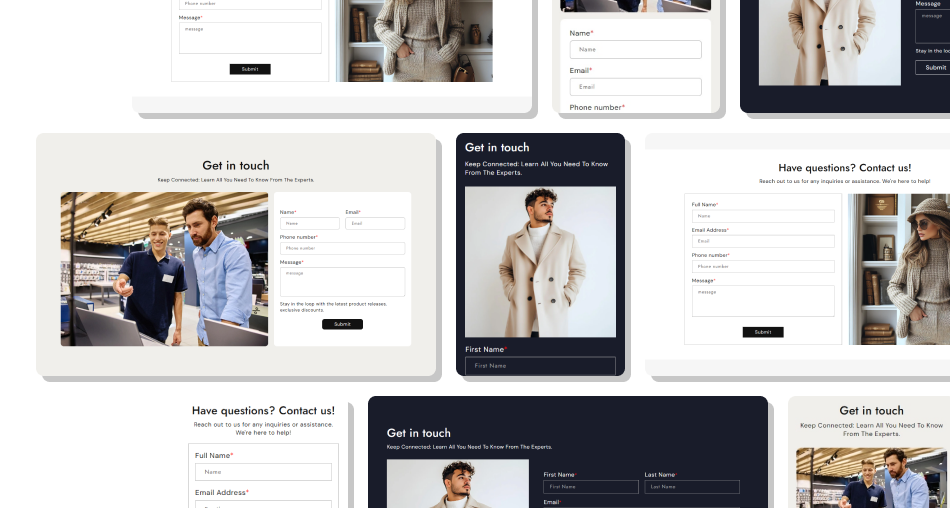
Customize the form structure, appearance, fields, and layout to create a contact experience that works for your store.
Build forms for different customer needsAdd only the fields you requireCollect structured customer informationMatch the form to your store designProvide a responsive experience across devices Add only fields that are useful for your customers
Use clear labels and helpful placeholder text
Mark important fields as required when needed
Keep form options relevant to the inquiry
Check the form layout on desktop and mobile
Add only fields that are useful for your customers
Use clear labels and helpful placeholder text
Mark important fields as required when needed
Keep form options relevant to the inquiry
Check the form layout on desktop and mobile  Add unnecessary fields that make forms difficult to complete
Use unclear labels that confuse customers
Make every field required without a clear reason
Add too many unrelated dropdown or checkbox options
Ignore spacing and readability on smaller screens
Add unnecessary fields that make forms difficult to complete
Use unclear labels that confuse customers
Make every field required without a clear reason
Add too many unrelated dropdown or checkbox options
Ignore spacing and readability on smaller screens Yes. You can add Name, Email, Phone Number, Text, Message, Single Select, and Multiple Select blocks.
Yes. The Name block supports up to two instances, allowing you to create separate name-related fields when needed.
Yes. Supported field blocks include a Required option that makes a field mandatory.
Yes. You can enable Hide Label for individual fields to use placeholder text without displaying the field label.
Yes. Fields can be set to Full Width so they span the complete form area instead of using a half-width column.
Yes. The Single Select block lets you add multiple dropdown options by entering them as comma-separated values.
Yes. The Multiple Select block uses checkboxes, allowing customers to select multiple options.
Yes. You can change the button label, alignment, size, border radius, colors, hover colors, and outline style.
Yes. You can customize the section background, heading, content, form background, borders, labels, inputs, placeholders, messages, and button colors.
Yes. You can set separate messages for successful submissions and form errors from the theme editor.
For Support or any Questions Email Us: [email protected]
Install SectionHub and add the Contact Form with Image section to your theme in minutes - no coding required.
