Help Shoppers Compare Key Choices Quickly
Use Side By Side Comparison on your homepage to compare two popular products, ranges, plans, or store options, helping visitors quickly understand the main differences.

Compare two products, plans, features, or choices with images, headings, check and cross points, and a clear side-by-side layout that helps shoppers decide faster.
 Side-by-Side Comparison
Up to 10 Compare Points
Responsive Card Layout
Side-by-Side Comparison
Up to 10 Compare Points
Responsive Card Layout 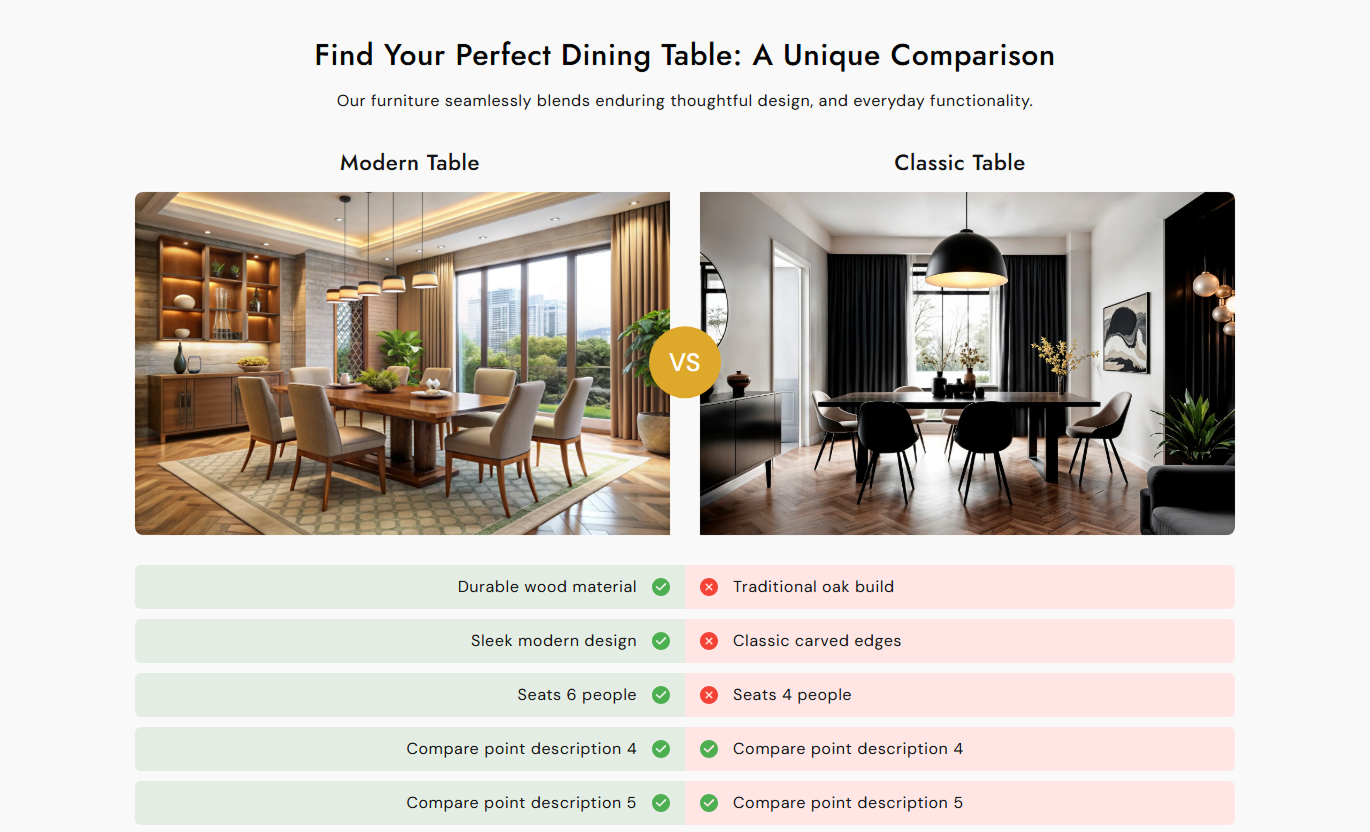


Present two options with images, headings, comparison points, visual icons, custom colors, and responsive styling in one easy-to-scan Shopify section.

Display up to two comparison cards side by side so shoppers can review two products, options, plans, or choices together.

Add up to ten individual comparison points to each card to explain important strengths, differences, or limitations.

Choose a check or cross icon for every comparison point to make differences easier to scan visually.

Add a separate image to each comparison card to give shoppers a clear visual context before reviewing the detailed points.

Give each comparison option its own heading so visitors can immediately understand which two choices are being compared.

Choose left or right point positioning for each card to create a balanced comparison layout across the two sides.

Show a customizable center label, such as “VS,” between two desktop comparison cards to reinforce the comparison.

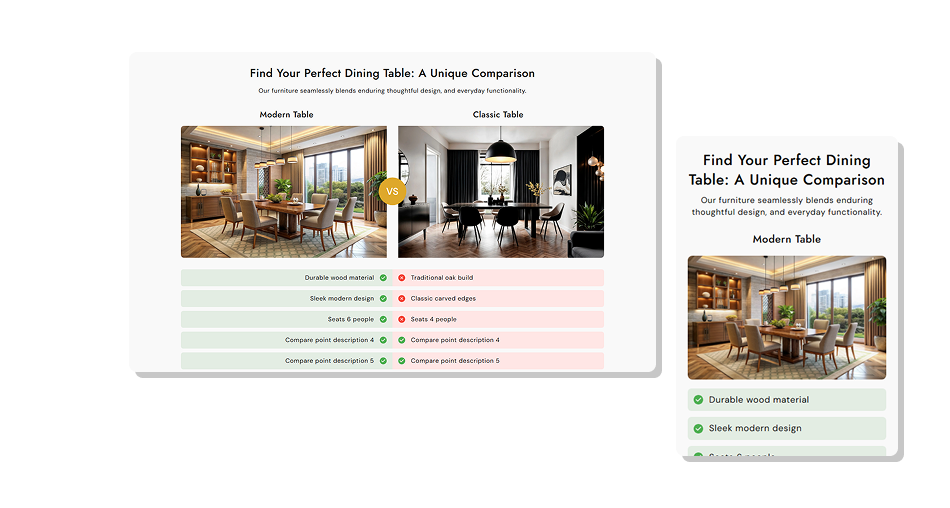
On smaller screens, comparison cards stack vertically, and the center compare label is hidden for a cleaner mobile experience.
Control comparison content, card styling, typography, colors, spacing, and section width from the Shopify theme editor.

Applies to the whole section
Add the main heading displayed above both comparison cards.
Section HeadingAdd supporting rich text below the main comparison heading.
Section ContentChoose the alignment of the section heading and content.
Text AlignmentSet the short label displayed between two cards on the desktop.
Compare TextControl how rounded the comparison card images appear.
Image Border RadiusAdjust the corner radius used for each comparison point.
Content Border RadiusSet font sizes for headings, content, cards, and points.
Compare Font SizesCustomize section text and center comparison label colors.
Section Color ControlsSet separate top and bottom spacing for desktop and mobile.
Section PaddingUse full width or set a custom maximum section width.
Section Width
Applies to each comparison card
Upload the main visual used for the comparison option.
Card ImageAdd the title displayed above the individual comparison card.
Card HeadingChoose the left or right direction of comparison points.
Point PositionSet the heading, point background, and text colors.
Card Color StylingChoose a check or cross icon for every comparison point.
Point IconEnter the text displayed for each comparison point.
Point TextAdd up to ten individual points inside each card.
Comparison PointsUse this side-by-side comparison section across key Shopify pages to clearly explain differences among products, options, plans, or buying choices.
Use Side By Side Comparison on your homepage to compare two popular products, ranges, plans, or store options, helping visitors quickly understand the main differences.
Highlight two important products or options in one sectionExplain key differences without using a large comparison tableUse images to make each comparison choice easier to recognizeShow positive and negative points in a scannable visual formatHelp visitors choose which store option they want to exploreAdd a focused comparison inside a collection page to explain differences between two product types, ranges, materials, styles, or other shopper choices.
Compare two related options without changing the product gridExplain important differences between collection categoriesHighlight strengths and limitations using clear point iconsGive shoppers useful context before they select a productKeep comparison information organized in a compact layoutUse Side By Side Comparison on product pages to compare the current product with another option, model, variation, plan, or alternative using clear visual points.
Compare the current product against one relevant alternativeShow important differences using short comparison pointsGive both options their own image and descriptive headingHighlight included and missing features with visual iconsSupport product research without using long blocks of textUse the landing pages section to compare two campaign offers, service levels, packages, products, or choices in a single focused, side-by-side experience.
Present two campaign options in one easy-to-scan layoutBreak offer differences into short individual comparison pointsUse the center label to clearly separate both desktop optionsCustomize each card styling to distinguish different choicesKeep detailed campaign comparisons readable on mobile devicesMake two choices easier to understand with images, visual comparison points, flexible styling, and a responsive layout designed for quick scanning.
Help shoppers compare two options without having to read long paragraphs by organizing key differences into simple visual points.
Put two important choices next to each other for easy comparisonAdd up to ten points per card for detailed feature differencesUse check and cross icons to make each point easier to scanSupport each comparison option with its own image and headingCustomize individual card backgrounds and text colorsAdjust card styling, typography, spacing, and section widthStack comparison cards vertically for easier mobile viewing Compare options that shoppers are likely to consider together.
Use clear images that represent each comparison option.
Keep comparison points short and easy to scan.
Use check and cross icons with clear meaning.
Keep both comparison cards visually balanced.
Compare options that shoppers are likely to consider together.
Use clear images that represent each comparison option.
Keep comparison points short and easy to scan.
Use check and cross icons with clear meaning.
Keep both comparison cards visually balanced.  Compare unrelated products or options.
Use unclear or low-quality images for either card.
Add long comparison points that are difficult to scan.
Use icons that make the comparison confusing.
Overload cards with too many unnecessary comparison points.
Compare unrelated products or options.
Use unclear or low-quality images for either card.
Add long comparison points that are difficult to scan.
Use icons that make the comparison confusing.
Overload cards with too many unnecessary comparison points. You can add up to two comparison cards. Each card can have its own image, heading, point direction, colors, and individual comparison points.
Each comparison card supports up to ten individual points, giving you enough space to explain several important differences between two options.
Yes. Every comparison point includes its own icon setting, allowing you to choose either a check-style icon or a cross-style icon.
The center text appears between two comparison cards on the desktop. You can use short wording, such as “VS,” to make the comparison relationship clear.
Yes. Each card includes a point position setting that lets you choose left or right positioning for the icon and point content.
Yes. Each card includes individual heading, background, and text color controls, while the section provides additional global styling options.
On smaller screens, the two cards become full-width stacked blocks. The central comparison label is hidden to keep the mobile layout clean.
Yes. Separate section settings let you adjust the image border radius and the corner radius used on individual comparison point rows.
For Support or any Questions Email Us: [email protected]
Install SectionHub and add the Compare Card Side By Side Comparison section to your theme in minutes - no coding required.
