Help Shoppers Compare Featured Products
Place the comparison section on your homepage to introduce several featured products and help visitors quickly understand how their features differ.

Compare up to four products side by side with visual images, feature points, checkmarks, and responsive layouts that make product differences easy to understand.
 Side-by-Side Comparison
Up to Four Products
Responsive Comparison Table
Side-by-Side Comparison
Up to Four Products
Responsive Comparison Table 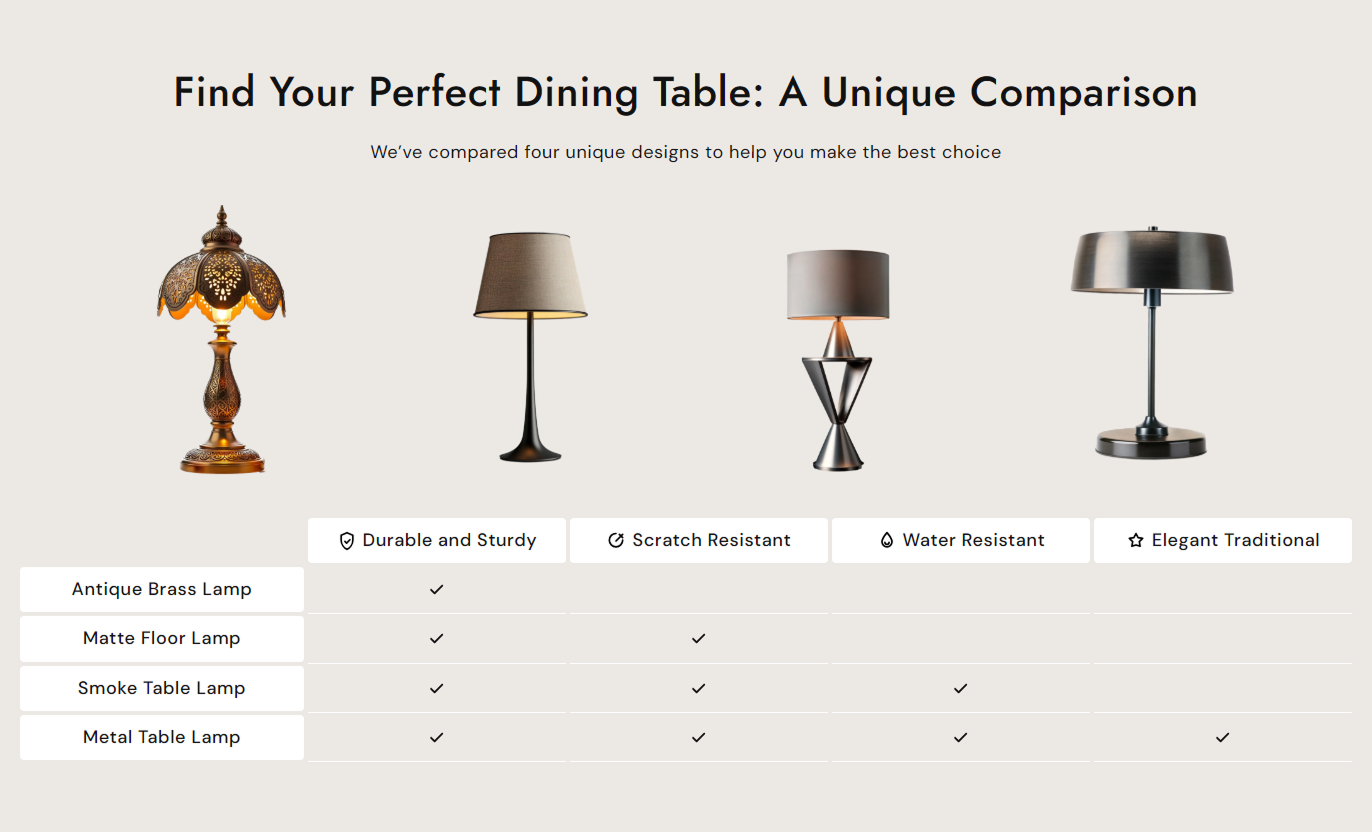
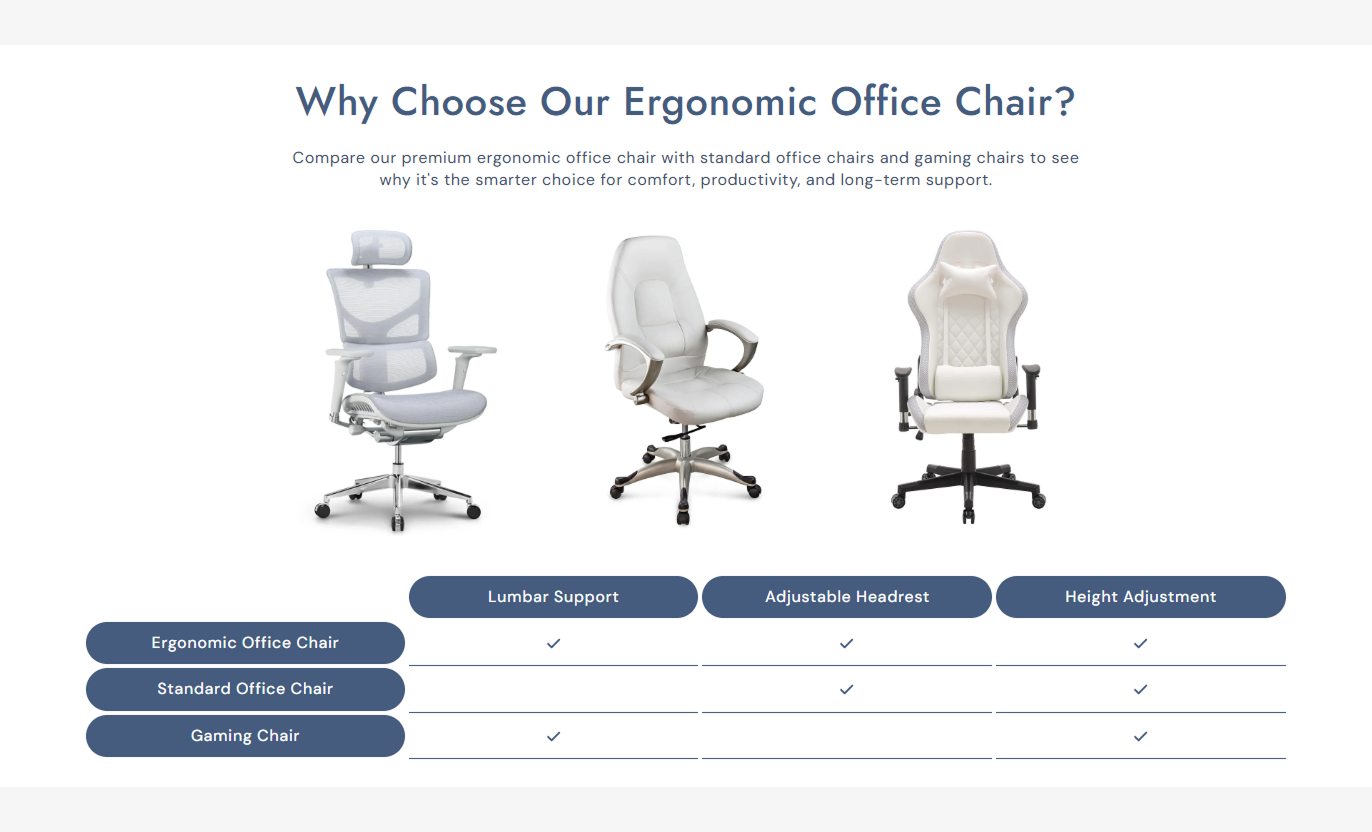


Create a clear product comparison with images, feature points, checkmarks, interactive highlighting, mobile selection, and flexible styling controls.

Add up to four products to a single comparison layout so shoppers can review different options side by side.

Add up to four comparison points, each with a title and optional icon, to explain key product differences.

Display a custom image or the selected product image above each comparison column for quick visual recognition.

Mark the comparison points that apply to each product using simple checkmarks.

Highlight a product and its comparison row when shoppers hover over it on the desktop.

Let mobile shoppers select a product to view its related comparison details clearly.

Choose small, medium, large, or automatic image heights to control how product visuals appear.

The comparison table adjusts for smaller screens, making product information easier to browse on mobile devices.
Control product comparison, images, typography, colors, spacing, alignment, and responsive section settings from the theme editor.
Applies to the whole section
Main heading displayed above the comparison.
HeadingSupporting text displayed below the comparison.
ContentChoose the alignment of the section introduction.
Text AlignmentChoose the product image height.
Image HeightSet the alignment of comparison table content.
Content AlignmentSet the corner radius of comparison elements.
Border RadiusSet the spacing between products on the desktop.
Desktop Product GapSet the spacing between products on mobile.
Mobile Product GapSet the comparison table cell spacing.
Table PaddingSet the size of the comparison icons.
Icon SizeSet the background color of the section.
Background ColorSet the section heading color.
Heading ColorSet the comparison header background.
Table Heading BackgroundSet the comparison content background.
Table Content BackgroundSet the colors used for hover and active states.
Hover & Active ColorsSet the top and bottom section spacing.
Section PaddingMake the comparison section span the full available width.
Full WidthSet a maximum width for the contained section.
Section Width
Applies to comparison points and products
Upload an icon for a comparison point.
Icon ImageAdd the title of a comparison point.
HeadingSelect the product shown in the comparison.
Select ProductAdd a custom image for the product.
ImageAdd a custom product heading.
HeadingChoose whether the product includes the points
Included in the pointsUse Compare Card Hover Image Highlight when shoppers need to evaluate products by features, materials, specifications, benefits, or other clear comparison points before choosing an option.
Place the comparison section on your homepage to introduce several featured products and help visitors quickly understand how their features differ.
Compare featured products at a glanceHighlight important product differencesIntroduce multiple product optionsMake feature benefits easier to scanGuide shoppers toward suitable productsAdd the comparison section to a collection page to help shoppers evaluate selected products based on the features that matter most to their purchase decision.
Compare products within a collectionHighlight useful product featuresSupport faster product evaluationShow differences between selected itemsHelp shoppers choose with confidenceUse the section below product details to compare the current item with alternatives and show which features are included across different products.
Compare the current product with alternativesHighlight features included with each optionShow differences between similar productsSupport alternative product discoveryHelp shoppers evaluate product choicesUse Compare Card Hover Image Highlight on a campaign or landing page to present selected products and clearly explain which features each option includes.
Present products for a specific campaignHighlight differences between optionsExplain important buying considerationsMake comparison information easy to scanLead shoppers toward relevant productsGive shoppers a simple way to compare products by showing images, key features, and included benefits in a single, clear comparison experience.
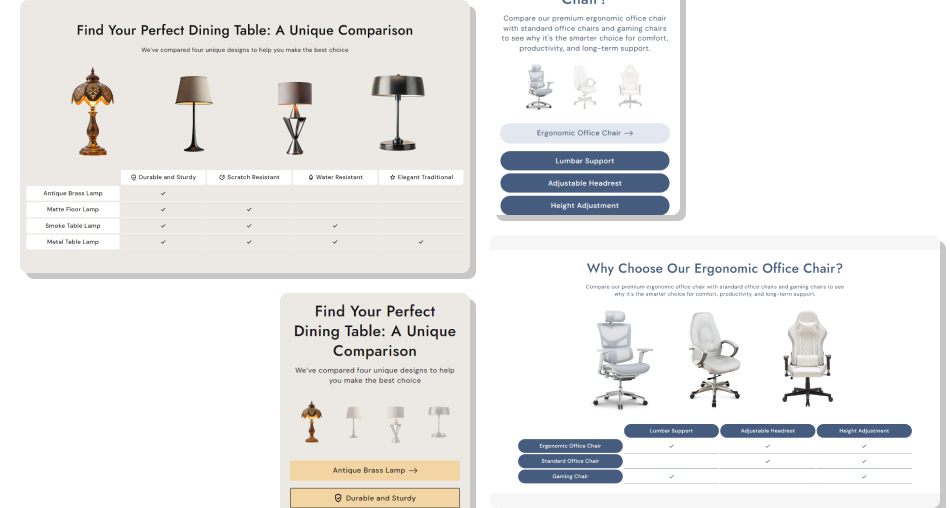
Show which features each product includes so shoppers can quickly understand the differences and choose the option that fits their needs.
Make product comparisons easier to understandHighlight the features that matter mostReduce confusion between similar productsSupport faster product evaluationPresent multiple options in one sectionCreate a clearer shopping experienceAdapt comparison browsing for mobile shoppers Compare products with meaningful differences
Use clear and specific comparison point titles
Choose product images that are easy to recognize
Highlight features that help purchase decisions
Keep the comparison focused and easy to scan
Compare products with meaningful differences
Use clear and specific comparison point titles
Choose product images that are easy to recognize
Highlight features that help purchase decisions
Keep the comparison focused and easy to scan  Compare unrelated products without a clear reason
Use vague or confusing comparison point names
Use inconsistent product images
Add features that do not help shoppers choose
Overload the comparison with unnecessary points
Compare unrelated products without a clear reason
Use vague or confusing comparison point names
Use inconsistent product images
Add features that do not help shoppers choose
Overload the comparison with unnecessary points You can add up to four comparison products. Each product can have its own image, title, selected product, and feature checkmarks.
You can add up to four comparison points. Each point can have an optional icon and heading to describe an important product feature.
Yes. Each product block includes an Image setting, while the selected Shopify product image can also be used when no custom image is provided.
Yes. Each product has four checkbox settings that let you mark whether it includes each comparison point.
Yes. On mobile, the comparison layout switches to a product-focused view, allowing shoppers to select products and view their related comparison details.
Yes. You can customize section colors, table heading and content colors, checkmark colors, hover colors, and mobile active-state colors.
Yes. Choose Small, Medium, Large, or Auto image height from the Image Height setting.
For Support or any Questions Email Us: [email protected]
Install SectionHub and add the Compare Card Hover Image Highlight section to your theme in minutes - no coding required.
