Explain Your Main Product Advantage at a Glance
Use the comparison card on your homepage to contrast your strongest benefits against common alternatives while keeping the featured product visually centered.

Present two groups of comparison points around a centered product image, using right or wrong icons, flexible layouts, CTA styling, trust text, and optional animation.
 Side-by-Side Comparison
Right and Wrong Icons
Centered Product Visual
Side-by-Side Comparison
Right and Wrong Icons
Centered Product Visual 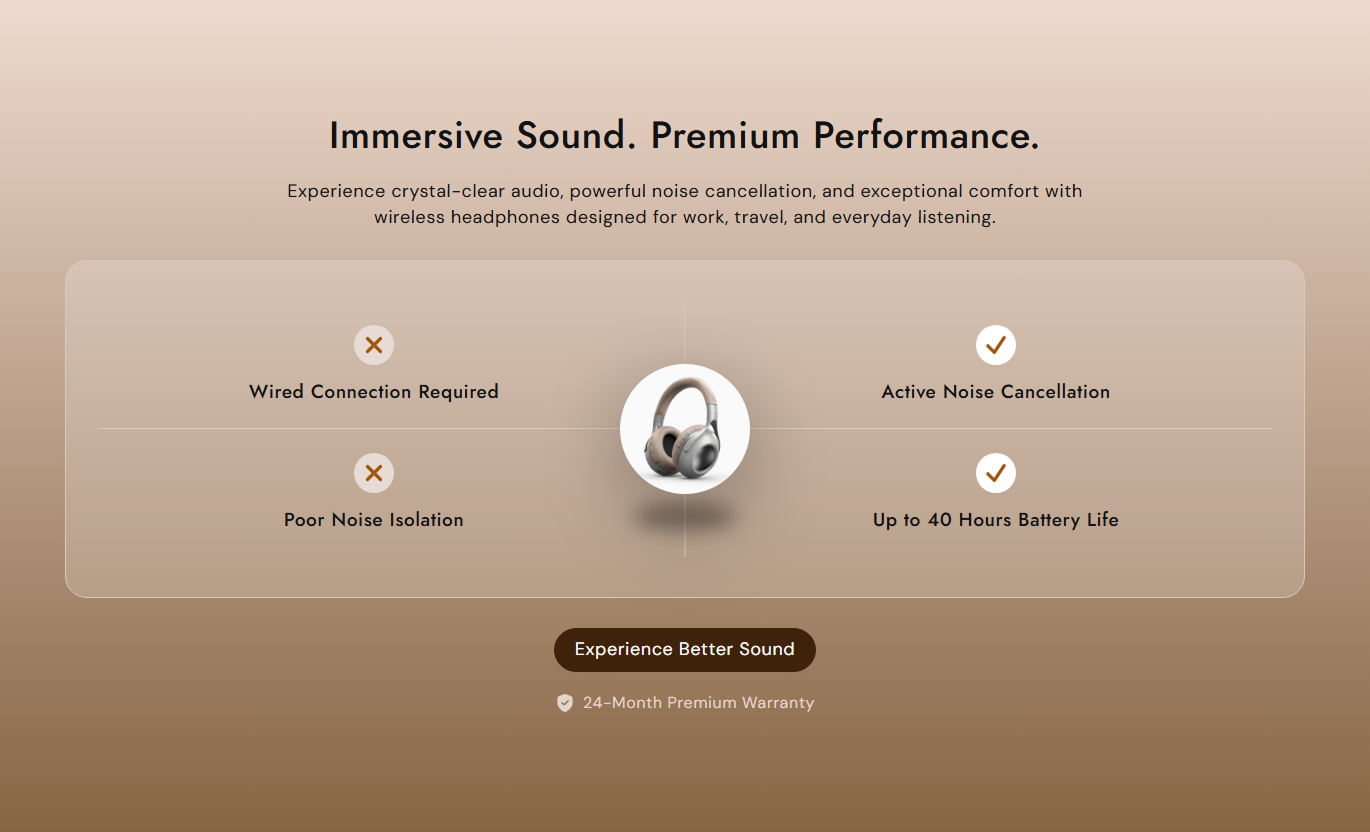
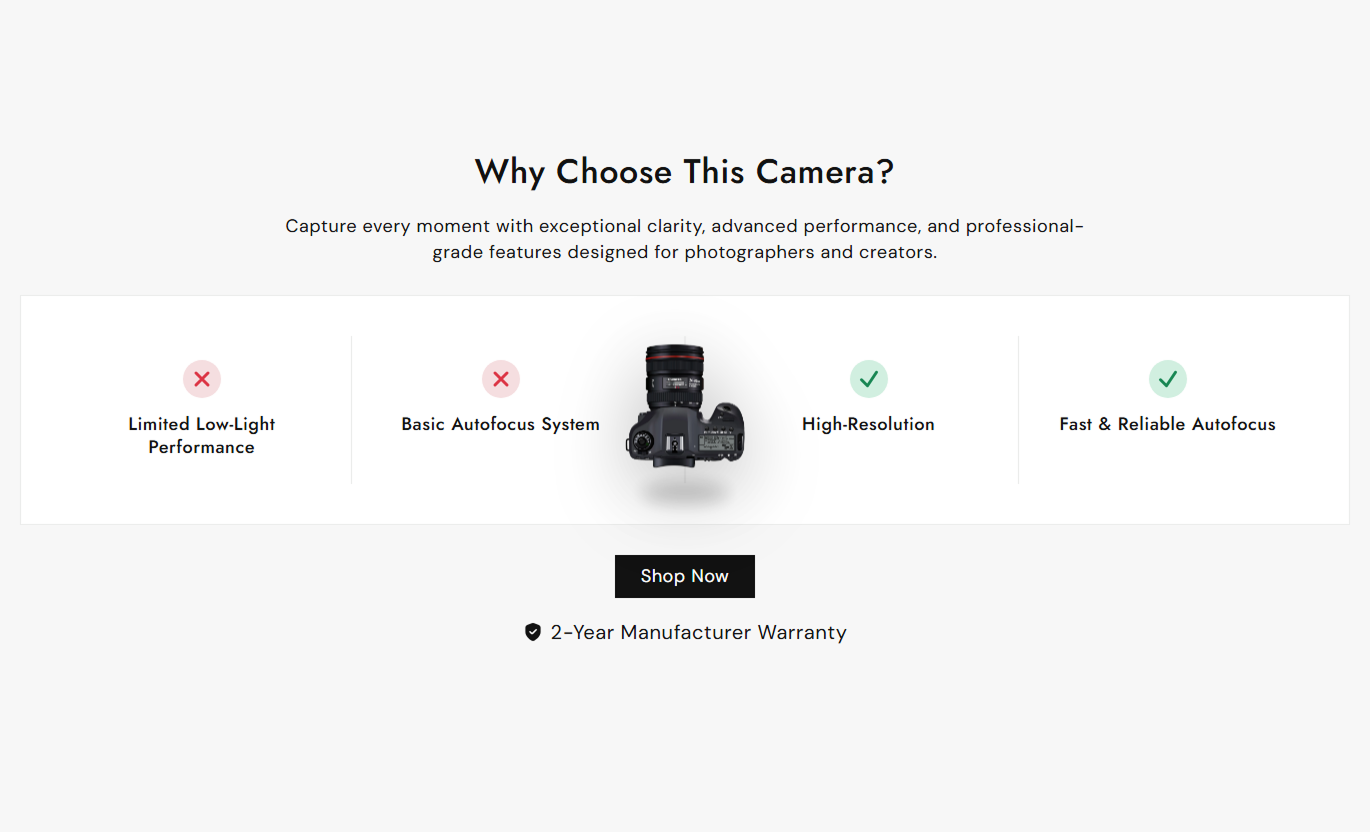


Build a focused comparison section with two groups of points, a centered product image, right- or wrong-icons, flexible layouts, CTA styling, and trust text.

Place one comparison group on each side of a central image so shoppers can quickly understand the differences between two choices.

Assign either a check or cross icon to each comparison group to visually separate positive benefits from weaker alternatives.

Each comparison block supports two individual text points, giving you up to four concise comparison statements in the section.

Arrange each side's comparison points vertically in a column or side by side in a row on larger desktop screens.

Display a central image between the two comparison groups, and choose Small, Medium, or Large for the featured visual.

Enable a gentle vertical floating animation with an animated shadow to bring more attention to the center product image.

Add a linked action button below the comparison card and reinforce confidence with an optional shield-style trust message.

Control backgrounds, borders, icon styles, typography, image radius, button colors, spacing, and overall section width.
Control comparison layout, center image, icons, CTA, trust text, colors, spacing, animation, and section width.

Applies to the whole section
Edit the main heading, supporting copy, and alignment.
Heading and ContentChoose row or column arrangement for comparison points.
Comparison LayoutUpload the center image and choose its display size.
Center Product ImageAdjust image radius and enable optional floating motion.
Image AppearanceAdd the trust message displayed below the main CTA.
Trust Badge TextAdd a linked CTA with filled or outline button styling.
CTA Button ControlsAdjust heading, comparison, icon, and trust text sizing.
Typography ControlsChoose normal or gradient section background styling.
Background StyleCustomize card, text, border, icon, and button colors.
Color ControlsSet responsive padding plus full or contained section width.
Spacing and Width
Applies to comparison groups
Choose whether the comparison group uses a check or cross.
Group IconEnter the first comparison statement for this side.
Comparison Text OneEnter the second comparison statement for this side.
Comparison Text TwoUse this section across key Shopify pages to compare benefits, alternatives, quality differences, or product strengths in a compact two-sided visual layout.
Use the comparison card on your homepage to contrast your strongest benefits against common alternatives while keeping the featured product visually centered.
Communicate major product differences without long paragraphsGive visitors a fast reason to explore your products furtherUse check and cross icons for easier visual comparisonReinforce the comparison with a central product imageAdd a CTA that guides shoppers toward the next actionPlace the comparison card around collection content to explain shared quality, design, material, or service advantages across products in a range.
Explain why the collection differs from common alternativesHighlight shared benefits across products in the rangeKeep comparison messaging separate from the product gridUse concise points that shoppers can understand quicklyGuide visitors toward products with a supporting CTAUse Compare Card Floating Image on a product page to contrast important strengths with common limitations, helping shoppers understand the product's value more quickly.
Address major buying comparisons near product informationHighlight strengths against typical alternative solutionsReinforce the comparison with the featured product imageAdd confidence with an optional trust message belowSend shoppers toward a relevant purchase or information pageUse the section on campaign or sales landing pages to communicate differences between your offer and another approach in a visually balanced format.
Turn complex comparison messaging into four simple pointsSupport campaign claims with clear visual separationUse a gradient background for stronger campaign presentationAdd animated product imagery for extra visual emphasisFinish the comparison with a focused campaign CTATurn key product differences into a clear, two-sided comparison with visual icons, a centered image, a CTA, and trust messaging that shoppers can scan quickly.
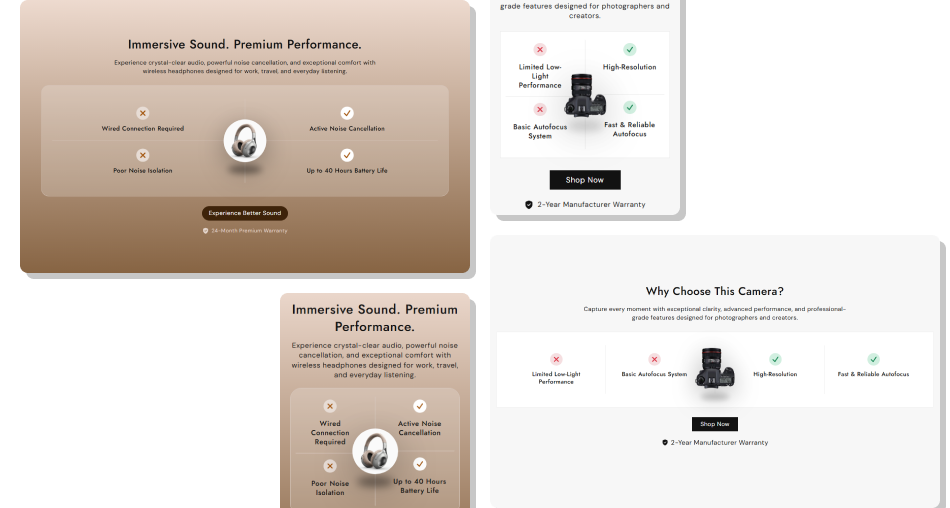
Use simple right and wrong points around a centered image to help shoppers understand key differences without reading long copy.
Communicate competing qualities in one balanced visual sectionSeparate positive and negative points with familiar icon stylesKeep the featured product visually centered between both sidesChoose row or column arrangements for comparison statementsAdd subtle image motion without creating a complex animationReinforce shopper confidence with optional trust messagingGuide visitors toward the next action with a linked CTA Use short comparison points that communicate one clear idea
Keep both sides similar in length for a balanced visual layout
Use right and wrong icons consistently with each side's meaning
Choose a center image that clearly represents your main offer
Test row and column layouts to find the clearest presentation
Use short comparison points that communicate one clear idea
Keep both sides similar in length for a balanced visual layout
Use right and wrong icons consistently with each side's meaning
Choose a center image that clearly represents your main offer
Test row and column layouts to find the clearest presentation  Do not turn comparison points into long paragraphs or explanations
Do not make claims that cannot be supported by your product
Do not use check and cross icons in a confusing or inconsistent way
Do not overload the section with unrelated comparison concepts
Do not let animation distract from the actual comparison message
Do not turn comparison points into long paragraphs or explanations
Do not make claims that cannot be supported by your product
Do not use check and cross icons in a confusing or inconsistent way
Do not overload the section with unrelated comparison concepts
Do not let animation distract from the actual comparison message The section supports a maximum of two Text blocks. The first block becomes the left comparison group and the second becomes the right group.
Each Text block contains two comparison text settings, so the complete section can display up to four individual comparison statements.
Yes. Each block includes an Icon setting with Right and Wrong options, which render check and cross symbols with separately configurable colors.
Yes. The Layout setting offers Row and Column options. Row uses a two-column arrangement on larger screens, while smaller layouts stack vertically.
Yes. Enable Image Animation to apply a continuous floating motion to the center image, along with an animated shadow beneath it.
Yes. The Background Color Type setting lets you choose between a standard solid color and a configurable gradient background.
Yes. A linked button appears when both its label and link are provided, and an optional trust message with a shield-style icon appears.
For Support or any Questions Email Us: [email protected]
Install SectionHub and add the Compare Card Floating Image section to your theme in minutes - no coding required.
