Compare Featured Products on Your Homepage
Create a dedicated comparison area on the homepage to showcase multiple products and help visitors understand their differences before they explore individual product pages.

Create a structured comparison table with three product options, custom comparison points, icons, responsive cards, navigation arrows, and flexible styling across all screens.
 Product Comparison Table
Responsive Card Slider
Custom Product Details
Product Comparison Table
Responsive Card Slider
Custom Product Details 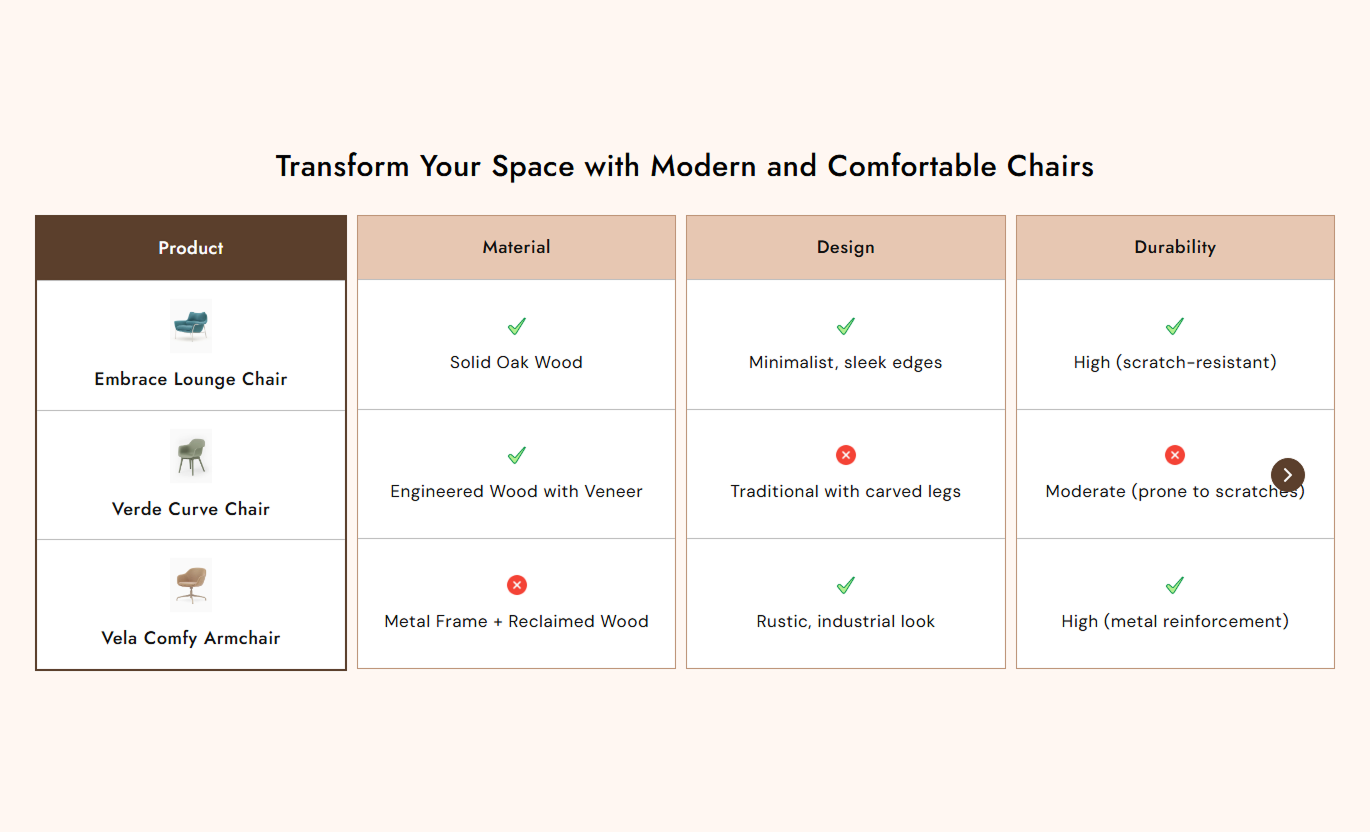
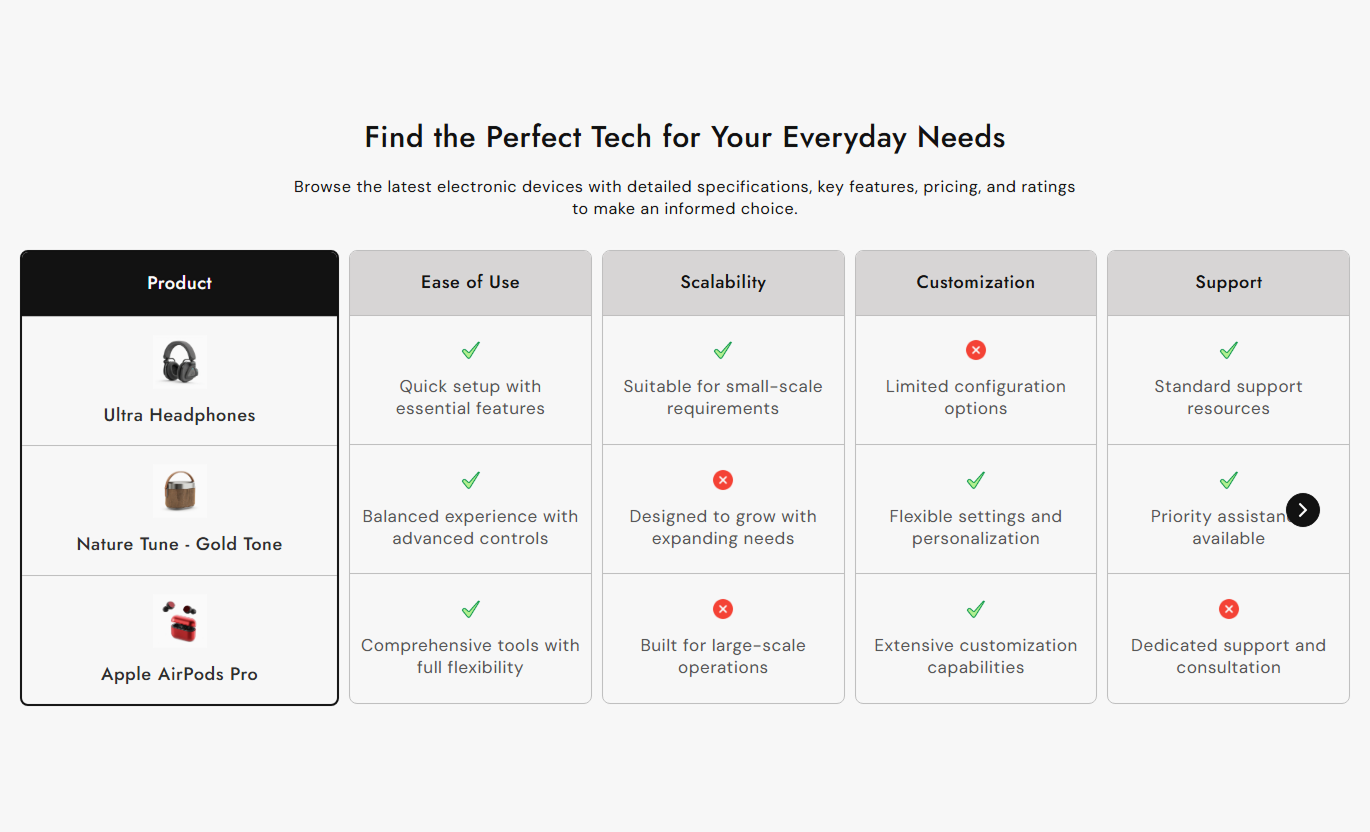


Compare three products across multiple features with custom icons, product images, responsive cards, slider navigation, and flexible styling controls.

Show three product choices in one structured comparison layout with product titles, images, and links to their Shopify product pages.

Add comparison rows that display feature details for each product, making differences easier for shoppers to scan.

Choose right, wrong, or no icon for each comparison point to clearly indicate how products compare.

Add custom images for each product, or let the section automatically use the selected product's featured image.

Choose to display three or four comparison cards on a desktop, while mobile shows one card at a time.

Use previous and next arrows to move through comparison cards when more comparison content is available.

Adjust card backgrounds, borders, headings, text, icons, arrows, typography, and corner radius to match your store.

The comparison layout adapts for mobile with stacked product information, compact spacing, smaller type, and single-card slides.
Control product columns, comparison rows, icons, typography, colors, navigation, spacing, and section width from one place.

Applies to the whole section
Add the main heading displayed above the comparison table.
HeadingAdd supporting rich text below the section heading.
ContentChoose the alignment of the section heading and content.
Text AlignmentChoose three or four comparison columns for desktop screens.
Desktop ColumnsUpload the right icon used for supported comparison points.
Right IconUpload the wrong icon used for unsupported comparison points.
Wrong IconAdjust heading, content, product title, and icon sizes.
Font Size ControlsCustomize section, product, comparison, and arrow colors.
Color SettingsCustomize navigation arrow size, background, color, and border.
Arrow SettingsSet section padding and maximum width, with optional full width.
Section Width & Spacing
Applies to each comparison block
Add the heading for a product information column.
Product HeadingSet the title shown for each product option.
Product TitleUpload a custom image for the product option.
Product ImageSelect the Shopify product linked to the product option.
Select ProductChoose the icon and content for each comparison point.
Comparison PointUse this section whenever shoppers need to compare multiple products, plans, packages, or options using structured feature rows with clear visual distinctions.
Create a dedicated comparison area on the homepage to showcase multiple products and help visitors understand their differences before they explore individual product pages.
Compare multiple featured products in one organized section.Highlight important features with structured comparison rows.Use product images to make options easier to recognize.Link each product directly to its Shopify product page.Help visitors browse differences with slider navigation.Use comparison cards on collection-focused pages to present related products together and explain their features, differences, and suitability in a structured format.
Present related products together for easier comparison.Show important differences without adding lengthy descriptions.Keep product images and names clearly organized.Highlight features using right, wrong, or empty icons.Maintain a responsive layout across collection pages.Add a comparison section below product content to introduce alternative choices and give shoppers a structured view of how related products differ across key features.
Introduce alternative products without cluttering the page.Compare important specifications in dedicated rows.Link product images and titles to product pages.Use custom comparison content for each option.Support mobile shoppers with responsive product slides.Build comparison-focused landing pages for plans, packages, services, or product tiers using clear columns, feature rows, icons, and flexible visual styling.
Present multiple plans in a structured comparison format.Make feature differences easier to scan and understand.Use custom icons to reinforce comparison information.Match cards and headings with your landing page design.Create a focused comparison experience for visitors.Give shoppers a clearer way to review multiple options by combining product details, feature rows, visual indicators, responsive cards, and easy navigation.
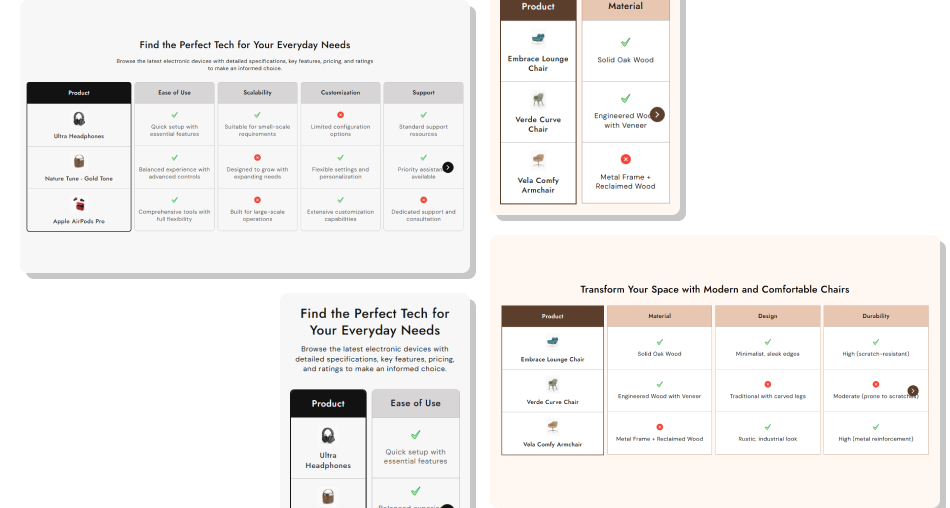
Organize product information into consistent rows so shoppers can quickly review features and compare multiple options in one place.
Keep multiple product options organized in a single comparison view.Make feature differences easier to identify with visual icons.Use Shopify product links for direct access to product pages.Customize images, headings, colors, borders, and typography.Let mobile visitors browse one comparison card at a time.Keep the layout flexible with desktop column controls. Use similar types of features across products for fair comparison.
Keep comparison content short enough for quick scanning.
Use right and wrong icons consistently across comparison rows.
Choose clear product images that are easy to recognize.
Keep product titles and comparison headings concise and readable.
Use similar types of features across products for fair comparison.
Keep comparison content short enough for quick scanning.
Use right and wrong icons consistently across comparison rows.
Choose clear product images that are easy to recognize.
Keep product titles and comparison headings concise and readable.  Do not add unrelated features that make comparison confusing.
Do not use overly long content inside individual comparison rows.
Do not mix icon meanings between similar comparison points.
Do not use product images that are unclear or poorly presented.
Do not add too many visual styles that reduce comparison clarity.
Do not add unrelated features that make comparison confusing.
Do not use overly long content inside individual comparison rows.
Do not mix icon meanings between similar comparison points.
Do not use product images that are unclear or poorly presented.
Do not add too many visual styles that reduce comparison clarity. The section supports three or four comparison columns on desktop, while mobile displays one comparison card at a time for easier browsing.
Yes. Each product option can use a Shopify product selection, allowing its image and title to link directly to the selected product page.
Yes. Each product option has an image setting. If no custom image is selected, the section can use the selected product's featured image.
Each comparison point can use a right, wrong, or none option. You can also upload custom right and wrong icons at the section level.
Each comparison card supports three comparison points in the current section code, with separate icons and content controls for each point.
Yes. On mobile, the layout switches to a single comparison card view with adjusted spacing, smaller typography, and mobile-friendly navigation.
Yes. You can customize product and comparison card backgrounds, headings, text, borders, row borders, section colors, and navigation arrow styling.
Yes. You can enable full width or set a custom maximum width, while also controlling desktop and mobile top and bottom section padding.
For Support or any Questions Email Us: [email protected]
Install SectionHub and add the Compare Card Comparison Table section to your theme in minutes - no coding required.
