Compare Featured Options at a Glance
Compare featured plans, packages, products, or service options in a clear section that helps visitors scan differences before taking action.

Present two options side by side with custom images, headings, comparison points, icons, colors, and a clear call-to-action button for shoppers on every device.
 Easy Option Comparison
Custom Comparison Points
Responsive Card Layout
Easy Option Comparison
Custom Comparison Points
Responsive Card Layout 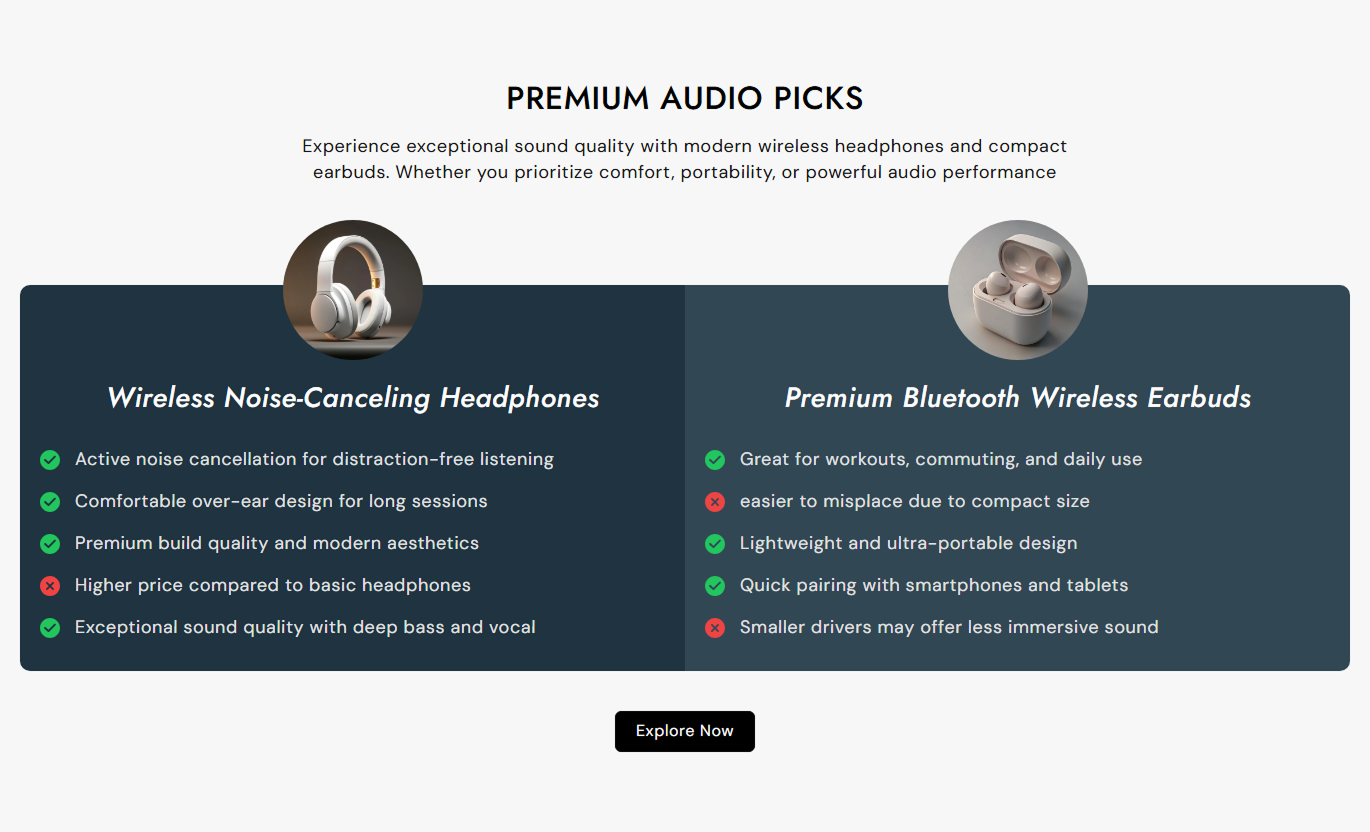
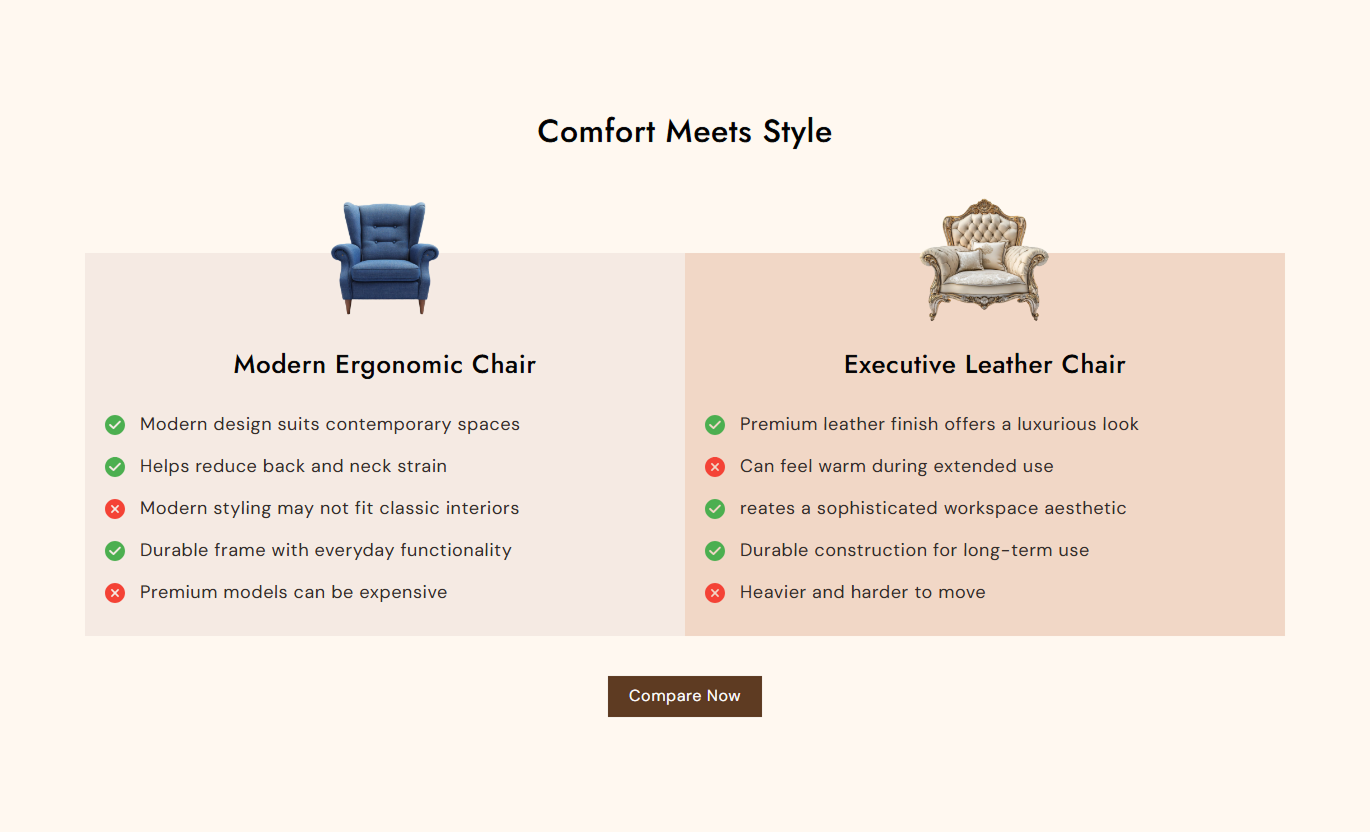


Build a focused comparison layout with two cards, custom content, visual indicators, responsive styling, and an optional call-to-action button for shoppers.

Show up to two comparison cards side by side, each with its own image, heading, and detailed comparison points.

Add a separate image to each card and control its size and corner radius for a polished comparison layout.

Connect a card to a Shopify product so its image and heading can link directly to the selected product page.

Add up to ten comparison points per card and leave unused points blank when fewer details are needed.

Mark each comparison point with a right or wrong icon to make differences easier to scan and understand.

Set individual card backgrounds, heading colors, and comparison text colors to distinguish each option.

Cards stack vertically on mobile devices with adjusted spacing, image sizing, typography, and button presentation.

Add a button below the comparison cards with a custom label, link, outline style, colors, hover effects, and radius.
Control headings, comparison cards, icons, typography, colors, buttons, spacing, and section width from one place.

Applies to the whole section
Add the main heading displayed above the comparison cards.
Main Heading SettingAdd rich text content below the section heading.
Supporting Content TextSet the image size used inside each comparison card.
Card Image Size ControlAdjust the corner radius applied to card images.
Image Corner RadiusControl the rounded corners on the comparison cards.
Card Corner RadiusChoose how the section heading and content are aligned.
Text Alignment ControlAdjust section, card heading, and comparison text sizes.
Typography Size ControlsCustomize card backgrounds, headings, and comparison text colors.
Card Color ControlsSet the button label, link, style, colors, hover state, and radius.
CTA Button StylingSet maximum width plus desktop and mobile section padding.
Section Width and Spacing
Applies to each comparison card
Add the image displayed for the comparison card.
Card ImageAdd the title shown above the comparison points.
Card HeadingLink the card image and heading to a Shopify product.
Select ProductChoose a right or wrong icon for each comparison point.
Point IconAdd up to ten comparison points for the card.
Point TextUse this comparison section to place two options side by side, explain their differences with clear points, and guide shoppers toward a relevant destination.
Compare featured plans, packages, products, or service options in a clear section that helps visitors scan differences before taking action.
Make key differences easy to understand quickly.Present two options in one focused layout.Use visual icons for included and missing features.Add product links directly to card content.Guide visitors with a clear call-to-action.Use comparison cards to explain differences between selected product options, bundles, or categories while keeping the layout easy to browse.
Compare related options without complex layouts.Highlight important features with clear points.Keep product information visually organized.Link cards to relevant product pages.Maintain a responsive collection experience.Present an alternative product or package comparison below product content, using linked cards to help shoppers explore another relevant option.
Introduce another relevant product choice.Show important differences side by side.Use product-linked card images and headings.Make comparison points easy to scan.Add a CTA for the next shopping step.Create focused comparison sections for campaigns, plans, offers, or services with custom card content and a clear destination button for visitors.
Explain differences in a structured layout.Present plans or packages side by side.Customize card colors for campaign branding.Highlight important inclusions with icons.Direct visitors toward a relevant destination.Help shoppers compare two options quickly with structured cards, visual icons, flexible styling, responsive layouts, and a focused call-to-action.
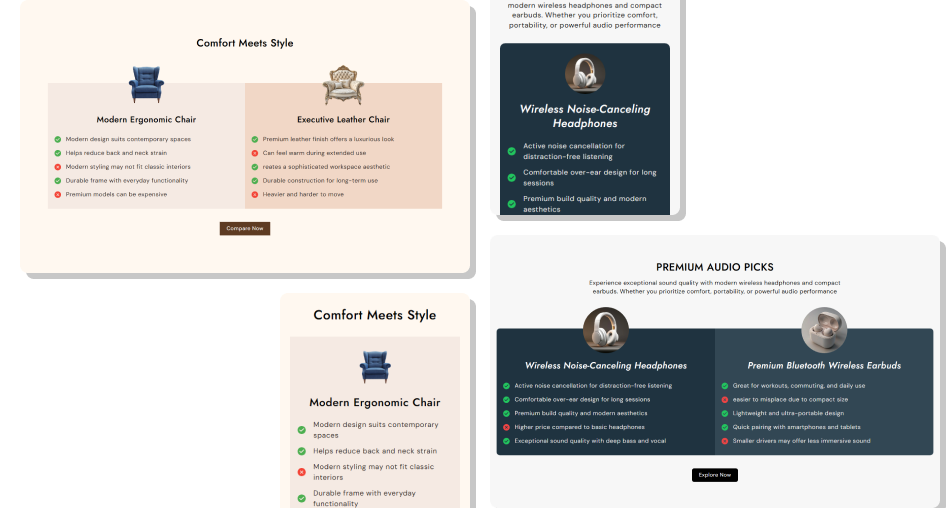
Create a cleaner decision path by organizing two options, highlighting key differences, and keeping important details together.
Make differences easier to scan with structured comparison points.Use right and wrong icons to communicate included features clearly.Keep both options visually consistent with flexible card styling.Connect card images and headings directly to selected products.Adapt the comparison layout automatically for smaller screens.Guide shoppers toward the next step with an optional CTA button. Keep comparison points concise so shoppers can scan them quickly.
Use matching types of information across both cards for clarity.
Choose right and wrong icons consistently for each comparison point.
Use readable font sizes and enough spacing for comfortable scanning.
Link cards to relevant products and use a clear CTA destination.
Keep comparison points concise so shoppers can scan them quickly.
Use matching types of information across both cards for clarity.
Choose right and wrong icons consistently for each comparison point.
Use readable font sizes and enough spacing for comfortable scanning.
Link cards to relevant products and use a clear CTA destination.  Do not overload cards with long points that are hard to scan.
Do not compare unrelated options that need different information.
Do not mix right and wrong icon meanings across similar points.
Do not use low-quality images that weaken the card presentation.
Do not add a CTA link that does not match the comparison goal.
Do not overload cards with long points that are hard to scan.
Do not compare unrelated options that need different information.
Do not mix right and wrong icon meanings across similar points.
Do not use low-quality images that weaken the card presentation.
Do not add a CTA link that does not match the comparison goal. The section supports up to two card blocks, making it suitable for a focused side-by-side comparison between two options.
Each card supports up to ten comparison points. You can leave unused text fields blank when an option needs fewer points.
Yes. Select a Shopify product for a card, and its image and heading become linked to that product's page.
Yes. Each point can use either a right or wrong icon, allowing you to visually indicate included or missing features.
Yes. Each card has its own image, heading, background color, heading color, text color, product selection, and comparison points.
Yes. The two cards stack vertically on mobile, with smaller images, adjusted typography, tighter spacing, and a responsive button.
Yes. You can add a label and link, choose an outline style, adjust radius and size, and customize normal and hover colors.
For Support or any Questions Email Us: [email protected]
Install SectionHub and add the Compare Card section to your theme in minutes - no coding required.
