Feature Key Collections With Rich Media Cards
Use Collection List Video on your homepage to highlight priority collections with images, optional videos, feature lists, and direct collection links in a responsive slider.

Show collections in a responsive slider with image or video cards, hover-revealed features, mobile play controls, autoplay, looping, and flexible customizable styling.
 Hover Video Collections
Responsive Collection Slider
Feature-Rich Collection Cards
Hover Video Collections
Responsive Collection Slider
Feature-Rich Collection Cards 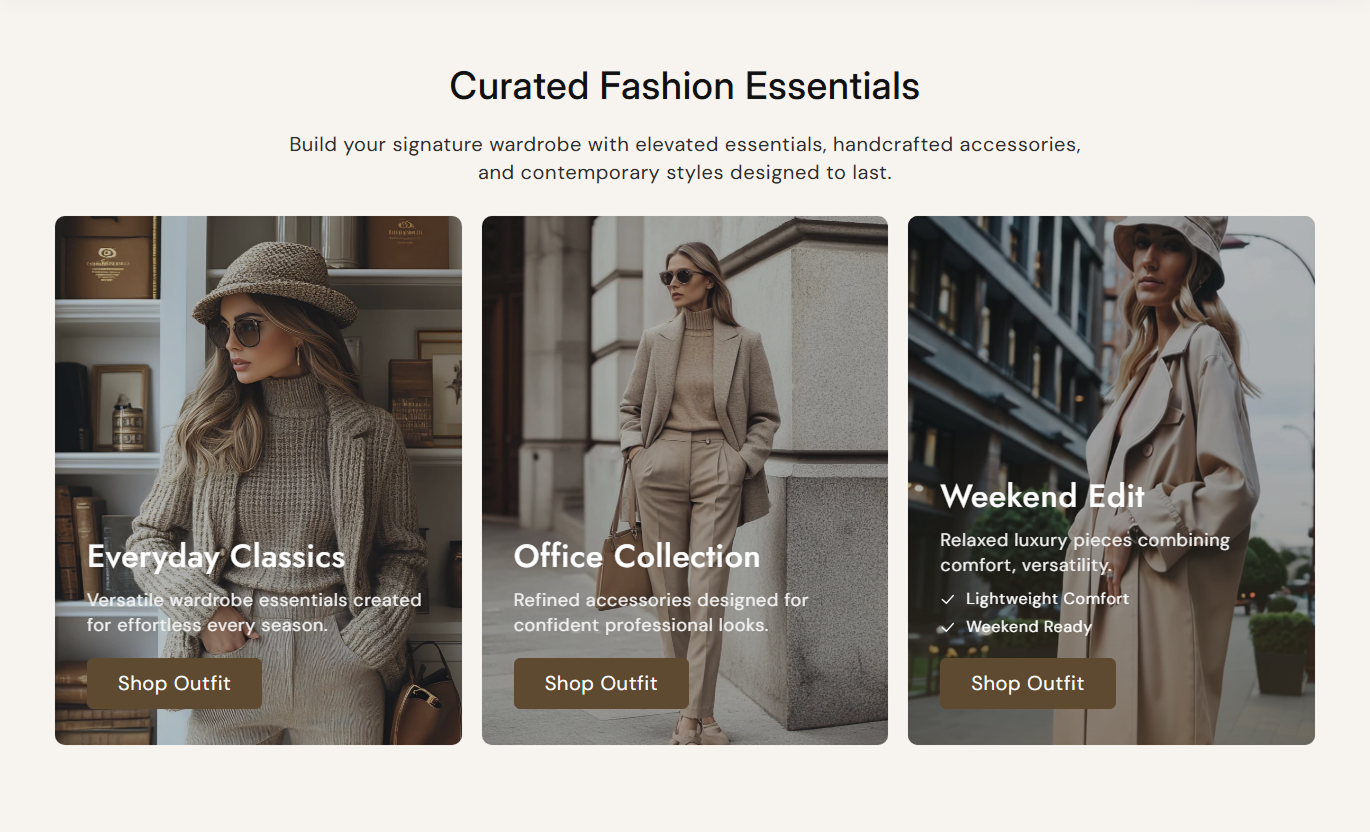
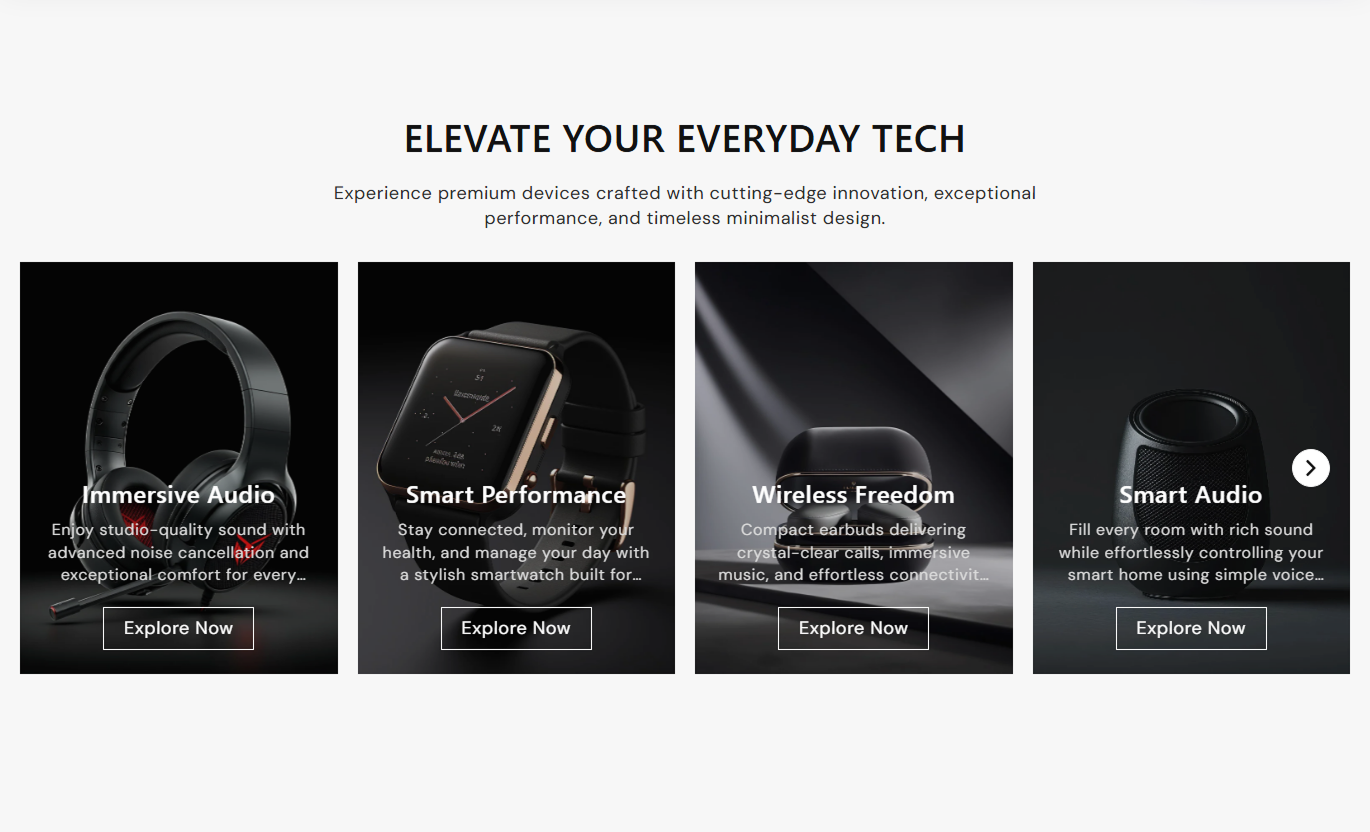


Show collection cards with image or video media, hover-revealed features, mobile play controls, autoplay, looping, and flexible slider styling.

On desktop, hovering over a card reveals its video, feature list, and hover background, while the collection content remains readable.

On mobile, each video card displays a dedicated play or pause button, allowing shoppers to control playback directly.

Use a custom card image first, then fall back to the selected collection featured image or a placeholder when needed.

Add a rich-text feature list that expands on desktop hover and remains visible by default on smaller mobile screens.

Show a reusable button on every card that links to the selected collection, with fill or outline styling options.

Enable Swiper autoplay with a one-to-ten second delay, optional looping, pause on hover, and responsive breakpoints.

Choose a gradient or solid hover overlay, set its opacity, and customize the base media overlay to improve text contrast.

Show one card on mobile, two from 767px, and a merchant-selected two to four cards from 1199px upward.
Control card media, overlays, slider behavior, typography, colors, spacing, content alignment, and section width.

Applies to the whole section
Edit the section heading, rich text, and responsive alignment.
Heading & AlignmentSet collection content alignment and card image height.
Collection Card LayoutAdjust card radius plus base and hover overlay styling.
Overlay & Card StyleSet button label, outline mode, radius, size, and colors.
Collection Button StyleChoose desktop slides, autoplay speed, looping, and autoplay.
Slider BehaviorAdjust the typography for the section, collection, and feature list.
Typography ControlsCustomize collection, arrow, button, and play-control colors.
Color Style ControlsSet desktop and mobile padding plus full or contained width.
Spacing & Width
Applies to each collection block
Choose the Shopify collection linked by this card.
Selected CollectionUpload a custom image shown before the video appears.
Collection ImageUpload an optional autoplaying collection video.
Collection VideoSet a custom heading or use the collection title fallback.
Collection HeadingAdd a short description and rich-text feature list.
Card ContentUse this collection slider across key Shopify pages to promote categories, seasonal edits, related ranges, or curated destinations with interactive media.
Use Collection List Video on your homepage to highlight priority collections with images, optional videos, feature lists, and direct collection links in a responsive slider.
Highlight multiple collection destinations in one sliderUse desktop hover video for richer visual merchandisingShow collection benefits through expandable feature listsLink every card directly to its selected collection pageKeep mobile browsing simple with direct playback controlsPlace the slider on collection templates to surface related categories, seasonal ranges, or curated destinations without replacing the main collection product grid.
Promote related collections without changing the product gridAdd video previews to strengthen category storytellingUse short descriptions to explain collection differencesDisplay feature lists for quick category comparisonUse responsive slide counts for different screen sizesUse the section on product pages to connect shoppers with complementary collections, broader categories, or curated ranges through visual cards and direct links.
Connect individual products to broader collection pagesUse collection videos to add visual context and discoveryHighlight category benefits with concise feature listsKeep each card linked to a relevant collection destinationSupport mobile discovery with tap-based video playbackUse Collection List Video on landing pages to present campaign collections, seasonal edits, or curated ranges with image or video cards, overlays, and direct links.
Build campaign navigation around multiple collection cardsUse custom imagery or collection image fallbacks as neededCombine short descriptions with feature-based messagingAdd motion through autoplay while pausing on mouse hoverMatch the campaign with flexible overlays and card stylingCombine collection discovery, video previews, feature lists, direct links, and responsive slider behavior inside one visually rich merchandising section.
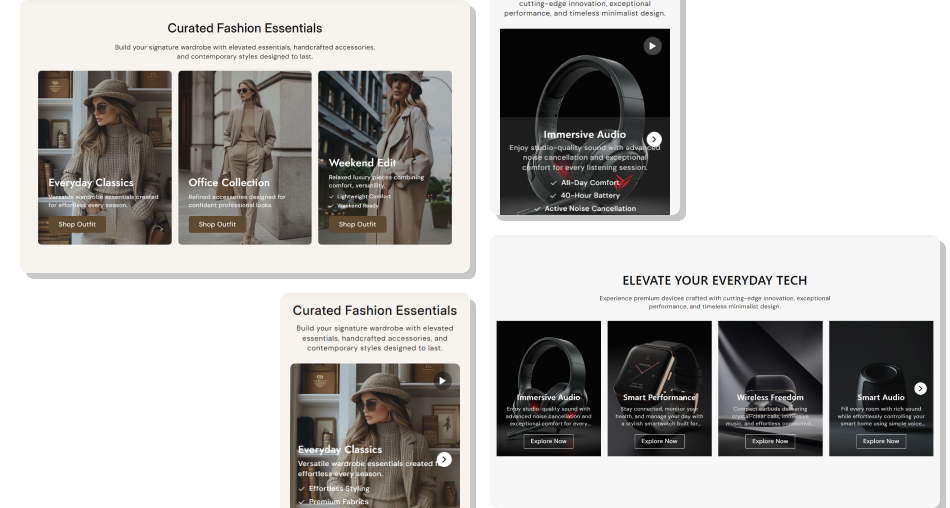
Use image or video cards, feature lists, and direct collection links to create a richer way for shoppers to explore categories.
Combine collection navigation with optional video previewsUse custom images or Shopify collection image fallbacksReveal detailed feature lists through desktop hover interactionKeep feature content directly visible on mobile cardsLet shoppers control mobile video playback card by cardConfigure autoplay, looping, and responsive slide countsCustomize overlays, typography, buttons, arrows, and spacing Use custom or collection images that crop well in tall cards
Keep collection headings short enough to avoid two-line overflow
Use feature lists for useful category differences or benefits
Test hover playback on desktop and tap controls on mobile
Keep autoplay speed comfortable enough for shoppers to browse
Use custom or collection images that crop well in tall cards
Keep collection headings short enough to avoid two-line overflow
Use feature lists for useful category differences or benefits
Test hover playback on desktop and tap controls on mobile
Keep autoplay speed comfortable enough for shoppers to browse  Do not use unrelated videos that confuse the collection message
Do not overload cards with long descriptions and feature lists
Do not rely on hover interactions for essential mobile content
Do not enable autoplay so fast that cards change too quickly
Do not leave collection selections empty when links matter
Do not use unrelated videos that confuse the collection message
Do not overload cards with long descriptions and feature lists
Do not rely on hover interactions for essential mobile content
Do not enable autoplay so fast that cards change too quickly
Do not leave collection selections empty when links matter On a desktop, hovering a card pauses any other card video, starts that card's video, reveals the feature list, and resets playback when the pointer leaves.
On mobile, a visible play or pause button controls each card video. Starting one video pauses and resets any other playing video in the section.
The section uses the selected collection's featured image. If neither a custom image nor a collection image exists, it displays a placeholder graphic.
Yes. Each Collection block includes a rich-text short description and a rich-text feature list, which receives check icons in the rendered card.
The schema does not define a maximum Collection block count. The preset starts with four blocks, but merchants can add more as needed.
The slider shows one card by default, two from 767px, and the merchant-selected two to four cards from 1199px and above.
For Support or any Questions Email Us: [email protected]
Install SectionHub and add the Collection List Video section to your theme in minutes - no coding required.
