Create a Visual Collection Discovery Menu
Use bold collection links and changing images to introduce key ranges, new arrivals, featured categories, or seasonal edits without relying on a traditional card grid.

Display up to six Shopify collections with bold text links and changing featured imagery, creating a clean visual menu that makes collection discovery more engaging.
 Up to 6 Collections
Interactive Image Preview
Responsive Collection Menu
Up to 6 Collections
Interactive Image Preview
Responsive Collection Menu 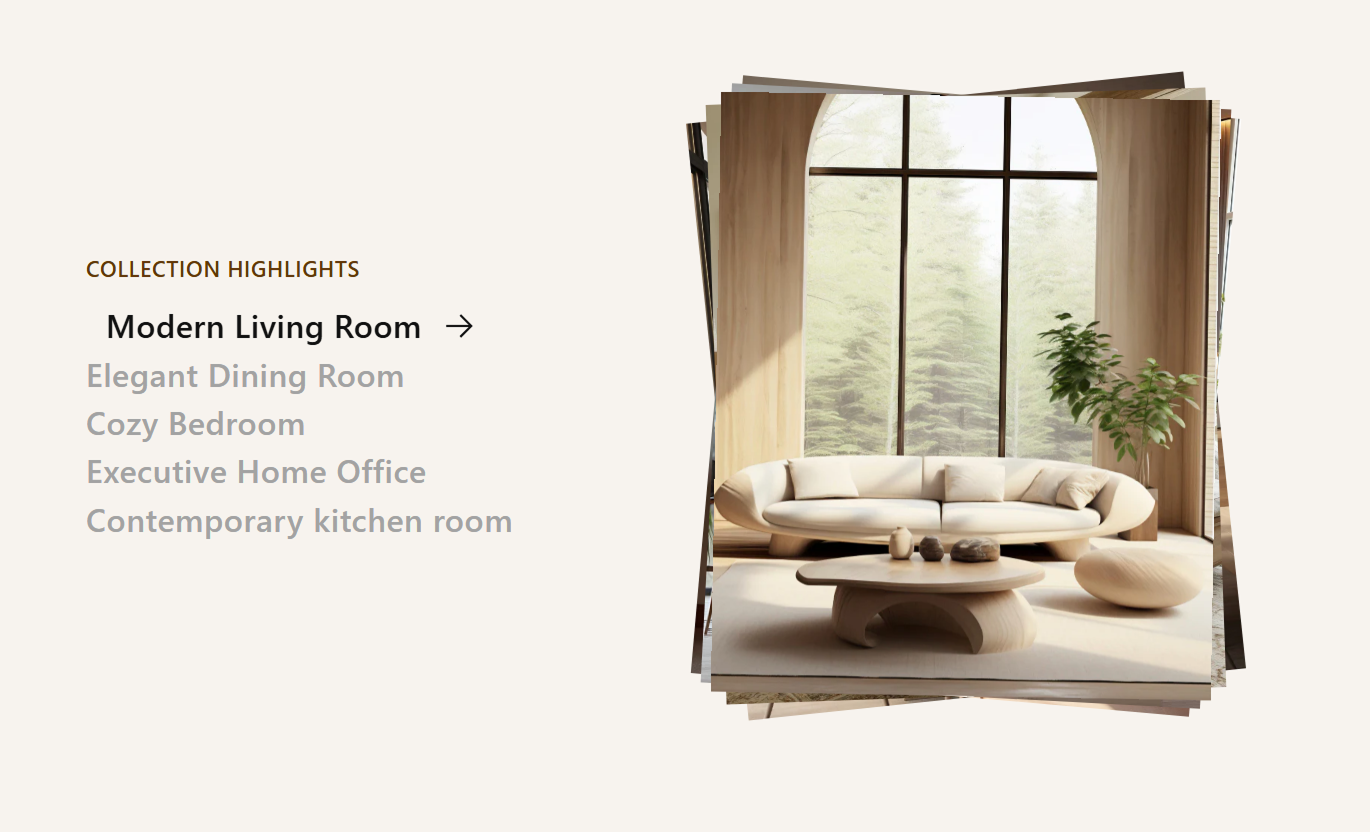


Turn a simple collection list into an interactive browsing experience with responsive imagery, hover effects, animated arrows, and direct collection links.

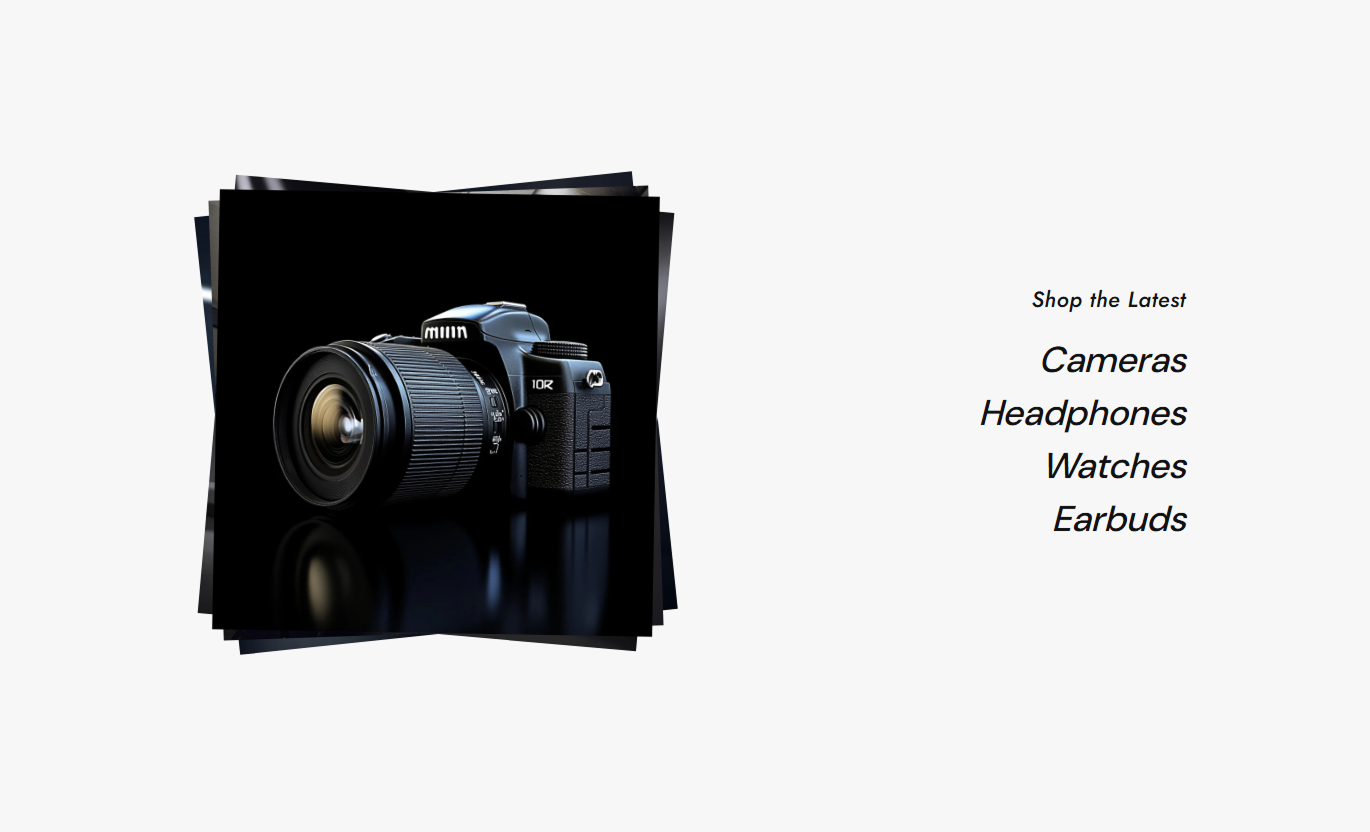
Change the featured image automatically when shoppers hover over or focus on a collection link in the navigation list.

Add up to six collection blocks to create a focused menu for featured ranges, categories, edits, or seasonal collections.

Every collection title links directly to its assigned Shopify collection page, creating a clear path to product browsing.

Upload a dedicated image for each collection to create a more editorial presentation, rather than relying on a basic text list.

Use your own display title for each collection, or use the selected Shopify collection title as the collection name.

Reveal an arrow and shift the active collection link horizontally on hover or keyboard focus for clearer interaction feedback.

Collection images share one visual area with subtle rotation effects, creating a distinctive stacked, editorial-style presentation.

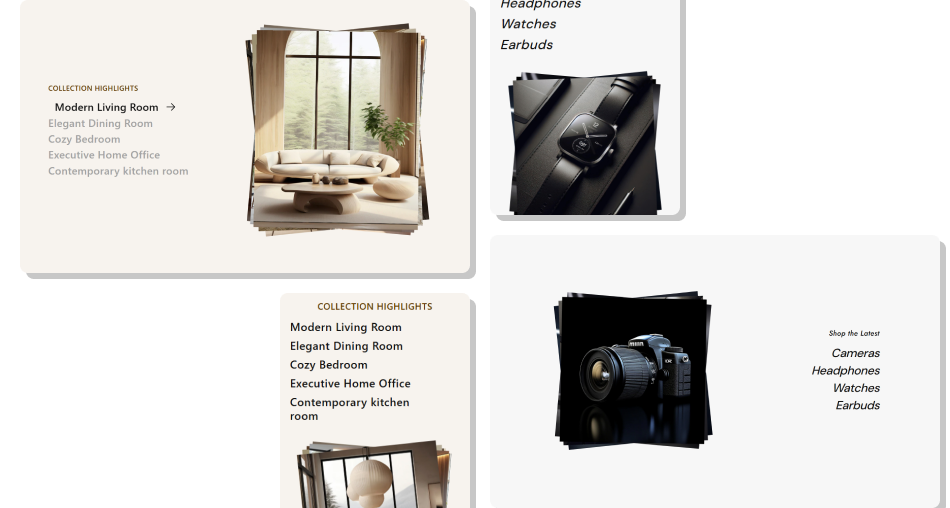
Use a side-by-side collection list and image area on desktop, then stack both areas vertically for easier mobile browsing.
Control image placement, image proportions, typography, colors, responsive spacing, and collection items directly from the Shopify theme editor.

Applies to the whole section
Add a heading above the complete collection navigation list.
Section HeadingChoose small, medium, or large featured image proportions.
Featured Image HeightPlace the image area on the left or right side on the desktop.
Featured Image PositionAdjust the font size used for the main section heading.
Heading Font SizeControl the size of individual collection titles.
Collection Title SizeCustomize section, heading, and collection title colors.
Section Color ControlsChoose the faded color used for non-focused collection items.
Inactive Title ColorSet separate top and bottom spacing for desktop and mobile.
Responsive PaddingSet the maximum width used by the section container.
Maximum Section Width
Applies to each collection
Choose the Shopify collection linked to the item.
CollectionUpload the featured image shown for this collection.
Collection ImageSet a custom display name for the collection link.
Collection HeadingUse this interactive collection menu to introduce important ranges, categories, seasonal edits, or curated groups across key Shopify store pages.
Use bold collection links and changing images to introduce key ranges, new arrivals, featured categories, or seasonal edits without relying on a traditional card grid.
Showcase several key collections inside one focused navigation area.Use large typography to make important categories easy to scan.Reveal matching imagery as shoppers explore each collection.Create direct paths from the homepage to collection pages.Add an editorial alternative to standard collection cards.Add a visual collection menu to help shoppers move between related categories, seasonal ranges, or subcollections without relying only on standard navigation.
Promote related collections around the current product category.Help shoppers move between ranges without using a large grid.Use custom imagery to illustrate differences in the collection.Highlight important subcollections with large collection titles.Create clearer discovery paths between connected categories.Use collection links to guide shoppers from an individual product to related ranges, categories, or curated edits, each with matching visual previews.
Connect individual products to wider, relevant collections.Promote complementary ranges from product-focused pages.Use visual previews to make collection links more engaging.Help shoppers continue browsing after viewing a product.Keep related collection discovery compact and uncluttered.Use the section to organize campaign categories, seasonal edits, launches, or curated collections while letting each destination reveal its own visual identity.
Organize several campaign destinations inside one clean menu.Pair every campaign collection with its own featured image.Use custom titles to match campaign or editorial language.Create direct collection links without adding multiple cards.Keep campaign navigation responsive across screen sizes.Give shoppers a faster and more visual way to explore important collections while keeping the page cleaner than a traditional multi-card collection grid.
Pair bold collection links with changing imagery so shoppers can understand each destination before opening the collection page.
Showcase several collection destinations without a crowded card grid.Make collection discovery more interactive through image changes.Use custom visuals to strengthen category and campaign storytelling.Highlight selected collections with large, readable typography.Create clear links directly to Shopify collection pages.Support both mouse hover and keyboard focus interactions.Maintain a simple stacked browsing experience on mobile. Use short collection names that are easy to scan quickly.
Choose visually distinct images for every collection item.
Feature collections that are genuinely important to navigation.
Keep image styles consistent across the collection list.
Test hover, keyboard focus, and mobile stacking before launch.
Use short collection names that are easy to scan quickly.
Choose visually distinct images for every collection item.
Feature collections that are genuinely important to navigation.
Keep image styles consistent across the collection list.
Test hover, keyboard focus, and mobile stacking before launch.  Do not use nearly identical images for every collection option.
Do not make custom collection titles unnecessarily long.
Do not add unrelated collections simply to fill all six blocks.
Do not rely on the image alone to explain each collection.
Do not use this section when a detailed product grid is required.
Do not use nearly identical images for every collection option.
Do not make custom collection titles unnecessarily long.
Do not add unrelated collections simply to fill all six blocks.
Do not rely on the image alone to explain each collection.
Do not use this section when a detailed product grid is required. You can add up to six Collection blocks, each with its own Shopify collection selection, custom image, and optional display heading.
The corresponding featured image becomes active, while the collection link shifts slightly and displays an arrow to highlight the interaction.
Yes. The section responds to keyboard focus and mouse hover, so the corresponding collection image updates when a link receives focus.
Yes. Add a custom Collection Heading inside the block. If no custom heading is provided, the selected Shopify collection title can be used as the collection name.
Yes. The Featured Image Position setting lets you place the visual area on the left or right side of the collection navigation on the desktop.
You can choose Small, Medium, or Large image proportions, each with a different aspect ratio for the visual collection preview area.
Each collection title links directly to the corresponding Shopify collection, giving shoppers immediate access to its product listing.
The collection list and image area become full-width and stack vertically, while the collection title sizing and spacing adjust for smaller screens.
For Support or any Questions Email Us: [email protected]
Install SectionHub and add the Collection List Showcase section to your theme in minutes - no coding required.
