Showcase Featured Collections on Your Homepage
Highlight seasonal, featured, or curated collections with large imagery and clear descriptions to help visitors discover important shopping categories.

Showcase collections with large, focused imagery, engaging descriptions, smooth slider transitions, and clear shopping buttons in a responsive layout.
 Focused Collection Slider
Smooth Auto Rotate
Responsive Collection Design
Focused Collection Slider
Smooth Auto Rotate
Responsive Collection Design 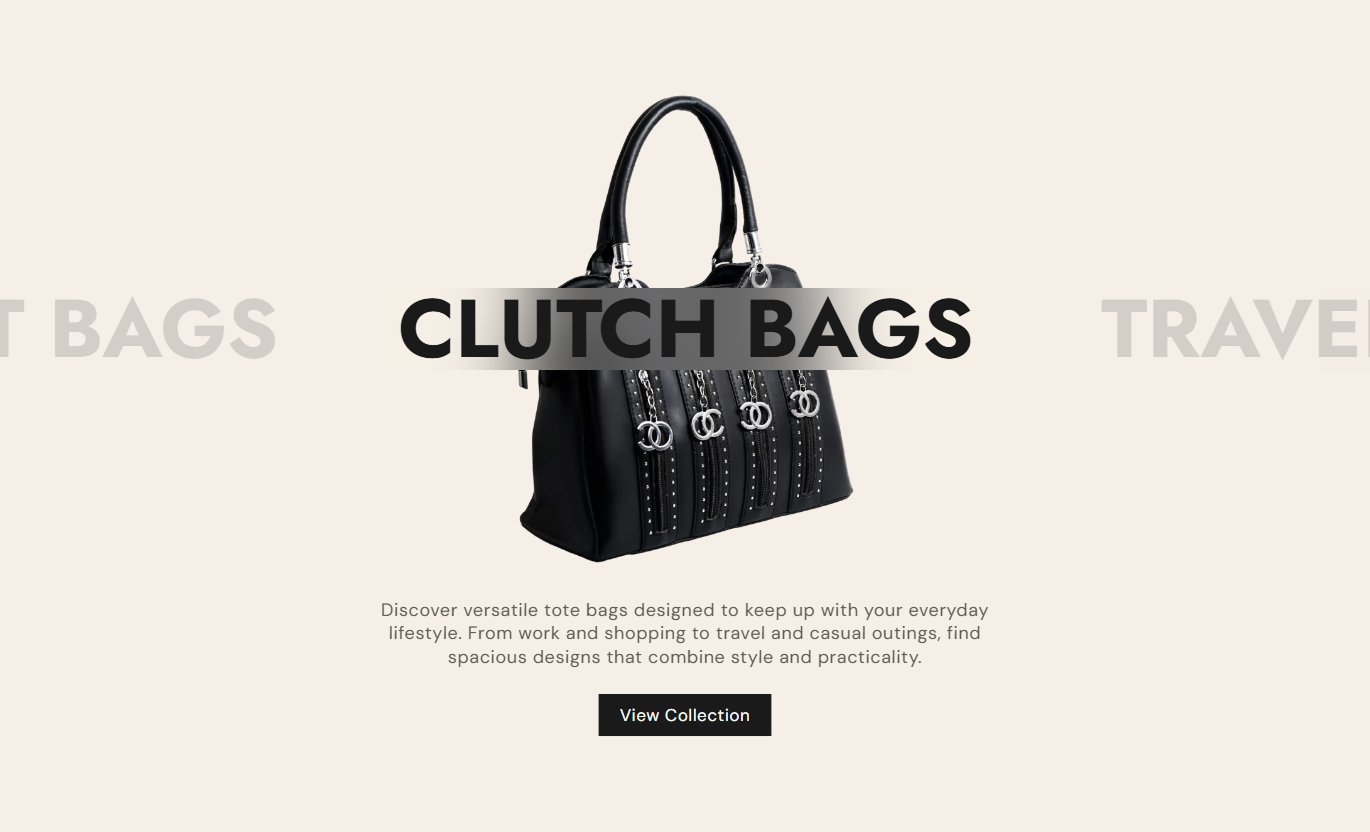
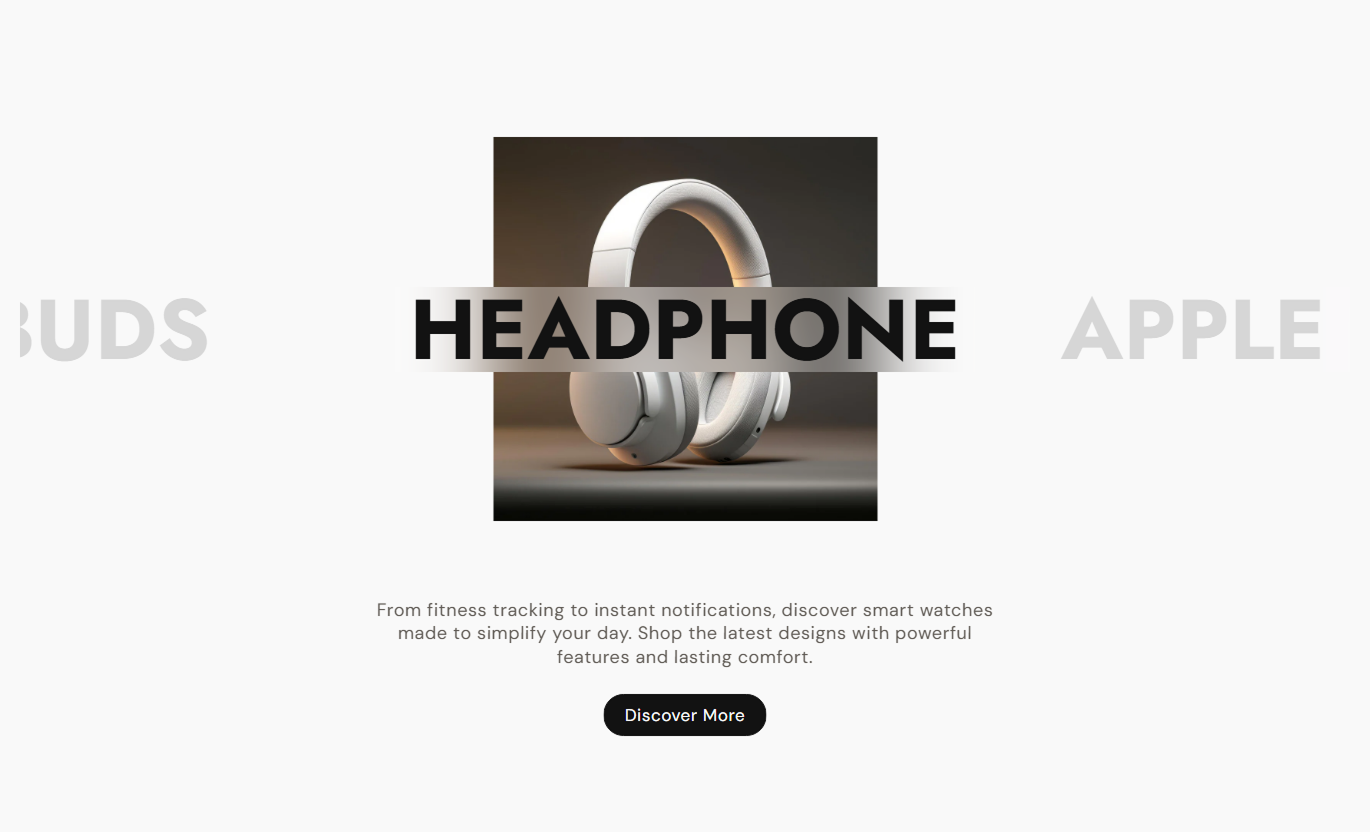


Create an engaging collection experience with focused images, centered slides, smooth transitions, optional autoplay, custom buttons, and responsive styling.

Display a large collection of images with an active-slide effect, keeping the selected collection visually prominent.

Keep the active collection centered while neighboring slides remain partially visible for a dynamic browsing experience.

Use polished scaling, opacity, and slide animations to create a refined collection browsing experience.

Automatically rotate through collection slides with a customizable delay when automatic browsing is enabled.

Place the collection title over the image with a blurred background effect for a clear visual presentation.

Add rich text content below each collection image to provide supporting information and context.

Add a configurable button that links customers directly to the selected collection page.
Deliver a consistent collection browsing experience across desktop, tablet, and mobile screen sizes.
Control slider behavior, buttons, typography, colors, spacing, and section width from one place.

Applies to the whole section
Enable automatic slide rotation.
Auto rotate slidesSet the time between automatic slide changes.
Change slides everySet the collection button label.
LabelDisplay the button with an outlined style.
Use outline buttonChoose the outline button color.
Outline colorSet the button corner radius.
Border radiusAdjust the desktop button text size.
Size (Desktop)Set the collection heading font size.
HeadingSet the collection description font size.
ContentChoose the main section background color.
Background colorChoose the collection heading color.
Heading colorChoose the heading overlay background color.
Heading background colorChoose the collection content color.
Content colorSet desktop top and bottom section spacing.
Desktop PaddingSet the mobile top and bottom section spacing.
Mobile PaddingEnable a full-width section layout.
Full widthSet a custom section width when full width is disabled.
Width (in px)
Applies to each collection slide
Select the collection displayed in the slide.
CollectionChoose the main image for the collection slide.
ImageAdd the collection heading shown over the image.
HeadingAdd rich text supporting the collection image below.
ContentUse this focused slider wherever you want to introduce collections with strong visuals, supporting content, and direct links to collection pages.
Highlight seasonal, featured, or curated collections with large imagery and clear descriptions to help visitors discover important shopping categories.
Create a strong visual collection introductionHighlight seasonal shopping categoriesGuide visitors toward key collectionsKeep collection discovery interactiveAdd direct shopping linksIntroduce related or complementary collections with focused visuals and descriptions, giving shoppers more ways to explore your store beyond the current category.
Promote complementary collectionsEncourage broader product discoveryCreate visual category navigationConnect shoppers with related collectionsKeep browsing focused and simplePlace collection recommendations near product content to help customers discover other categories, curated ranges, and additional products available in your store.
Introduce related shopping categoriesEncourage additional browsingHighlight curated product rangesConnect products with collectionsProvide clear collection navigationUse the slider on promotional or campaign pages to present selected collections with strong imagery, concise content, and direct shopping actions.
Support collection-based campaignsPresent curated shopping journeysHighlight promotional collectionsKeep landing pages visually engagingDrive visitors toward collectionsGive shoppers a visually engaging way to explore collections through large imagery, centered slides, supporting content, smooth animations, and direct links to collections.
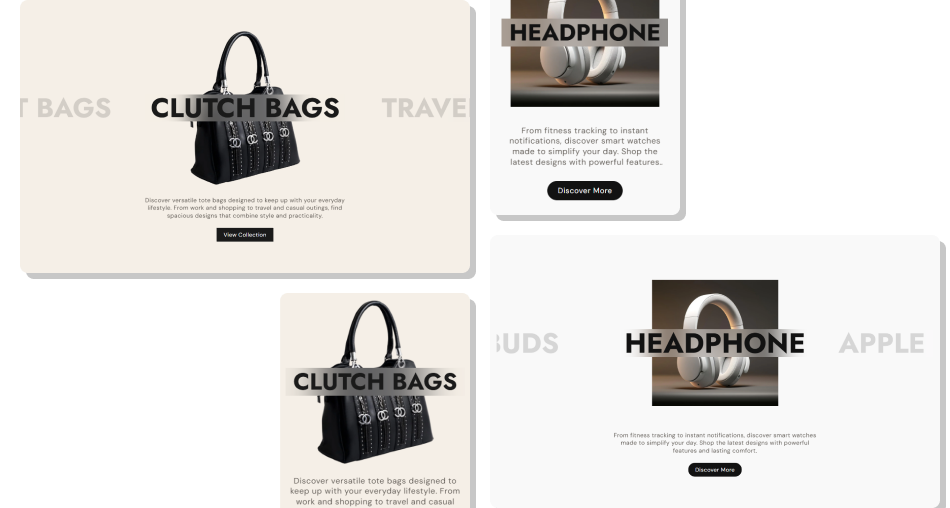
Combine strong collection imagery, focused slide transitions, flexible content, autoplay controls, and responsive layouts to create a polished browsing experience.
Showcase collections with large visual imageryKeep the active collection visually focusedMake collection discovery more engagingAdd supporting content for each collectionConnect shoppers directly to collectionsCreate smooth animated browsing experiencesAdapt the layout across screen sizes Use high-quality images that represent each collection.
Keep collection headings short and easy to scan.
Write concise descriptions with useful information.
Add a clear button label for collection shopping.
Check the slider experience across mobile devices.
Use high-quality images that represent each collection.
Keep collection headings short and easy to scan.
Write concise descriptions with useful information.
Add a clear button label for collection shopping.
Check the slider experience across mobile devices.  Avoid using unrelated or low-quality collection images.
Don't make collection headings unnecessarily long.
Avoid adding too much text below each collection.
Don't use unclear or generic button labels.
Don't ignore spacing and responsive layouts.
Avoid using unrelated or low-quality collection images.
Don't make collection headings unnecessarily long.
Avoid adding too much text below each collection.
Don't use unclear or generic button labels.
Don't ignore spacing and responsive layouts. The section recommends adding at least three collection blocks to ensure a proper slider experience and a balanced visual presentation.
Yes. You can enable automatic slide rotation and choose how frequently the slides change using the available timing settings.
Yes. The “Change slides every” setting lets you choose the automatic rotation interval from one to five seconds.
Yes. You can change its label, outline style, colors, border radius, desktop size, hover colors, and shadow appearance.
Yes. Every collection block includes an image setting, allowing you to select a dedicated visual for each collection slide.
Yes. Each collection block includes a rich-text content setting to add supporting descriptions beneath the collection image.
Yes. Responsive styling adjusts image sizes, heading typography, content sizing, button styling, and slide spacing for smaller screens.
Yes. The Full width setting allows the section to use the available page width, or you can set a custom width when disabled.
For Support or any Questions Email Us: [email protected]
Install SectionHub and add the Collection List Image Reveal Slider section to your theme in minutes - no coding required.
