Create Editorial Collection Navigation on Your Homepage
Use Collection List Hover Background on your homepage to present major categories or campaign collections through numbered links and a changing full-width background image.

Show up to eight collections with numbered hover links, changing background images, active and outline states, mobile collection buttons, overlays, and responsive styling.
 Numbered Collection Links
Hover Image Switching
Responsive Collection Showcase
Numbered Collection Links
Hover Image Switching
Responsive Collection Showcase 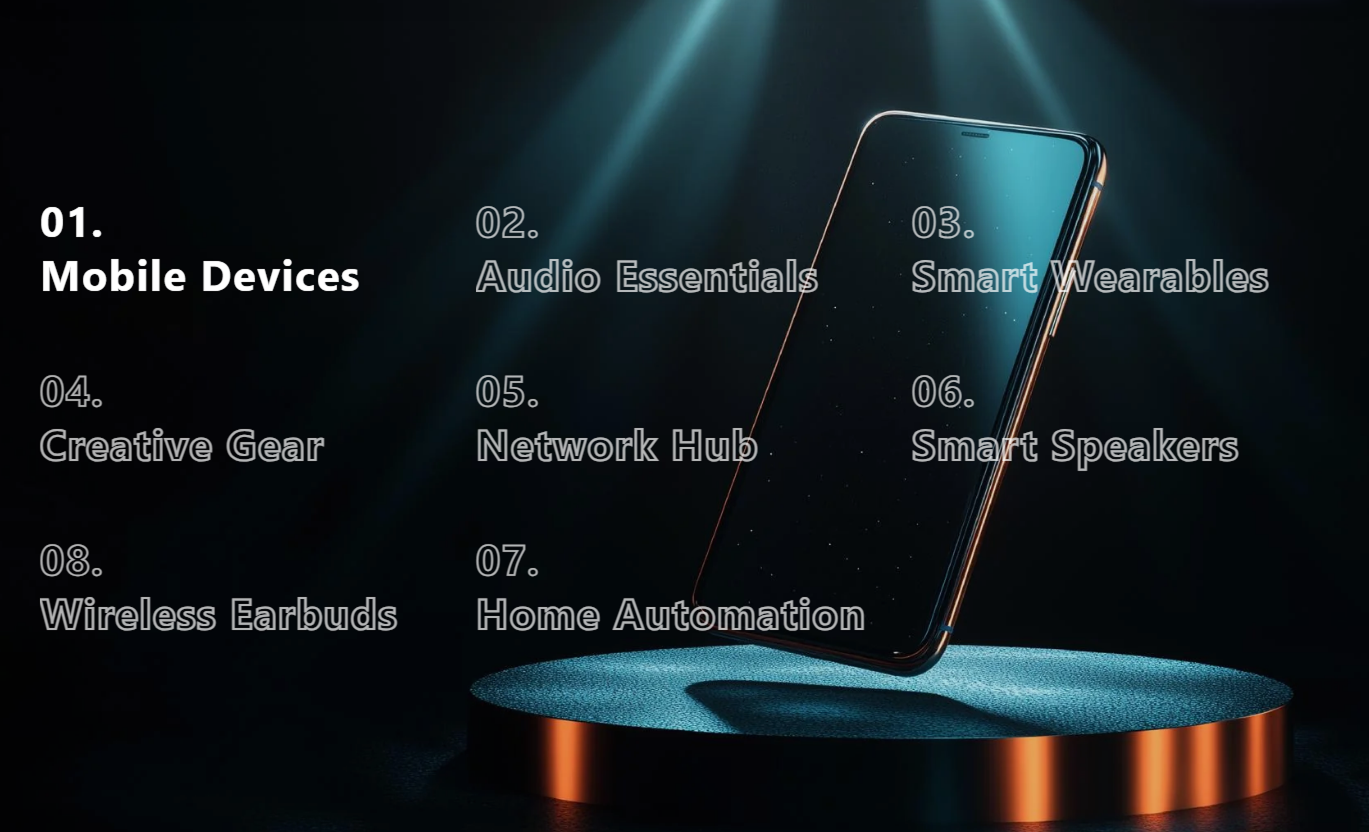
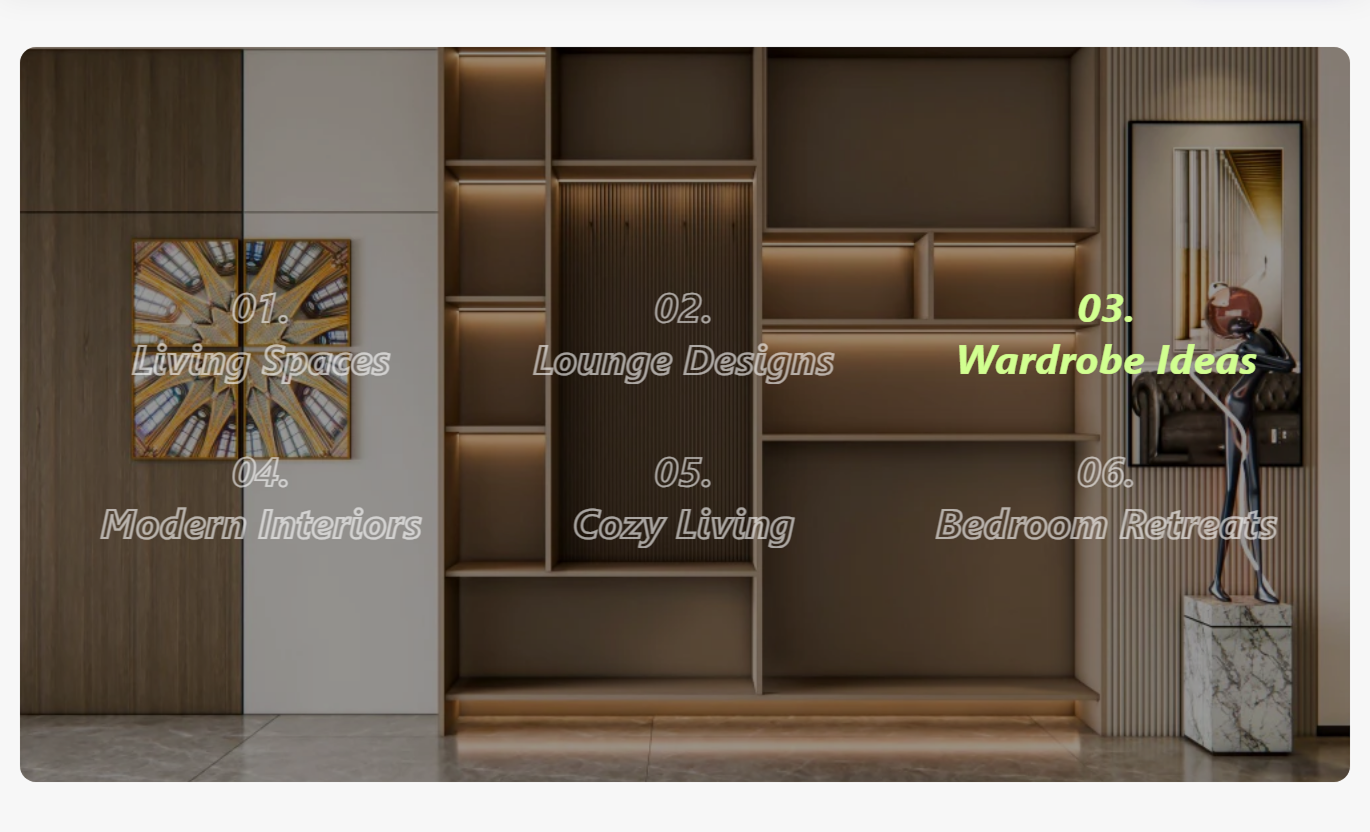


Present up to eight collections with numbered links, hover-switched backgrounds, active states, mobile CTAs, overlays, and responsive presentation.

Display automatic two-digit numbers beside each collection title to create a structured, editorial navigation experience.

Hover a collection link to activate its matching background image and update the visual focus without leaving the section.

Keep the current collection filled while inactive titles switch to outlined text with reduced opacity for stronger contrast.

Use a custom block image first, then the selected collection image, followed by a Shopify placeholder when needed.

Show a direct collection button over the active image on smaller screens, aligned left, center, or right with the content.

Choose an 80, 90, or 100 viewport-height media area on larger screens, with a tall mobile aspect ratio below 768px.

Align numbered collection links and mobile buttons left, center, or right from one shared content alignment setting.

Control image overlay, heading colors, button colors, wrapper radius, spacing, full width, and contained section width.
Control media height, overlays, collection link styling, mobile buttons, spacing, alignment, and section width.

Applies to the whole section
Choose Small, Medium, or Large media height for the showcase.
Media Height SetupSet overlay color, opacity, and wrapper corner radius.
Media Overlay StyleAlign collection titles and mobile buttons consistently.
Content AlignmentEdit mobile button label, outline mode, and radius.
Mobile Button StyleAdjust collection heading size and active title colors.
Heading Style ControlsCustomize mobile button normal, hover, and shadow colors.
Button Color ControlsSet separate desktop and mobile top and bottom padding.
Responsive SpacingUse full width or define a maximum contained section width.
Section Width Setup
Applies to each collection block
Upload a custom image for this collection background.
Collection ImageSet the collection title displayed in the numbered list.
Collection TitleSelect the Shopify collection used for links and fallbacks.
Selected CollectionUse this interactive collection showcase across key Shopify pages to guide shoppers through categories, campaigns, ranges, or curated destinations with strong imagery.
Use Collection List Hover Background on your homepage to present major categories or campaign collections through numbered links and a changing full-width background image.
Feature up to eight key collection destinations in one areaUse changing background imagery to reinforce each collectionGive every collection an automatic two-digit navigation numberKeep inactive titles visually distinct with outlined stylingShow direct collection buttons for smaller-screen shoppersPlace the section on collection templates to promote related categories, seasonal edits, or complementary ranges without changing the main product grid.
Promote related ranges without replacing the product gridUse large imagery to create stronger category storytellingGuide visitors through several adjacent collection optionsKeep active and inactive collection links easy to distinguishLink each title and mobile button to its selected collectionUse the section on product pages to guide shoppers from an individual item into related collections or broader categories using image-led navigation.
Connect individual products to wider collection destinationsUse editorial imagery to encourage broader product discoveryShow multiple collection paths without adding a standard gridKeep navigation compact with numbered collection headingsSupport mobile shoppers with image-level collection buttonsUse Collection List Hover Background on landing pages to create an editorial navigation experience for campaigns, seasonal ranges, or curated collection groups.
Create campaign navigation around up to eight collectionsPair each collection title with dedicated background imageryUse overlays to preserve readability across different imagesAlign titles and mobile buttons with the campaign layoutChoose full-width media for a more immersive presentationTurn collection navigation into an editorial visual experience with numbered links, dynamic background imagery, responsive buttons, and flexible styling.
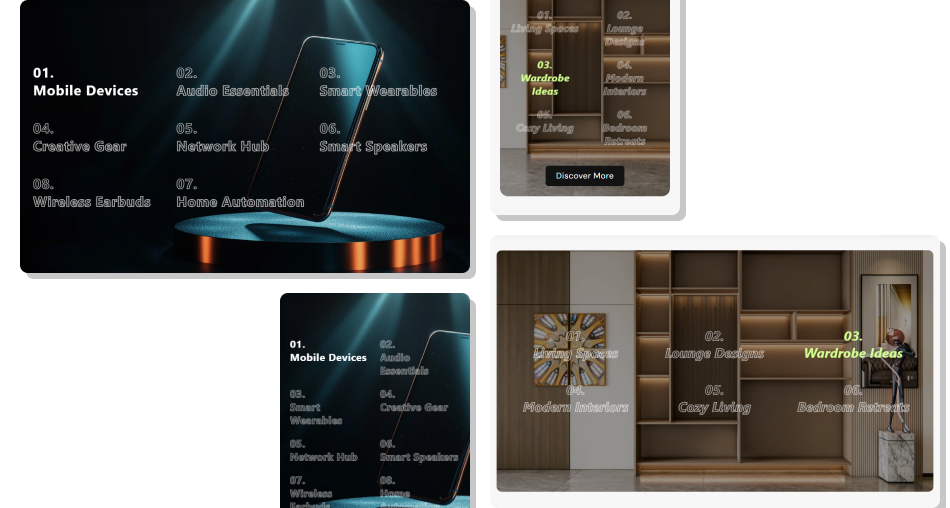
Combine numbered collection links, adjust imagery, add active states, and use responsive buttons to make category discovery more visual.
Present up to eight collection destinations in one visual sectionSwitch background imagery instantly as shoppers explore linksUse outlined inactive titles to keep the active collection obviousFall back from custom images to collection imagery automaticallyAdd mobile collection buttons without cluttering desktop navigationControl media height, overlays, alignment, radius, and section widthLink both collection titles and mobile buttons to destinations Use short collection titles that remain easy to scan quickly
Choose images with enough contrast for text placed over them
Keep all collection links pointed to relevant category pages
Use the overlay setting when background imagery feels too busy
Test hover switching on desktop and button placement on mobile
Use short collection titles that remain easy to scan quickly
Choose images with enough contrast for text placed over them
Keep all collection links pointed to relevant category pages
Use the overlay setting when background imagery feels too busy
Test hover switching on desktop and button placement on mobile  Do not use unrelated images that weaken collection recognition
Do not leave collection links empty when navigation is important
Do not rely only on inactive outline text for essential contrast
Do not overcrowd the section with long multi-line collection names
Do not ignore mobile image cropping when using tall backgrounds
Do not use unrelated images that weaken collection recognition
Do not leave collection links empty when navigation is important
Do not rely only on inactive outline text for essential contrast
Do not overcrowd the section with long multi-line collection names
Do not ignore mobile image cropping when using tall backgrounds The schema allows up to eight Collection blocks, and the preset starts with eight example collection entries.
Hovering a title makes it current, activates its matching background image, and applies the inactive outline style to the other collection links.
The section uses the selected collection's featured image first. If neither image exists, a Shopify collection placeholder is displayed.
Each rendered block gets an automatic two-digit number, while the title uses the custom Title field before falling back to the collection title.
The collection links adopt a two-column layout, the text size decreases, and a direct collection button appears over each background image.
Yes. Media Height offers Small, Medium, and Large options mapped to viewport heights of 80, 90, and 100 on larger screens.
One Content Alignment setting controls the collection title list and the mobile collection button position, which can be left, center, or right.
No. The schema disables the section in Shopify header and footer groups, so use it within supported page-template section areas.
For Support or any Questions Email Us: [email protected]
Install SectionHub and add the Collection List Hover Background section to your theme in minutes - no coding required.
