Show Featured Collections From the Homepage
Use the section on your homepage to pair promotional messaging with a visual collection carousel that guides shoppers toward important categories and seasonal ranges.

Showcase Shopify collections in a responsive slider with custom images, titles, autoplay, navigation controls, creative transitions, and a promotional content panel.
 Collection Slider Showcase
Creative Slide Transitions
Responsive Collection Cards
Collection Slider Showcase
Creative Slide Transitions
Responsive Collection Cards 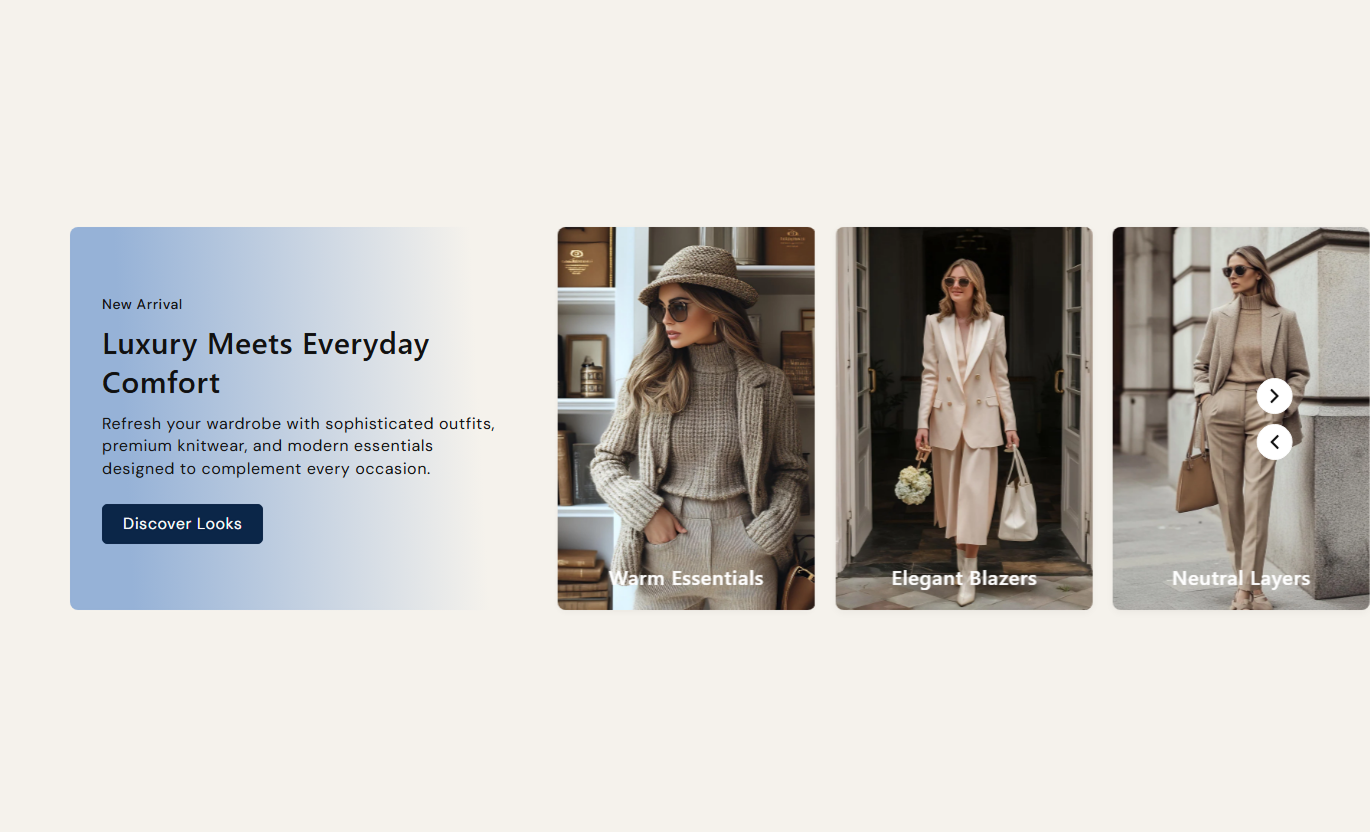
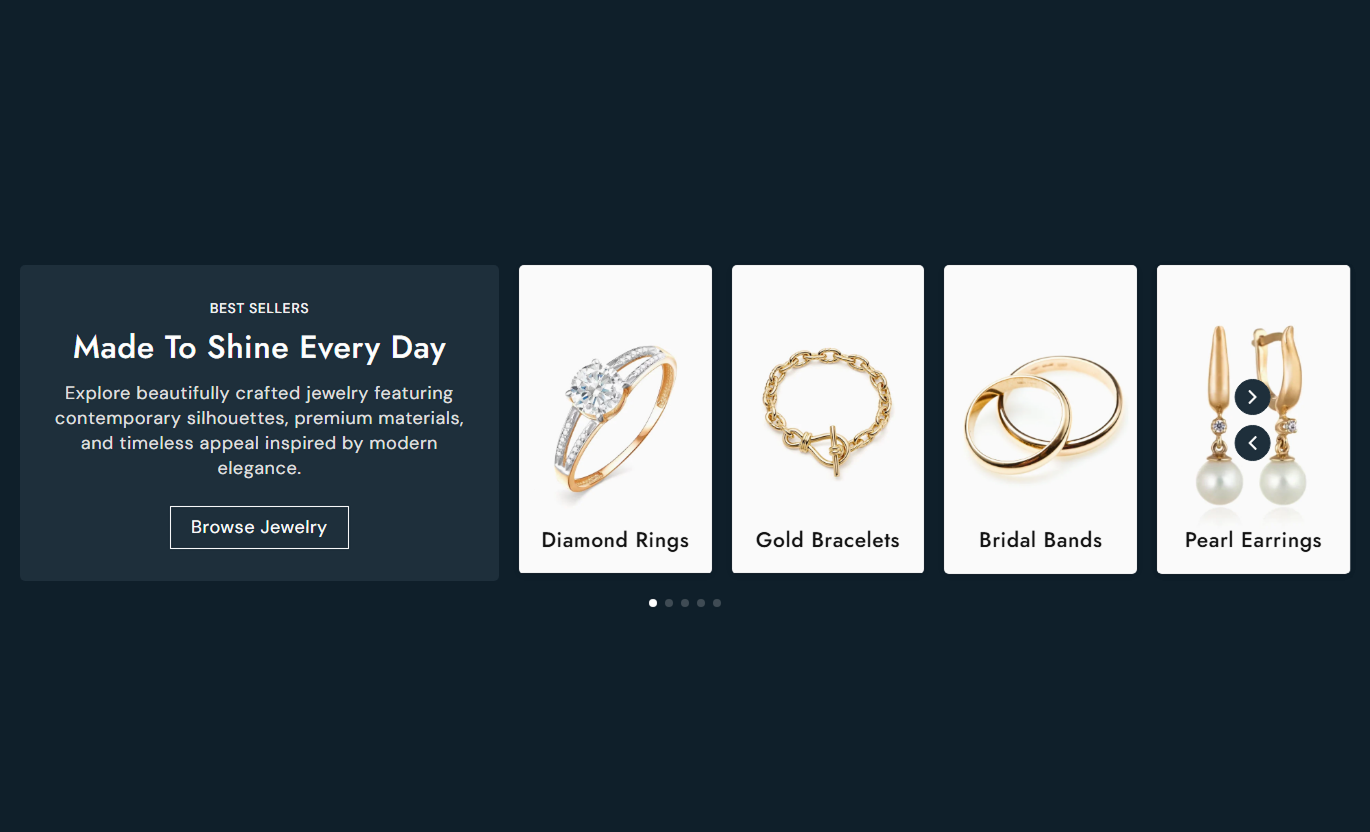


Present featured collections beside a promotional content panel with flexible cards, autoplay, creative transitions, navigation controls, and responsive layouts.

Create cards from a selected Shopify collection, with an optional custom image and title, for tailored merchandising.

If custom card content is missing, automatically use the selected collection's featured image, title, and storefront URL.

Browse collection cards in a looping carousel with touch movement, drag support, 800 ms transitions, and a creative slide effect.

Enable automatic rotation, set a two-to-ten-second delay, pause on hover, and continue autoplay after shopper interaction.

Choose navigation arrows, pagination dots, or both so shoppers can move through the collection slider in their preferred way.

Show two cards on small screens, about 1.7 from 768 px, two from 991 px, and three or four cards on large desktop screens.

Use a dedicated panel for a subheading, a heading, rich text, and an optional CTA, with adjustable alignment, gradient, and radius.

Control image proportions, card radius, typography, section colors, CTA styles, arrows, dots, spacing, and overall content width.
Control content, collection cards, slider behavior, navigation, typography, colors, spacing, and section width.

Applies to the whole section
Edit the subheading, heading, rich text, and alignment.
Panel Content SetupStyle the content panel radius and gradient background.
Panel AppearanceAdd a linked CTA and choose filled or outline styling.
CTA Button StyleChoose card image height and desktop slide count.
Slider Card LayoutEnable autoplay and set a two-to-ten-second delay.
Slider AutoplayChoose arrows, dots, or combined slider navigation.
Navigation TypeAdjust collection card radius, text, arrows, and dots.
Slider Style ControlsSet desktop and mobile section padding independently.
Responsive SpacingUse full width or set a maximum contained section width.
Section Width Setup
Applies to each collection card
Upload a custom image for this collection card.
Custom Card ImageAdd a custom title or use the collection title.
Collection Card TitleSelect the Shopify collection linked by the card.
Selected CollectionUse this collection slider across key Shopify pages to promote categories, seasonal ranges, curated edits, or related collections through visual cards.
Use the section on your homepage to pair promotional messaging with a visual collection carousel that guides shoppers toward important categories and seasonal ranges.
Promote several key collections inside one focused sectionCombine campaign copy with direct collection discoveryUse autoplay to keep featured categories moving automaticallyOffer arrows or dots for shopper-controlled navigationAdapt the collection carousel cleanly across screen sizesPlace the slider on collection templates to highlight related categories, complementary ranges, or seasonal edits that help shoppers continue exploring your catalog.
Introduce related collections without changing the product gridEncourage deeper category discovery from collection pagesUse custom card images to support merchandising campaignsLink every card directly to its selected collection pageKeep browsing interactive with touch, arrows, or paginationUse the collection slider on product pages to introduce broader ranges, complementary categories, or seasonal edits that are connected to the products shoppers are viewing.
Connect individual products with broader shopping categoriesHelp shoppers discover related ranges from product pagesUse collection imagery to add visual merchandising contextProvide direct links to relevant collection destinationsKeep related discovery compact with a responsive carouselUse Collection List Fade Slider on landing pages to combine campaign copy with a visual carousel of curated categories, seasonal collections, or featured shopping destinations.
Support campaign storytelling with curated collection cardsFeature several categories without building multiple sectionsUse a CTA alongside direct collection card destinationsControl autoplay and navigation to suit campaign pacingStyle the content panel and cards to match the campaignCombine promotional messaging with a responsive collection carousel so shoppers can discover important categories through visual cards and direct links.
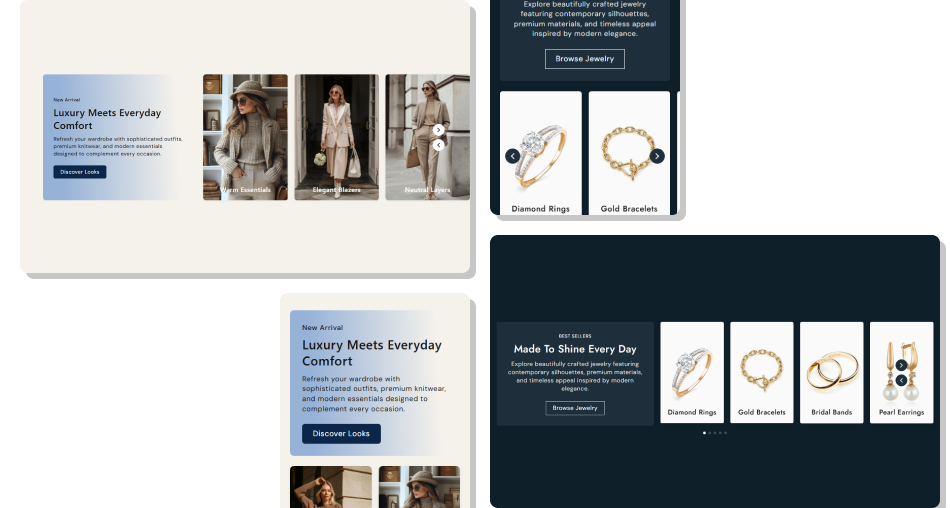
Guide shoppers to key categories with visual cards, responsive browsing, and a dedicated content panel for campaign context.
Combine campaign messaging and collection discovery in one sectionUse Shopify collection data instead of duplicating manual contentOverride collection titles and images when campaigns need custom creativeOffer automatic or shopper-controlled movement through the carouselSupport three or four visible collection cards on large desktopsKeep the experience usable with touch and drag interactionsMatch buttons, arrows, dots, cards, and colors to your theme Use clear collection images that represent each category well
Keep custom collection titles concise and easy to scan
Use autoplay delays that allow shoppers time to view each card
Choose navigation controls that fit your storefront layout
Test collection links, card fallbacks, and mobile swiping before launch
Use clear collection images that represent each category well
Keep custom collection titles concise and easy to scan
Use autoplay delays that allow shoppers time to view each card
Choose navigation controls that fit your storefront layout
Test collection links, card fallbacks, and mobile swiping before launch  Do not use unrelated images that confuse collection discovery
Do not overload the content panel with lengthy promotional copy
Do not set autoplay so fast that cards are difficult to review
Do not leave collection cards without useful titles or imagery
Do not rely only on arrows when mobile swipe behavior matters
Do not use unrelated images that confuse collection discovery
Do not overload the content panel with lengthy promotional copy
Do not set autoplay so fast that cards are difficult to review
Do not leave collection cards without useful titles or imagery
Do not rely only on arrows when mobile swipe behavior matters Yes. Each Collection block has an optional custom image and heading. If omitted, the selected collection's featured image and title can be used.
The card falls back to the selected collection's featured image. If no usable image is available, the section displays a placeholder image.
Yes. Autoplay can be enabled with a delay of two to ten seconds. It pauses on mouse hover and continues after shopper interaction.
You can choose arrows, pagination dots, or both together. The dots are clickable, and the arrows can be customized in color and size.
At 1180px and above, you can choose three or four visible slides. Smaller breakpoints automatically reduce the number of visible cards.
Yes. A custom block title and image take priority. When either is blank, the section can fall back to the corresponding collection data.
Yes. The Swiper configuration enables touch movement and a grab cursor, allowing shoppers to manually swipe through cards in addition to other controls.
For Support or any Questions Email Us: [email protected]
Install SectionHub and add the Collection List Fade Slider section to your theme in minutes - no coding required.
