Showcase Your Main Shopping Categories
Use visual collection cards on your homepage to introduce major product categories and guide shoppers toward the collections they want.

Showcase your collections in clean category cards with images, subcategory links, and View All buttons to help shoppers discover more products across your Shopify store.
 2.0 Compatible
Collection Navigation
Responsive Layout
2.0 Compatible
Collection Navigation
Responsive Layout 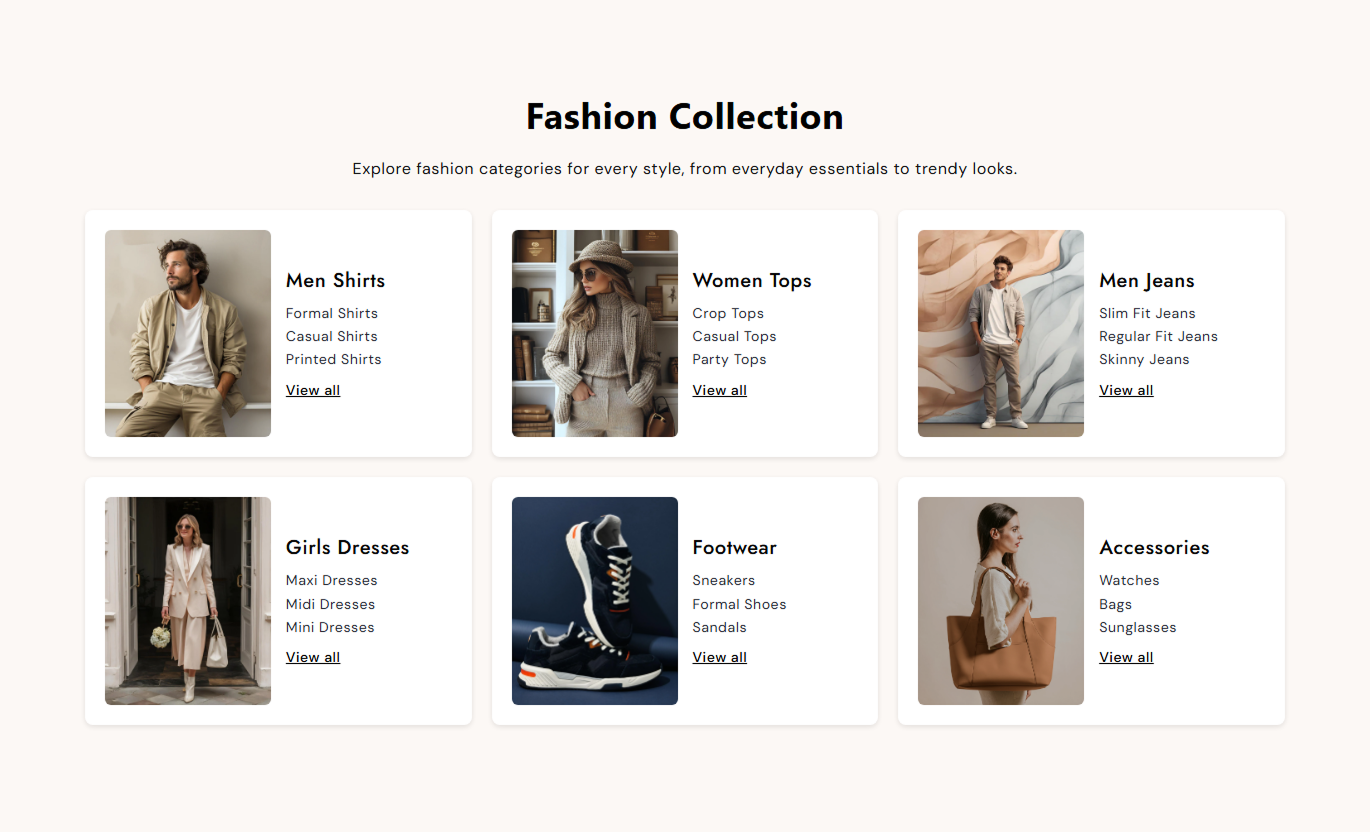


Organize collections into visual cards with collection links, images, custom headings, View All buttons, flexible grids, and responsive layouts for easy store navigation.

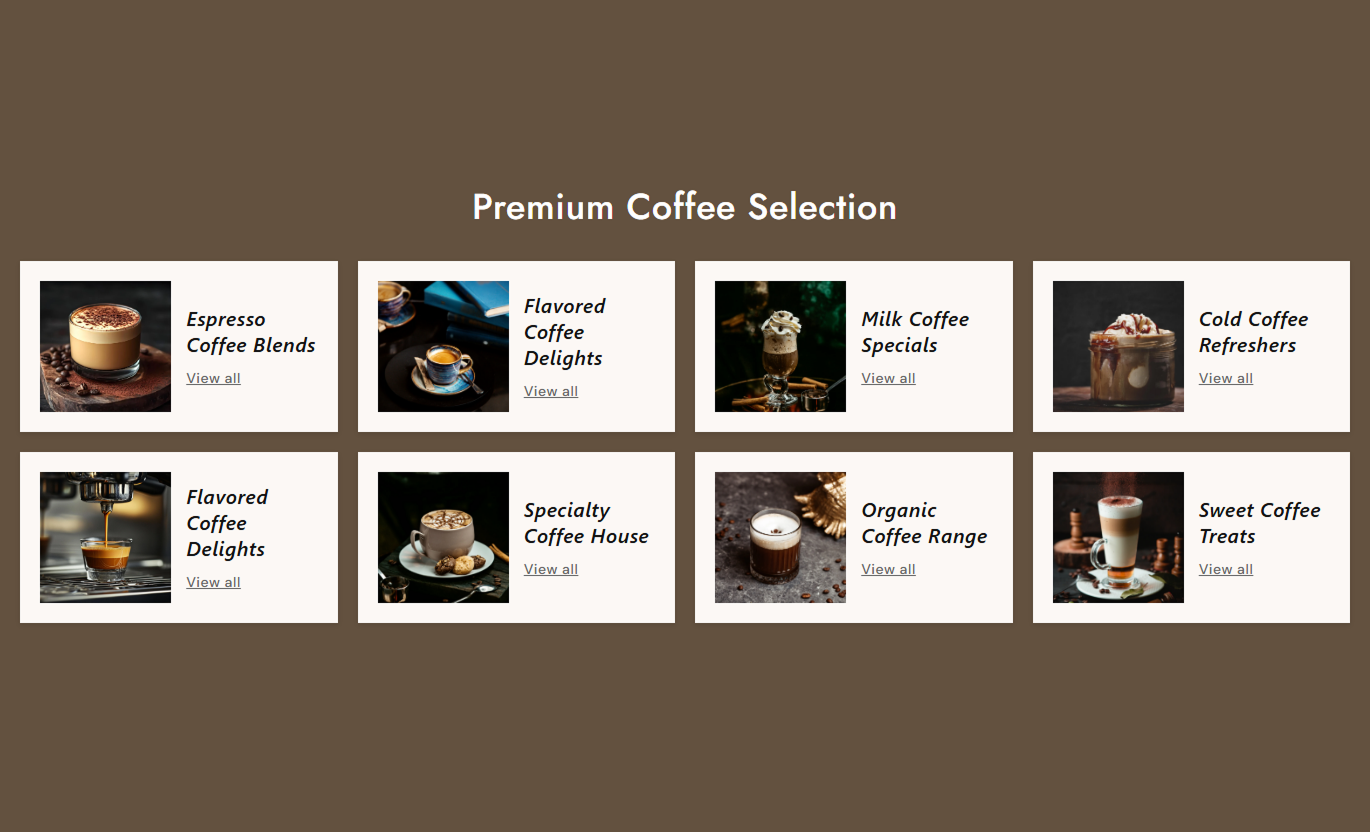
Display each collection group inside a clean card with an image, heading, and collection links.

Add an image to each category card to give shoppers a visual starting point for browsing.

Add up to four collection links inside each category card for organized product discovery.

Set individual headings for each collection link rather than relying solely on collection names.

Add a custom View All label and link to give shoppers another way to explore a collection group.

Choose between 2 and 5 columns on the desktop to control how collection cards are displayed.

Customize card padding, border radius, image corners, spacing, and box shadow.

The grid automatically adjusts to two columns on tablets and to one column on mobile devices.
Customize collection cards, images, links, typography, colors, spacing, grid columns, and section width from the theme editor.

Applies to the whole section
Add the main heading displayed above the collection cards.
Section HeadingAdd supporting rich text below the main heading.
Section ContentChoose the alignment of the section heading and content.
Text AlignmentSelect Small, Medium, or Large image proportions.
Image HeightSet rounded corners for collection images.
Image Border RadiusAlign card content to the top, center, or bottom.
Content AlignmentControl the inner spacing inside each collection card.
Card PaddingSet rounded corners for collection cards.
Card Border RadiusChoose 2 to 5 collection cards per row on the desktop.
Desktop ColumnsAdjust the space between collection cards.
Card SpacingCustomize heading, content, category, subcategory, and link text sizes.
Font SizesSet section and collection card background and text colors.
Color SettingsControl desktop and mobile top and bottom section spacing.
Section PaddingMake the section span the available screen width.
Full WidthSet the maximum section width when full width is disabled.
Section Width
Applies to each Category block
Add a visual image for the collection card.
Category ImageAdd the main heading for the collection group.
Category HeadingSet the label shown on the View All link.
View All LabelAdd the destination for the View All link.
View All LinkAdd custom headings and collection links for up to four categories.
Collection LinksUse Collection List Card to organize related collections and give shoppers clear, visual paths to discover products throughout your Shopify store.
Use visual collection cards on your homepage to introduce major product categories and guide shoppers toward the collections they want.
Highlight important collectionsCreate clear shopping pathsDisplay related categories togetherLink directly to collectionsAdd related collection groups to help shoppers discover other categories and find products beyond the collection they are currently viewing.
Promote related collectionsImprove category discoveryOrganize collection linksEncourage further browsingUse collection cards to introduce related product categories and give shoppers more options to continue exploring your store further.
Highlight related categoriesSupport product discoveryLink to relevant collectionsEncourage more browsingBuild clear shopping paths on landing pages by grouping related collections into visual cards with direct links.
Organize product categoriesCreate focused navigationCombine images with linksGuide shoppers to collectionsCombine collection images, headings, multiple collection links, and View All buttons to create an organized browsing experience for shoppers.
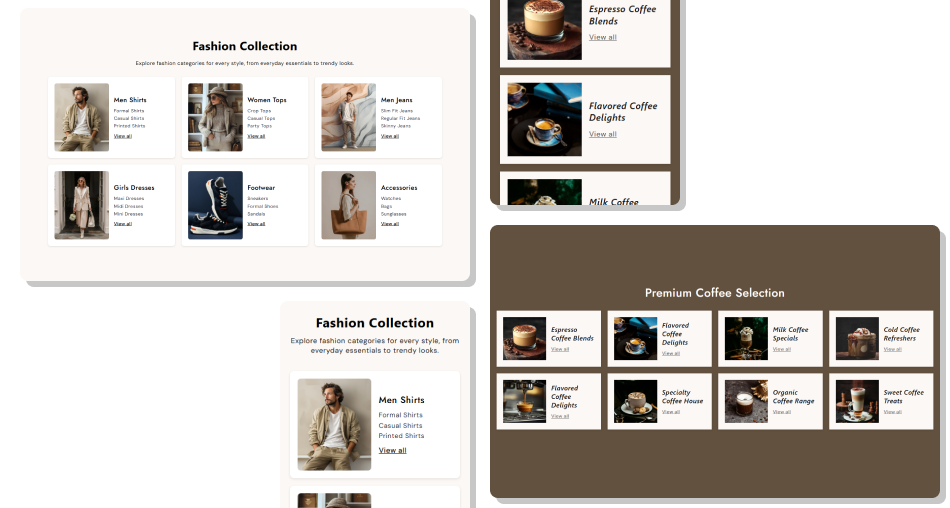
Create multiple category cards and customize their layout, spacing, typography, colors, and responsive behavior to match your Shopify store.
Create multiple collection category cardsAdd a visual image to each cardAdd up to four collection links per cardUse custom headings for collection linksAdd a dedicated View All linkChoose 2 to 5 desktop columnsCustomize card spacing and stylingProvide responsive collection navigation Use images that clearly represent each collection.
Group related collections inside the same category card.
Keep collection headings short and easy to scan.
Use descriptive labels for collection links.
Make View All links lead to relevant collection pages.
Use images that clearly represent each collection.
Group related collections inside the same category card.
Keep collection headings short and easy to scan.
Use descriptive labels for collection links.
Make View All links lead to relevant collection pages.  Use unrelated images for collection categories.
Mix unrelated product groups in one card.
Use long or confusing collection titles.
Add links that do not match the displayed category.
Overload shoppers with too many unrelated collection groups.
Use unrelated images for collection categories.
Mix unrelated product groups in one card.
Use long or confusing collection titles.
Add links that do not match the displayed category.
Overload shoppers with too many unrelated collection groups. Yes. The section uses repeatable Category blocks, and the preset includes six category blocks to get started.
Each Category block supports up to four collection links.
Yes. Each of the four collection entries has its own Heading field, so you can use custom titles.
Yes. Each collection entry has its own Category selector, allowing you to connect it to a different Shopify collection.
Yes. Each Category block includes a custom View All label and link.
You can choose between 2 and 5 columns using the Number of Columns setting. The layout automatically uses two columns on smaller screens and one column on mobile.
Yes. You can adjust card padding, border radius, box shadow, image border radius, spacing, colors, and typography.
Yes. The Image Height setting provides Small, Medium, or Large image proportions.
Yes. On mobile, collection cards are displayed in a single-column layout with adjusted typography, spacing, and card padding.
Yes. You can enable Full Width, or set a custom maximum section width when Full Width is disabled.
For Support or any Questions Email Us: [email protected]
Install SectionHub and add the Collection List Card section to your theme in minutes - no coding required.
