Create a Visual Collection Gateway
Use Category Grid Showcase on the homepage to turn key collections into a bold visual navigation area that helps shoppers quickly navigate to important product categories.

Show up to five Shopify collections in an expanding image grid with hover interaction, custom labels, flexible positioning, direct links, and responsive styling.
 Expanding Category Grid
Collection Link Ready
Responsive Grid Layout
Expanding Category Grid
Collection Link Ready
Responsive Grid Layout 
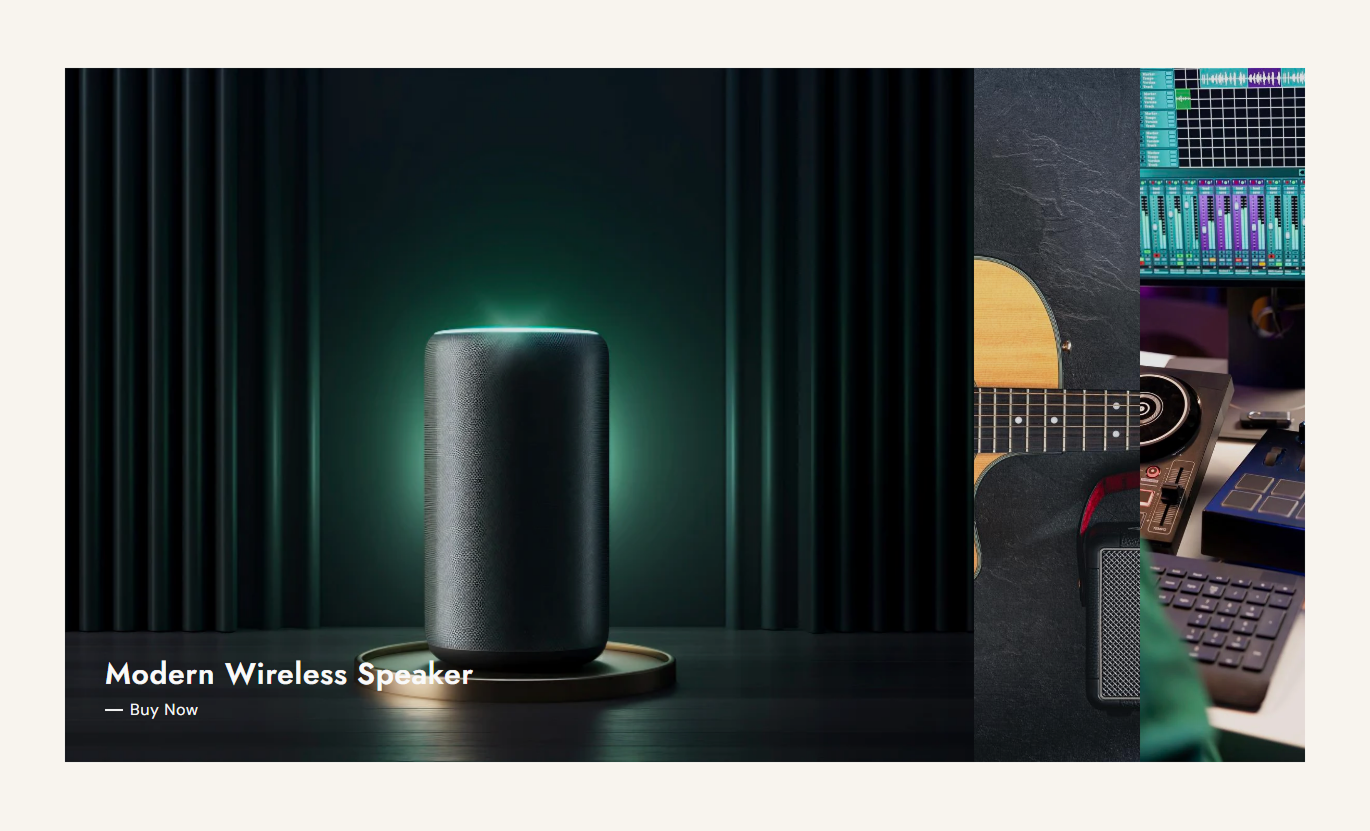


Create an image-led category grid that expands on hover, links directly to Shopify collections, and adapts cleanly across desktop and mobile screens.

On desktop, category panels expand on hover, allowing shoppers to focus on one collection image and its content at a time.

Connect each category block to a Shopify collection so the entire panel can guide shoppers directly to that collection page.

Add up to five category blocks within a single section to feature a focused set of collections without overcrowding the layout.

Upload a dedicated image for each category block to create a strong visual browsing experience around your collections.

Place each category title and link label in nine positions, from top left to bottom right, to suit different images.

Choose Small, Medium, or Large image height to control the overall visual depth of the category grid on the desktop.

Set separate heading and link colors for each category block so text stays readable across different background images.

On smaller screens, category panels stack vertically and adjust their proportions for a cleaner mobile presentation.
Control images, typography, colors, spacing, width, and category content directly from the Shopify theme editor.

Applies to the whole section
Add the main heading displayed above the category grid.
Section HeadingChoose how the main section heading is aligned.
Heading AlignmentChoose Small, Medium, or Large category image height.
Category Image HeightAdjust the font size of the main section heading.
Main Heading SizeAdjust the font size used for category titles.
Category Heading SizeAdjust the font size used for category link labels.
Link Label Font SizeSet the background color behind the complete section.
Section BackgroundChoose the color used for the main section heading.
Main Heading ColorSet separate top and bottom spacing for desktop and mobile.
Section PaddingUse full width or define a custom maximum content width.
Section Width Control
Applies to each category block
Upload the main visual shown for this category.
Category ImageSelect the Shopify collection linked to this block.
CollectionAdd a custom title or use the selected collection title.
Category HeadingAdd the short link text displayed inside the category.
Link LabelChoose one of nine positions for the category content.
Content PositionSet the title color for this category block.
Heading ColorSet the link label color for this category block.
Link ColorUse this interactive collection grid across key Shopify pages to highlight categories, improve visual navigation, and guide shoppers toward relevant collections.
Use Category Grid Showcase on the homepage to turn key collections into a bold visual navigation area that helps shoppers quickly navigate to important product categories.
Feature your most important collections in one visual areaHelp new visitors understand what your store sells fasterUse large category imagery to make browsing feel more visualSend shoppers directly to selected collection pagesCreate a strong category-focused section below your heroAdd the grid to a collection page to surface related categories, seasonal groups, or adjacent product ranges without relying only on text-based navigation.
Introduce related collections without changing the product gridGive shoppers another path to explore nearby categoriesHighlight seasonal or complementary collection groupsUse category imagery to break up long collection pagesDirect visitors toward relevant collection destinationsUse the section on product pages to guide shoppers toward related collections, broader categories, or complementary ranges after they view a specific item.
Connect individual products with broader collection choicesEncourage shoppers to explore related product categoriesSurface complementary ranges with strong visual imageryAdd collection navigation without using a standard menuGive shoppers clear next steps after viewing a productUse Category Grid Showcase on campaign landing pages to organize featured collections, seasonal edits, or promotional categories into a focused visual browsing area.
Organize campaign collections inside one visual sectionGuide visitors to the most relevant promotional categoriesSeparate seasonal edits with distinct category imageryKeep campaign navigation compact and easy to scanLink every category panel directly to its collection pageTurn collection navigation into a visual experience with expandable images, direct links, flexible positioning, and responsive styling.
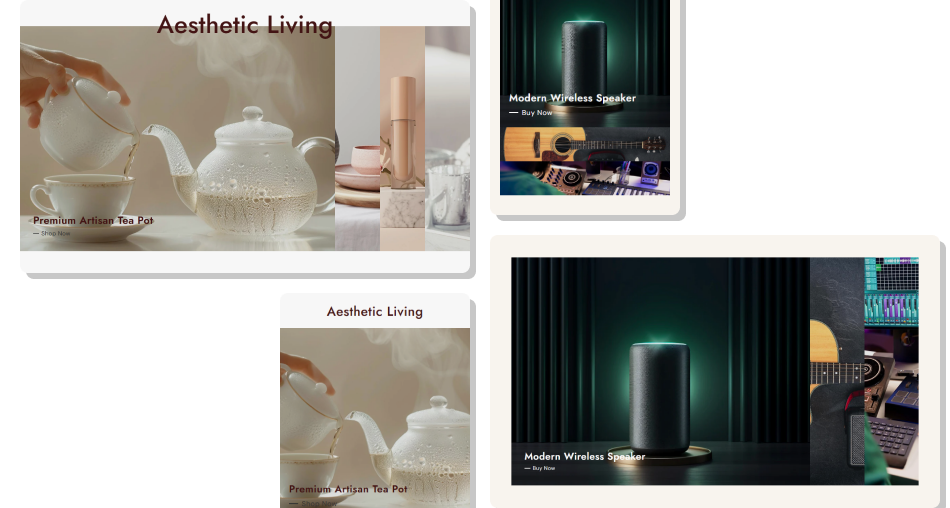
Help shoppers discover collections faster with strong imagery, clear category titles, direct links, and a focused visual layout.
Turn ordinary collection links into a more visual browsing experienceKeep several important collections organized inside one compact gridDraw attention to one category at a time with expanding desktop panelsSend shoppers directly from category imagery to collection pagesControl text placement to keep titles readable across different imagesMatch individual category text colors to each image and store designUse full-width or contained layouts to suit different Shopify themes Use clear, high-quality images that represent each collection.
Keep category titles short, clear, and easy to read.
Choose text positions that avoid busy areas in category images.
Link every active category block to the correct collection.
Keep the grid focused by featuring only your key collections.
Use clear, high-quality images that represent each collection.
Keep category titles short, clear, and easy to read.
Choose text positions that avoid busy areas in category images.
Link every active category block to the correct collection.
Keep the grid focused by featuring only your key collections.  Don’t use unrelated images that confuse the collection purpose.
Avoid long category titles that compete with the imagery.
Don’t place text over busy areas where readability drops.
Avoid leaving collection links empty on a live storefront.
Don’t fill all five blocks unless each category adds real value.
Don’t use unrelated images that confuse the collection purpose.
Avoid long category titles that compete with the imagery.
Don’t place text over busy areas where readability drops.
Avoid leaving collection links empty on a live storefront.
Don’t fill all five blocks unless each category adds real value. You can add up to five category blocks. Each block can include its own image, Shopify collection, heading, link label, content position, and colors.
Yes. When you select a collection for a block, the category panel uses that collection URL so shoppers can open the linked collection page directly.
If a custom title is not provided, the section can use the selected Shopify collection title as the visible heading for that category block.
Yes. Each block includes nine content positions across the top, middle, and bottom areas, with left, center, or right placement.
Yes. The section provides Small, Medium, and Large image height options to adjust the overall proportions of the desktop grid.
Yes. Every category block has separate heading and link color controls, while the section also includes background and main heading colors.
On mobile, the horizontal grid changes to a vertical layout with adjusted image proportions and content sizing for smaller screens.
Yes. You can enable full width or disable it and set a custom maximum section width to fit the layout of your Shopify theme.
For Support or any Questions Email Us: [email protected]
Install SectionHub and add the Category Grid Showcase section to your theme in minutes - no coding required.
