Create Interactive Category Navigation at Home
Use Category Grid Explorer on your homepage to highlight key collections or shopping categories with expanding image cards, custom icons, and quick visual navigation.

Show up to five collection categories in expanding image cards with hover or tap interaction, custom icons, slide-up details, and an optional linked Plus Button.
 Expanding Category Cards
Hover & Tap Interaction
Optional Plus Button
Expanding Category Cards
Hover & Tap Interaction
Optional Plus Button 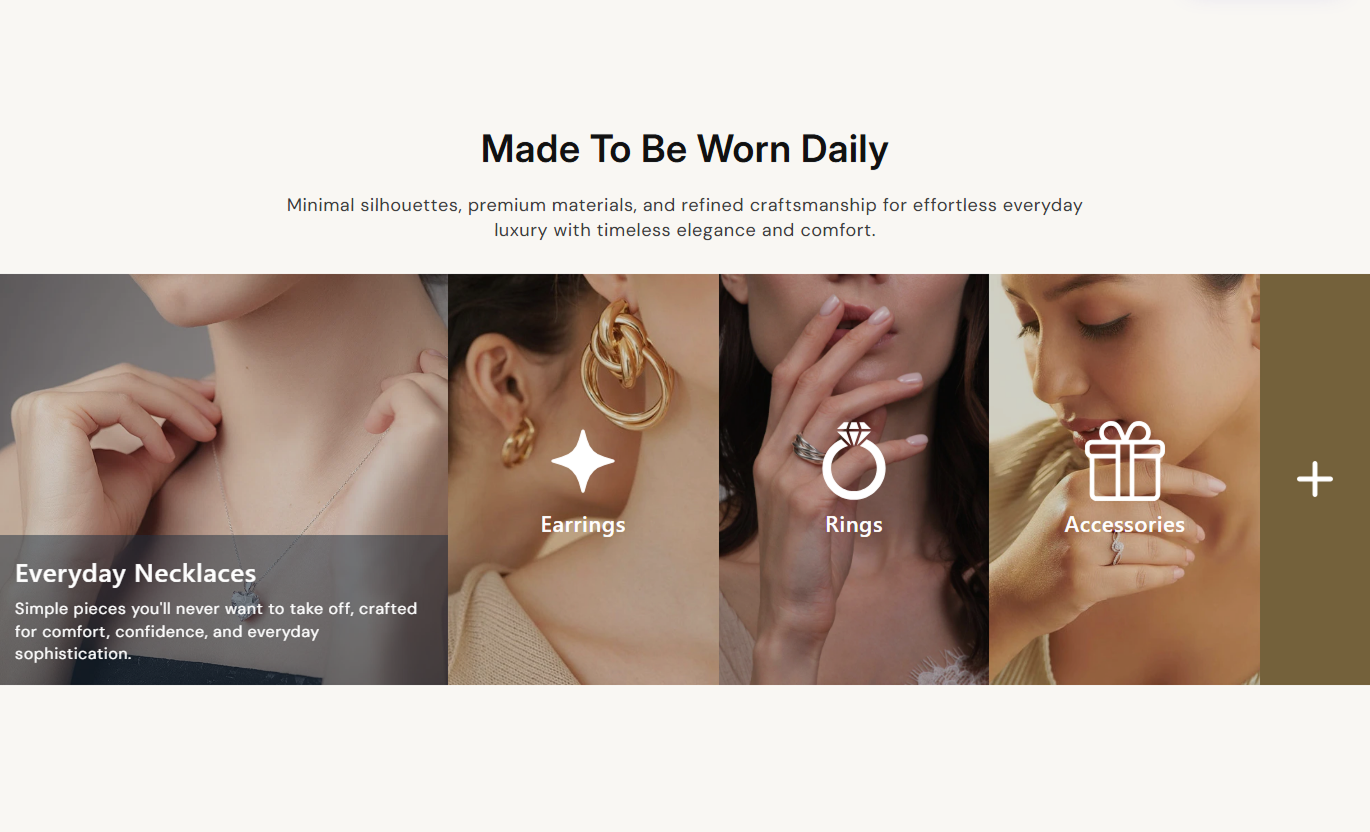
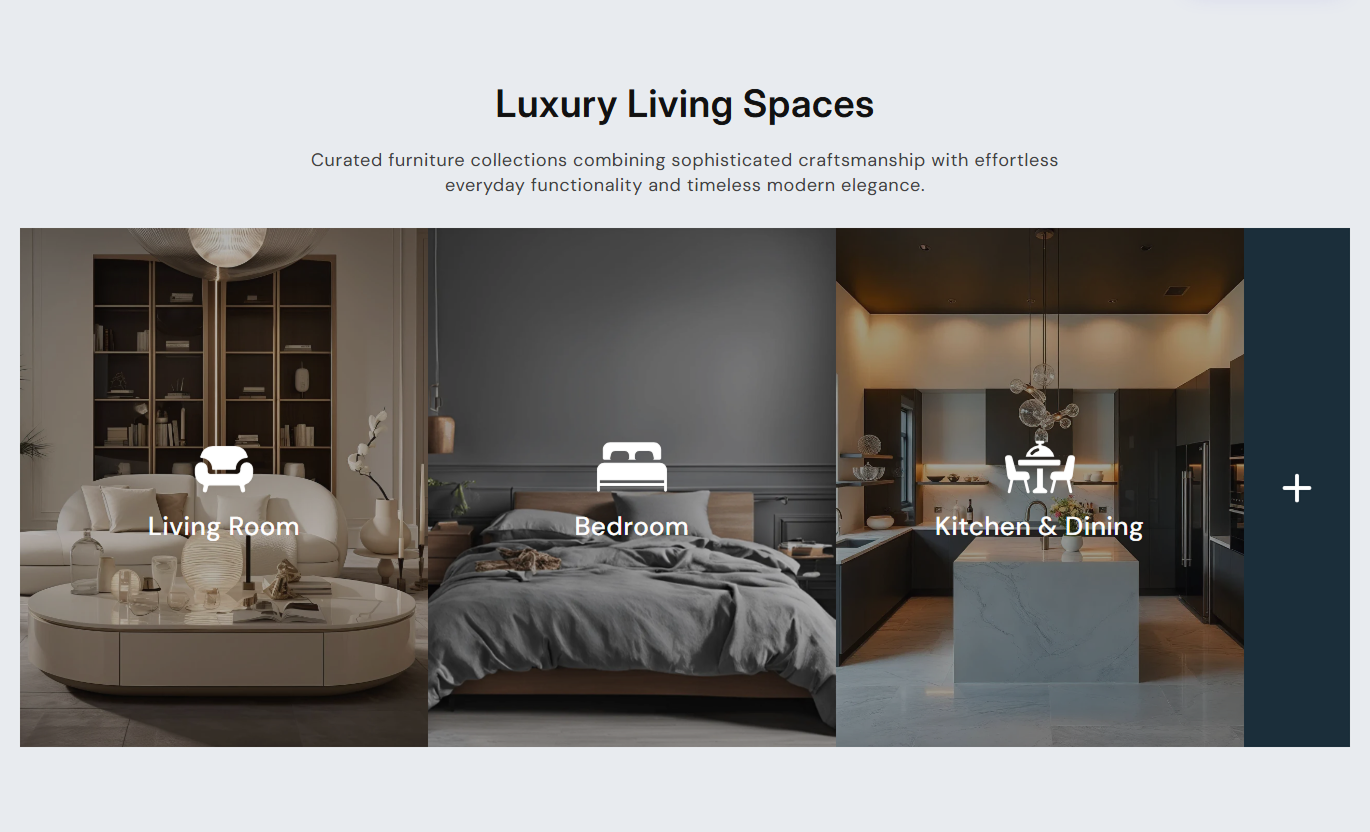


Present collection categories with expanding cards, custom icons, hover or tap details, image fallbacks, and an optional Plus Button for extra navigation.

Each category card expands when active, giving shoppers a larger visual area while keeping neighboring categories visible.

Desktop shoppers activate cards by hovering, while mobile shoppers tap once to expand a category, then follow its link.

Use a custom category image first, then the selected collection image, followed by a built-in placeholder when needed.

Choose an uploaded icon image or paste SVG code for each category, with a default icon shown when neither is supplied.

Active cards hide the default icon label and reveal a lower information panel with a heading and short supporting description.

Add one Plus Button block with its own destination, label, icon size, text size, background, icon, and text colors.

Desktop cards expand horizontally, while on mobile, the experience becomes a stack of cards with tap-based activation.

Control typography, overlays, info-panel colors, content alignment, section spacing, width, and category icon sizing.
Control category layout, hover content, typography, colors, overlays, spacing, width, and optional Plus Button styling.

Applies to the whole section
Edit the section heading, rich text, and responsive alignment.
Heading & AlignmentAlign the category information revealed in the active state.
Hover Content AlignmentAdjust section, category, icon, and detail text sizes.
Typography ControlsCustomize the colors of the section, overlay, and category information.
Color Style ControlsSet the opacity of the image overlay and category info background.
Overlay ControlsSet separate desktop and mobile top and bottom padding.
Responsive SpacingUse full width or define a custom maximum section width.
Section Width Setup
Applies to each category block
Choose a custom image or Shopify collection for the card.
Category MediaSelect an image icon or paste custom SVG icon code.
Category IconSet the default label, detail heading, and description.
Category ContentCustomize each category's icon and text colors.
Category ColorsSet the Plus Button label, link, sizes, and colors.
Plus ButtonUse this interactive category grid across Shopify pages to promote collections, related ranges, campaign categories, or curated destinations with visual motion.
Use Category Grid Explorer on your homepage to highlight key collections or shopping categories with expanding image cards, custom icons, and quick visual navigation.
Feature several high-priority categories in one visual rowUse collection images to strengthen category recognitionReveal extra category context only when a card is activeAdd a Plus Button for an extra navigation destinationSwitch to stacked tap interactions on smaller screensPlace the section on collection templates to promote related categories, subcollections, seasonal ranges, or alternate shopping paths without replacing the main product grid.
Promote related collections beside the main product gridUse expandable cards for stronger visual category discoveryShow short descriptions without crowding the default viewLink every category directly to its Shopify collectionUse a Plus Button for broader collection navigationUse Category Grid Explorer on product pages to guide shoppers toward related collections, use cases, or broader categories through image-led expandable navigation.
Connect individual products to wider collection destinationsShow category imagery without adding a standard product gridReveal extra category context only after interactionUse custom icons to distinguish different shopping pathsKeep mobile browsing simple with stacked category cardsUse the grid on landing pages to organize seasonal collections, campaign categories, or curated destinations with interactive cards and optional extra navigation.
Create several campaign paths inside one visual sectionUse imagery and icons to differentiate category choicesKeep supporting copy hidden until each card activatesAdd one Plus Button for a broader campaign destinationMatch campaign layouts with full-width presentationTurn category navigation into an interactive visual experience with expanding cards, custom icons, hover details, responsive taps, and optional extra navigation.
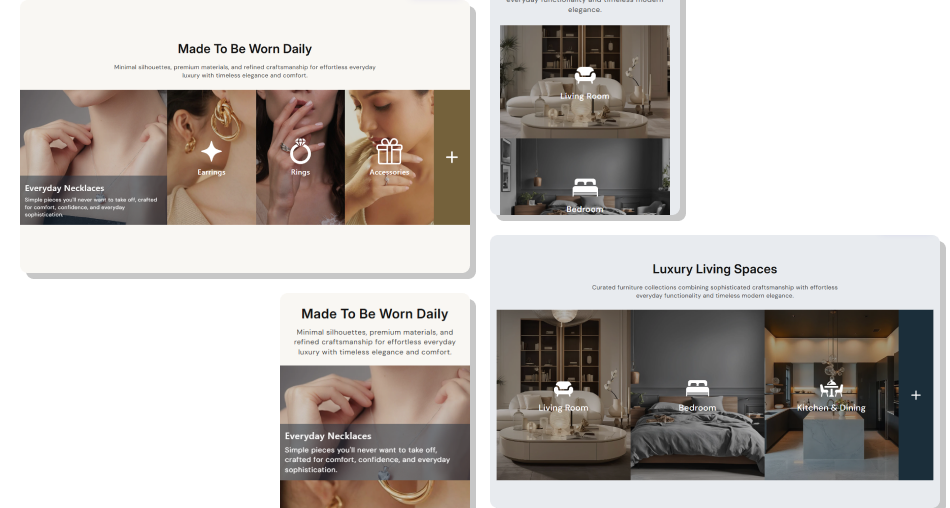
Combine collection links, expanding cards, icons, and responsive interactions to make category browsing more visual and clear.
Present up to five collection categories inside one interactive layoutUse automatic image fallbacks from custom media to collection imageryChoose uploaded image icons or custom SVG code for each categoryReveal extra category information only when shoppers interactUse desktop hover and mobile tap behavior suited to each deviceAdd one optional Plus Button for an additional navigation pathCustomize overlays, typography, colors, spacing, and section width Use clear collection images that remain recognizable when cropped
Keep category labels short enough to scan before interaction
Use concise hover descriptions that support quick decisions
Test both desktop hover and mobile tap behavior before launch
Use the Plus Button for one useful additional destination
Use clear collection images that remain recognizable when cropped
Keep category labels short enough to scan before interaction
Use concise hover descriptions that support quick decisions
Test both desktop hover and mobile tap behavior before launch
Use the Plus Button for one useful additional destination  Do not overload active panels with long category descriptions
Do not use unrelated icons that make categories harder to identify
Do not leave collection links empty when navigation is important
Do not rely on hover-only details for essential mobile information
Do not add more than five Category blocks to the section
Do not overload active panels with long category descriptions
Do not use unrelated icons that make categories harder to identify
Do not leave collection links empty when navigation is important
Do not rely on hover-only details for essential mobile information
Do not add more than five Category blocks to the section The schema allows up to five Category blocks. The overall section allows six blocks, as one additional Plus Button block can be added.
On the desktop, hovering over the card expands it and reveals its detail panel. On mobile, the first tap activates the card before its link can be followed.
The card uses the selected collection's featured image. If neither image exists, the section displays one of its built-in placeholder graphics.
Yes. Each Category block can use an uploaded icon image or pasted SVG code. If neither is supplied, the section displays its default icon.
It adds one expandable navigation card with a plus icon and label. It only renders when both its label and destination link are provided.
Not by tapping the same card again. A first tap activates an inactive card, while a later tap can follow its underlying collection or button link.
Below 768px, cards stack vertically with a minimum height of 240px, smaller typography and icons, and tap-based active-state interactions.
No. The schema disables this section in Shopify header and footer groups, so use it within supported page-template section areas.
For Support or any Questions Email Us: [email protected]
Install SectionHub and add the Category Grid Explorer section to your theme in minutes - no coding required.
