Create a Strong Visual Category Showcase
Introduce your main shopping categories near the top or middle of your homepage with eye-catching images or videos.

Create a visual category grid with images or videos, custom category titles, clickable collection links, overlay effects, and responsive layouts for a clean Shopify storefront.
 2.0 Compatible
Image & Video Grid
Responsive Layout
2.0 Compatible
Image & Video Grid
Responsive Layout 
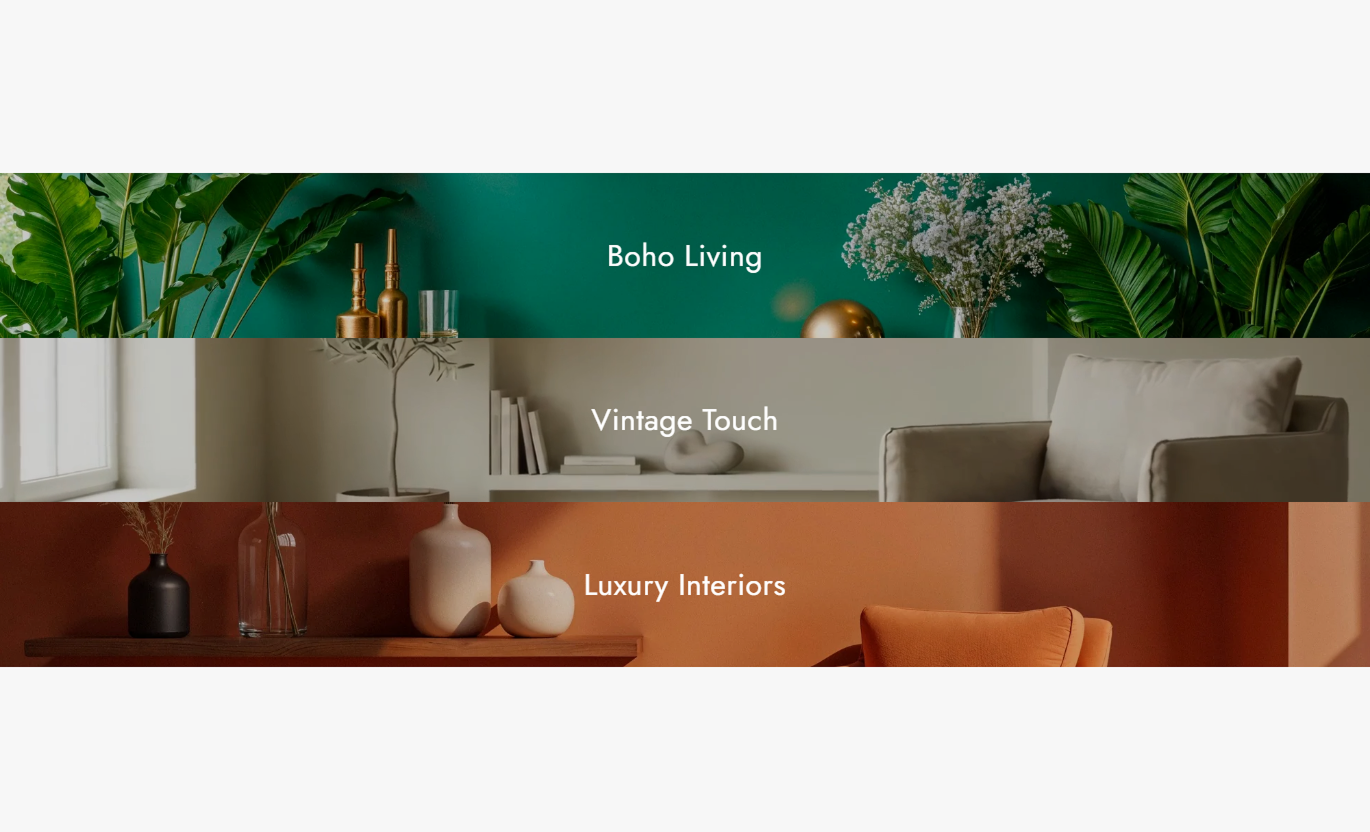
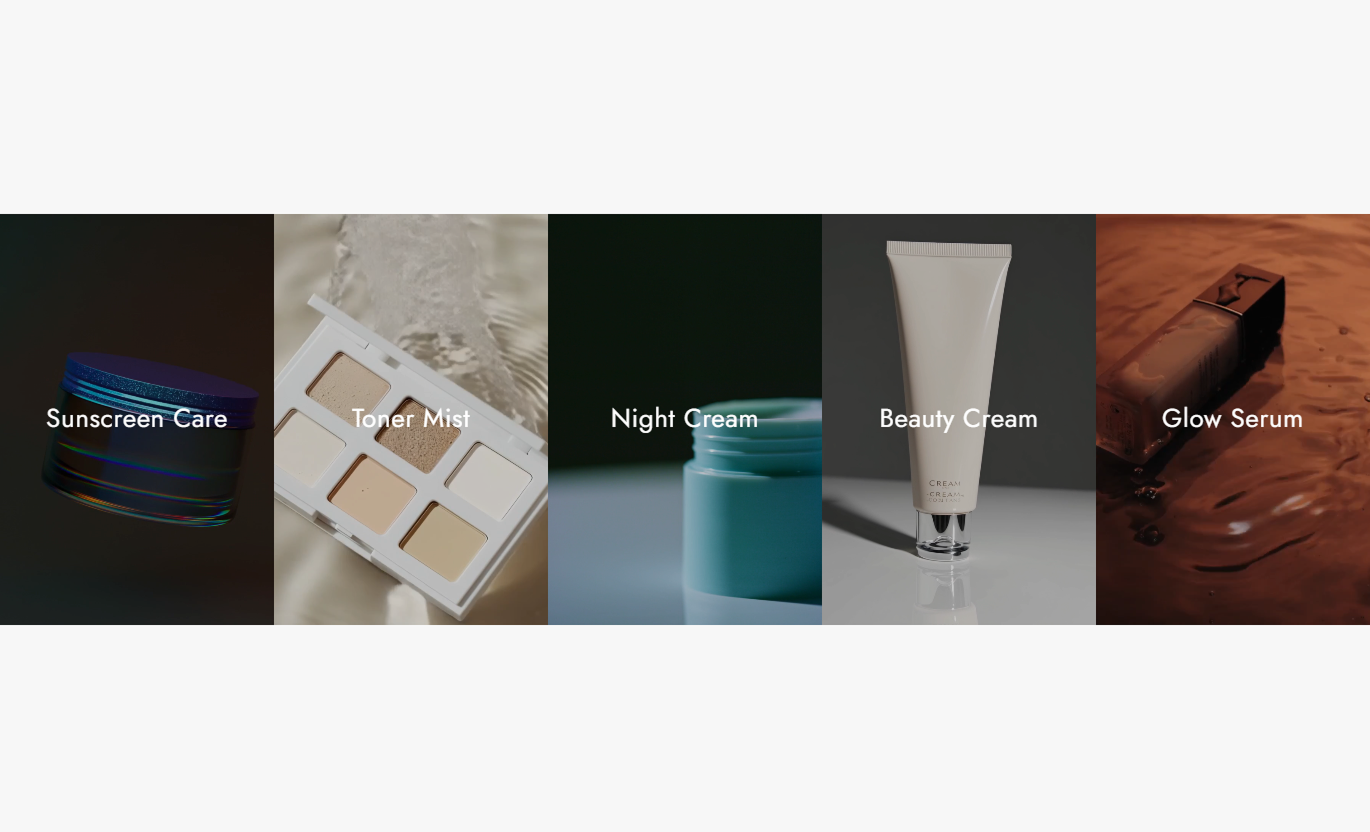


Build an engaging category grid with image or video blocks, clickable collections, overlay styling, flexible layouts, and mobile-friendly display options.

Add collection-focused images to create a clean, visually oriented category browsing experience.

Use Shopify-hosted videos to add motion and make category sections more engaging.

Connect each category block to a Shopify collection so shoppers can explore products directly.

Add your own heading for each category or use the selected collection title automatically.

Choose between column and row media layouts to match your storefront design.

Add an overlay color and adjust its opacity to keep category titles easy to read.

Choose one or two columns for category blocks when using the column layout on mobile.

Category titles get an animated underline on hover for a subtle interactive touch.
Control media type, layout, image height, overlays, typography, colors, spacing, and section width from the Shopify editor.

Applies to the whole section
Choose whether category media displays in rows or columns.
Media ViewSelect Small, Medium, or Large media heights for the grid.
Media HeightSet the color used over category images and videos.
Overlay ColorAdjust overlay transparency from light to strong.
Overlay OpacityChoose one or two columns for mobile column layouts.
Mobile ColumnsControl the category heading text size across the section.
Heading Font SizeSet the overall background color behind the category grid.
Background ColorChange the color used for category headings.
Heading ColorAdjust the top and bottom spacing on desktop screens.
Desktop Section PaddingAdjust the top and bottom spacing on mobile screens.
Mobile Section PaddingEnable a full-width category grid when needed.
Full WidthSet a custom maximum width when full width is disabled.
Section Max Width
Applies to each category block
Add an image to visually represent the category.
Category ImageAdd a Shopify-hosted video for a moving category visual.
Category VideoSelect the Shopify collection linked to the category.
CategoryAdd a custom heading displayed over the media.
Category HeadingUse the category grid to visually organize product collections and help shoppers move quickly from storefront content to relevant categories.
Introduce your main shopping categories near the top or middle of your homepage with eye-catching images or videos.
Highlight important product categoriesCreate visual collection navigationUse images or videos for stronger presentationLink shoppers directly to collectionsShow related categories around collection content to help shoppers discover more products across your store.
Promote related collectionsMake category discovery more visualUse compact grid layoutsAdd direct collection linksUse visual category blocks to introduce other product areas and encourage shoppers to explore beyond the current product.
Highlight other product categoriesSupport additional product discoveryUse visual content to attract attentionKeep collection navigation simpleOrganize campaign or promotional categories into a focused grid that gives visitors clear paths to different Shopify collections.
Organize campaign categories visuallyMix image and video blocksAdd custom category titlesCreate direct paths to collectionsHelp shoppers discover collections faster with a flexible grid that combines strong visuals, clear titles, and direct links to collections.
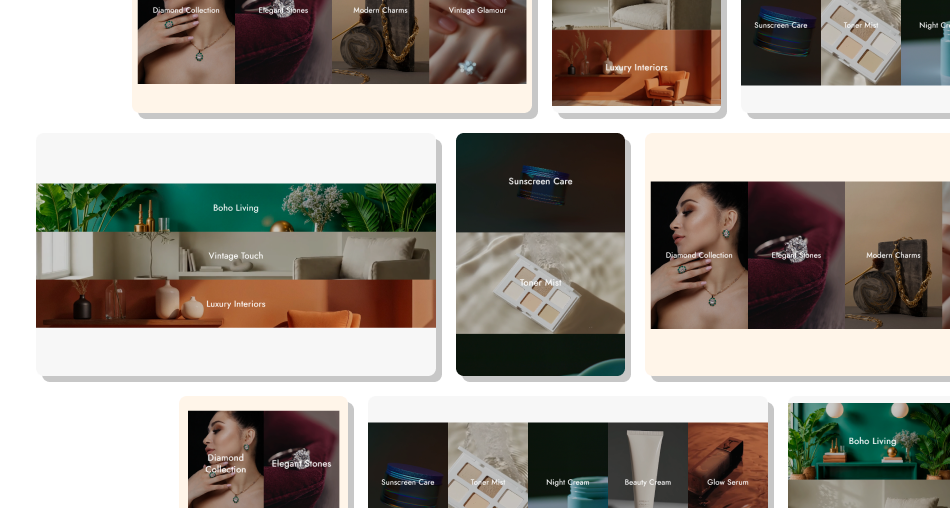
Choose the media style that fits your store and create category blocks that stand out without adding extra content.
Showcase up to five category blocks in one section.Use custom images or Shopify-hosted videos for each category.Link every category directly to a selected Shopify collection.Add custom headings that match your store's content.Choose a row or column-based grid layout.Control overlay color and opacity for better title visibility.Adjust the number of mobile columns for column layouts.Create a responsive category showcase for different screen sizes. Use clear images or videos that represent each category accurately.
Keep category headings short and easy to scan.
Link every category to the most relevant Shopify collection.
Use overlay opacity that keeps headings readable without hiding the media.
Choose a mobile column layout that keeps category visuals easy to view.
Use clear images or videos that represent each category accurately.
Keep category headings short and easy to scan.
Link every category to the most relevant Shopify collection.
Use overlay opacity that keeps headings readable without hiding the media.
Choose a mobile column layout that keeps category visuals easy to view.  Don't use unrelated visuals that can confuse shoppers.
Don't make category headings unnecessarily long.
Don't use heavy overlays that hide important parts of the image or video.
Don't mix inconsistent visual styles across category blocks.
Don't add categories without a clear purpose for product discovery.
Don't use unrelated visuals that can confuse shoppers.
Don't make category headings unnecessarily long.
Don't use heavy overlays that hide important parts of the image or video.
Don't mix inconsistent visual styles across category blocks.
Don't add categories without a clear purpose for product discovery. Category Grid lets you showcase Shopify collections using visual image or video blocks with clickable category titles.
Yes. Image blocks allow you to add a custom image for each category.
Yes. You can add Shopify-hosted videos through the Video block type. Videos play automatically, loop, and remain muted.
Yes. Each block includes a Category setting where you can select the Shopify collection shoppers should visit.
Yes. You can enter a custom heading. If the heading is left blank, the selected collection title is used.
The section supports up to 5 blocks.
Yes. You can choose a Column or Row media view from the section settings.
Yes. For the Column view, you can choose between 1 or 2 columns on mobile.
Yes. You can choose the overlay color and adjust its opacity to control its visual strength.
Yes. You can enable Full Width or set a custom maximum section width when full width is disabled.
For Support or any Questions Email Us: [email protected]
Install SectionHub and add the Category Grid section to your theme in minutes - no coding required.
