Introduce the Brands Your Store Carries
Place the brand grid below featured products or key content to give shoppers a quick view of the brands available across your storefront.

Display brand logos in a clean, responsive grid to highlight partnerships, build brand recognition, and help shoppers discover the brands your store carries with ease.
 Clean Brand Showcase
Responsive Logo Grid
Linked Brand Navigation
Clean Brand Showcase
Responsive Logo Grid
Linked Brand Navigation 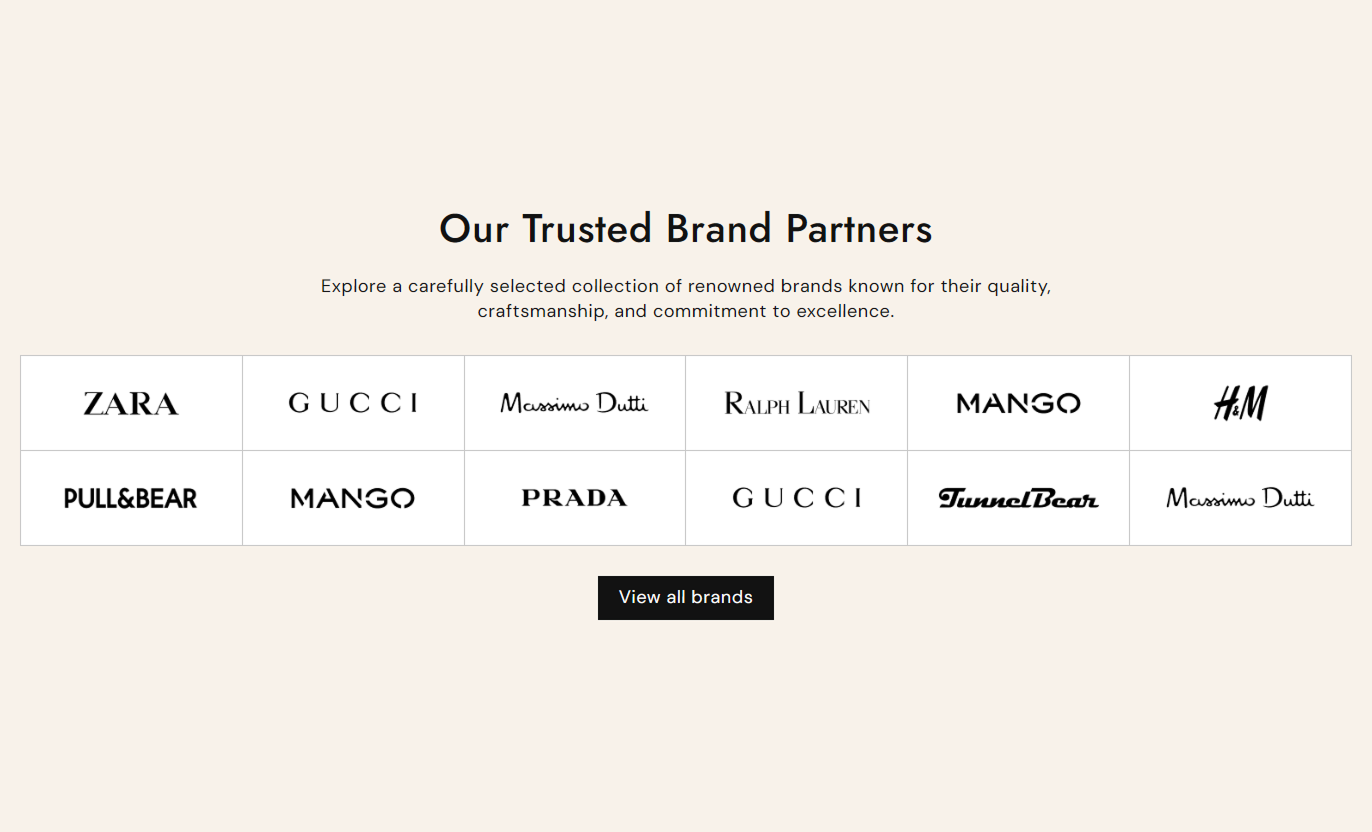
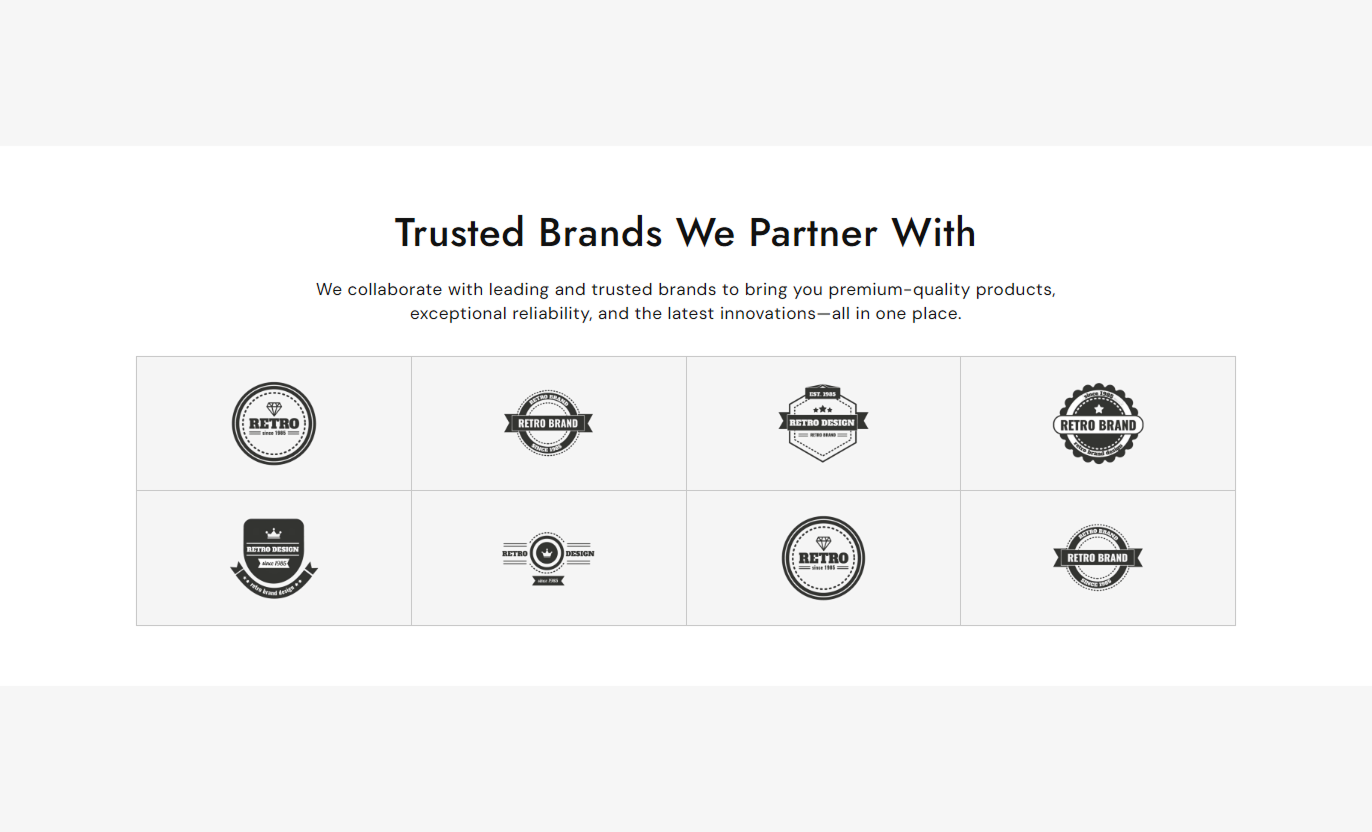


Present multiple brand logos in an organized grid with flexible columns, linked logos, image sizing, colors, spacing, and responsive layouts.

Add up to 12 brand logo blocks to create a broad, organized showcase without overcrowding the section.

Connect each logo to a relevant brand, collection, product, or other Shopify page for easier navigation.

Choose from three to six desktop columns to control how many brand logos appear across each grid row.

Choose one or two mobile columns to keep brand logos clear and easy to scan on smaller screens.

Set logo image height to small, medium, or large so the brand grid fits your visual layout.

Set the background and border colors to create a brand logo grid that complements your store design.

Add a view-all button and adjust its label, link, alignment, radius, colors, and hover styling.

Set separate desktop and mobile top and bottom padding to control the section's vertical spacing.
Customize brand content, grid columns, image sizing, colors, button styling, section width, and responsive spacing.

Applies to the whole section
Add a section heading and rich text to introduce your brand grid.
Heading & ContentSet the alignment of the heading and supporting section content.
Content AlignmentChoose between 3 and 6 columns for the desktop brand grid.
Desktop Grid ColumnsDisplay brand items in one or two columns on mobile devices.
Mobile Grid ColumnsSet brand image areas to small, medium, or large sizing.
Brand Image HeightAdjust heading and content font sizes for the section.
Typography SettingsCustomize background, text, grid background, and border colors.
Section & Grid ColorsConfigure button label, link, alignment, size, radius, colors, and hover effects.
Button StylingControl maximum width, full-width layout, and desktop or mobile padding.
Section Width & Spacing
Applies to each brand logo block
Add the logo or image displayed inside the brand grid item.
Brand ImageAdd a destination URL that opens when the brand image is clicked.
Brand LinkUse the brand grid on key storefront pages to introduce the brands you carry, support trust, and give shoppers a simple way to explore related collections or pages.
Place the brand grid below featured products or key content to give shoppers a quick view of the brands available across your storefront.
Showcase trusted brand names near featured products.Help shoppers recognize brands before browsing products.Link logos to relevant brand or collection pages.Create a clear visual break between store sections.Keep the brand selection easy to scan at a glance.Use the grid on collection pages to highlight brands associated with the products in that collection and guide shoppers toward relevant shopping paths.
Feature brands related to the current collection.Connect each logo to a useful brand or collection page.Support faster discovery of related product ranges.Keep brand navigation separate from product filters.Use only logos relevant to the collection context.Add the grid to product-focused pages when shoppers may want to explore other brands, partner ranges, or related product groups in your store.
Introduce other brands after the product content.Link logos to brand-specific shopping pages.Give shoppers another route to discover products.Keep the brand grid below the main buying information.Use a focused selection instead of unrelated logos.Use the grid on campaign or landing pages to present selected brands in a clean layout and guide visitors toward relevant shopping destinations.
Present partner or featured brands in one place.Use links to direct visitors to focused shopping pages.Support brand discovery without long text blocks.Match logo styling with the landing page design.Choose brands that support the page's main message.A structured logo grid helps shoppers scan your brand range quickly while giving merchants control over layout, links, styling, and responsive display.
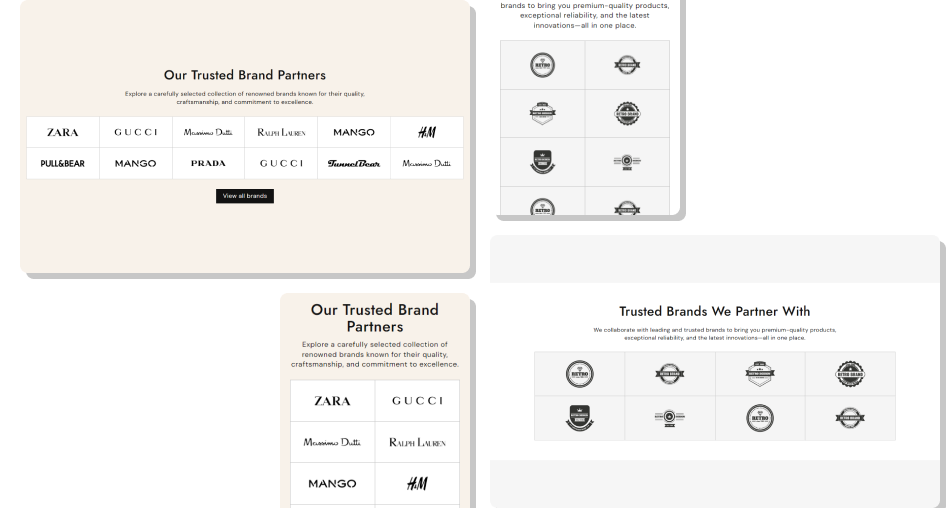
Use each logo as a simple navigation point that helps shoppers reach the brand, collection, or product page behind the image.
Faster Brand DiscoveryClear Store OrganizationFlexible Store NavigationBetter Visual ConsistencyResponsive Brand BrowsingSimple Merchandising Control Use crisp, consistent brand logos that stay recognizable at grid size.
Link each logo to a relevant brand, collection, or shopping page.
Keep logo proportions consistent for a balanced grid appearance.
Choose column counts that leave enough space around each logo.
Review the grid on mobile to confirm logos remain clear and tappable.
Use crisp, consistent brand logos that stay recognizable at grid size.
Link each logo to a relevant brand, collection, or shopping page.
Keep logo proportions consistent for a balanced grid appearance.
Choose column counts that leave enough space around each logo.
Review the grid on mobile to confirm logos remain clear and tappable.  Don't mix unrelated brands when the section serves a focused collection.
Don't use low-quality logos that look blurry or stretched in the grid.
Don't add links that lead to pages unrelated to the displayed brand.
Don't crowd the grid with more logos than shoppers can scan comfortably.
Don't ignore mobile spacing, especially when using two logo columns.
Don't mix unrelated brands when the section serves a focused collection.
Don't use low-quality logos that look blurry or stretched in the grid.
Don't add links that lead to pages unrelated to the displayed brand.
Don't crowd the grid with more logos than shoppers can scan comfortably.
Don't ignore mobile spacing, especially when using two logo columns. You can add up to 12 brand blocks, each supporting its own logo image and a link to a relevant store page.
Yes. Each brand block has its own link setting, so logos can point to relevant brand, collection, product, or store pages.
Yes. Desktop supports three to six columns, while mobile can use one or two columns for a responsive layout.
Yes. Choose small, medium, or large image height to control how much vertical space each brand logo uses.
Yes. You can adjust section, grid, border, and button colors, as well as button radius, alignment, and hover styling.
Yes. The section includes separate mobile columns and padding controls so the logo grid can adapt to smaller screens.
Yes. You can enable full width or set a maximum section width when full width is disabled, giving you control over the content area.
For Support or any Questions Email Us: [email protected]
Install SectionHub and add the Brand Grid Gallery section to your theme in minutes - no coding required.
