Build Trust With Recognizable Brands
Showcase partner or supplier logos on your homepage to introduce the brands your store works with.

Display partner, supplier, or featured brand logos in a neat two-column grid with supporting text, flexible positioning, responsive layouts, and a clear call to action.
 2.0 Compatible
6 Brand Logos
Responsive Grid
2.0 Compatible
6 Brand Logos
Responsive Grid 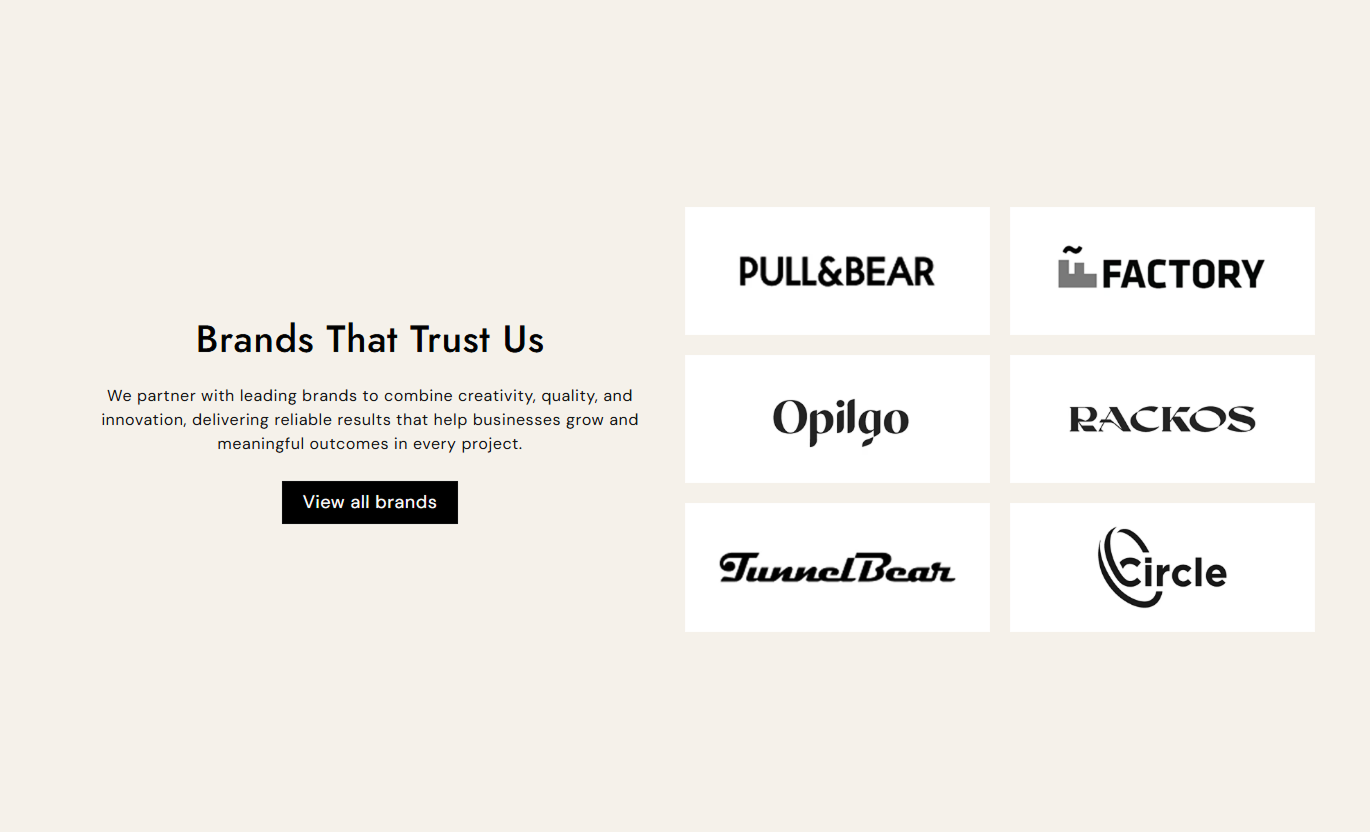



Create a clean brand showcase with multiple logos, supporting content, flexible media placement, responsive settings, and customizable buttons for your Shopify store.

Add up to six brand images to create a focused logo grid.

Display brand logos in an organized grid beside your section content.

Place the brand grid on the left or right of the section.

Add a heading and rich text to explain your brand partnerships or collection.

Add a button with your own label and destination link.

Choose small, medium, large, or automatic image height for the brand grid.

The content and brand grid stack neatly on smaller screens for easier browsing.

Adjust colors, typography, spacing, button styles, and section width from the theme editor.
Customize content, brand layout, images, buttons, colors, spacing, and section width.

Applies to the whole section
Add the main heading displayed beside the brand logos.
HeadingAdd supporting rich text below the section heading.
ContentAlign section text separately for desktop and mobile.
Text AlignmentChoose whether the brand grid appears on the left or right.
Media PositionSet the height style for the brand image area.
Image HeightControl the spacing between brand images.
Media SpacingAdjust the heading and content font sizes.
Font SizeCustomize the section, text, and button colors.
ColorsSet desktop and mobile top and bottom spacing.
Section PaddingControl full-width display and maximum section width.
Section Width
Applies to each brand block
Add the logo or image for each brand item.
Brand ImageUse the Brand Grid to introduce trusted brands, suppliers, partners, or featured logos throughout your Shopify store.
Showcase partner or supplier logos on your homepage to introduce the brands your store works with.
Display trusted brand logosIntroduce business partnersAdd supporting brand informationGuide visitors with a CTAUse the brand grid to showcase brands associated with a collection or to explain which brands shoppers can discover.
Introduce collection brandsOrganize multiple logosSupport collection messagingLink shoppers to relevant pagesPlace brand logos near product-related content to highlight associated brands, suppliers, or product ranges.
Highlight related brandsSupport product informationBuild visual trustAdd a useful destination linkUse the section on campaign or brand-focused landing pages to present partner logos alongside a clear message and CTA.
Present partner brandsSupport campaign messagingCreate a clean visual layoutAdd a direct CTAKeep brand logos organized in a simple grid while giving shoppers useful context through supporting text and a clear button.
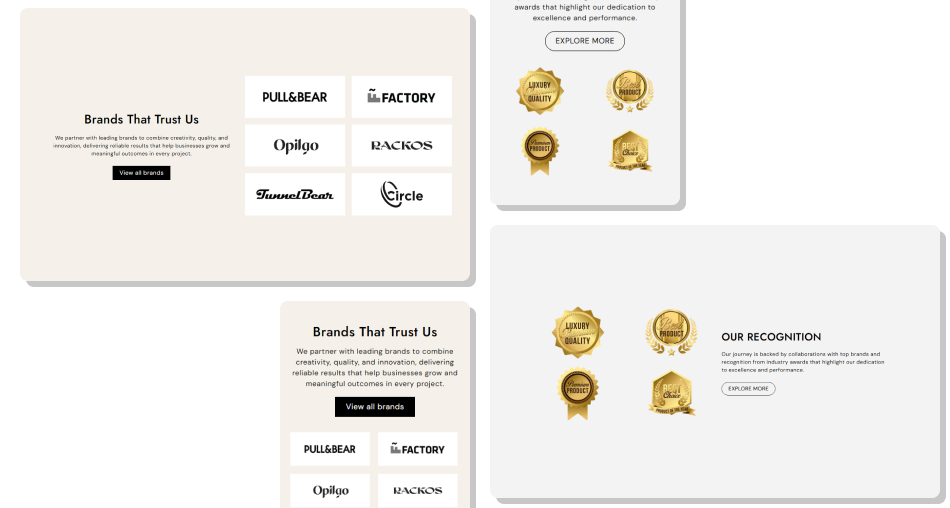
Control logo placement, image height, spacing, typography, colors, buttons, and responsive section width from the theme editor.
Showcase up to six brand imagesKeep logos organized in a two-column gridPlace the media on either sideAdd supporting heading and rich textInclude a customizable CTA buttonChoose different image height optionsAdjust desktop and mobile spacingCreate a responsive mobile layout Use clear, high-quality brand logos
Keep logo styles visually consistent
Add short and useful supporting content
Use a CTA that matches the section purpose
Choose image spacing that keeps the grid easy to scan
Use clear, high-quality brand logos
Keep logo styles visually consistent
Add short and useful supporting content
Use a CTA that matches the section purpose
Choose image spacing that keeps the grid easy to scan  Mix heavily different logo sizes without purpose
Add unnecessary text beside the logos
Use unrelated brand images
Add a button without a useful destination
Overcrowd the grid with visually busy logos
Mix heavily different logo sizes without purpose
Add unnecessary text beside the logos
Use unrelated brand images
Add a button without a useful destination
Overcrowd the grid with visually busy logos Yes. The section supports up to six Brand blocks, with one brand image per block.
Yes. The Media Position setting lets you place the brand grid on the left or right side of the section.
Yes. You can add a heading and rich-text content next to the brand grid.
Yes. You can add a button label and link. You can also choose between regular and outline button styling.
Yes. You can choose Small, Medium, Large, or Auto image height.
Yes. The Media Spacing setting lets you adjust the gap between the brand items.
Yes. You can customize the background, heading, content, button, border, hover, and outline button colors.
Yes. On mobile, the text content and brand grid stack vertically for a cleaner layout.
For Support or any Questions Email Us: [email protected]
Install SectionHub and add the Brand Grid section to your theme in minutes - no coding required.
