Promote Key Stories With Responsive Banner Cards
Use Banner Grid With Slider on your homepage to feature campaigns, collections, editorial stories, or brand highlights in a responsive image-and-text slider with clear CTAs.

Show promotional banners in a responsive slider with image-and-text cards, flexible media position, inline or button CTAs, autoplay, arrows, dots, and custom styling.
 Responsive Banner Slider
Inline or Button CTAs
Desktop Arrows & Mobile Dots
Responsive Banner Slider
Inline or Button CTAs
Desktop Arrows & Mobile Dots 
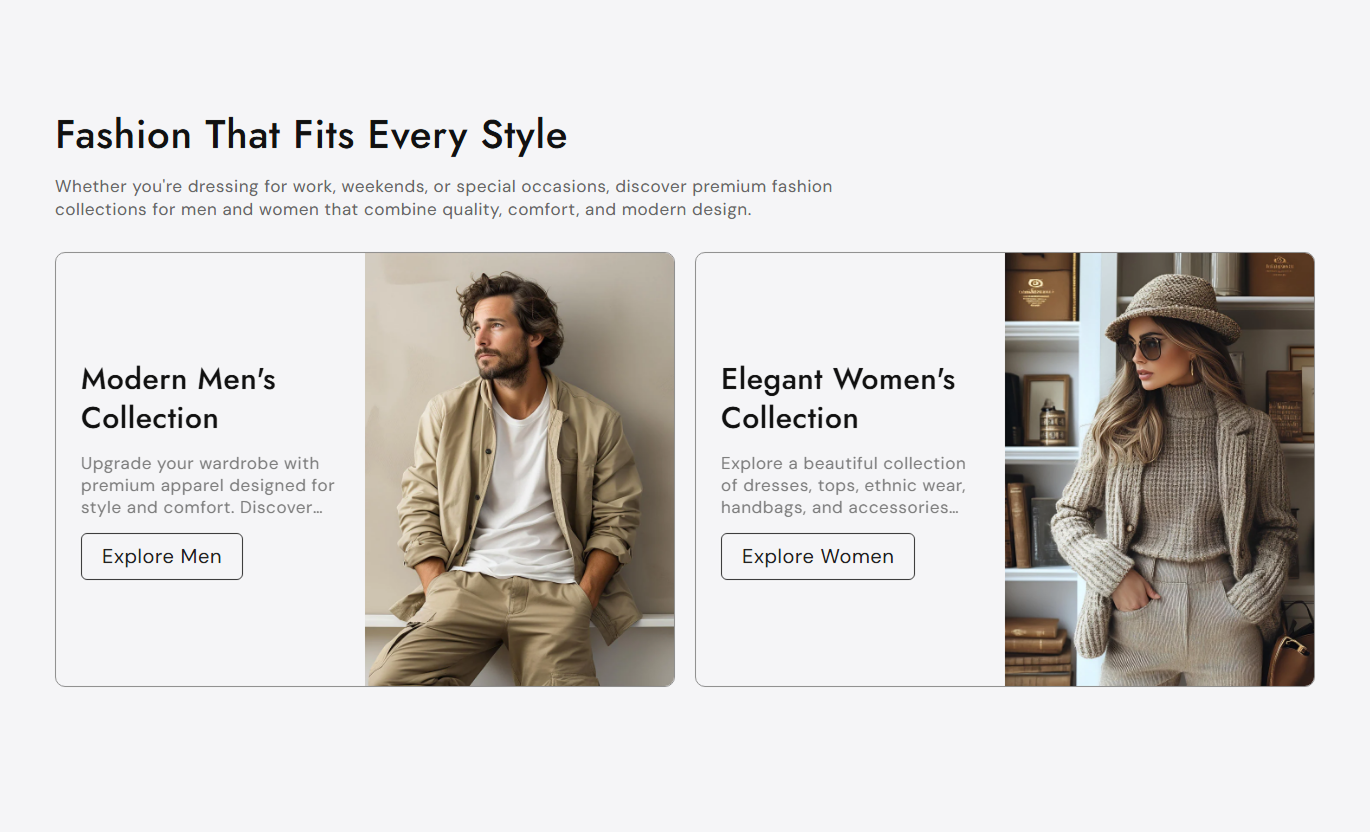
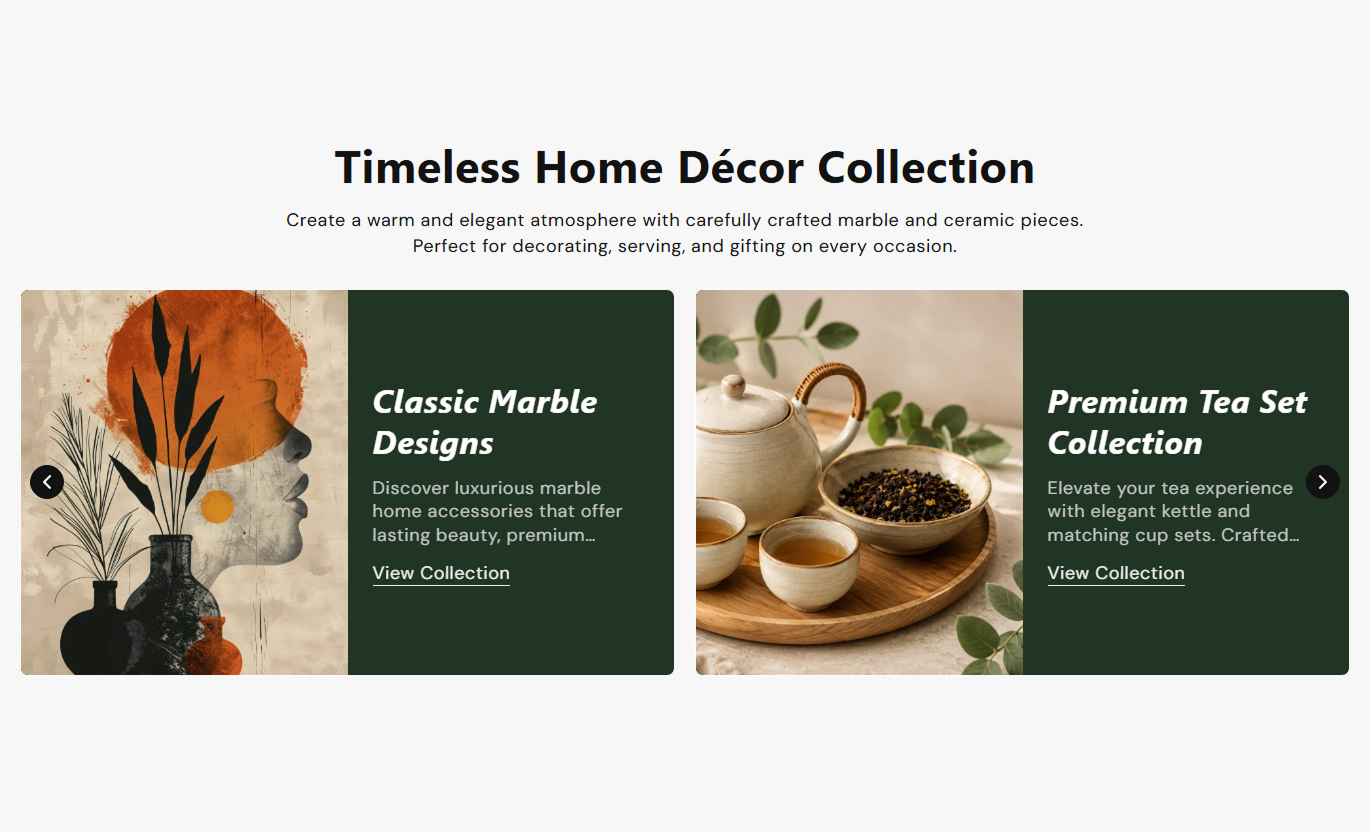


Promote campaigns with image-and-text banner cards, responsive layouts, autoplay, loop controls, CTA styles, arrows, dots, and flexible visual settings.

Show one banner per slide on mobile and two banners per view from 767px upward for a flexible promotional layout.

Place banner imagery on the left or right of the card content using a single shared section-level image position setting.

Choose a text-link CTA or a traditional button style, with optional outline styling available for button mode.

Enable automatic slide movement, set a one-to-ten-second delay, and choose whether the banner carousel loops continuously.

Show configurable circular previous and next arrows on desktop, with custom normal and hover colors and sizing.

Hide desktop arrows on small screens and use clickable pagination dots with separate default and active colors.

Choose small, medium, or large banner media ratios, with taller percentage heights automatically applied on mobile.

Control card radius, borders, colors, typography, button styling, spacing, full width, and maximum section width.
Control banner layout, slider behavior, CTA style, typography, colors, navigation, spacing, and section width.

Applies to the whole section
Set section and card text alignment for desktop and mobile.
Content AlignmentChoose the banner image height and whether the media sits on the left or right.
Banner Media LayoutEnable autoplay, set speed, loop slides, and show arrows.
Slider ControlsChoose inline or button CTA styling and button radius.
CTA Style ControlsAdjust section and banner heading and content font sizes.
Typography ControlsCustomize section, banner, CTA, arrow, and dot colors.
Color Style ControlsSet separate desktop and mobile top and bottom padding.
Responsive SpacingUse full width or define a maximum contained section width.
Section Width Setup
Applies to each banner card
Upload the image displayed inside this banner card.
Banner ImageAdd the banner heading and supporting rich text.
Banner ContentSet the CTA label and destination link for this banner.
Banner CTAUse this responsive banner slider across Shopify pages to promote campaigns, collections, products, editorial stories, or brand destinations with flexible visual cards.
Use Banner Grid With Slider on your homepage to feature campaigns, collections, editorial stories, or brand highlights in a responsive image-and-text slider with clear CTAs.
Feature multiple promotions without building a long static pageUse two cards per view on larger screens for efficient browsingSwitch to one card per slide for focused mobile presentationChoose inline links or stronger button-style calls to actionUse arrows on desktop and dots for simple mobile navigationPlace the slider on collection pages to highlight seasonal edits, subcollections, services, or campaign destinations without replacing the main product grid.
Promote related collections beside the primary product listingUse banner imagery to add editorial context to category pagesLink shoppers to curated edits, guides, or seasonal campaignsKeep promotional content compact inside a swipeable carouselMatch card styling to the collection page visual directionUse Banner Grid With Slider on product pages to promote complementary categories, guides, services, or brand stories through compact image-and-text cards with direct links.
Cross-promote related collections without a product-card gridLink shoppers to care guides, services, or buying resourcesUse imagery and short copy to support product storytellingKeep secondary promotions organized in a compact sliderAdapt calls to action with inline links or styled buttonsUse the landing pages section to organize campaign stories, category paths, or supporting content into a responsive slider with custom imagery, copy, and CTA links.
Create multiple campaign entry points inside one sectionUse consistent card layouts for coordinated storytellingControl autoplay and looping for passive campaign browsingShow desktop arrows while keeping mobile controls minimalCustomize colors and spacing to match each campaign themeTurn promotional content into a flexible responsive slider with image-and-text cards, multiple CTA styles, desktop arrows, mobile dots, and detailed styling controls.
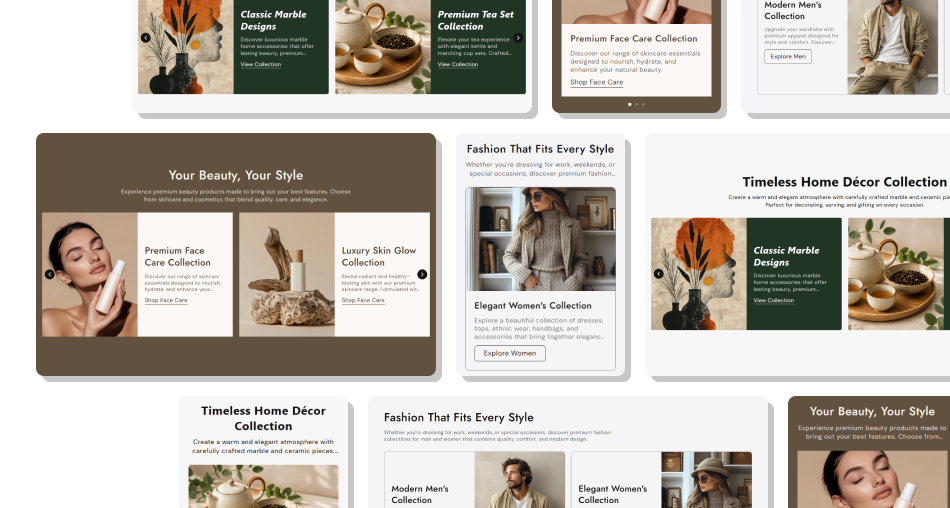
Combine responsive banner cards, flexible image layouts, CTA styles, and slider controls to guide shoppers through key promotions.
Show multiple promotional stories inside one compact carouselDisplay two banners per view on larger screens and one on mobilePlace imagery consistently on the left or right of every cardChoose between inline links and styled button-based CTAsControl autoplay, looping, navigation arrows, and mobile dotsAdjust image height, card radius, typography, and color stylingUse full-width or contained layouts across supported templates Use concise banner headings that stay easy to scan quickly
Choose images with crops that work in both desktop and mobile ratios
Keep CTA labels specific to the destination shoppers will open
Test autoplay speed so visitors have enough time to read each card
Use consistent card styling when banners belong to one campaign
Use concise banner headings that stay easy to scan quickly
Choose images with crops that work in both desktop and mobile ratios
Keep CTA labels specific to the destination shoppers will open
Test autoplay speed so visitors have enough time to read each card
Use consistent card styling when banners belong to one campaign  Do not overload banner descriptions with long blocks of text
Do not rely on autoplay when manual navigation is also needed
Do not use mismatched images that make paired cards feel uneven
Do not leave CTA links empty when the label suggests navigation
Do not ignore mobile image height changes when choosing artwork
Do not overload banner descriptions with long blocks of text
Do not rely on autoplay when manual navigation is also needed
Do not use mismatched images that make paired cards feel uneven
Do not leave CTA links empty when the label suggests navigation
Do not ignore mobile image height changes when choosing artwork The slider shows one banner per view by default and switches to two banners per view from the 767px breakpoint upward.
Yes. Image Position is a section-wide setting that places the media on the left or right side of every rendered banner card.
You can use an inline text link or a standard button. Button mode also supports an optional outline style and border radius.
Desktop can show previous and next arrows, while screens below 768px hide those arrows and use clickable pagination dots instead.
That block is skipped entirely because the slide only renders when either the banner heading or rich text content is present.
Yes. Autoplay can be enabled with a one-to-ten-second delay, and looping can be turned on or off independently.
Yes. The script creates a new Swiper instance but does not import Swiper itself, so a global Swiper library must already be available.
No. The schema disables this section in Shopify header and footer groups, so use it only in supported page-template section areas.
For Support or any Questions Email Us: [email protected]
Install SectionHub and add the Banner Grid With Slider section to your theme in minutes - no coding required.
