Promote Key Store Highlights Side by Side
Use the banner grid on your homepage to feature two important collections, seasonal campaigns, promotions, or shopping categories in one visual area.

Create a responsive two-banner grid with images, offer badges, text, and links to highlight promotions, collections, campaigns, or key store content.
 Responsive Banner Grid
Promotional Offer Badges
Flexible Banner Styling
Responsive Banner Grid
Promotional Offer Badges
Flexible Banner Styling 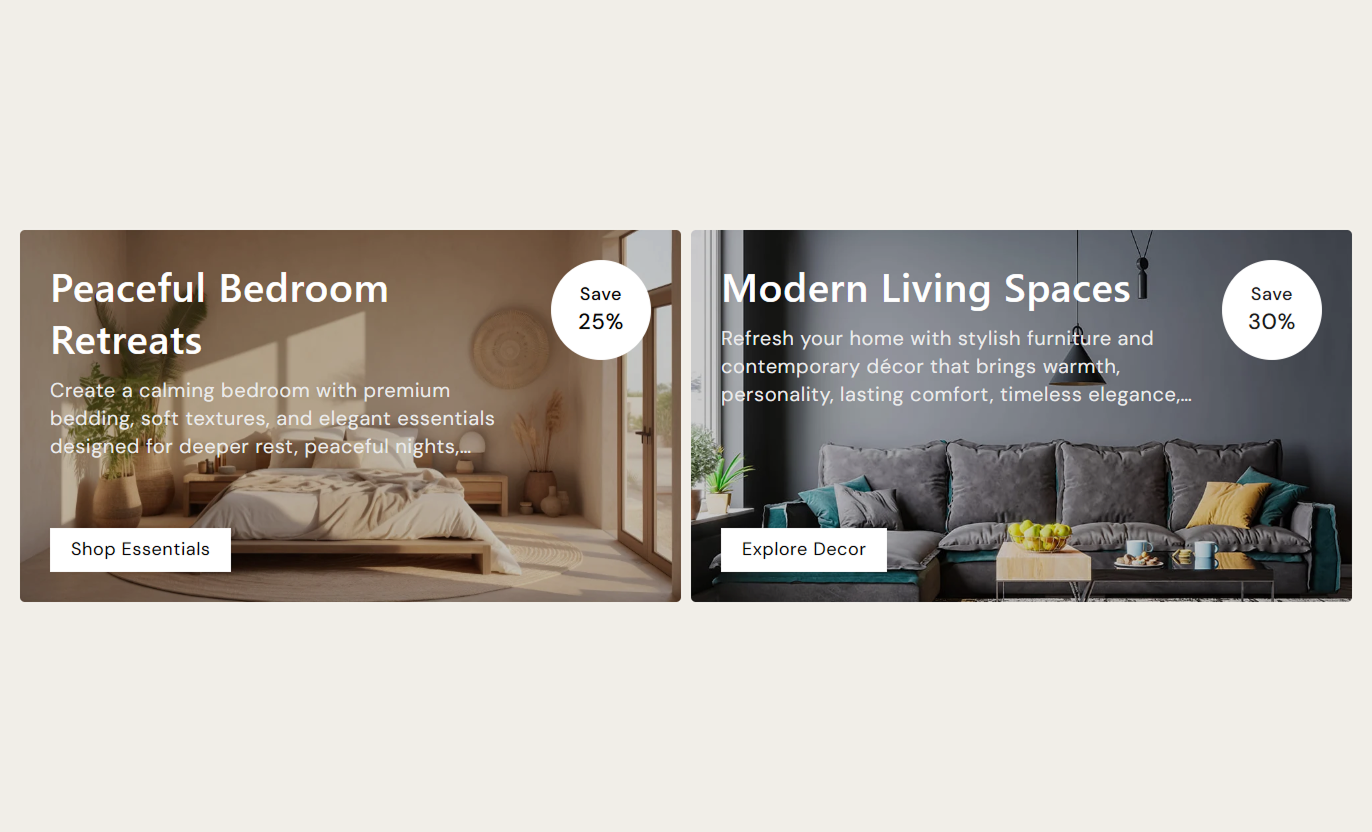
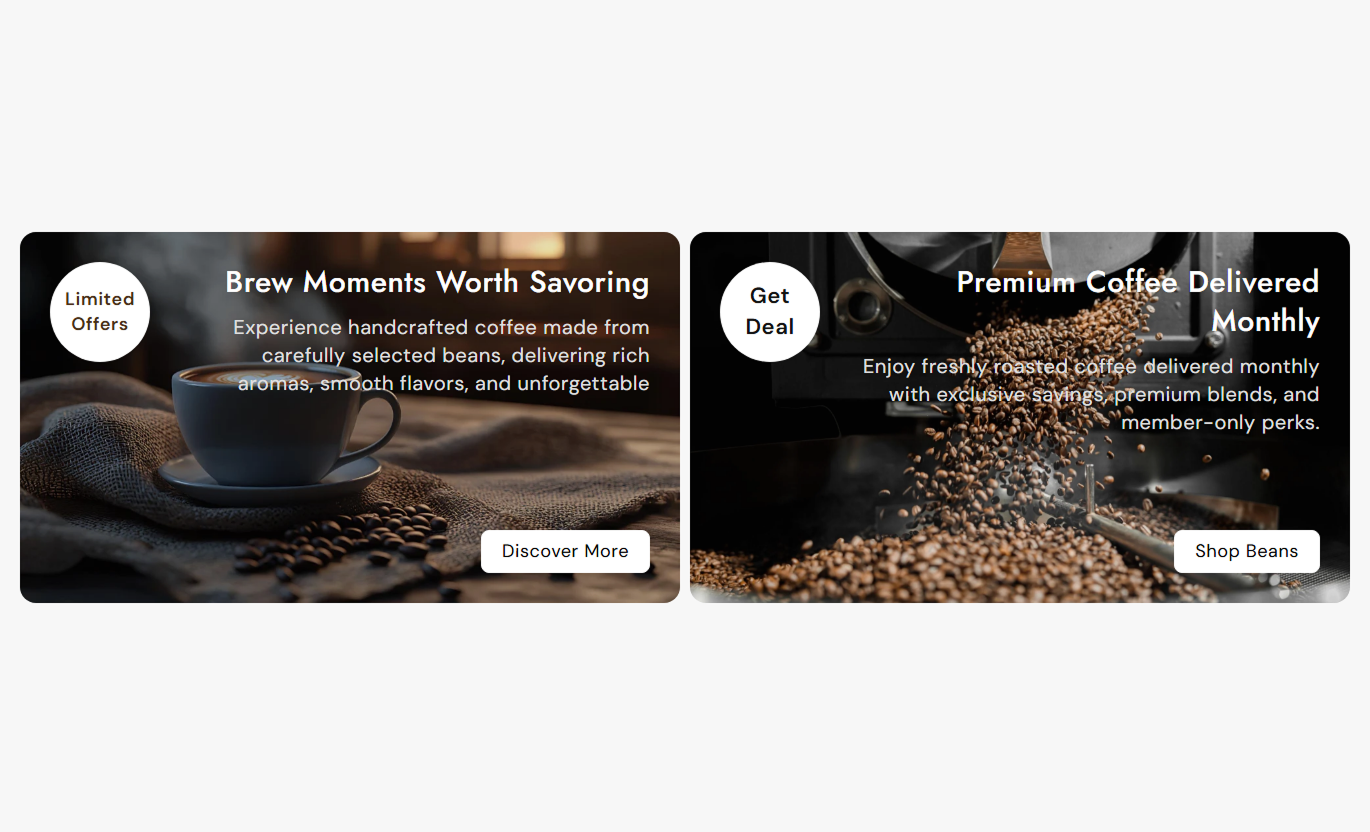


Build eye-catching promotional banners with images, offer text, links, overlays, responsive layouts, and flexible styling for your Shopify store.

Add up to two promotional banners in one section to highlight separate campaigns, collections, offers, or destinations.

Choose a separate Shopify image for every banner so each promotion can have its own visual identity and message.

Add offer text, such as discounts or savings, inside a circular badge with separate background and text color controls.

Add a heading and supporting rich text to each banner to clearly explain the promotion, collection, or campaign.

Add a button with a custom label and link, or make the whole banner clickable when no button label is provided.

Apply a custom color overlay and control its opacity to improve text visibility over light, dark, or detailed images.

Show banners side by side on larger screens and automatically stack them vertically on narrower displays.

Control button colors, hover colors, borders, radius, font size, outline style, and hover shadow from the theme editor.
Control banner layout, overlays, buttons, typography, colors, spacing, and section width directly from the Shopify theme editor.

Applies to the whole section
Choose whether banner content sits on the left or right.
Content PositionChoose a small, medium, or large desktop banner ratio.
Banner HeightSet how strongly the image overlay appears over banners.
Overlay OpacityChoose the color applied across banner background images.
Overlay ColorAdjust the corner radius used around each banner.
Banner Border RadiusSwitch standard buttons to a simple outlined button style.
Outline Button StyleAdjust heading, content, offer text, and button font sizes.
Typography ControlsCustomize section, text, button, hover, and border colors.
Color ControlsSet separate top and bottom spacing for desktop and mobile.
Section PaddingUse a full-width layout or set a maximum contained width.
Section Width
Applies to each banner
Choose the background image displayed inside the banner.
Banner ImageAdd the main promotional or collection title.
Banner HeadingAdd supporting rich text below the banner heading.
Banner ContentAdd promotional text such as a saving or discount.
Offer TextSet the text displayed inside the banner button.
Button LabelChoose the page or destination opened by the banner.
Button LinkSet separate background and text colors for the offer badge.
Offer Badge ColorsUse visual banner pairs across key Shopify pages to clearly promote collections, campaigns, offers, categories, and other important destinations.
Use the banner grid on your homepage to feature two important collections, seasonal campaigns, promotions, or shopping categories in one visual area.
Highlight two important store destinations at the same timeGive featured collections more visual space on the homepageAdd promotional badges to make current offers easier to noticeUse direct links to move shoppers toward priority store pagesKeep both banners responsive as screen sizes become smallerPlace banners around collection content to highlight related categories, special offers, seasonal ranges, or another collection shoppers may want to explore.
Surface related collections without adding another product gridPromote special offers alongside relevant collection contentGuide visitors toward another category with a direct banner linkUse focused banner copy to explain related shopping choicesCreate visual breaks within longer collection page layoutsUse promotional banners on product pages to highlight matching collections, current campaigns, related ranges, or another shopping destination.
Promote complementary categories near the current productHighlight active store offers with visible promotional badgesGuide shoppers from one product into a broader collectionUse campaign images to add stronger visual merchandisingDirect visitors to relevant store pages through banner linksUse two banners on campaign landing pages to separate offers, audiences, collections, or promotional paths while keeping the page clear and visual.
Present two campaign choices in a simple visual formatSeparate promotions by audience, category, or collectionUse offer badges to communicate discounts more clearlyLink each campaign banner to its most relevant destinationKeep campaign navigation clear on desktop and mobileUse two flexible banners to increase visibility for important campaigns, collections, and offers while keeping the storefront structured and easy to browse.
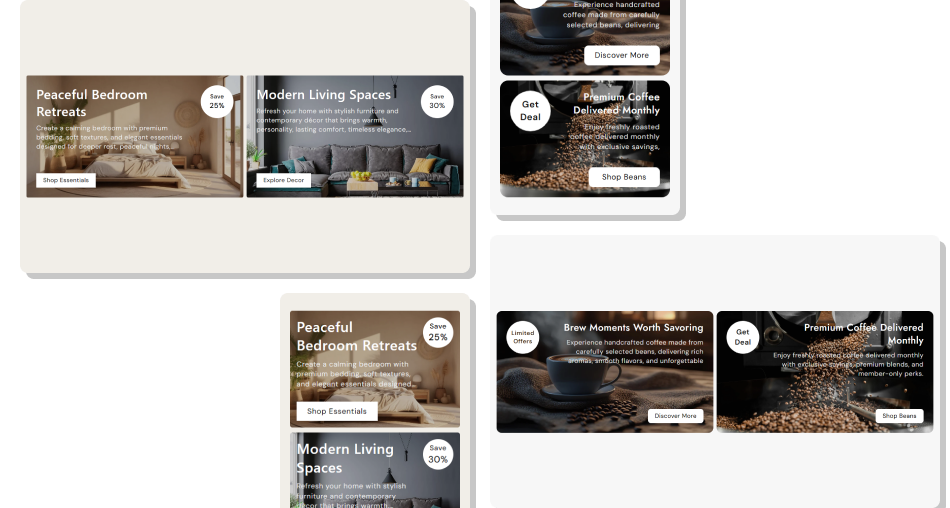
Combine strong imagery, concise promotional copy, badges, and direct links to guide shoppers more clearly to important store content.
Show two important promotions inside one compact sectionUse large imagery to make campaigns easier to noticeAdd promotional offer badges directly over banner imagesLink each banner to a relevant collection, page, or campaignControl overlays to keep banner text readable over imagesCustomize buttons and banner styling to match your themeKeep promotional content responsive across screen sizes Use strong images that clearly match each promoted destination
Keep banner headings short and easy to understand at a glance
Use offer badges only when there is a genuine promotion to show
Link every banner to the page most relevant to its message
Check text readability after adjusting image overlay opacity
Use strong images that clearly match each promoted destination
Keep banner headings short and easy to understand at a glance
Use offer badges only when there is a genuine promotion to show
Link every banner to the page most relevant to its message
Check text readability after adjusting image overlay opacity  Do not place unrelated promotions together without clear context
Do not add long paragraphs that compete with the banner image
Do not use low-contrast text over busy or detailed images
Do not use vague button labels that hide the destination
Do not overload offer badges with long promotional messages
Do not place unrelated promotions together without clear context
Do not add long paragraphs that compete with the banner image
Do not use low-contrast text over busy or detailed images
Do not use vague button labels that hide the destination
Do not overload offer badges with long promotional messages The section supports up to two banner blocks, allowing you to display two separate promotional images, messages, offers, and links.
Yes. Every banner can have its own image, heading, rich text content, offer text, button label, link, and offer badge colors.
Yes. Each banner includes an Offer Text field, as well as separate background and text colors for the circular promotional badge.
Yes. When a banner has a link but no button label, the section makes the banner itself clickable using the selected destination link.
Yes. You can choose an overlay color and adjust its opacity from 0% to 100% to improve contrast between the image and banner content.
Yes. Desktop banner height includes Small, Medium, and Large options, and you can also adjust the banner corner radius.
The banners display side by side on larger screens and stack into full-width rows on narrower screens with mobile-specific sizing and spacing.
Yes. You can adjust button colors, hover colors, border colors, radius, font size, outline styling, and hover shadow color.
For Support or any Questions Email Us: [email protected]
Install SectionHub and add the Banner Grid section to your theme in minutes - no coding required.
