Introduce Your Brand with Scroll-Driven Video
Add a scroll-controlled video to your homepage to introduce your brand through movement and visuals. Use animated heading text to highlight your main message.

Turn your Shopify store into a visual storytelling experience with a scroll-controlled video, an animated heading, and a customizable layout that brings your brand content to life.
 2.0 Compatible
Scroll-Controlled Video
Responsive Video Layout
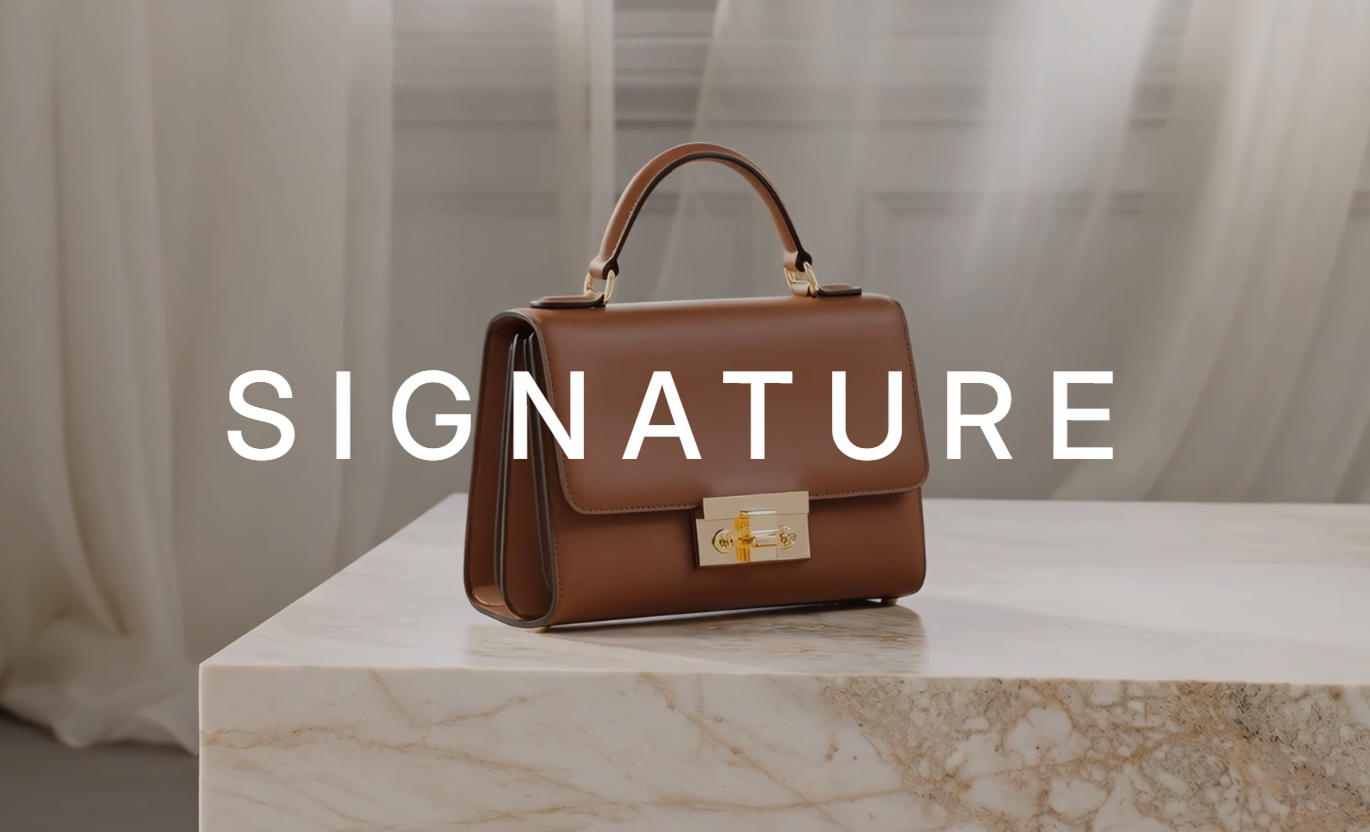
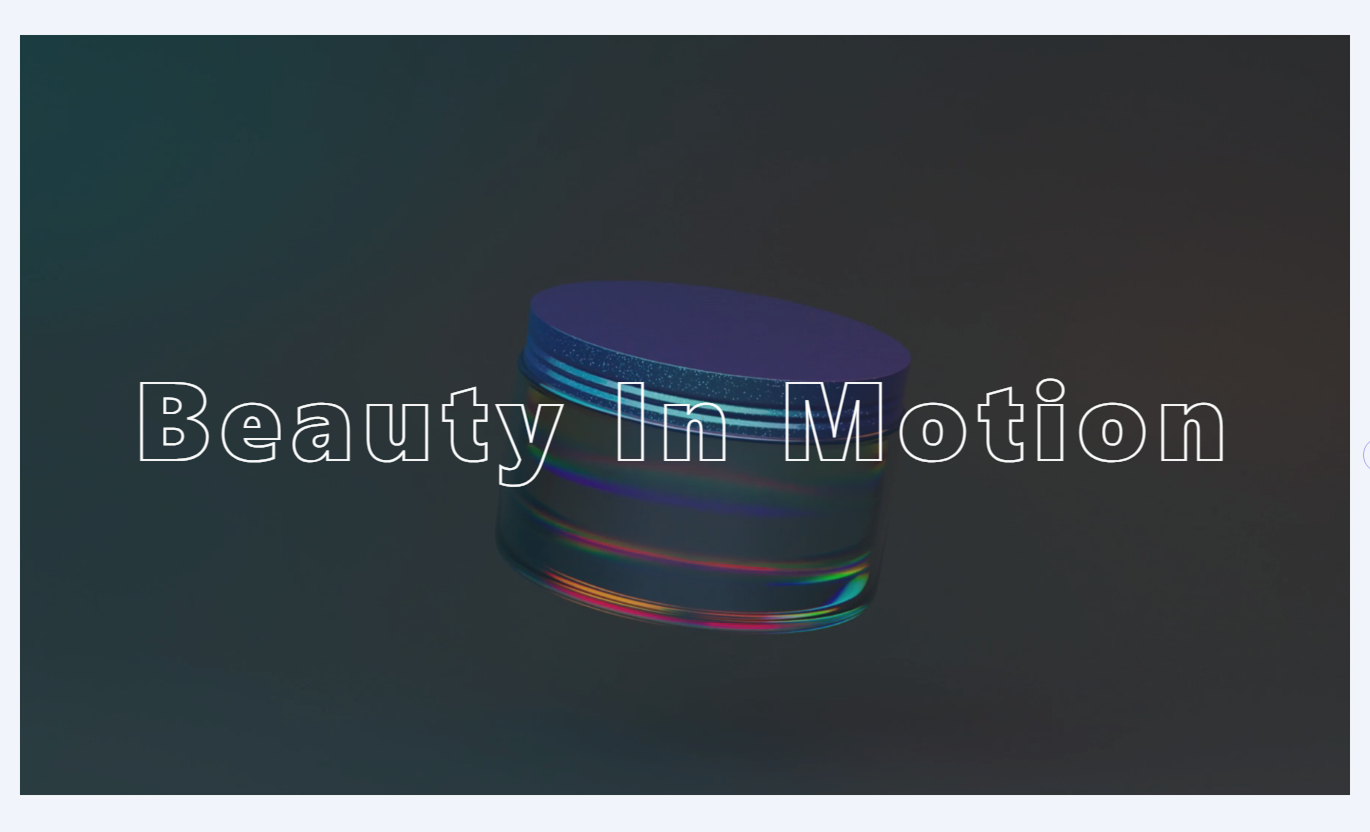
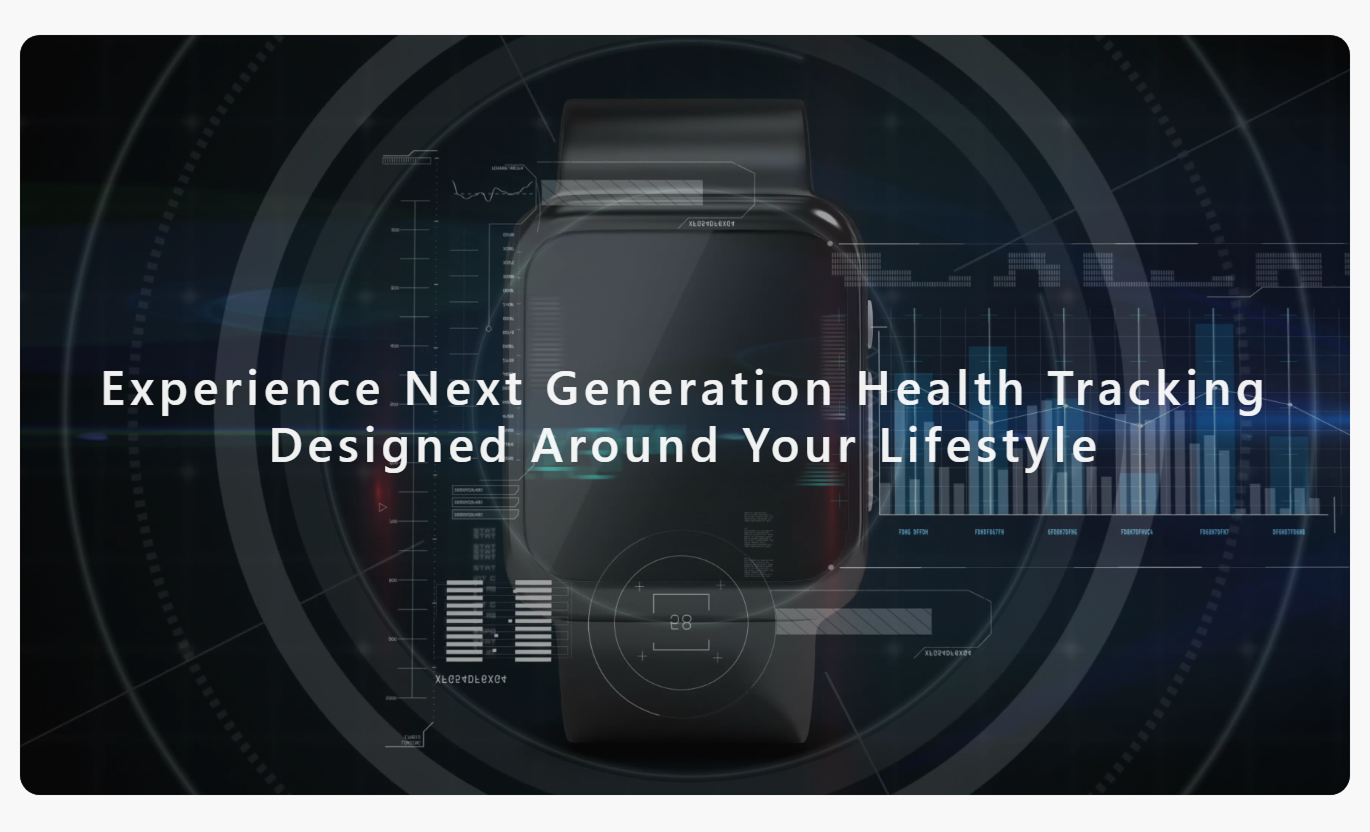


Create an engaging visual experience with scroll-controlled video frames, animated text, flexible video sources, and customizable layouts for your Shopify store.

Let visitors control the video sequence by scrolling through the page, creating a visual experience without playback buttons.

Move through video frames with smooth transitions that follow the visitor's scrolling movement for a controlled visual effect.

Keep the video section fixed in view while visitors scroll through the animation, giving the visual content more attention.

Display a centered heading that gradually becomes visible with a smooth fade and blur effect as the visitor scrolls.
Choose a video uploaded to Shopify or provide a direct MP4 video URL to display your preferred visual content.

Adjust the heading's font size, weight, letter spacing, color, and outline effect to match your brand's visual identity.

Add a colored overlay to the video and control its opacity to improve heading visibility and match your storefront design.

Display your video in a full-width or contained section with separate mobile heading sizes and spacing controls.
Control video sources, heading styles, overlays, section width, and responsive spacing in the Shopify theme editor.

Applies to the whole section
Select a Shopify-hosted video for the animation.
Shopify Video SourceEnter a direct MP4 link as an alternative video source.
External MP4 Video URLAdd a heading displayed over the video animation.
Animated Heading TextChoose filled or outlined styling for the heading.
Heading Outline EffectSet the heading font size for desktop and mobile.
Responsive Heading SizeAdjust the heading's weight and letter spacing.
Heading Typography StyleChoose the video overlay color and transparency level.
Video Overlay SettingsAdjust the section background and heading colors.
Section Color SettingsSet the top and bottom spacing for different screens.
Responsive Section PaddingChoose a full-width display or a maximum container width.
Section Width Settings
Not applicable to this section
The Animated Video Scroll section uses only section-level settings. It does not include individual content blocks. All video, heading, color, and layout options are managed directly from the section settings.
No Block SettingsUse scroll-controlled video on key Shopify pages to introduce your brand, showcase product details, highlight collections, and create memorable campaign experiences.
Add a scroll-controlled video to your homepage to introduce your brand through movement and visuals. Use animated heading text to highlight your main message.
Create a visual introduction that responds to scrollingPresent your brand story through a focused video sequenceHighlight your main brand message with animated heading textGive the homepage a distinctive full-screen visual sectionGuide attention toward your products and brand identityUse a Animated Video Scroll to introduce a collection through product visuals, materials, or lifestyle scenes. Give shoppers more context before they browse items.
Introduce collection themes through moving product visualsShow product materials and design details in motionCreate a visual transition before the collection gridReinforce the collection's identity with a short headingPresent seasonal ranges with engaging video sequencesPlace scroll-controlled video on a product page to show different angles, construction details, or product movement. Help visitors explore visual details at their pace.
Display product features through a controlled video sequenceShow different product angles as visitors scroll the pageHighlight important design details through moving visualsSupport product understanding beyond static photographsCreate a focused visual area for product demonstrationsUse an animated video section on campaign landing pages to reveal a product, announce a launch, or convey a visual message through scroll-based motion.
Introduce new product launches with scroll-driven visualsCreate distinctive campaign sections using video motionHighlight a campaign message with animated heading textShow product reveals through a controlled visual sequenceMatch campaign visuals with custom overlays and colorsTurn a standard video into an interactive visual experience. Let visitors navigate the footage by scrolling, while your heading and layout reinforce your message.
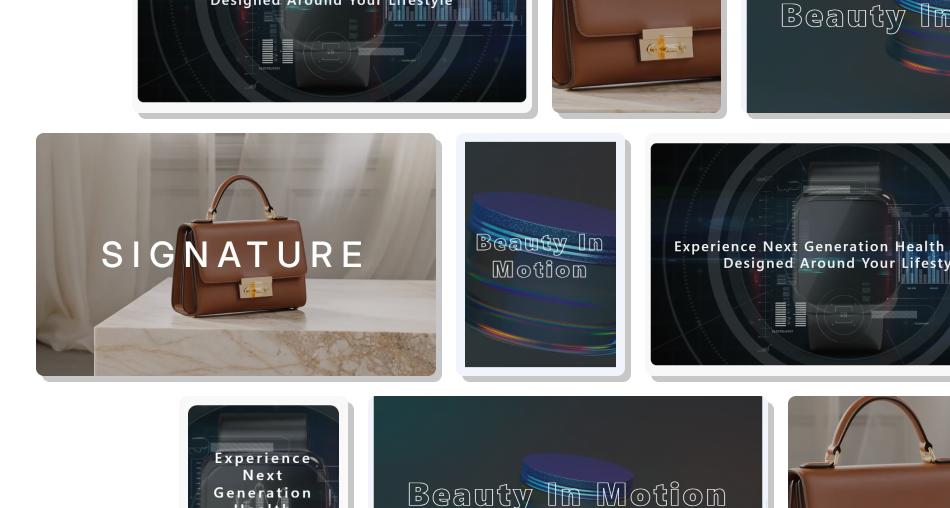
Combine scroll-controlled video frames with animated text to present products, campaigns, and brand visuals in a focused section.
Let visitors progress through video content by scrollingKeep the video visible during the pinned animation sequenceDisplay a heading with a gradual fade and blur effectUse Shopify-hosted videos or direct MP4 video URLsCustomize typography, colors, overlays, and container widthAdjust heading sizes and section spacing for mobile screensCreate visual introductions for products, brands, and campaigns Use a clear MP4 video with smooth, consistent movement.
Choose video content that supports your store's main message.
Keep the animated heading short and easy to read.
Adjust overlay opacity to maintain good text contrast.
Test video loading and scrolling on mobile and desktop.
 Use unnecessarily long videos that require excessive scrolling.
Choose low-quality footage with blurry or distracting visuals.
Add a lengthy heading that covers key details about the video.
Set overlay colors that make the video difficult to see.
Use large video files without checking loading performance.
The section connects video frame progression to page scrolling. As visitors scroll, the video moves through its timeline while the section remains pinned in view.
Yes. You can select a video uploaded to Shopify through the theme editor. The section uses an MP4 source from the selected video to animate the scroll.
Yes. The section includes a Video URL setting for a direct MP4 link. If a Shopify-hosted video is selected, that video takes priority over the URL.
The video follows the visitor's scroll motion rather than playing on standard autoplay. Scrolling controls progress through its frames.
Yes. You can edit the heading text, color, font size, weight, and letter spacing. You can also enable an outlined text style for a different appearance.
Yes. Choose an overlay color and adjust its opacity from 0% to 100% in the section settings to control how much the video is darkened or tinted.
The section includes mobile-specific heading sizes and padding controls. Its canvas also adjusts to screen dimensions, but performance should be tested on devices.
Yes. Enable Full Width to use the available screen width, or disable it and enter a maximum section width for a more contained video layout.
For Support or any Questions Email Us: [email protected]
Install SectionHub and add the Animated Video Scroll section to your theme in minutes - no coding required.