Introduce Key Brand Stories With Interactive Media
Use Animated Media Scrolling Accordian on your homepage to combine engaging visuals with structured tabs for brand values, featured benefits, services, or product highlights.

Create a scroll-driven media showcase with pinned desktop tabs, animated image or video cards, clickable mobile tabs, tags, rich content, and responsive styling.
 Scroll-Pinned Media Tabs
Image & Video Fan
Interactive Content Tags
Scroll-Pinned Media Tabs
Image & Video Fan
Interactive Content Tags 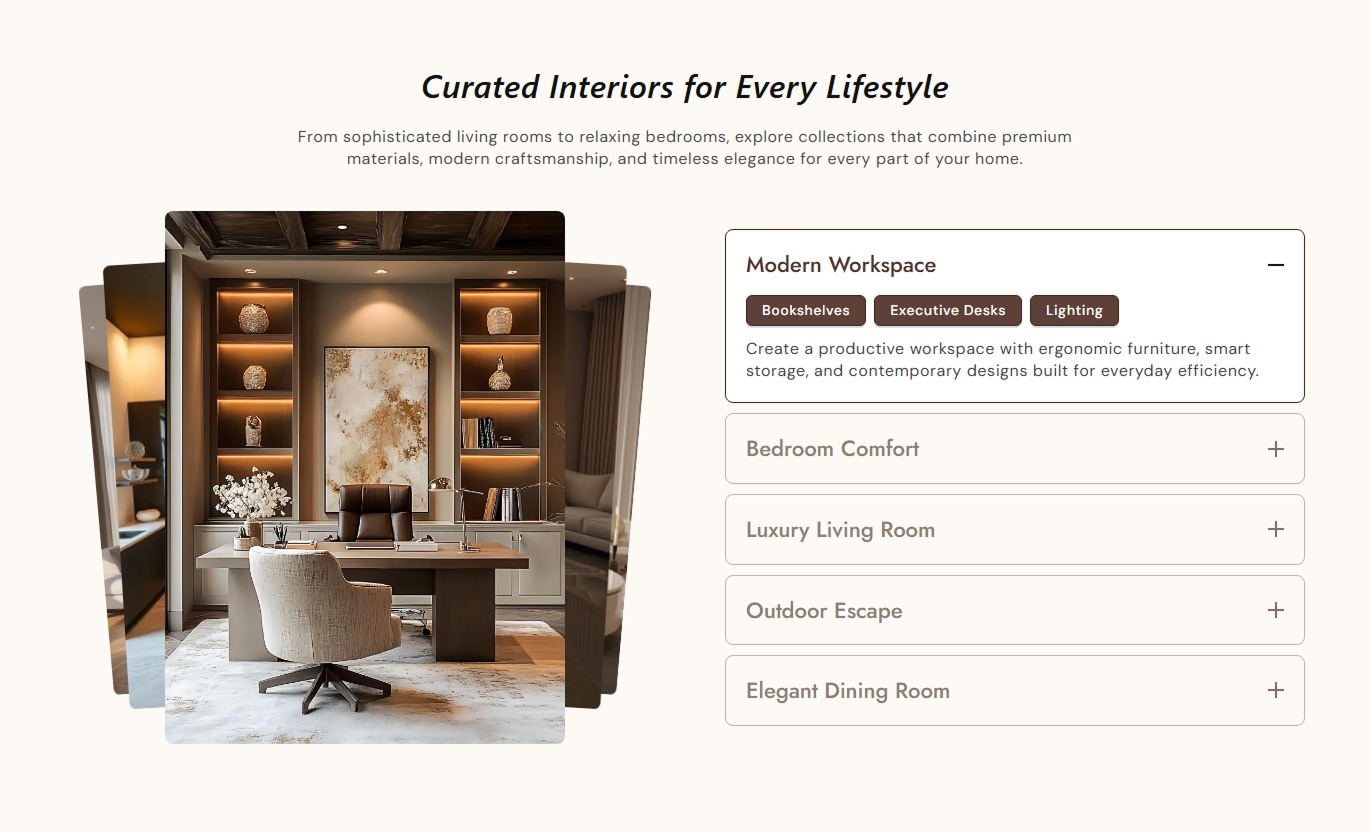
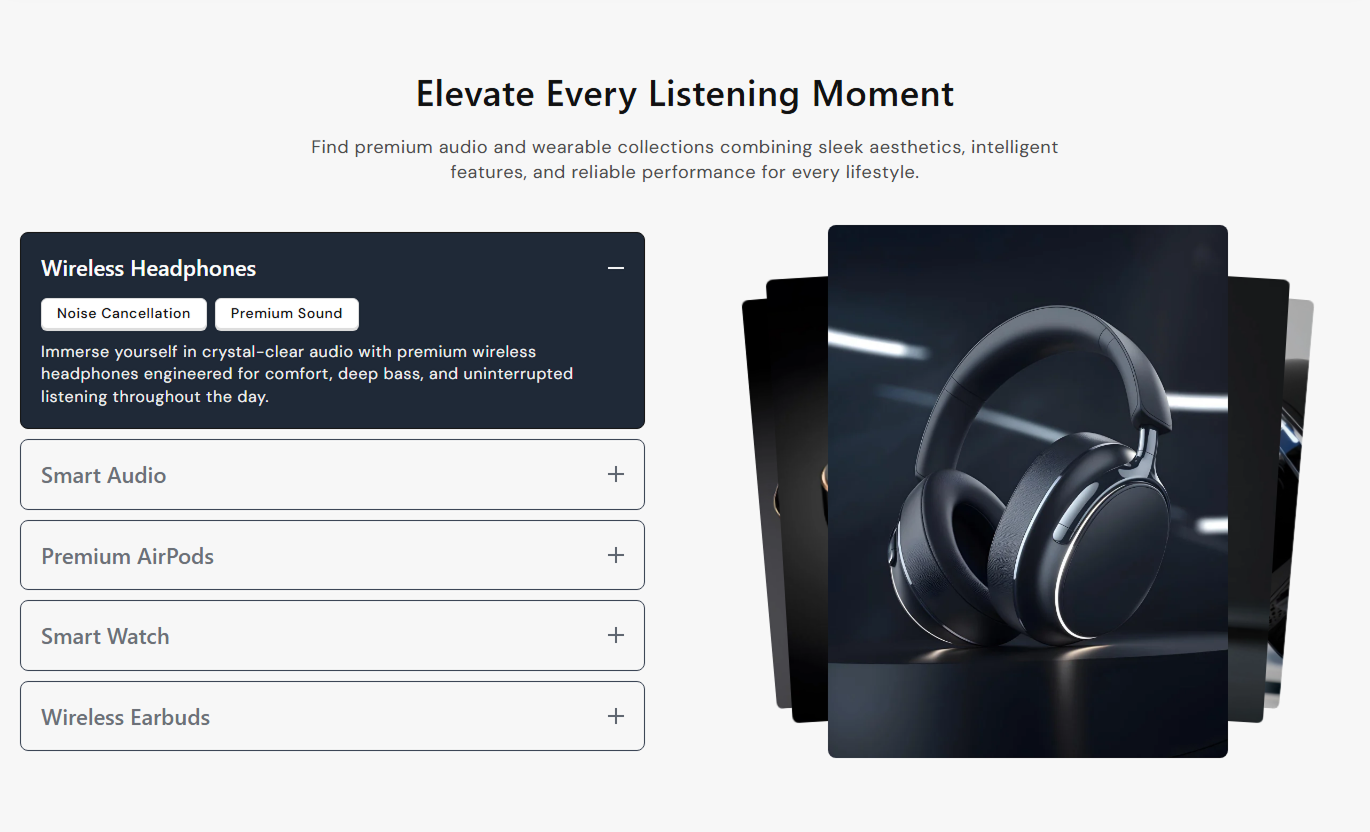


Showcase images or videos beside expandable tabs with GSAP scroll control, animated media stacking, optional tags, mobile clicks, and responsive styling.

Pin the section on desktop while scrolling automatically activates each tab and animates its matching media card.

Media cards shift, rotate, scale, and layer around the active item to create a dynamic stacked fan presentation.

Use either an uploaded video or image for each tab, with video taking priority when both media types are provided.

Click any tab to move to its corresponding scroll position on desktop, or tap it directly on mobile.

The active tab expands to reveal optional comma-separated tags and rich text, while inactive tabs stay collapsed.

Add up to five Tab Item blocks, each with media, a heading, optional tags, and rich text content.

Place the media stack to the left or right of the tabs, and choose Small, Medium, or Large media size.

On mobile, media and tabs stack vertically, scroll pinning is removed, and tabs switch content with simple taps.
Control media placement, sizing, tab styles, typography, tags, colors, mobile spacing, and maximum section width.

Applies to the whole section
Edit the section heading, rich text, and content alignment.
Heading & ContentPlace the media stack on the left or right side.
Media PositionChoose Small, Medium, or Large media dimensions.
Media Size ControlAdjust media, tab, and tag corner radius settings.
Radius ControlsSet heading, tab, tag, content, and icon text sizes.
Typography ControlsCustomize section, heading, and supporting text colors.
Section Color StyleStyle tab backgrounds, borders, titles, and plus icons.
Tab Color ControlsStyle tag text, backgrounds, borders, hover, and shadow.
Tag Style ControlsSet mobile top and bottom section padding independently.
Mobile Section SpacingDefine the maximum width of the centered section container.
Section Max Width
Applies to each tab item
Upload an image used when no video is selected.
Tab Image MediaUpload a video that takes priority over the image.
Tab Video MediaAdd the heading displayed in this expandable tab.
Tab HeadingEnter comma-separated labels displayed as visual tags.
Tab Tag LabelsAdd rich text shown when this tab becomes active.
Tab ContentUse this interactive media-and-tabs section across Shopify pages to explain products, processes, features, campaigns, or brand stories with visual depth.
Use Animated Media Scrolling Accordian on your homepage to combine engaging visuals with structured tabs for brand values, featured benefits, services, or product highlights.
Present several key messages without creating long page sectionsPair each tab with a directly related image or looping videoUse scroll-driven interaction to make homepage content engagingHighlight supporting labels with optional comma-separated tagsKeep the same content easy to explore with taps on mobilePlace the section around collection content to explain shared materials, design features, categories, or shopping guidance with matching images or looping videos.
Add visual context without changing the collection product gridExplain shared collection features through focused content tabsUse videos or images to support materials and design detailsAdd tags for concise qualities, themes, or category labelsKeep browsing compact with expandable tab content on mobileUse the section on product pages to explain features, construction, use cases, materials, or benefits through synchronized media and expandable content tabs.
Break detailed product information into focused visual topicsPair each product feature with a supporting image or videoUse rich text to explain important details under active tabsAdd short tags for materials, features, or key specificationsGive mobile shoppers direct tap-based control over each tabUse Animated Media Scrolling Accordian on landing pages to present campaign themes, service steps, launch benefits, or brand narratives through immersive media and structured tabs.
Turn campaign messages into an interactive visual sequenceUse pinned desktop scrolling for a more immersive presentationSwitch between image and video media across campaign topicsSupport each active topic with tags and rich text detailsKeep the layout responsive with stacked mobile interactionCombine scroll-driven desktop interaction with flexible media and expandable tabs to present detailed content in a visual, structured, and responsive format.
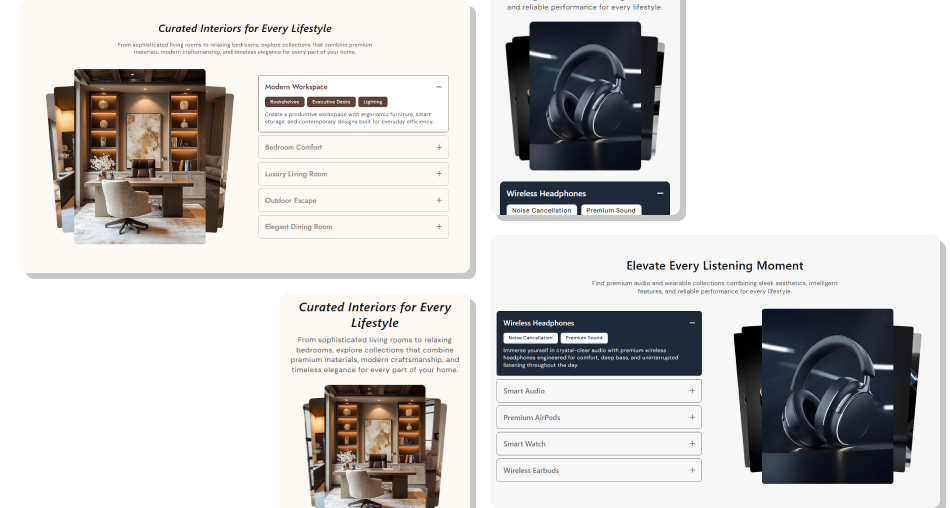
Pair animated image or video cards with expandable tabs and tags to turn detailed storefront content into a focused visual story.
Combine rich content with an animated visual media presentationPin the section during desktop scrolling for guided storytellingLet shoppers jump directly to any tab by clicking its headingUse uploaded images or looping muted videos for each content topicAdd compact tags to highlight key qualities or supporting labelsPlace the media stack on either side of the tab contentSwitch to simple tap-based tab interaction on mobile devices Use one clear topic for each tab and its matching media asset
Choose images or videos that directly support the active content
Keep comma-separated tags short so they remain easy to scan
Test pinned scrolling and tab clicks across common screen sizes
Compress video assets to help maintain smooth page performance
Use one clear topic for each tab and its matching media asset
Choose images or videos that directly support the active content
Keep comma-separated tags short so they remain easy to scan
Test pinned scrolling and tab clicks across common screen sizes
Compress video assets to help maintain smooth page performance  Do not overload one tab with several unrelated content topics
Do not use heavy videos that make scrolling feel slow or unstable
Do not treat the visual tags as destination links for shoppers
Do not rely on desktop scroll pinning for the mobile experience
Do not add more than five blocks because the schema limits them
Do not overload one tab with several unrelated content topics
Do not use heavy videos that make scrolling feel slow or unstable
Do not treat the visual tags as destination links for shoppers
Do not rely on desktop scroll pinning for the mobile experience
Do not add more than five blocks because the schema limits them From 768px upward, GSAP pins the section and maps scroll progress across the tabs, activating each tab and animating its matching media card.
Yes. Desktop clicks animate the page to the selected tab's scroll position, while mobile clicks immediately activate the chosen tab.
Yes. Each block supports both fields, but the code renders the uploaded video first when available and falls back to the image otherwise.
The schema allows up to five Tab Item blocks. Each block includes an image, video, heading, comma-separated tags, and rich text content.
They are rendered as anchor elements with a javascript(0) destination, so they behave as visual labels rather than navigation links.
Yes. The Media Layout setting offers Left and Right options that reverse the desktop content order; on mobile, both areas stack vertically.
Below 768px, pinning is not used. Media appears above the tabs, sizes become more compact, and tapping a tab activates its matching media directly.
Yes. Settings cover tab backgrounds, borders, title and icon colors, plus tag colors, hover states, shadows, typography, and corner radii.
For Support or any Questions Email Us: [email protected]
Install SectionHub and add the Animated Media Scrolling Accordian section to your theme in minutes - no coding required.
