Create a Cinematic Homepage Media Story
Use the section on your homepage to introduce a campaign, brand message, or featured story with pinned motion, layered media, and concise supporting points.

Create a pinned media story with background image or video, up to three autoplaying media blocks, animated scrolling, highlighted heading text, and feature points.
 Pinned Media Experience
Autoplay Video Showcase
Animated Feature Story
Pinned Media Experience
Autoplay Video Showcase
Animated Feature Story 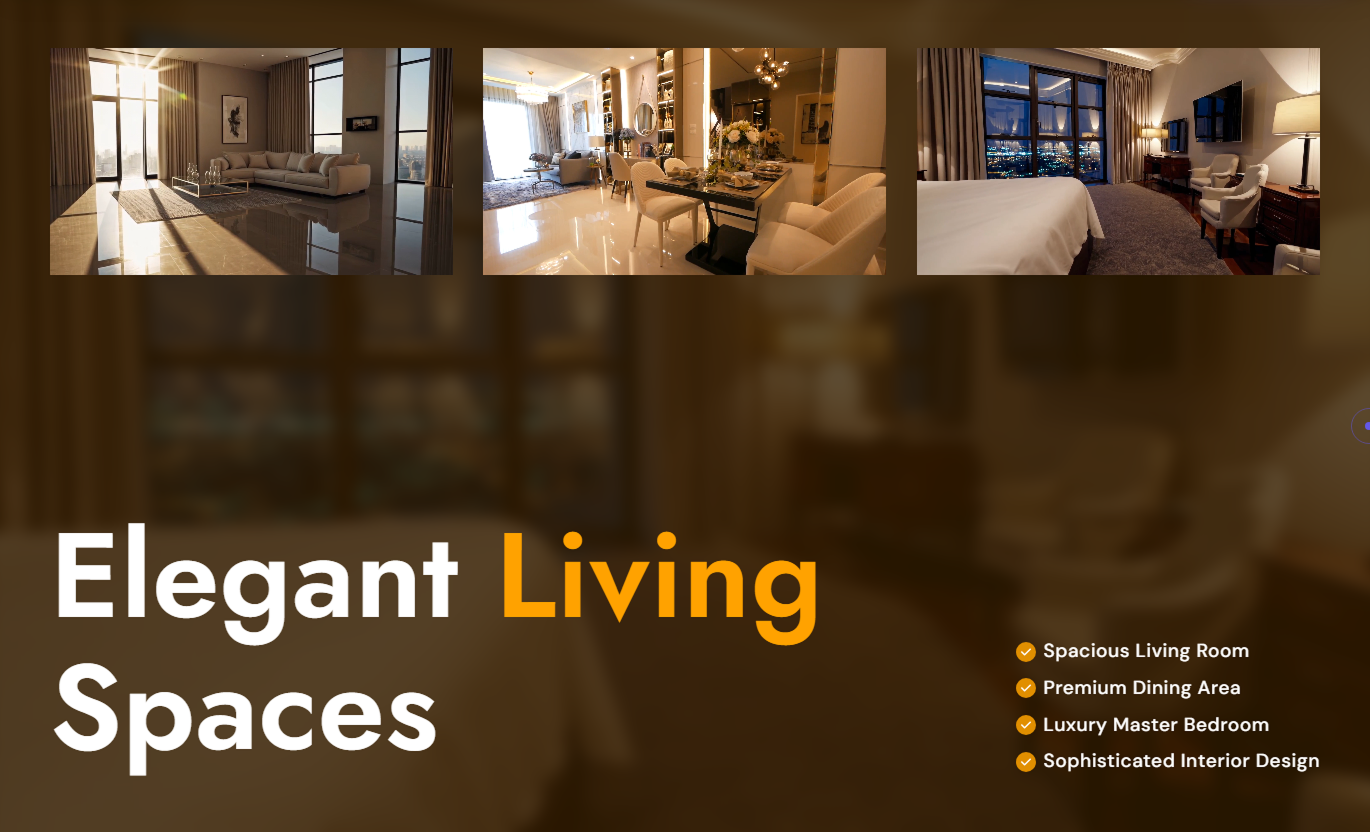
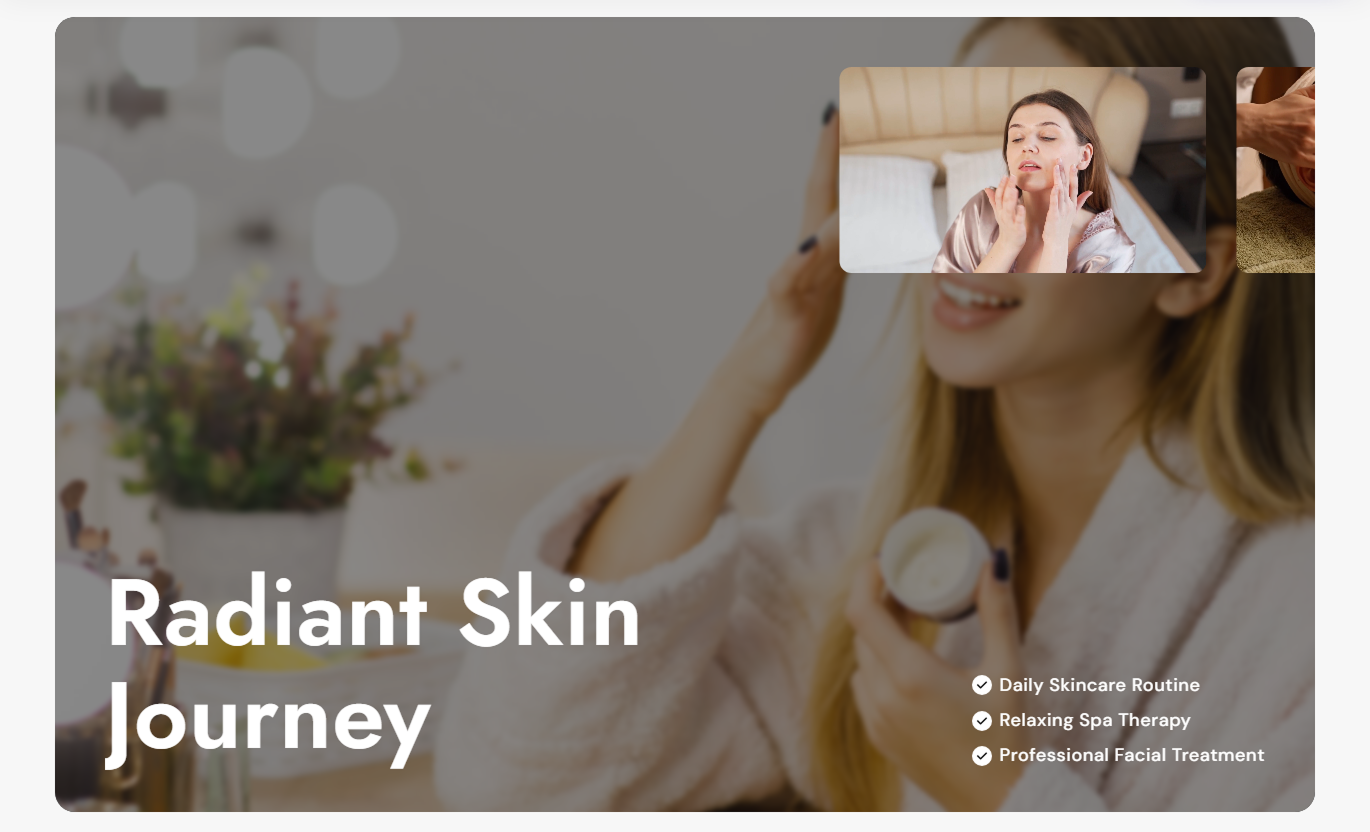


Build a scroll-driven media section with pinned animation, background video or imagery, up to three autoplaying media blocks, highlighted text, and responsive motion.

Pin the section while scrolling, as GSAP animates the background, media row, and content into a focused visual sequence.

Use separate desktop and mobile background images or videos, with the video taking priority over the matching image when provided.

Add up to three autoplaying, looping, muted videos that appear together in the foreground media row.

Move the media grid into view as the shopper scrolls, with horizontal movement extending across mobile when cards exceed the viewport.

Animate the main background from a closer crop to normal scale, then soften it with blur and reduced opacity as content arrives.

Use rich text for the headline and make selected words bold to display them in a separate highlight color.

Enter comma-separated points that render as a checklist with configurable icon size, icon color, background, and text styling.

Choose full-width or contained presentation, separate desktop and mobile spacing, and responsive typography for smaller screens.
Control background media, headline styling, feature points, foreground videos, colors, spacing, width, and border radii.

Applies to the whole section
Choose separate desktop and mobile background images or videos.
Background MediaSet background opacity plus the layer and video corner radii.
Media AppearanceEdit the rich-text heading and comma-separated content points.
Heading & PointsAdjust heading, point text, and point icon sizes.
Typography ControlsCustomize background, heading, highlight, point, and icon colors.
Color Style ControlsSet separate desktop and mobile top and bottom padding.
Responsive SpacingUse full width or define a custom maximum section width.
Section Width Setup
Applies to each video block
Upload the foreground video shown in the media row.
Foreground VideoUse this immersive media section across key Shopify pages to present campaigns, product stories, brand messages, or visual feature highlights with scroll-driven motion.
Use the section on your homepage to introduce a campaign, brand message, or featured story with pinned motion, layered media, and concise supporting points.
Create a high-impact visual moment near the top of the pageUse background video or imagery to establish campaign moodShow up to three foreground videos within one pinned sceneHighlight key words in the heading for stronger emphasisSupport the message with short comma-separated feature pointsPlace the section on collection templates to introduce seasonal themes, category stories, or product benefits using cinematic media, either before or after the product grid.
Add editorial motion without replacing the collection gridIntroduce seasonal or category themes with background mediaShow supporting videos for materials, styling, or use casesUse concise points to explain shared collection benefitsKeep the section visually contained or expand it full widthUse Animated Media On Scroll on product pages to combine background media, feature videos, highlighted messaging, and concise points around a product story.
Show product benefits through a layered background and videosUse foreground media for demos, details, or lifestyle clipsHighlight important words within the main rich-text headingList key product points beside the main animated headlineCreate a premium scroll moment around product storytellingUse the landing pages section to create a pinned campaign scene with animated background media, up to 3 videos, highlighted text, and supporting points.
Create a cinematic introduction for campaign storytellingLayer multiple media assets inside one focused experienceUse highlighted text to reinforce important campaign wordsPresent supporting claims as simple checklist-style pointsAdapt background media separately for desktop and mobileCreate a cinematic storefront moment with pinned scrolling, animated background media, autoplaying foreground videos, highlighted text, and focused feature points.
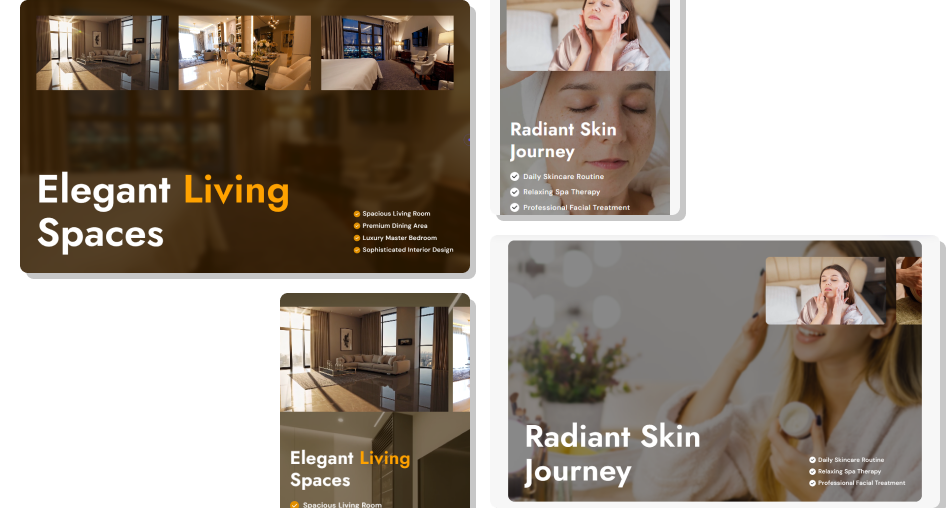
Combine layered video, scroll animation, highlighted typography, and feature points to create an immersive visual story.
Create a focused storytelling moment with scroll-driven animationUse separate background media for desktop and mobile presentationsCombine one background layer with up to three foreground videosHighlight selected words using a separate rich-text accent colorTurn comma-separated values into a clean visual checklistBlur and dim the background as foreground content becomes prominentChoose a contained or full-width presentation for different templates Use lightweight videos that support one clear visual story.
Keep the highlighted headline concise and easy to scan.
Add no more than three foreground videos to the section.
Use separate mobile background media when framing requires it.
Test pinned scrolling and media movement on common screen sizes.
Use lightweight videos that support one clear visual story.
Keep the highlighted headline concise and easy to scan.
Add no more than three foreground videos to the section.
Use separate mobile background media when framing requires it.
Test pinned scrolling and media movement on common screen sizes.  Do not overload the scene with long headlines or dense feature lists.
Do not use heavy background videos that slow the page experience.
Do not rely on foreground videos when no useful visual story exists.
Do not choose low-contrast colors for highlighted heading words.
Do not ignore mobile cropping when using separate background media.
Do not overload the scene with long headlines or dense feature lists.
Do not use heavy background videos that slow the page experience.
Do not rely on foreground videos when no useful visual story exists.
Do not choose low-contrast colors for highlighted heading words.
Do not ignore mobile cropping when using separate background media. Yes. The section provides separate desktop and mobile image and video fields, letting you tailor the background media for each screen size.
A desktop video overrides the desktop image, while a mobile video overrides the mobile image when the corresponding video field is populated.
The Video block has a limit of three. Each populated block renders an autoplaying, looping, muted, inline video in the foreground media row.
GSAP pinpoints the scene at a 150% scroll distance, scales and softens the background, moves the media row, and lifts the content.
Yes. The heading is rich text, and words formatted in bold use the separate Highlight Text Color setting for visual emphasis.
Enter the points as comma-separated values. The section splits them into a checklist with a circular icon and configurable text styling.
Mobile uses fixed, smaller typography, stacked content, 85vw media cards, horizontal media movement, and separate top and bottom padding.
Yes. Disable Full Width and set the Section Maximum Width to contain the layout within your preferred bounds.
For Support or any Questions Email Us: [email protected]
Install SectionHub and add the Animated Media On Scroll section to your theme in minutes - no coding required.
